Desktop - Video Meeting Guide
1. Create/Join a Video Meeting
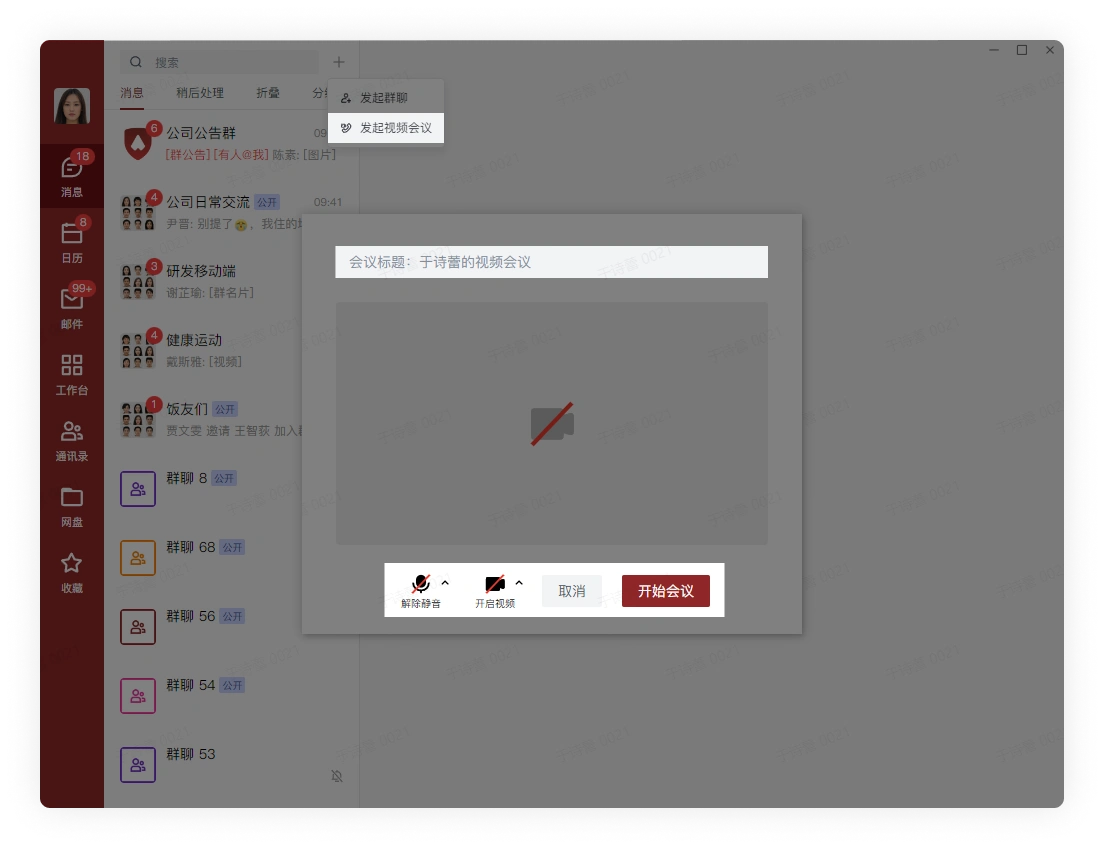
Click the plus sign on the right side of the search box, select Start Video Meeting, choose whether to turn on the camera and microphone, whether to edit the title of the video meeting, and click Start Meeting:
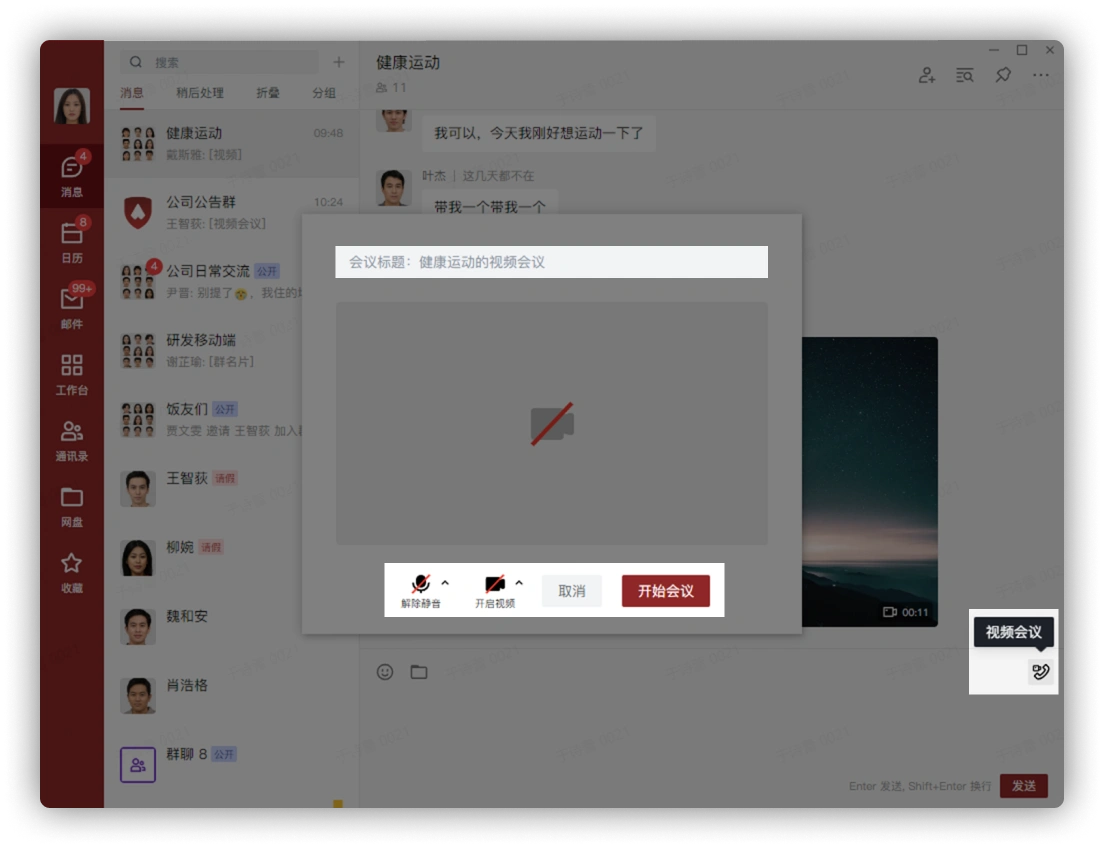
Click the video meeting button in the upper right corner of the input box in the opened group chat, choose whether to turn on the camera and microphone, whether to edit the title of the video meeting, and click Start Meeting:
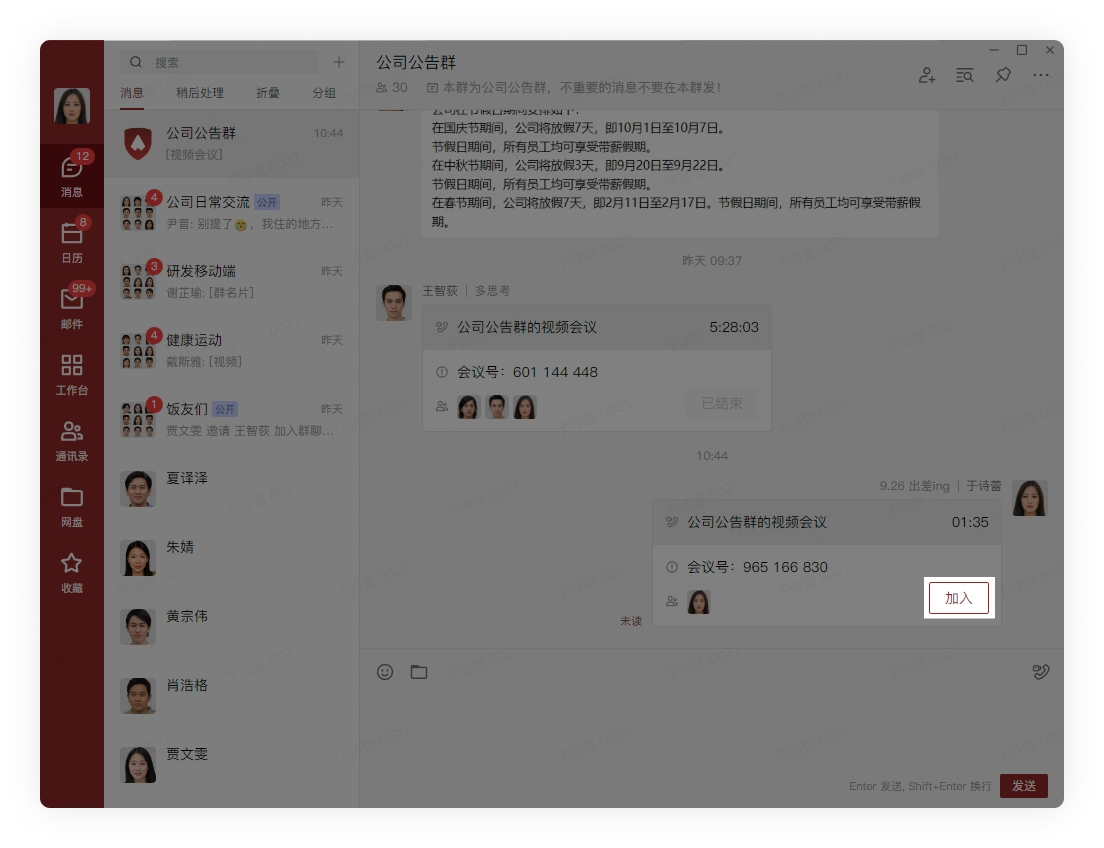
Click Join to enter the video meeting created by the user
2. Turn the Microphone and Camera On/Off
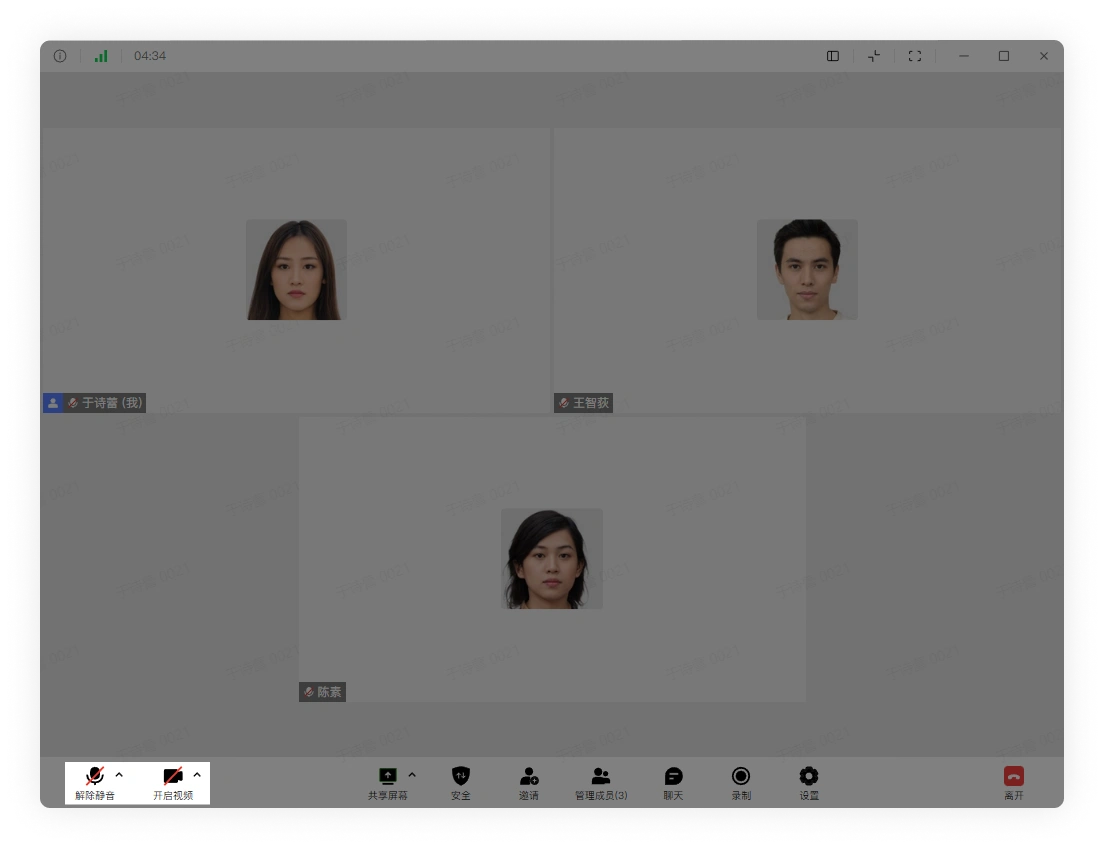
Click the button in the lower left corner of the meeting interface to turn the microphone and camera on/off:
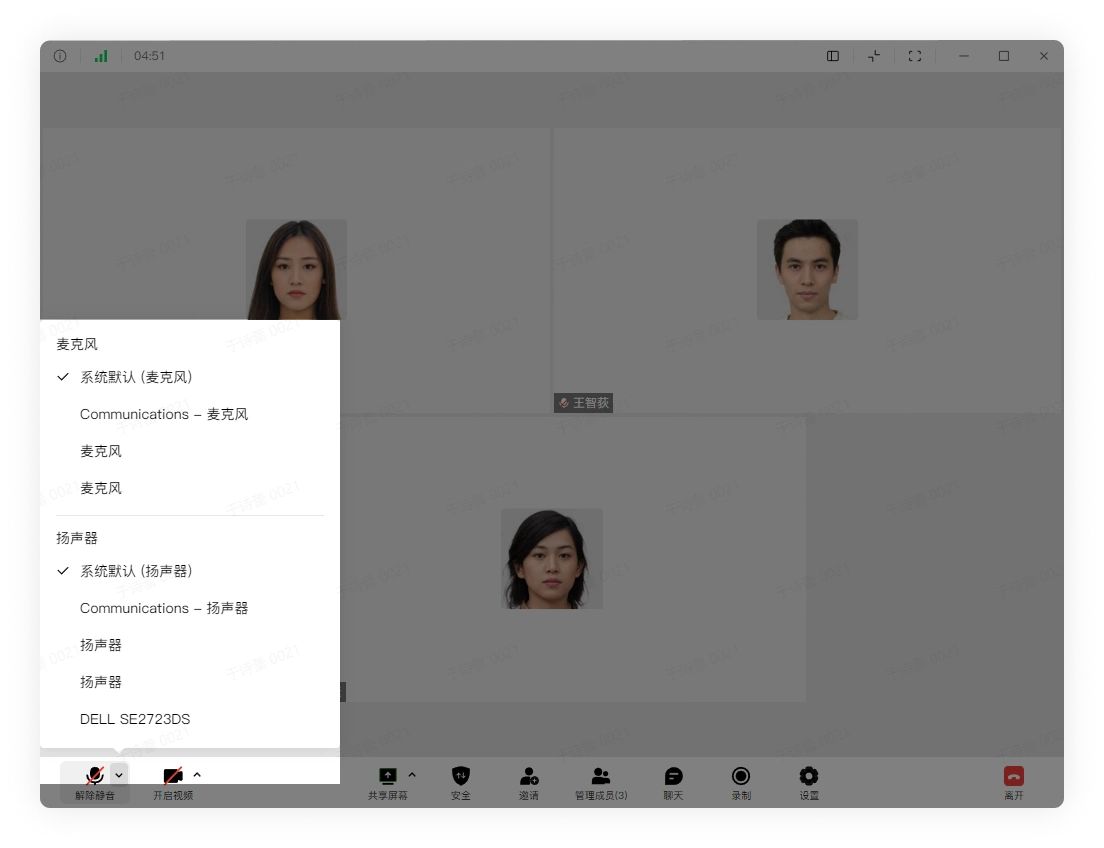
Click the arrow in the upper right corner of the button to select the input and output devices to use:
3. Share the Screen During the Meeting
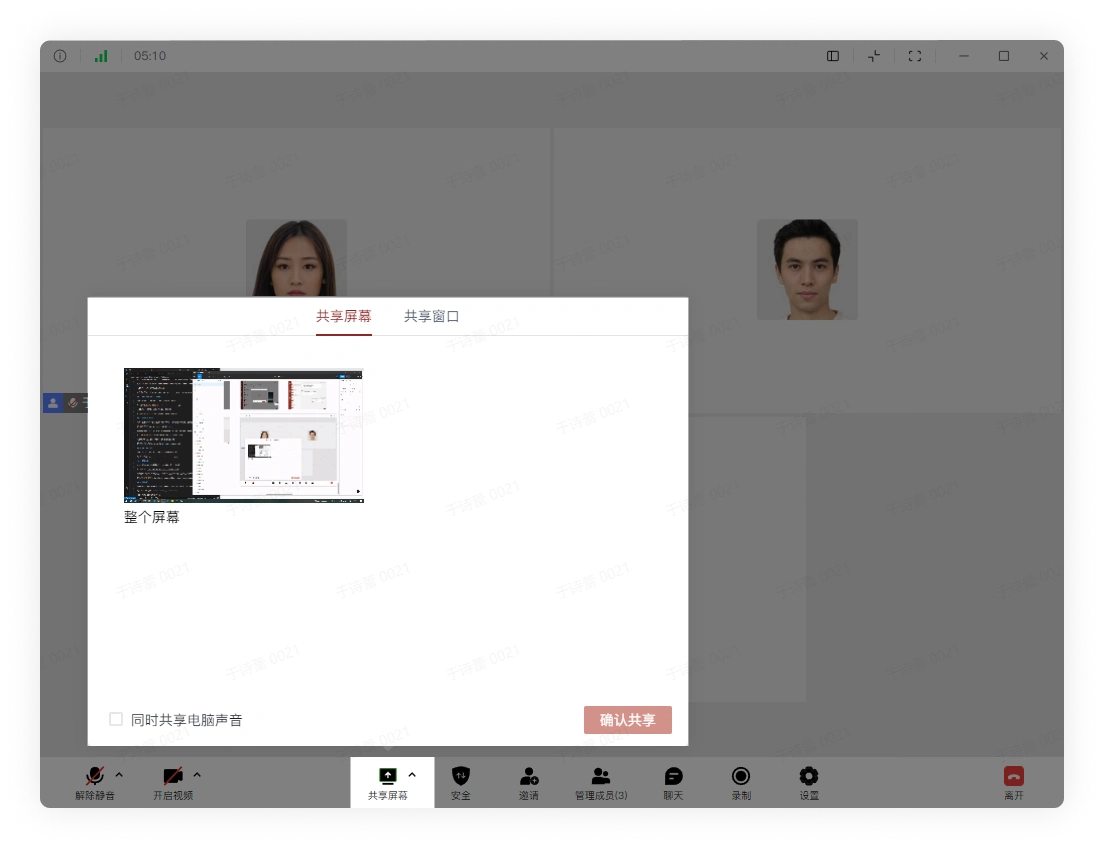
Click the Share Screen button, choose to share the screen or a window, and you can also choose whether to share the computer sound. After selecting, click Confirm Share:
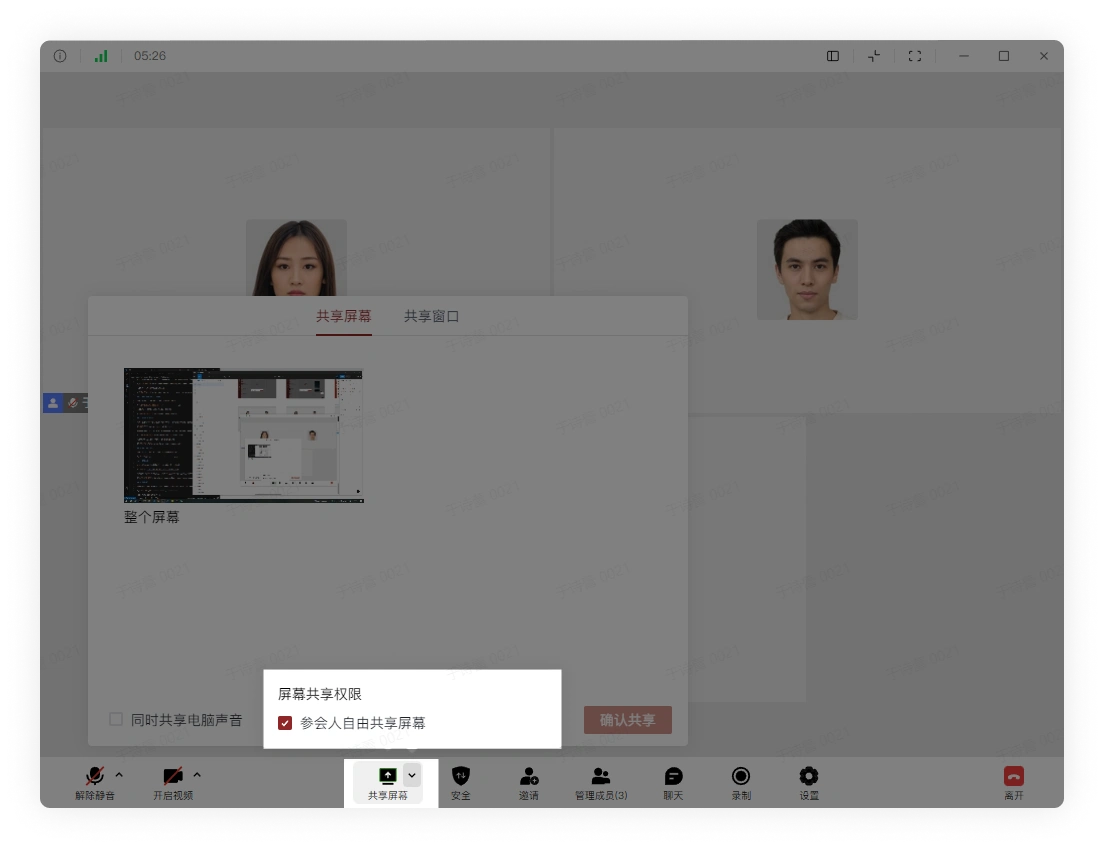
Click the function key in the upper right corner of the Share Screen button to pop up the Share Screen settings. Managers can modify the settings for the Share Screen feature:
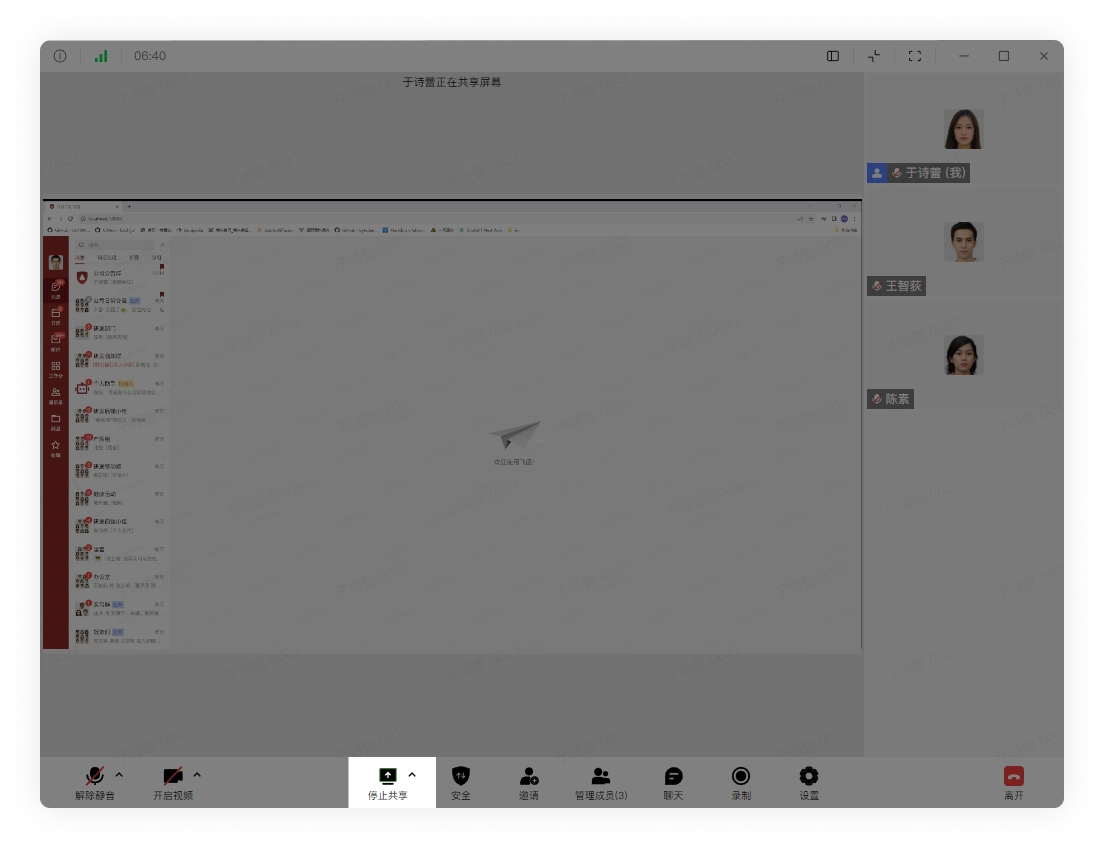
When sharing the screen, click the Stop Sharing button to end this screen sharing:
4. Meeting Security Settings
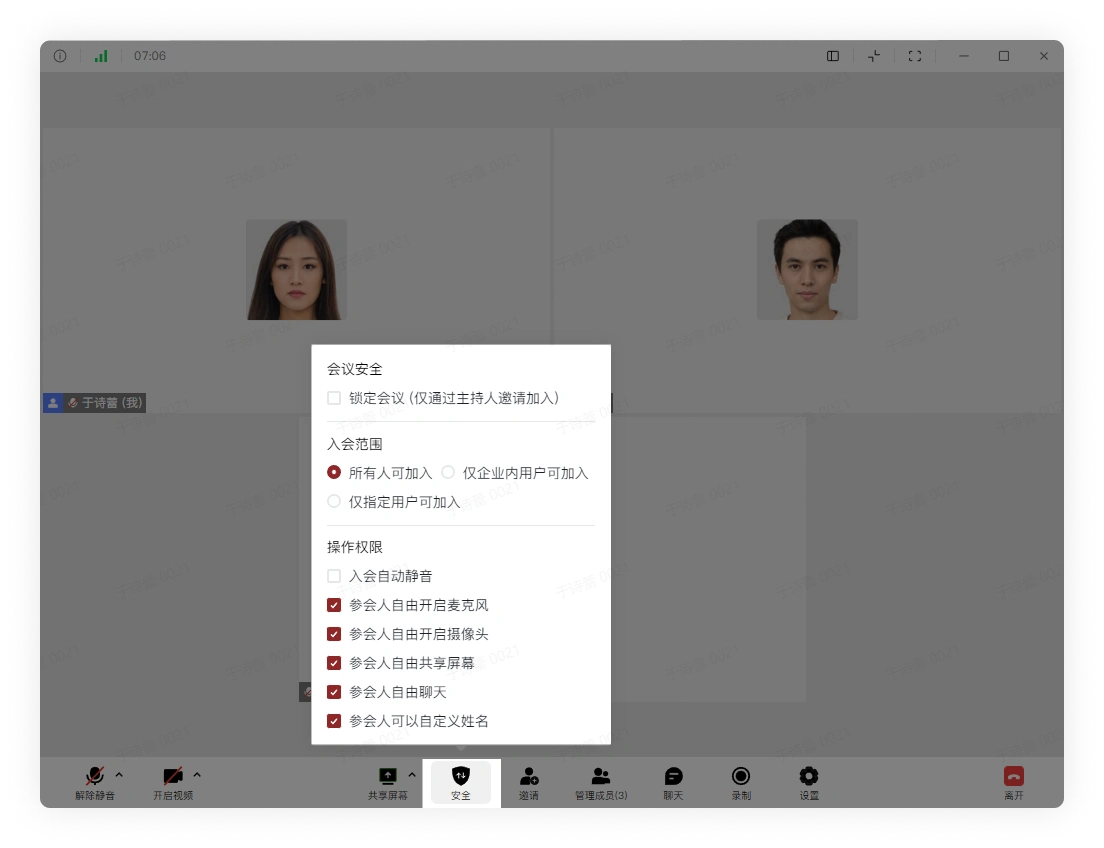
Click the Security button to pop up the meeting security settings and choose the settings that need to be modified:
5. Invite to the Meeting
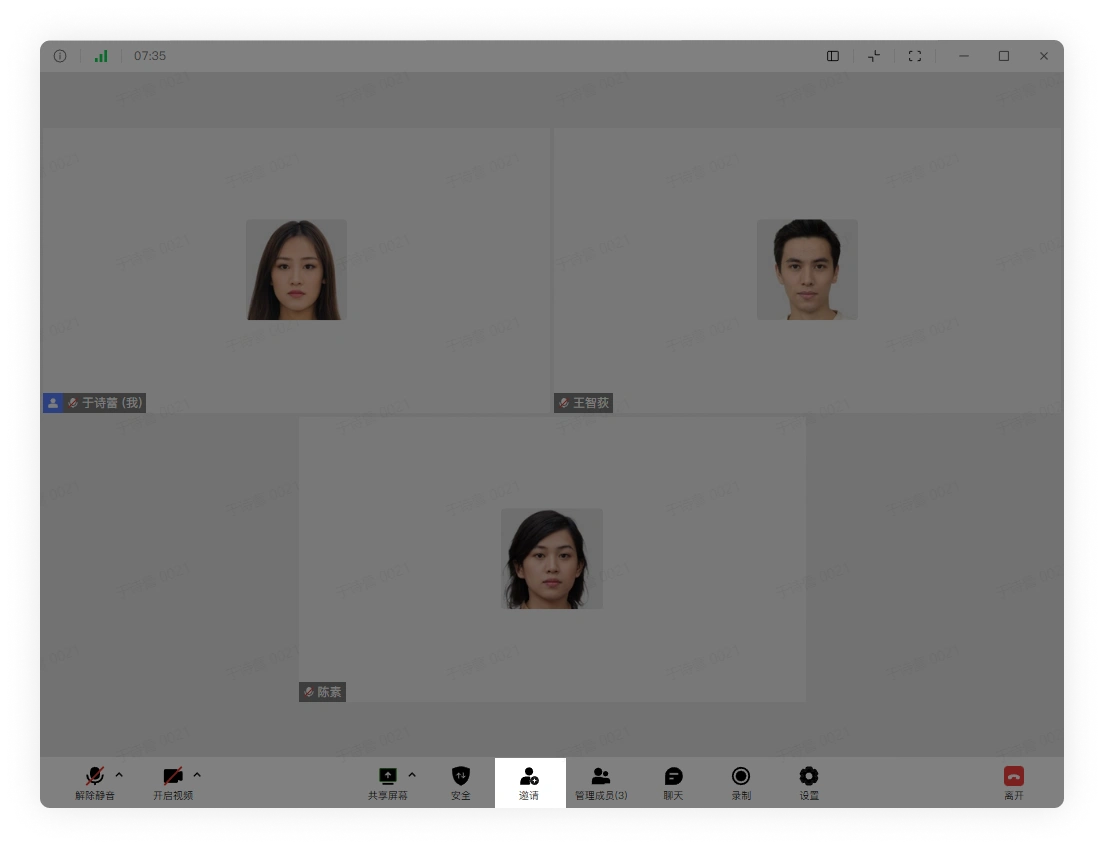
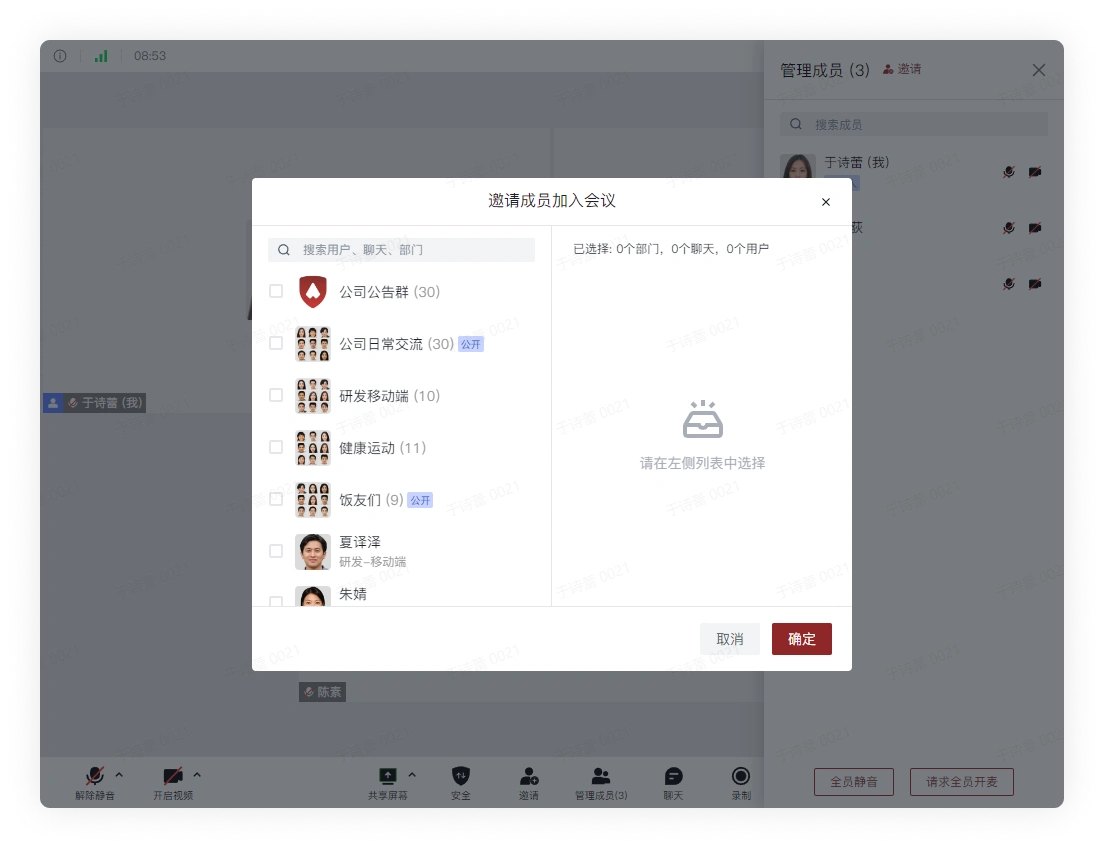
Directly click the Invite button in the video meeting interface, select the invitee, and click Confirm:
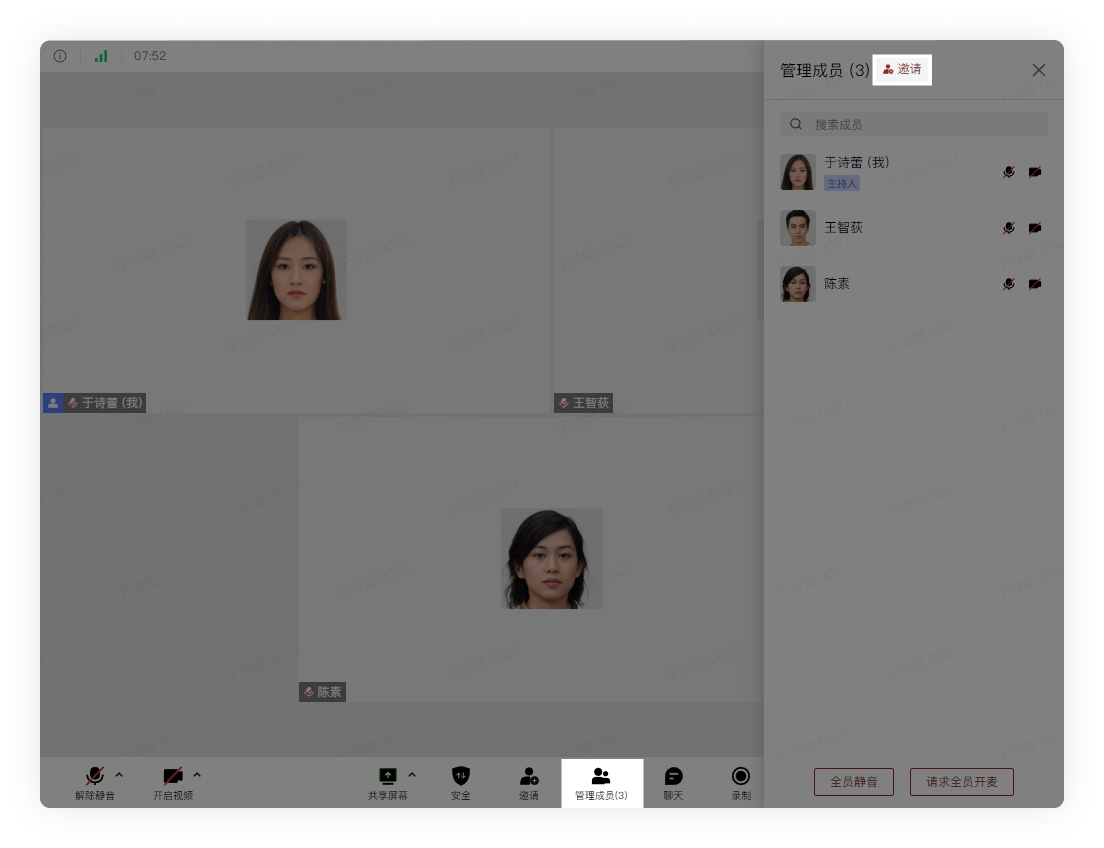
Click the Manage Members button, then click the Invite button at the top in the pop-up sidebar, select the invitee, and click Confirm:
6. Manage Members
Click the Manage Members button, and in the pop-up sidebar, you can select meeting participants and modify their status:
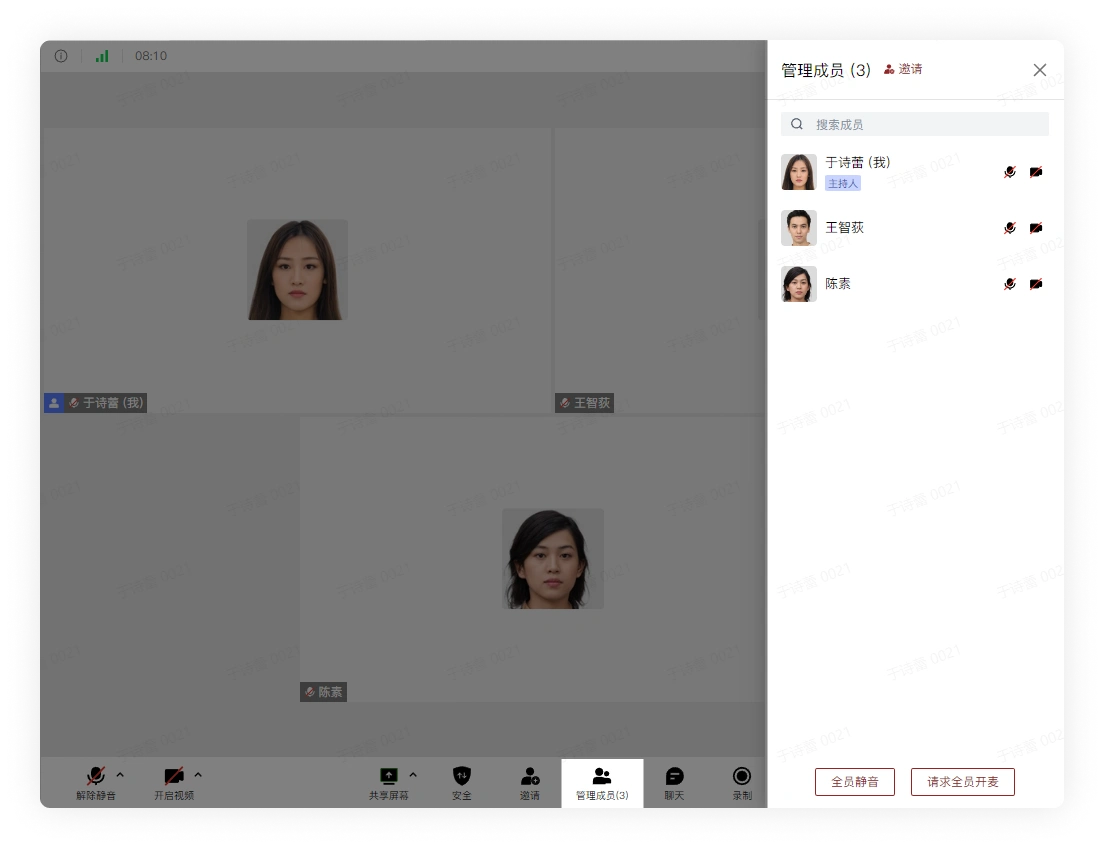
Click the Invite button above to invite users to the meeting:
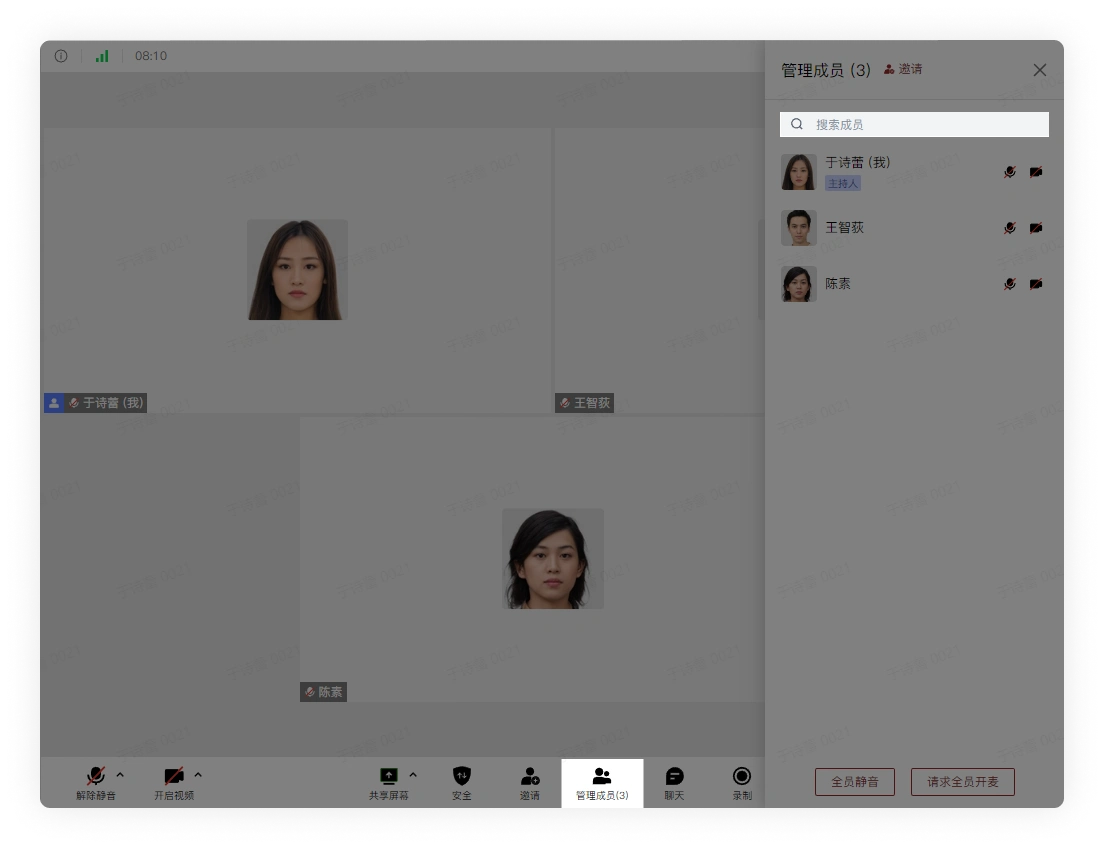
Click the search box at the top of the pop-up sidebar, enter the member's name or abbreviation, quickly find the member you want to find, and perform operations on them:
7. Chat
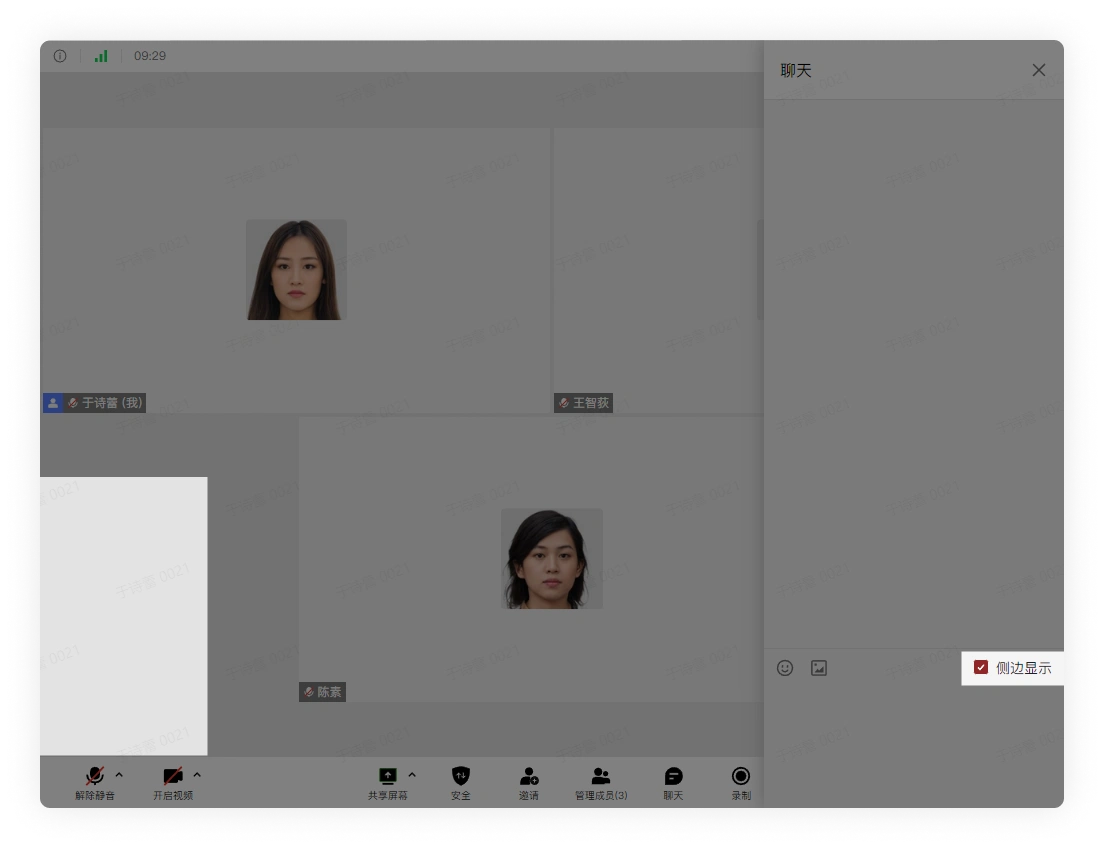
Click the Chat button. In the pop-up sidebar, enter the chat content and press Enter to send the message:
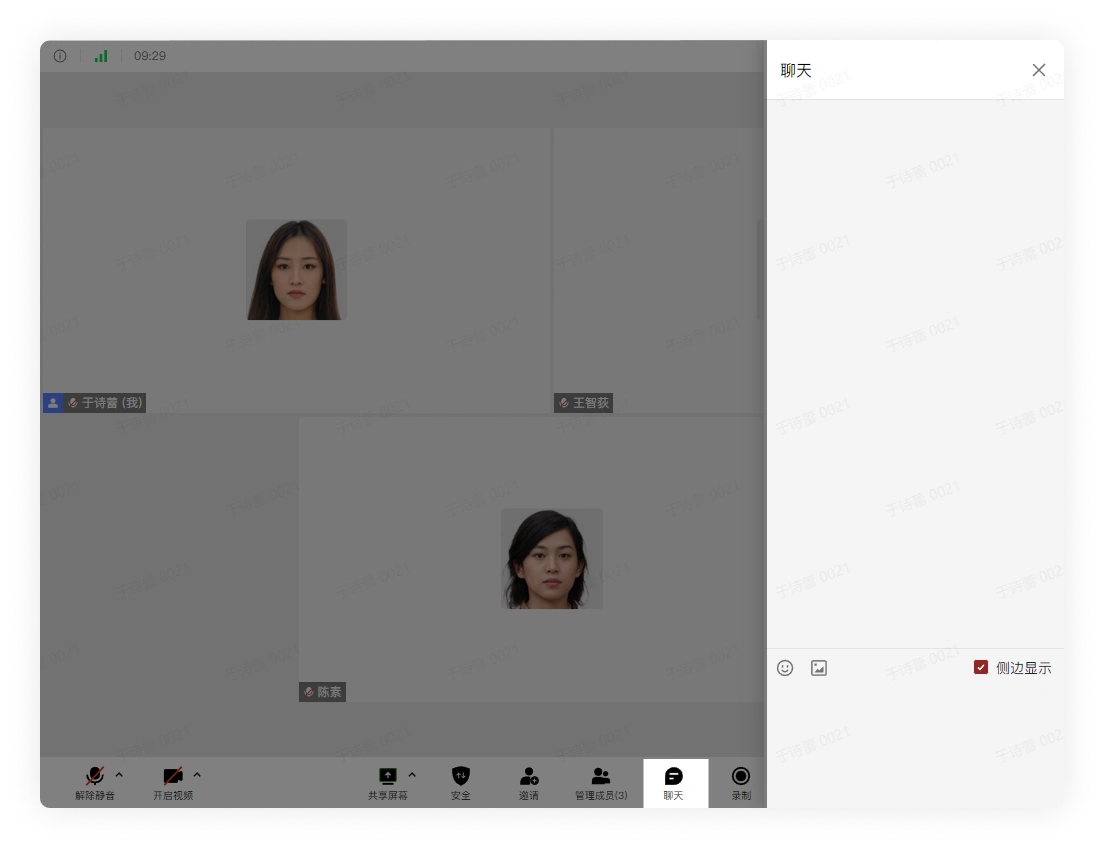
Click to choose whether to turn on/off whether the chat content is displayed in the sidebar
8. Record the Meeting
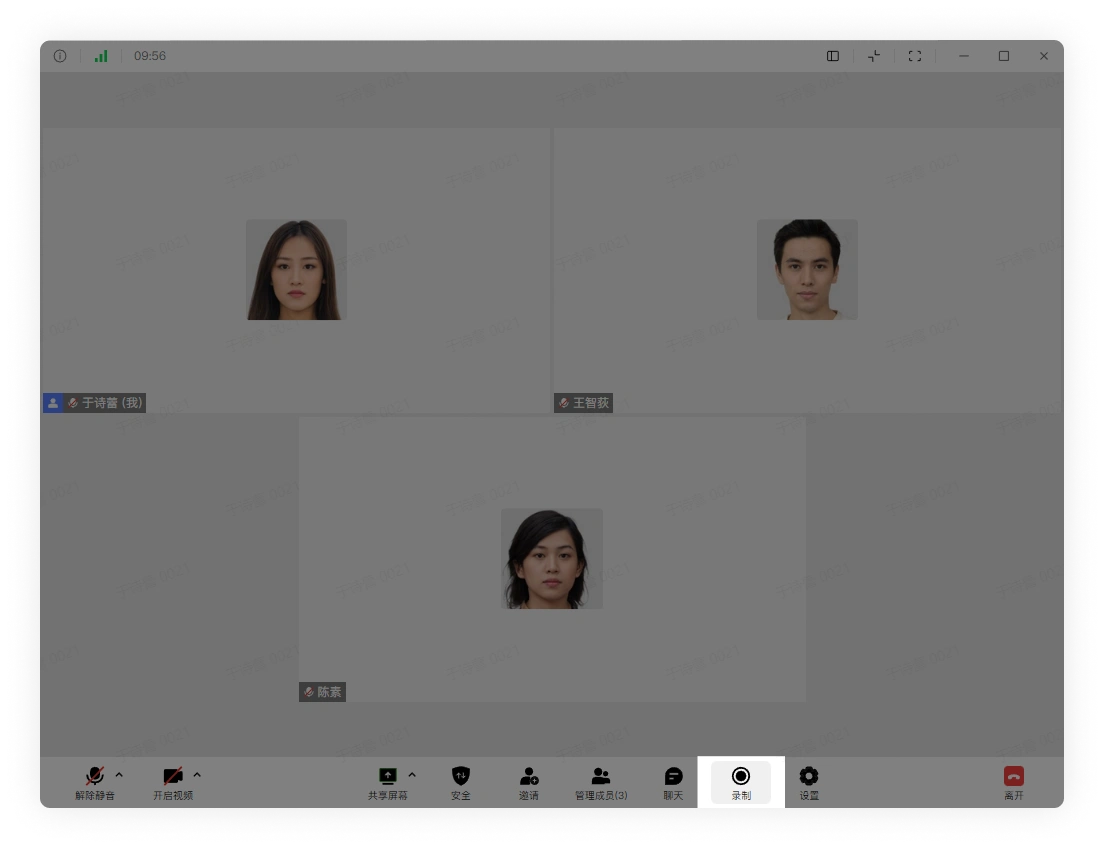
Click the button to start recording the meeting
9. Leave and End the Meeting
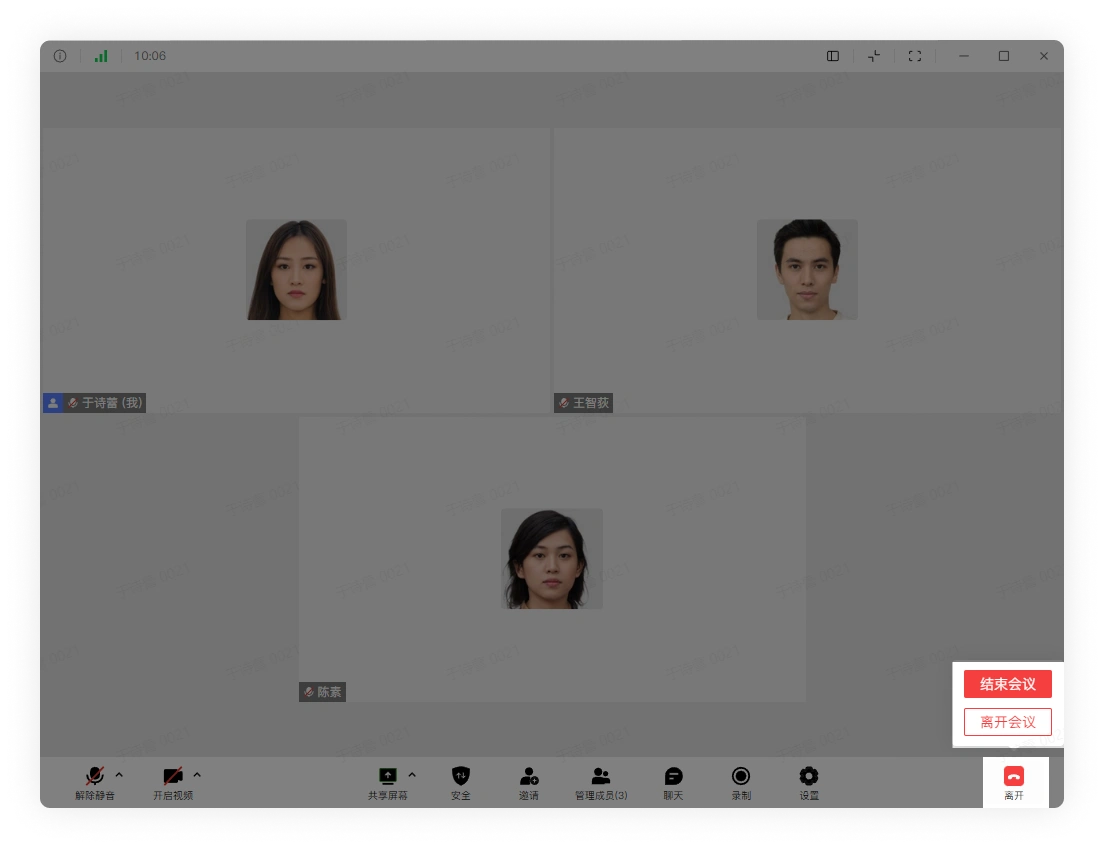
Click the Leave button in the lower right corner of the video meeting. If you click Leave Meeting, the user exits the video meeting by themselves; if you click End Meeting, all users in the meeting will exit the video meeting: