

Create a Group Chat
1. Feature Introduction
You can create a group chat and invite other members to join the discussion. All members in the enterprise can create group chats.
2. Operation Process
Desktop
-
Click the
plus signon the right side of the upper left menu and select Start Group Chat.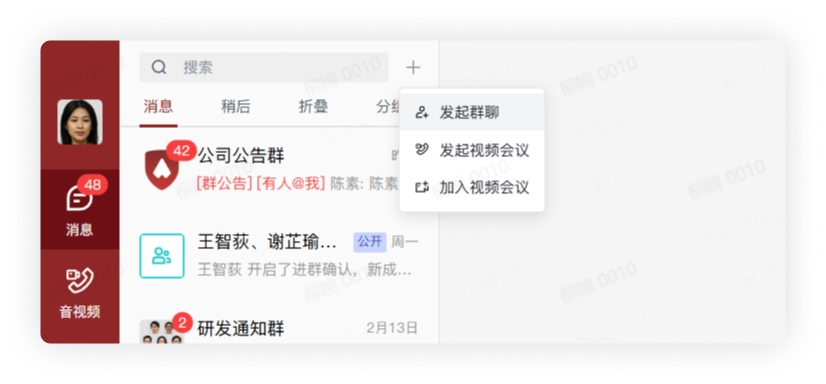
-
On the Create Group Chat page, fill in the group name (optional) and modify the group avatar (optional)
- Note: After the group chat is created, you can also modify the group name and group avatar in group settings.
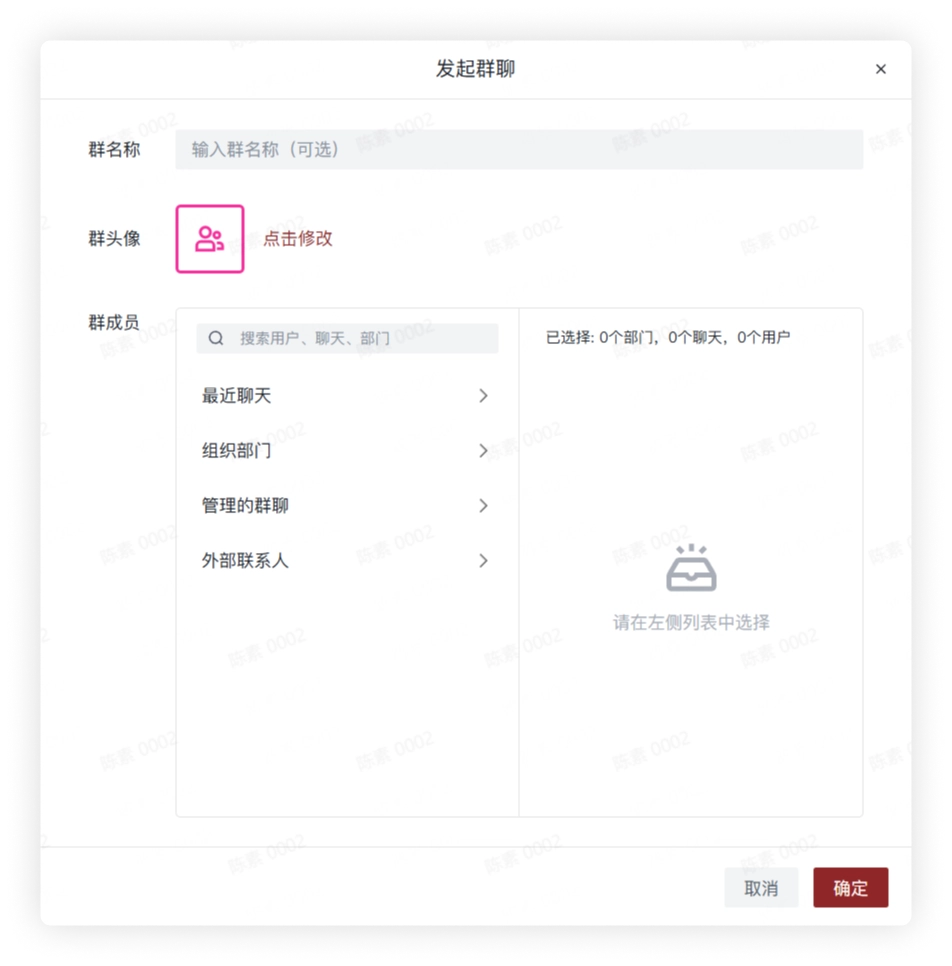
- Select the group members to add. You can add group members in the following ways:
Method 1: Directly search for the contact name to add group members.
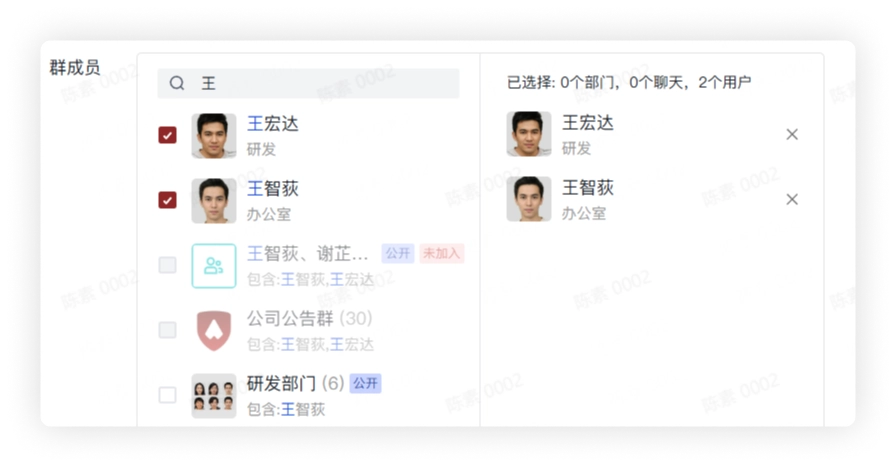
Method 2: If you are already the group owner or group administrator of other groups, click Managed Group Chats and check the groups in them to add all members in those groups to the new group chat.
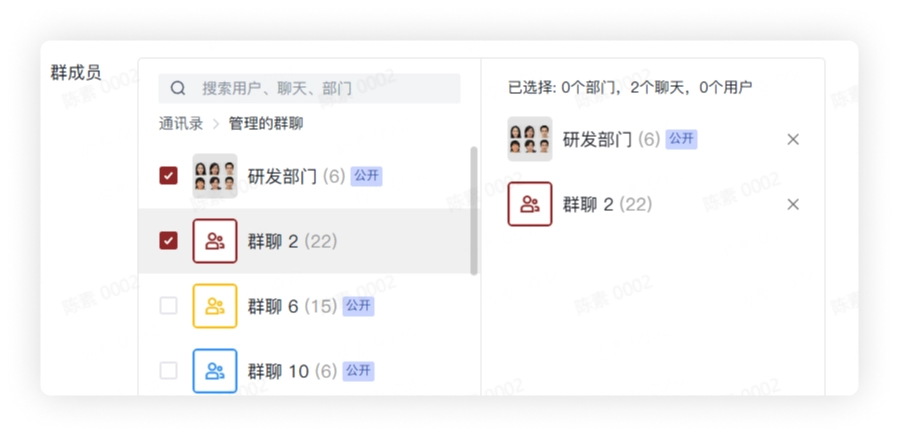
Method 3: Select a department visible to you and add all members in the department to the new group chat.
- Note: The group chat created at this time is a regular group chat. Enterprise administrators and users with related permissions can create department groups.
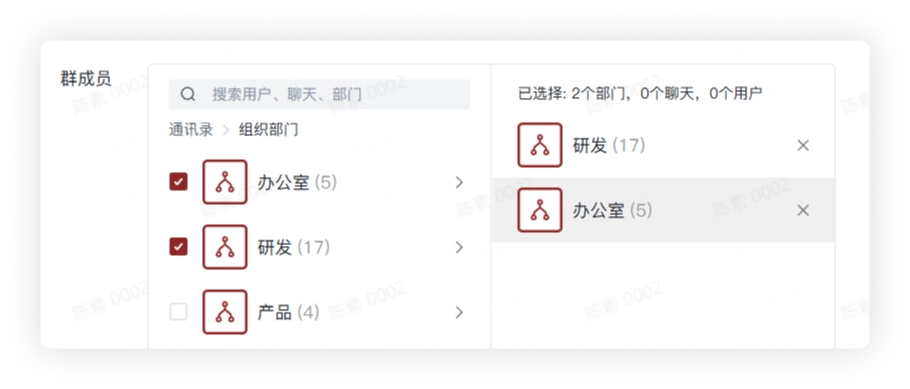
- Click Create to successfully create the group chat.
Create a Group Chat in a Private Chat
When you are communicating one-on-one and need to bring in other members for discussion, you can create a group chat in the private chat.
-
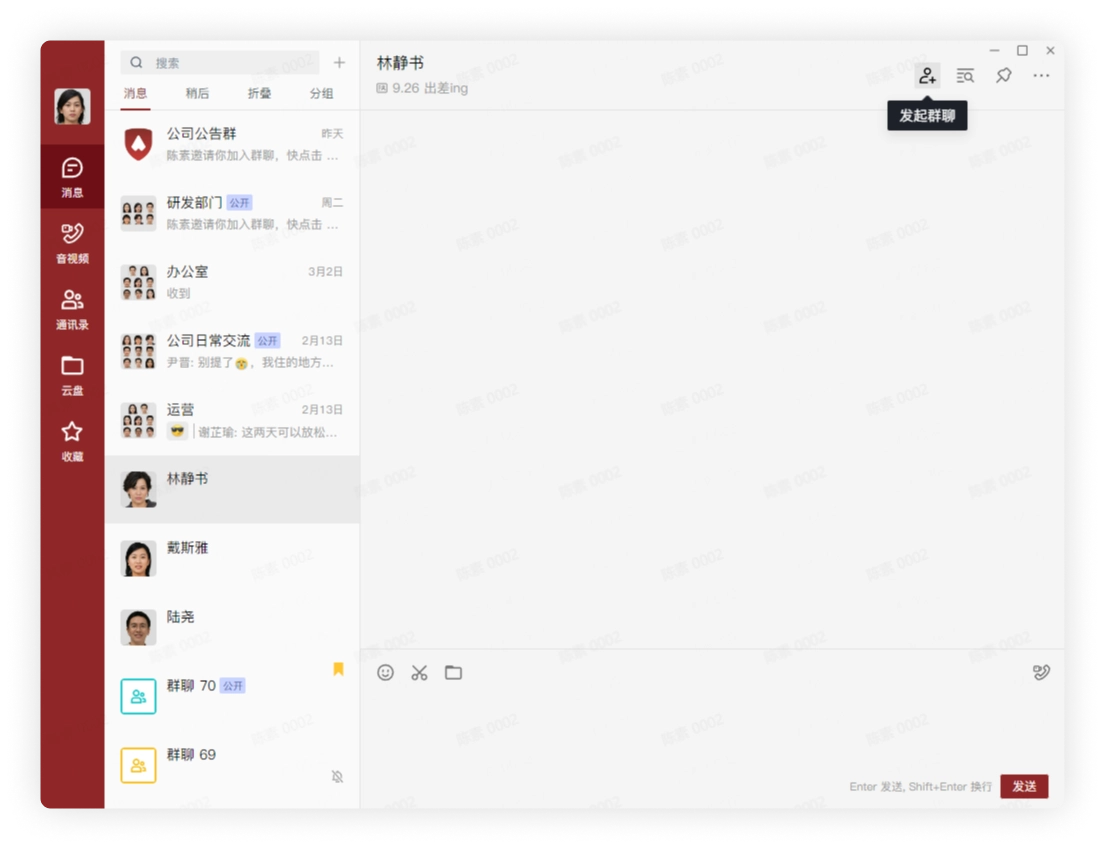
Open the private chat and click Create Group Chat in the upper right corner.
-
On the Create Group Chat page, fill in the group name (optional) and modify the group avatar (optional)
- Note: After the group chat is created, you can also modify the group name and group avatar in group settings. If the group name is not filled in at this time, the system will automatically select the nicknames of group members and concatenate them into the group name.
- Select the group members to add. You can add group members in the following ways:
Method 1: Directly search for the contact name to add group members.
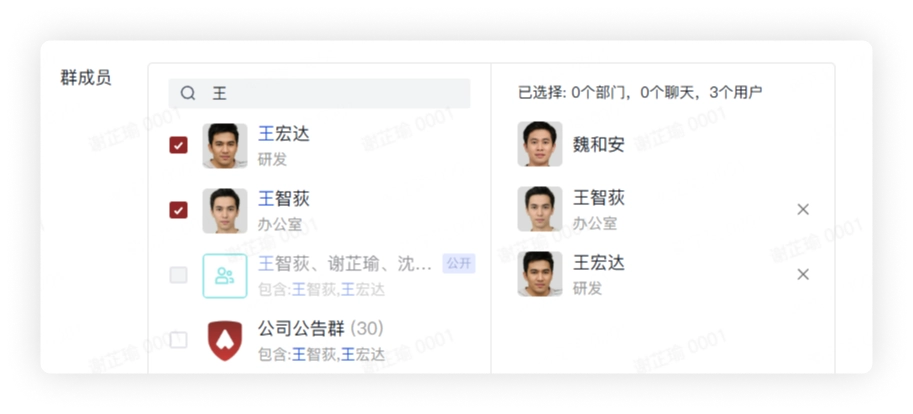
Method 2: If you are already the group owner or group administrator of other groups, click Managed Group Chats and check the groups in them to add all members in those groups to the new group chat.
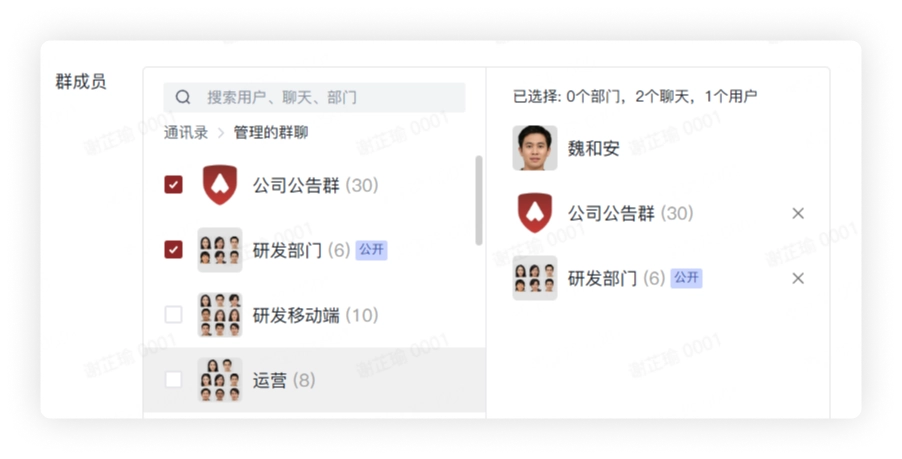
Method 3: Select a department visible to you and add all members in the department to the new group chat.
- Note: The group chat created at this time is a regular group chat. Enterprise administrators and users with related permissions can create department groups.
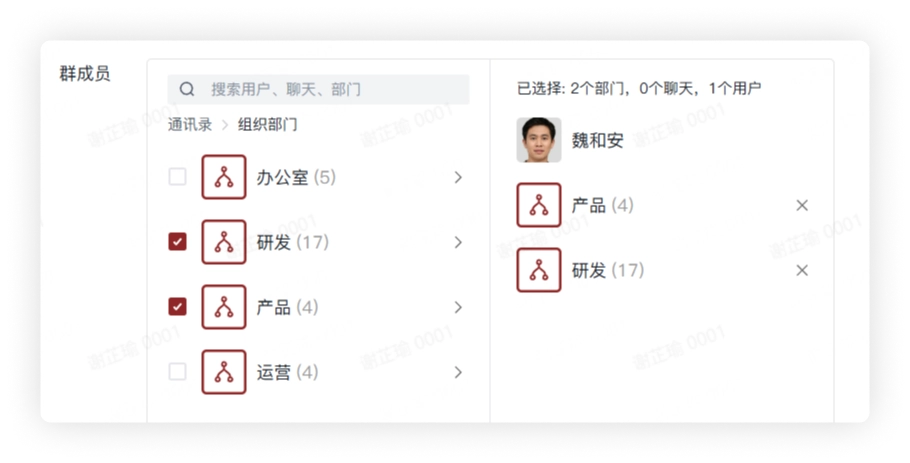
- Click Create to successfully create the group chat.
Mobile
-
Tap the
plus signin the upper right corner, then tap Start Group Chat.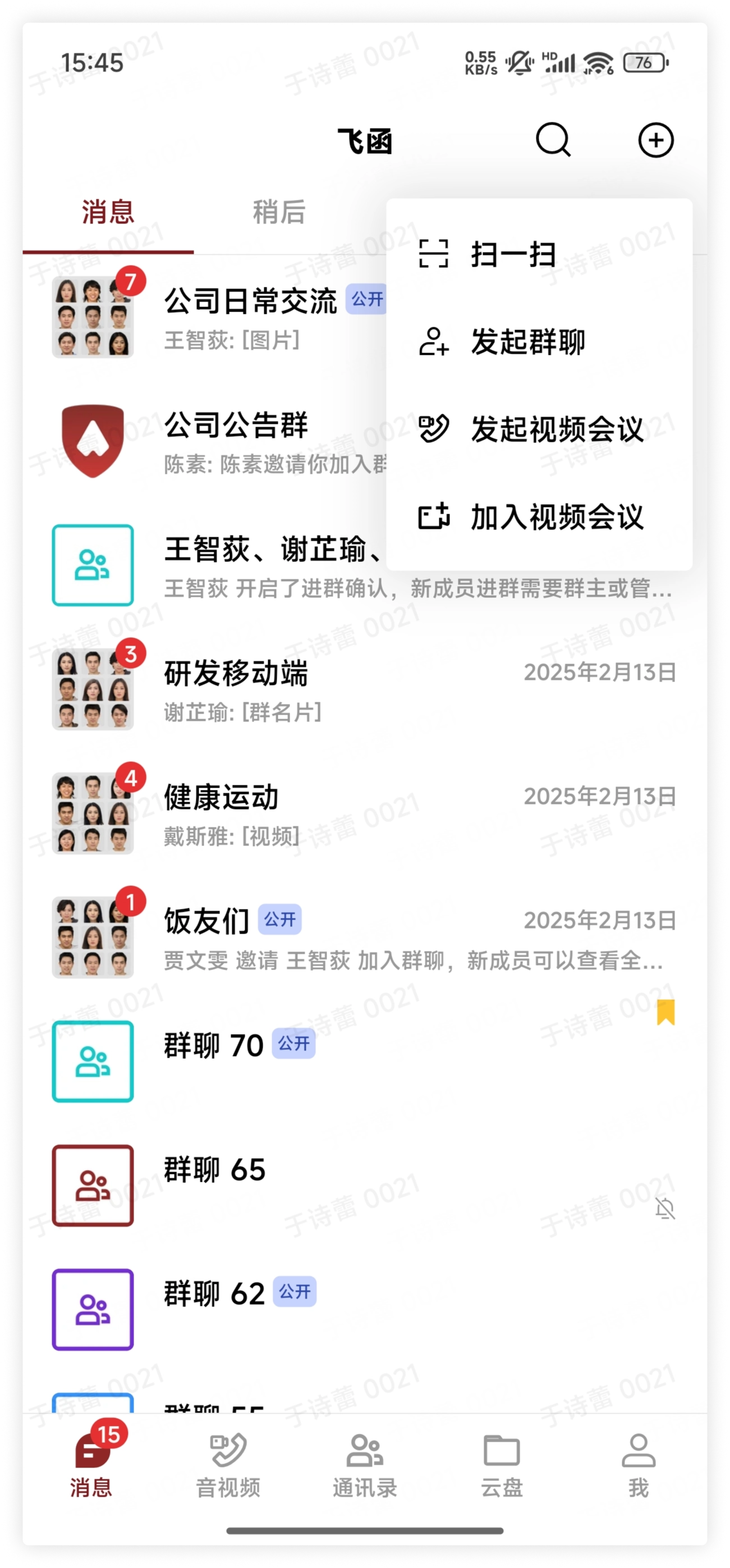
-
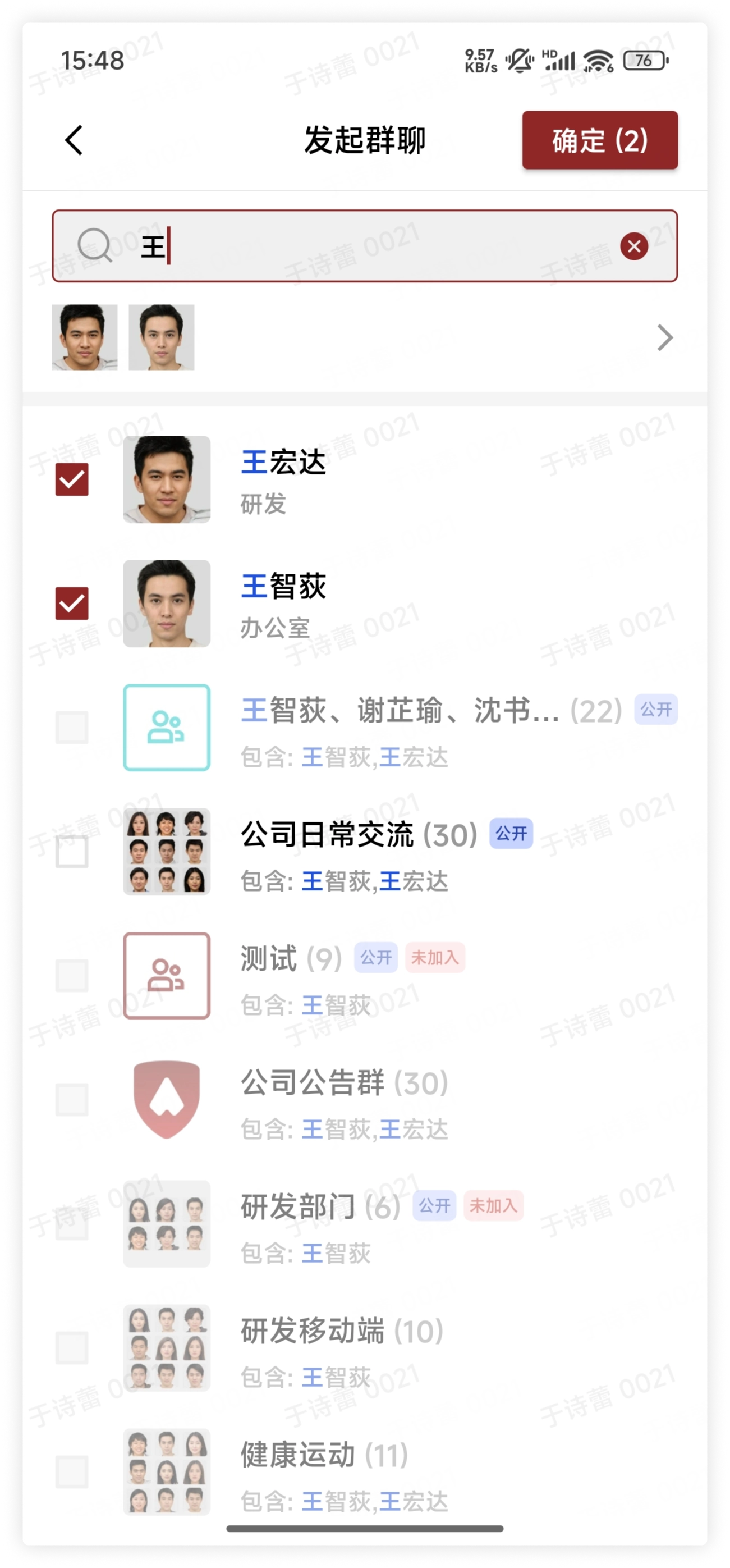
Select the group members to add. You can add group members in the following ways: Method 1: Directly search for the contact name to add group members.
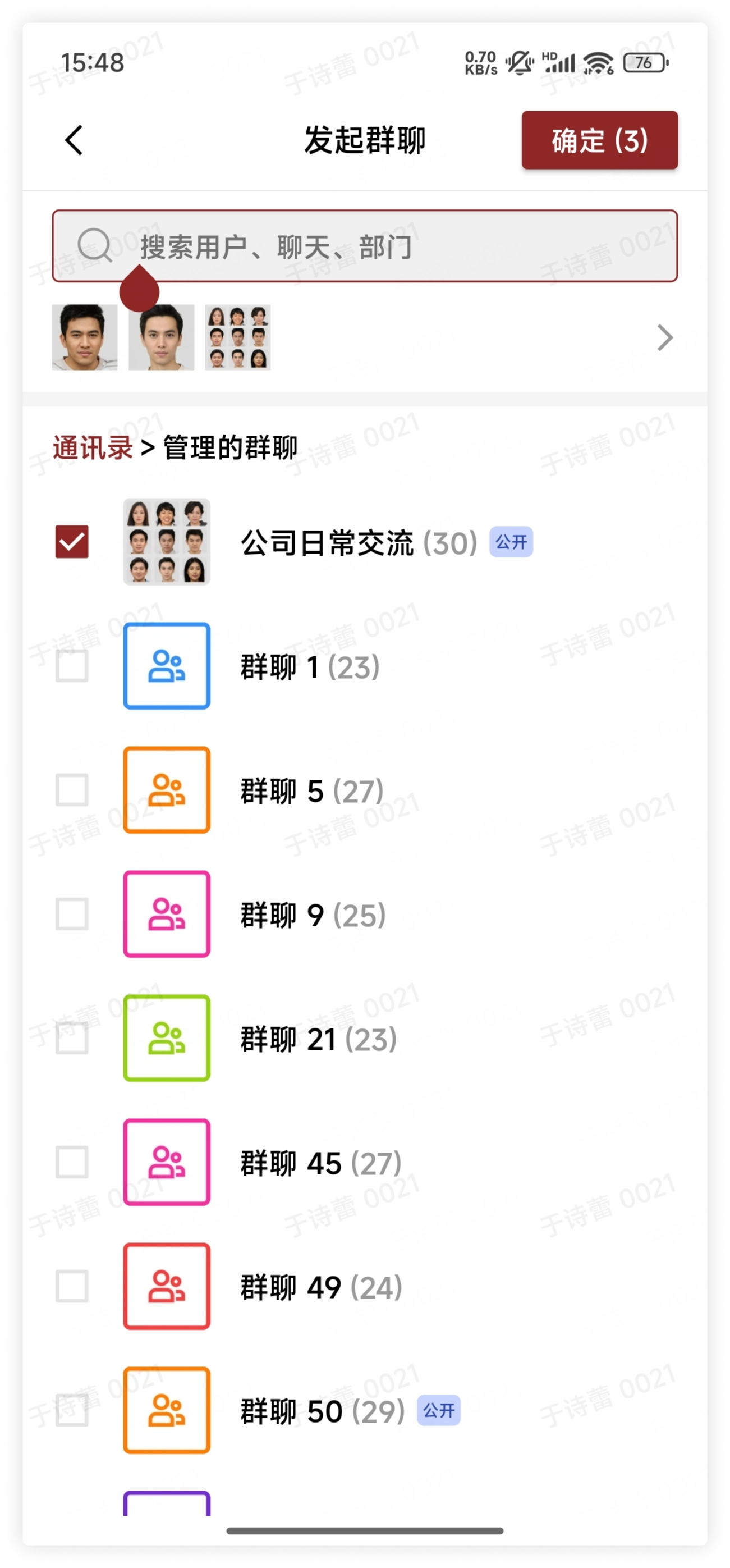
Method 2: If you are already the group owner or group administrator of other groups, click Managed Group Chats and check the groups in them to add all members in those groups to the new group chat.
Method 3: Select a department visible to you and add all members in the department to the new group chat.
- Note: The group chat created at this time is a regular group chat. Enterprise administrators and users with related permissions can create department groups.
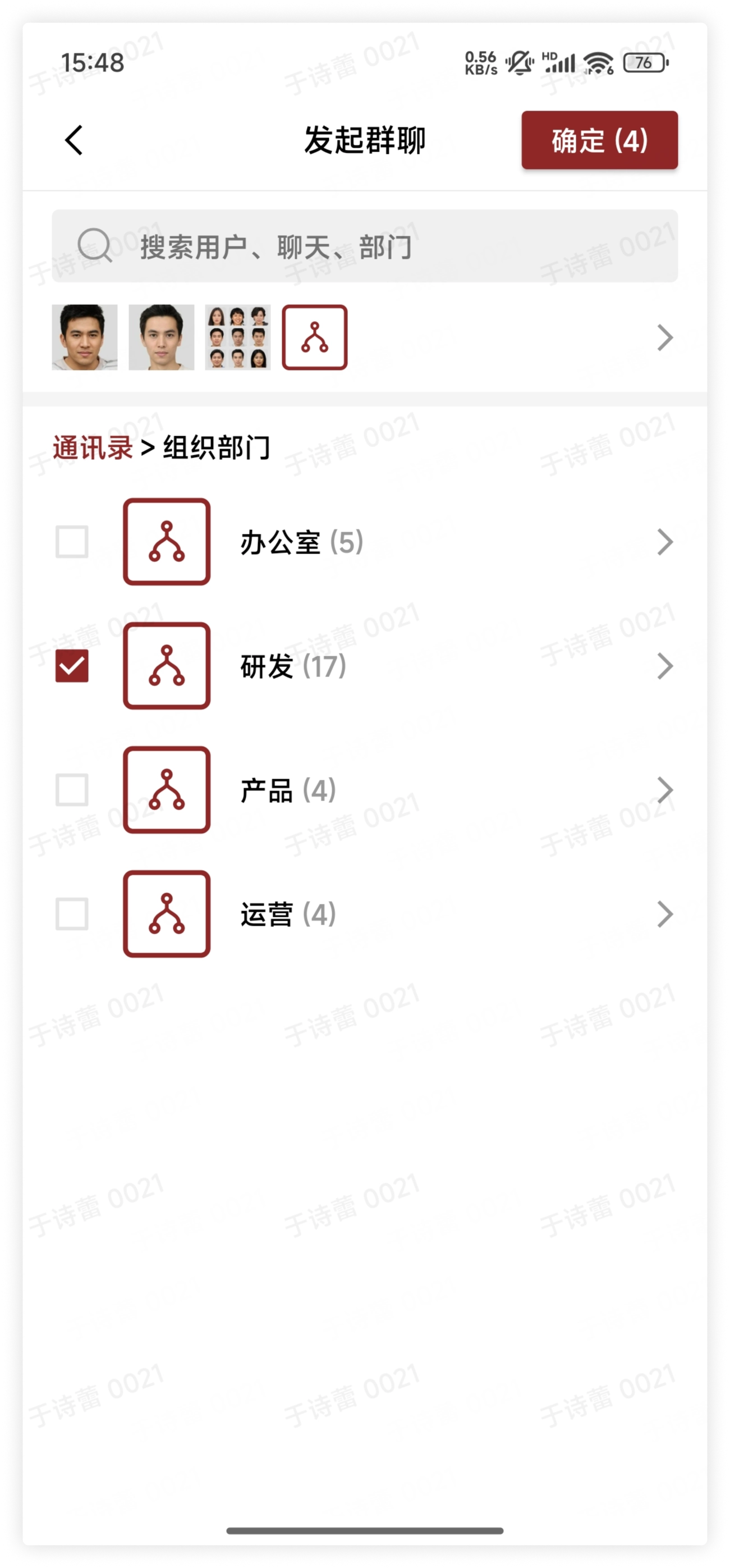
- Tap Confirm to successfully create the group chat.
Create a Group Chat in a Private Chat
When you are communicating one-on-one and need to bring in other members for discussion, you can create a group chat in the private chat.
-
Open the private chat, tap "More" in the upper right corner, and tap the
plus signon the right side of the user.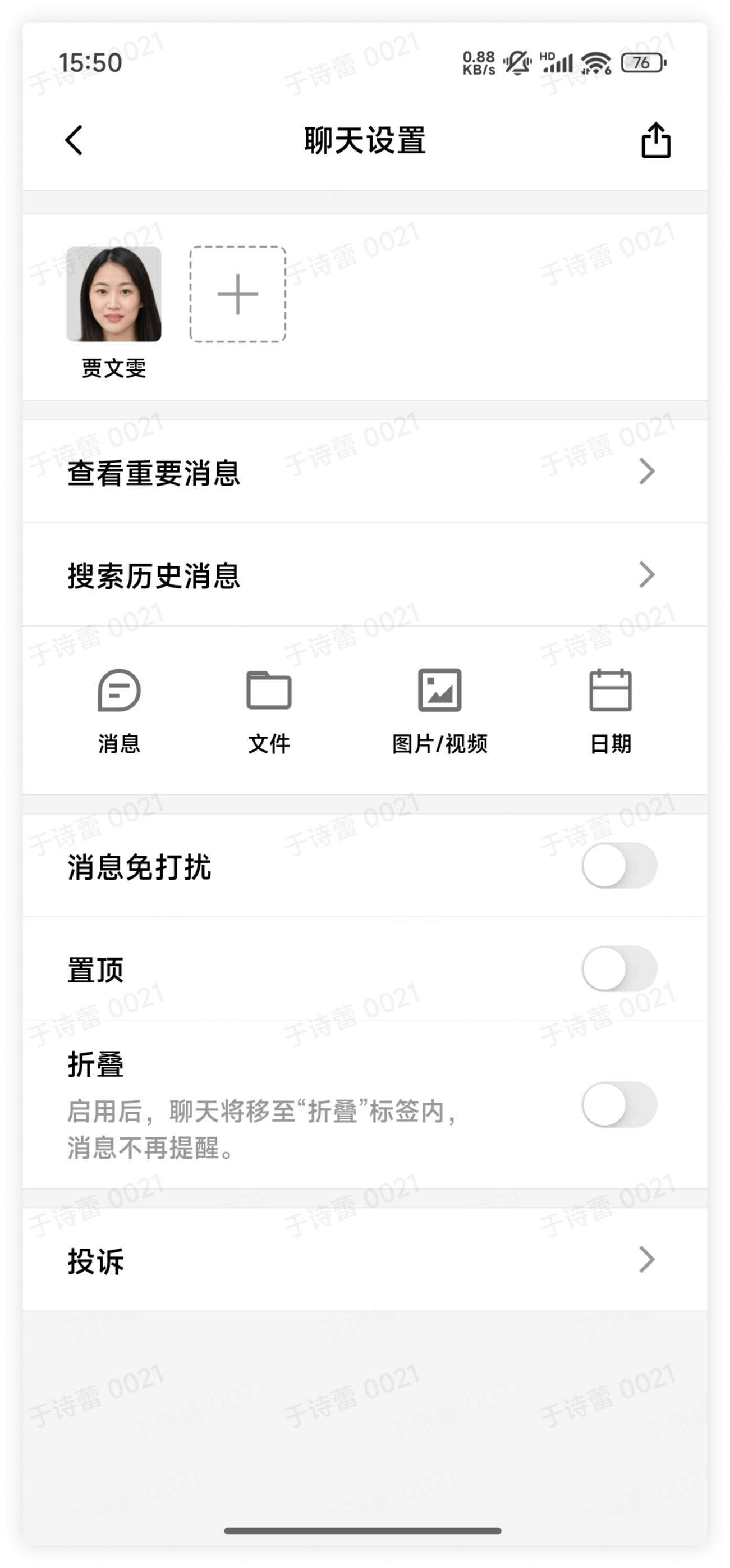
-
Select the group members to add. You can add group members in the following ways: Method 1: Directly search for the contact name to add group members.
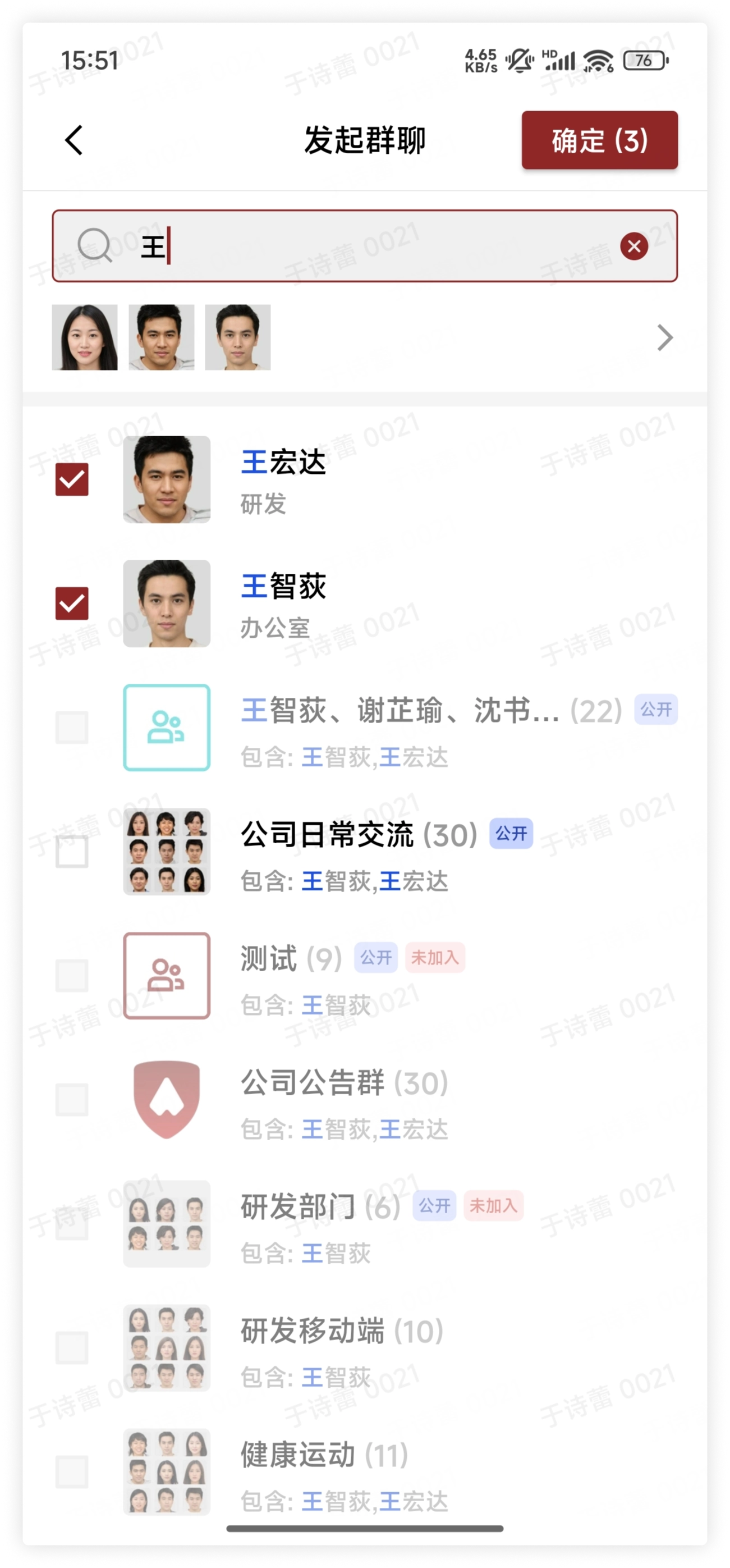
Method 2: If you are already the group owner or group administrator of other groups, click Managed Group Chats and check the groups in them to add all members in those groups to the new group chat.
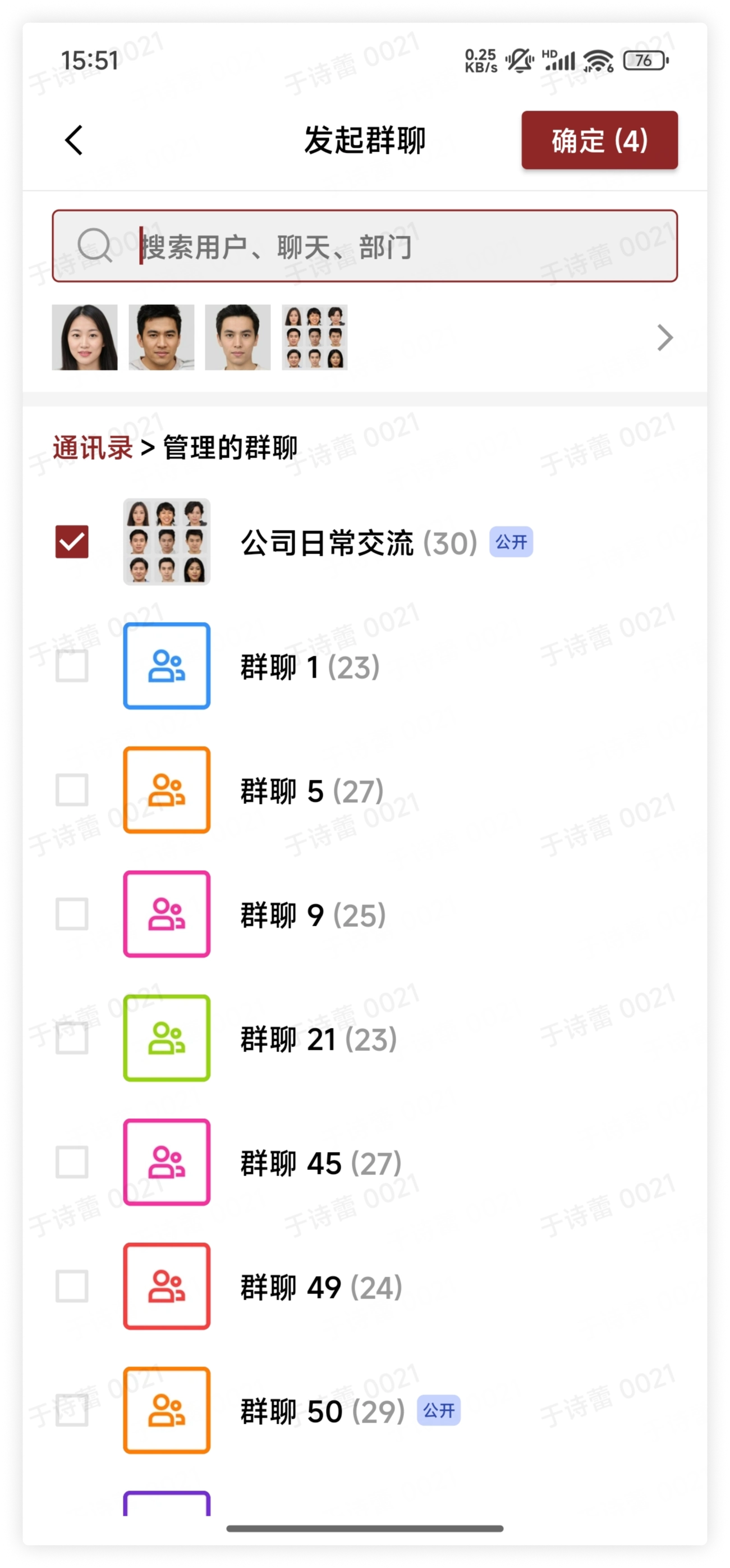
Method 3: Select a department visible to you and add all members in the department to the new group chat.
- Note: The group chat created at this time is a regular group chat. Enterprise administrators and users with related permissions can create department groups.
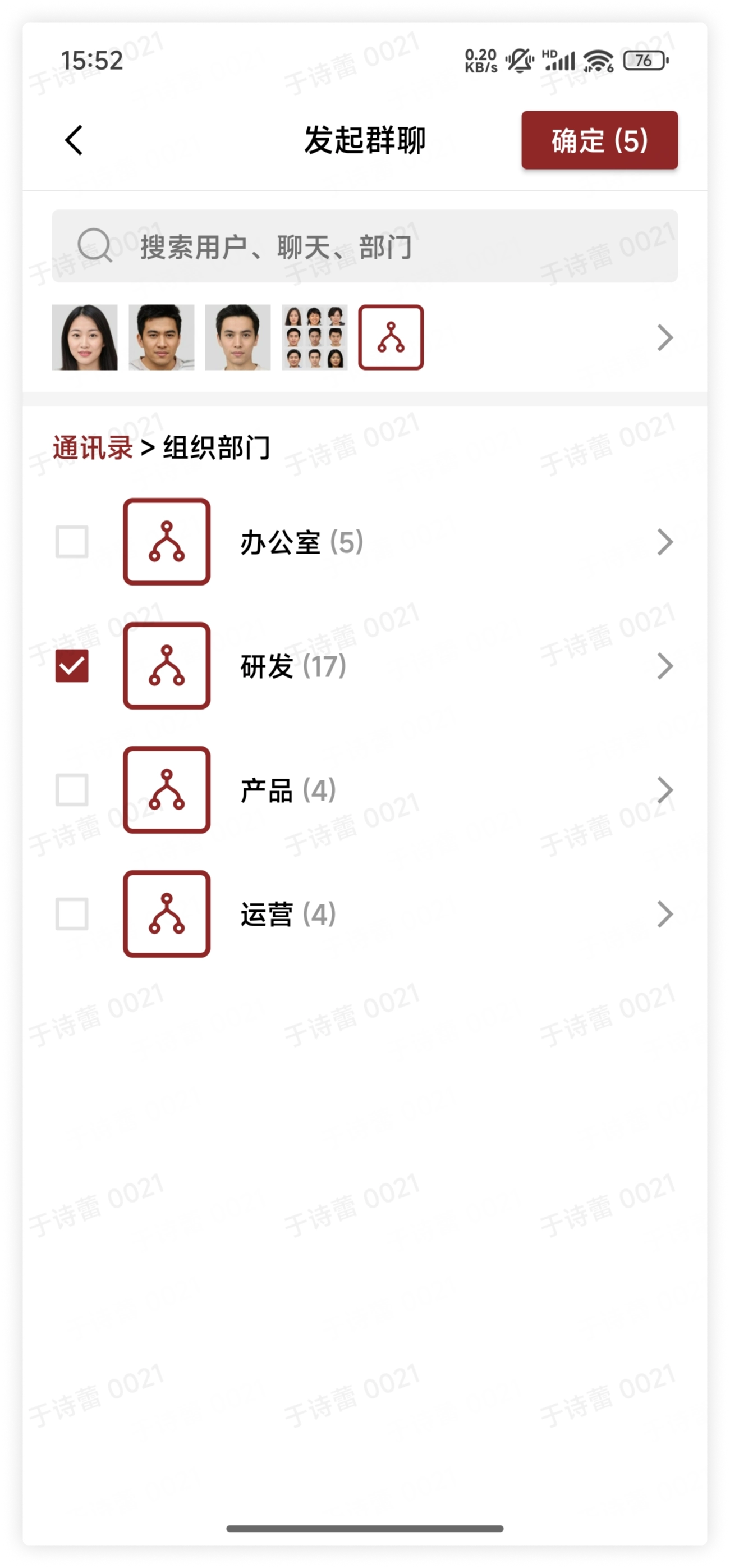
- Tap Confirm to successfully create the group chat.
FAQ
Q: I am not an enterprise administrator. Can I create a group by department?
A: Yes, but when adding group members, you can only select departments visible to you, and the created group chat is not a department group.