

Share a Group Chat
1. Feature Introduction
You can share a group chat with other users and invite them to join through 3 methods: group card, group link, and group QR code.
- By default, all users in the group can share the group chat. If you need to restrict the permission to share the group chat, the group owner or group administrators can click the "More Group Info" button in the upper right corner of the group chat > Group Management > Member Operation Permissions, and set the permission for "Who can add group members and share the group" to only the group owner or group administrators.
2. Operation Process
Share the Group Card
-
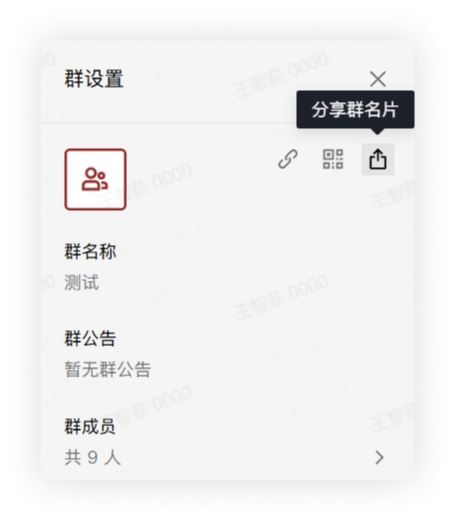
Click the "More Group Info" button in the upper right corner of the group chat > click Share Group Card.
-
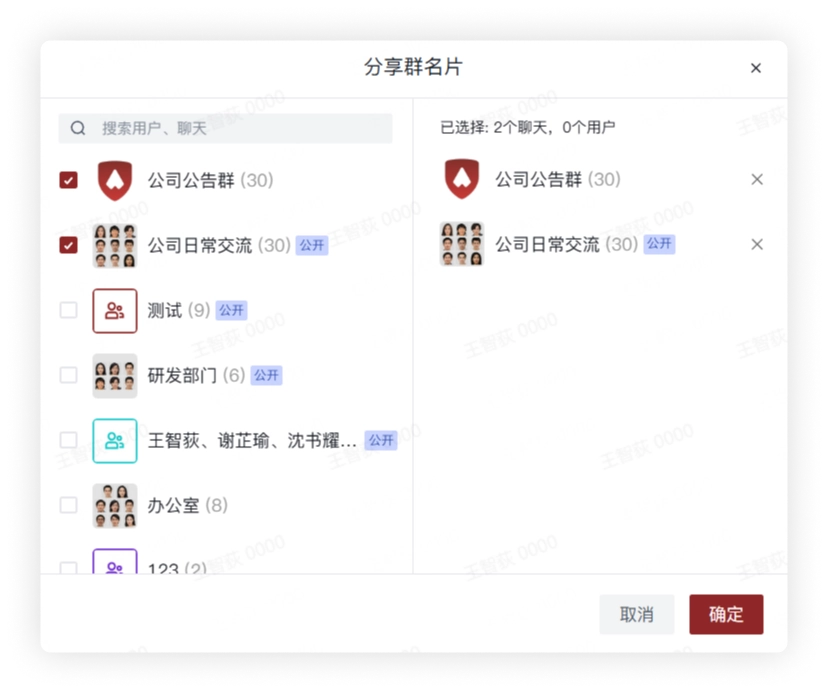
Select users or group chats to send the group card. The receiving user can click the group card to join the group chat.
Share the Group Link
-
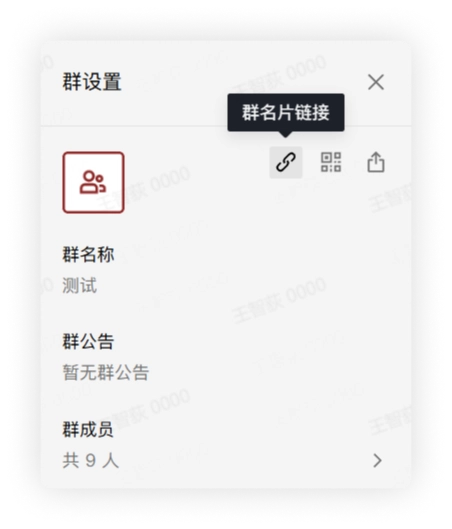
Click the "More Group Info" button in the upper right corner of the group chat > click Group Card Link.
-
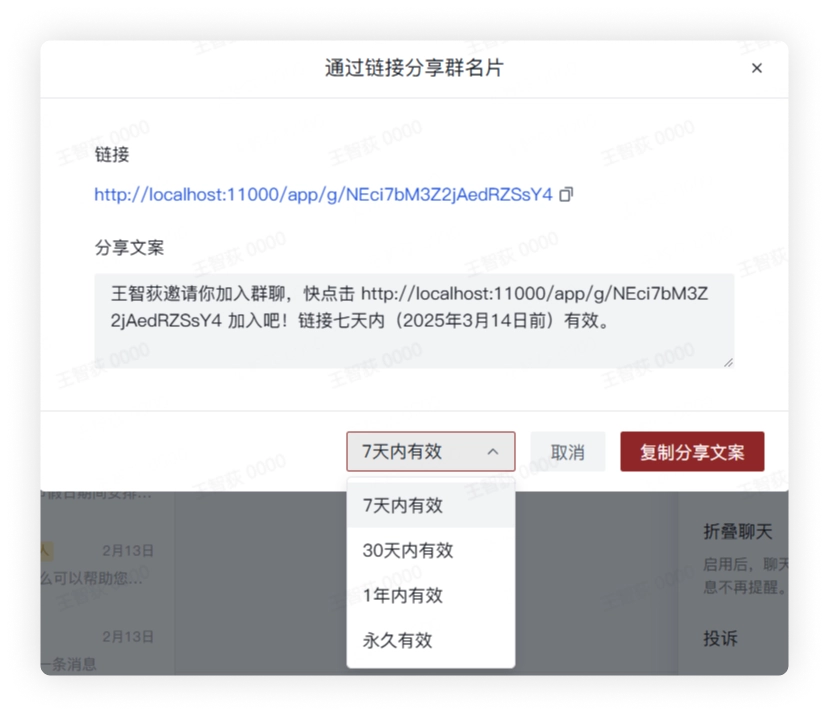
View the group link information in the pop-up window. The group link is valid for 7 days by default. You can click to change the validity period and set it to 30 days, 1 year, or Permanent.
-
Copy the group link and go to the chat to share it. The other party can click the link to join the group chat.
Share the Group QR Code
-
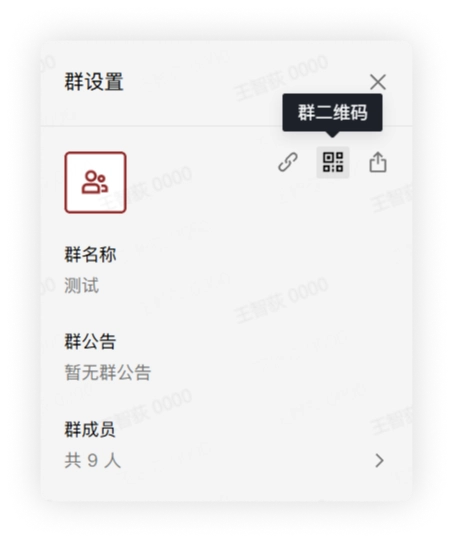
Click the "More Group Info" button in the upper right corner of the group chat > click Group QR Code.
-
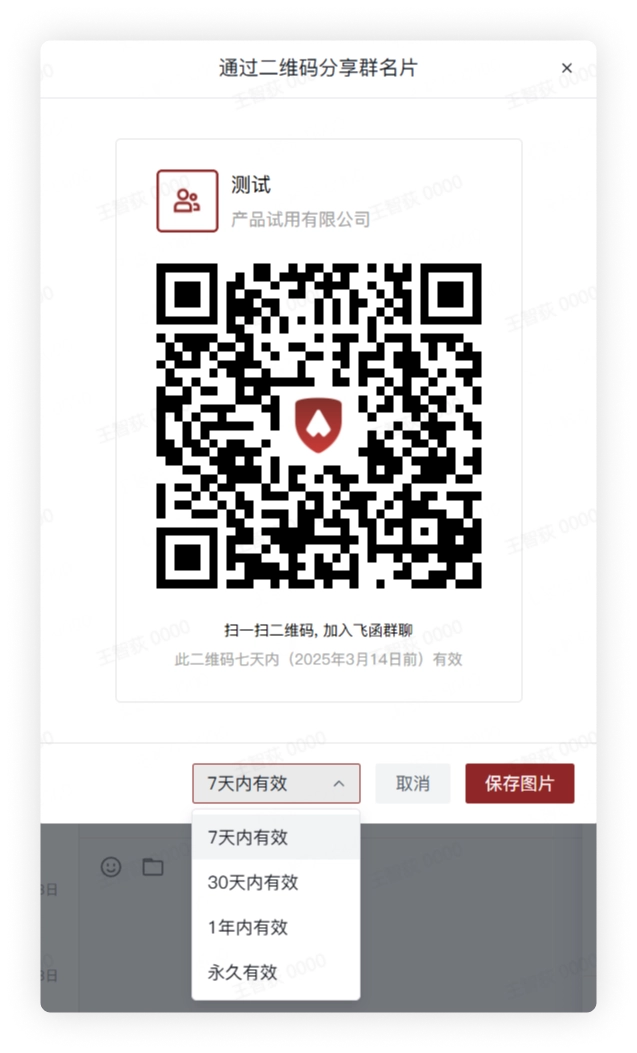
In the pop-up window, you can change the group QR code information. The group QR code is valid for 7 days by default. You can click to change the validity period and set it to 30 days, 1 year, or Permanent.
-
After clicking Save Image, you can send the QR code to users by sending an image message. The other party can scan the QR code through Feihan to join the group chat.
3. FAQ
Q: Why can't I share the group chat?
A: It may be because the permission for "Who can add group members and share the group" in your group chat is set to only the group owner or group administrators.