

Edit Group Information
1. Feature Introduction
You can edit group chat information such as the group avatar, group name, and group announcement.
2. Operation Process
Edit Group Information
Desktop
Click the "More Group Info" button in the upper right corner of the group chat to enter the group settings interface.
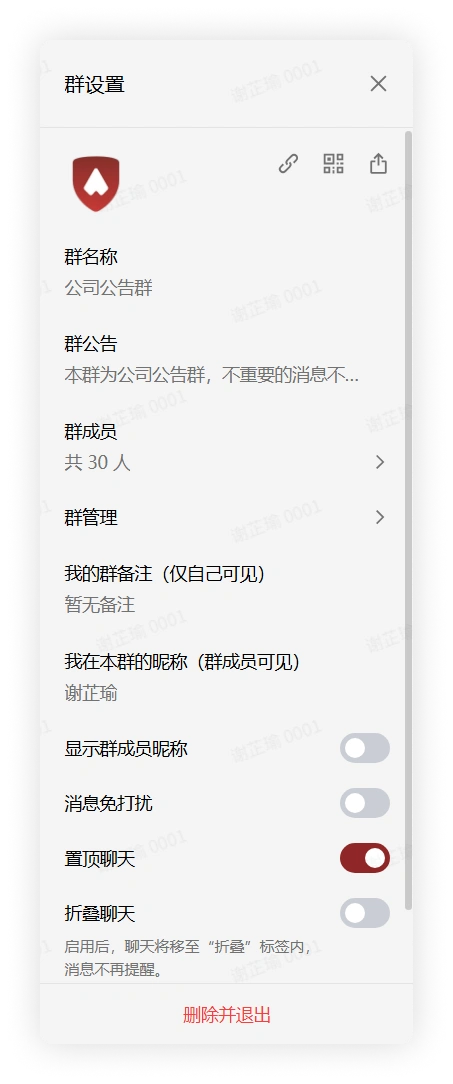
- If you have permission, you can edit the group avatar, group name, and group announcement:
-
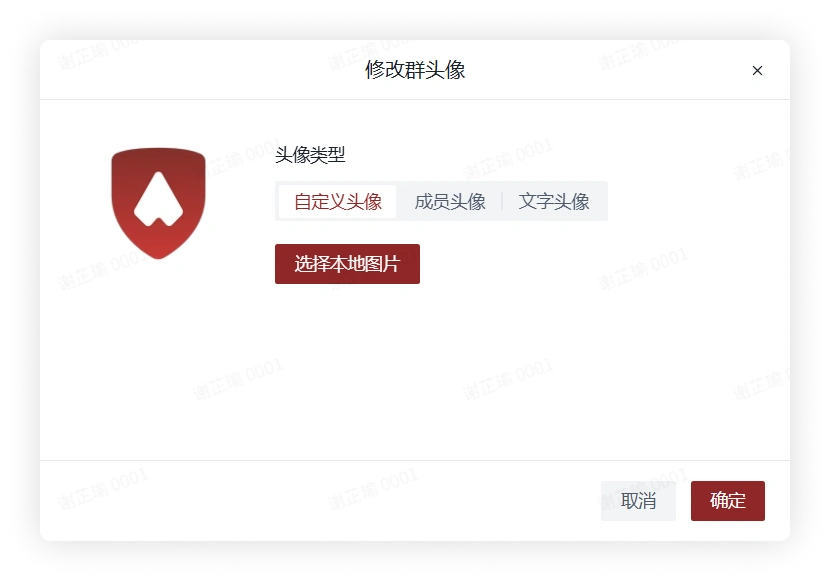
Group avatar: Click Group Avatar, and in the pop-up window you can change the group avatar to a custom avatar, member avatar, or text avatar.
-
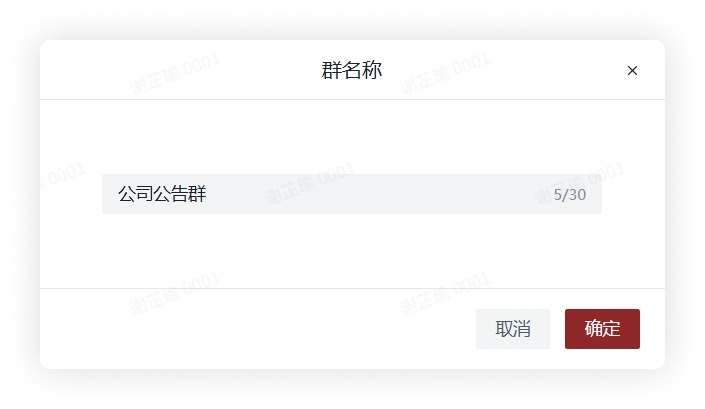
Group name: Click the text below "Group Name" to modify the group name in the pop-up window.
-
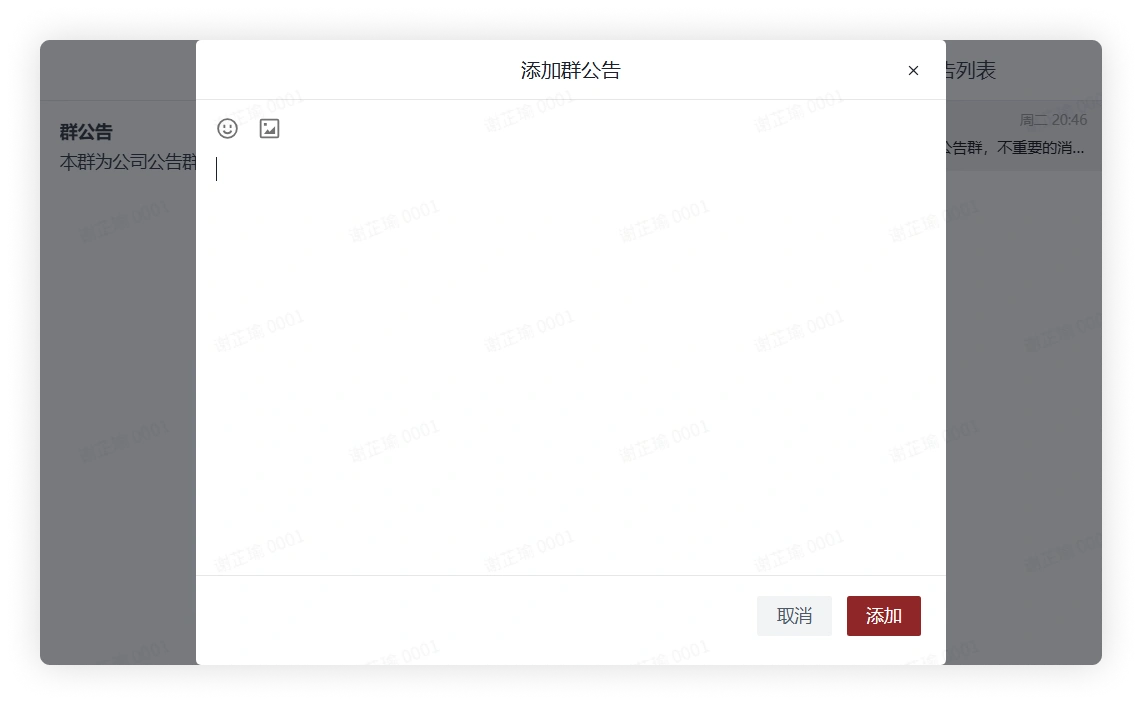
Group announcement: Click the text below "Group Announcement", click the Add Group Announcement button in the top menu in the pop-up window, enter text and images, and click Add to publish a new group announcement.
-
Mobile
Click the "More Group Info" button in the upper right corner of the group chat to enter the group settings interface.
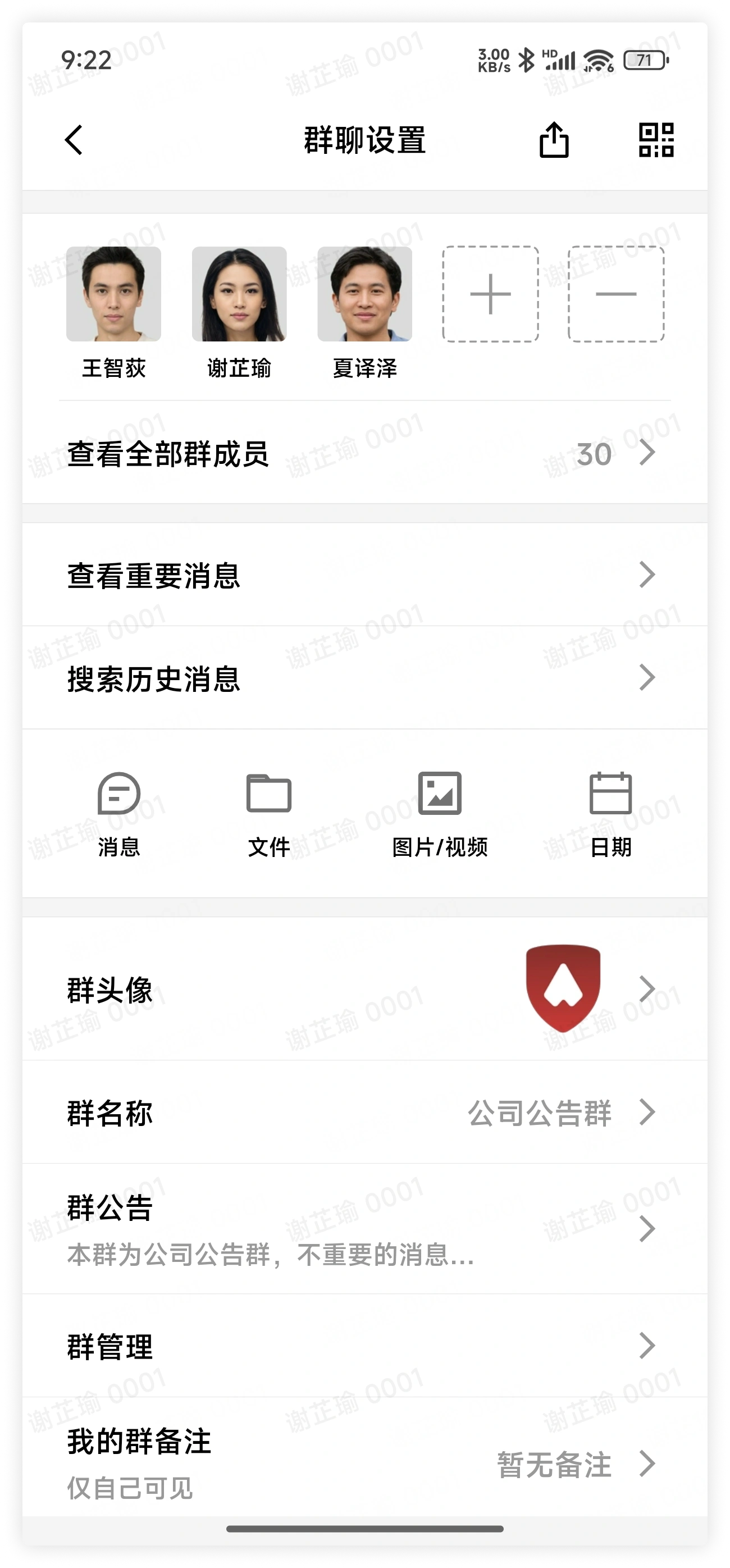
- If you have permission, you can edit the group avatar, group name, and group announcement:
-
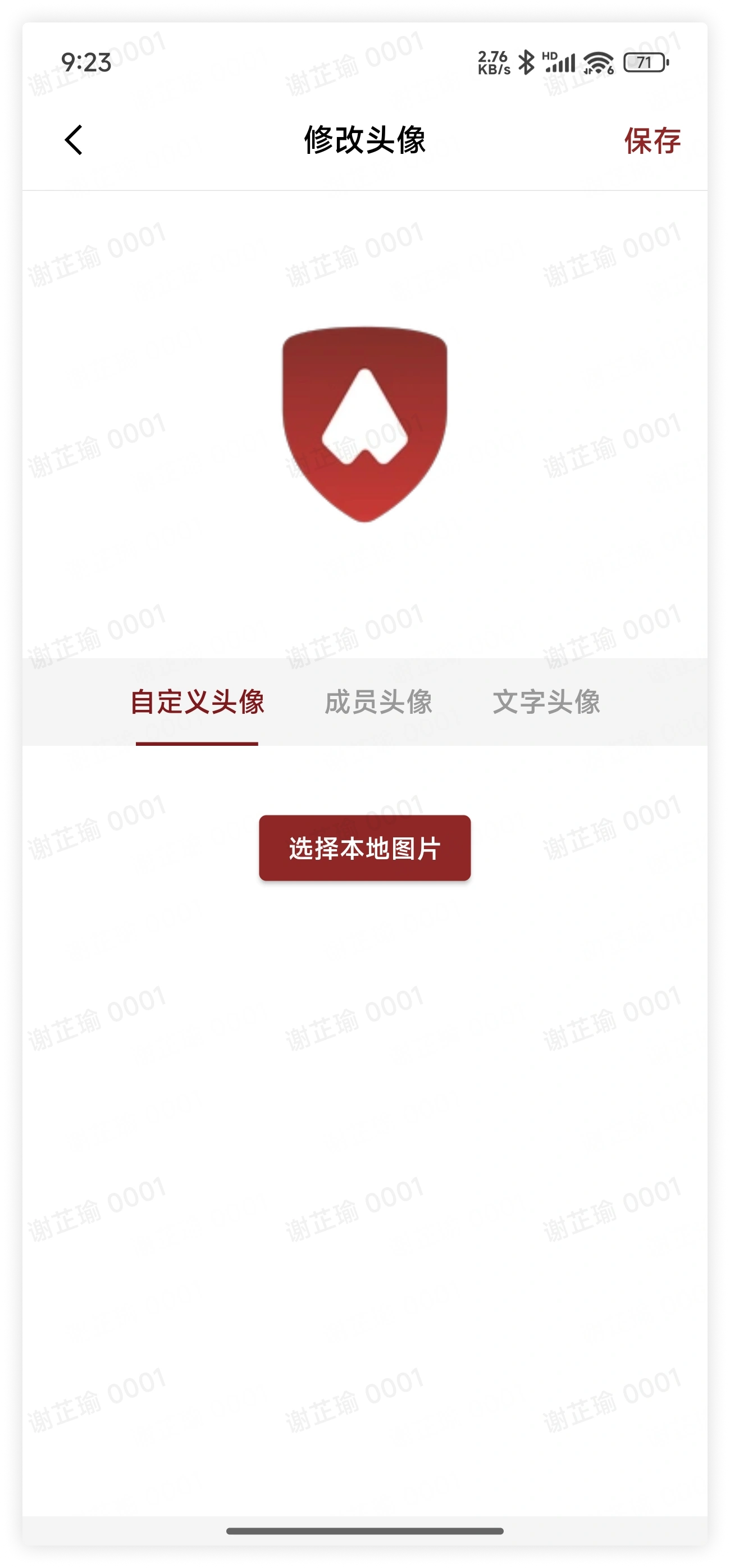
Group avatar: Click Group Avatar, and in the pop-up window you can change the group avatar to a custom avatar, member avatar, or text avatar.
-
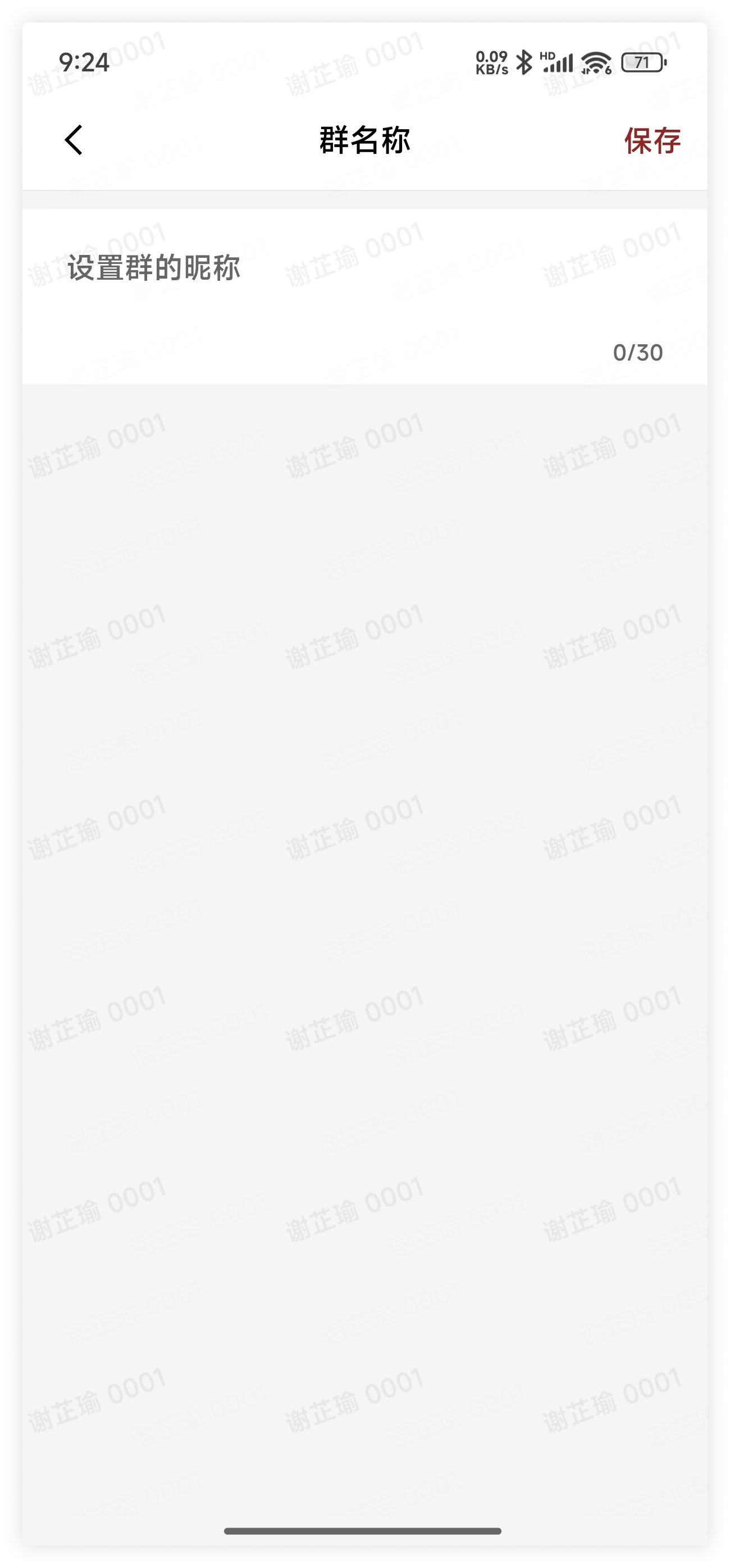
Group name: Click "Group Name" to modify the group name in the pop-up window.
-
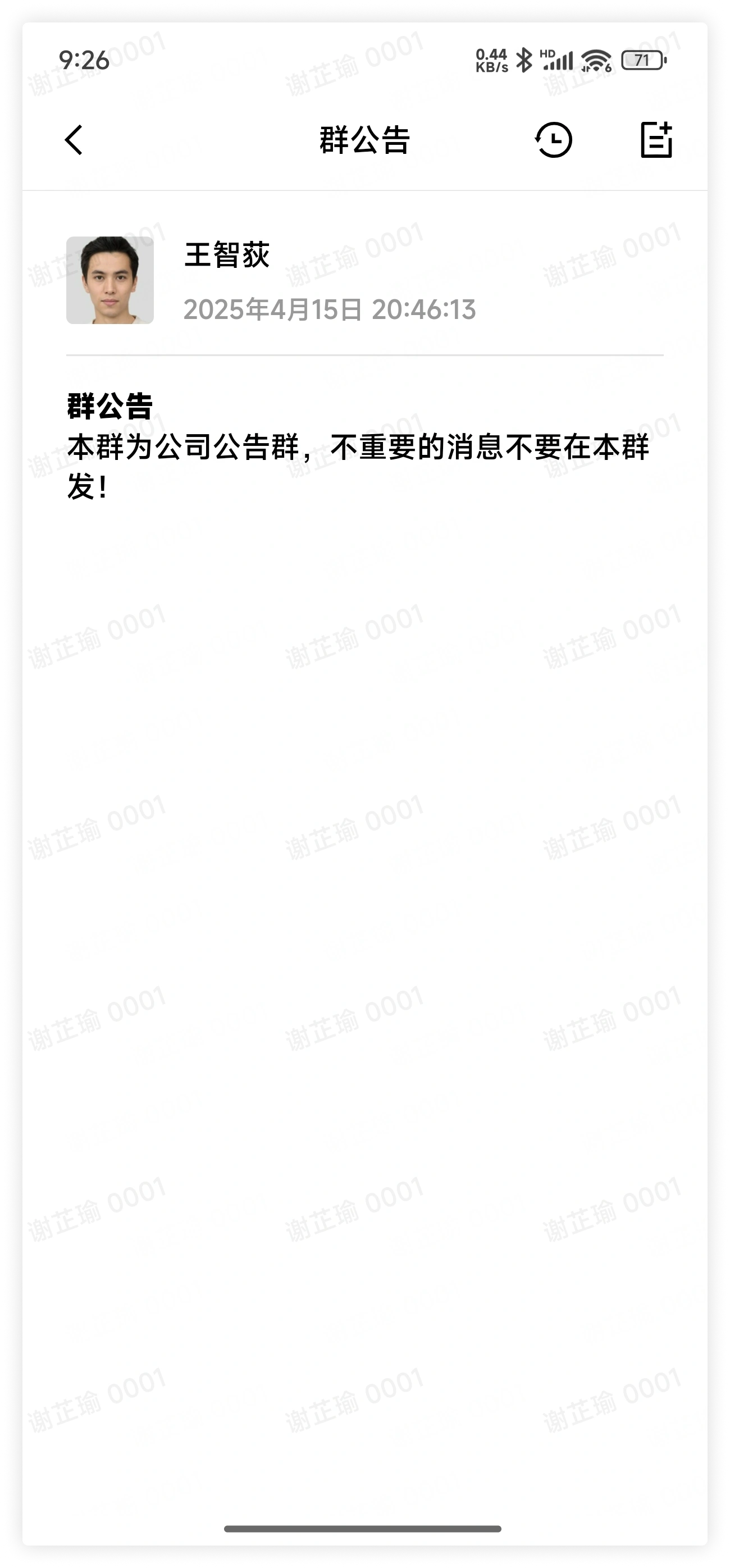
Group announcement: Click "Group Announcement", click the Add Group Announcement button in the top menu in the pop-up window, enter text and images, and click Add to publish a new group announcement.
-
3. FAQ
Q: Why can't I edit group information?
A: It may be because the group owner or group administrators have turned off the permission for group members to edit group information.