

Use the Grouping Feature
1. Feature Introduction
You can use the grouping feature to place chats you want together into custom groups, making it easier to quickly find the chats you need among a large number of chats.
2. Operation Process
Desktop
-
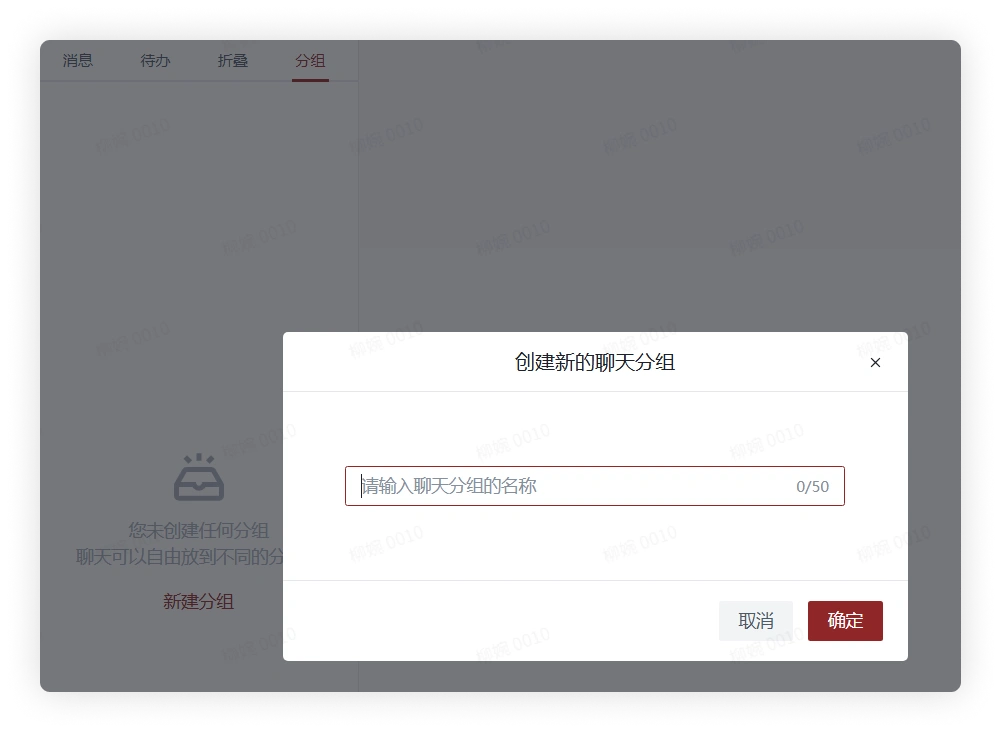
In the chat list, click the "Group" button in the top menu, click "New Group", enter the group name in the pop-up window, and click Confirm to successfully create a chat group.
-
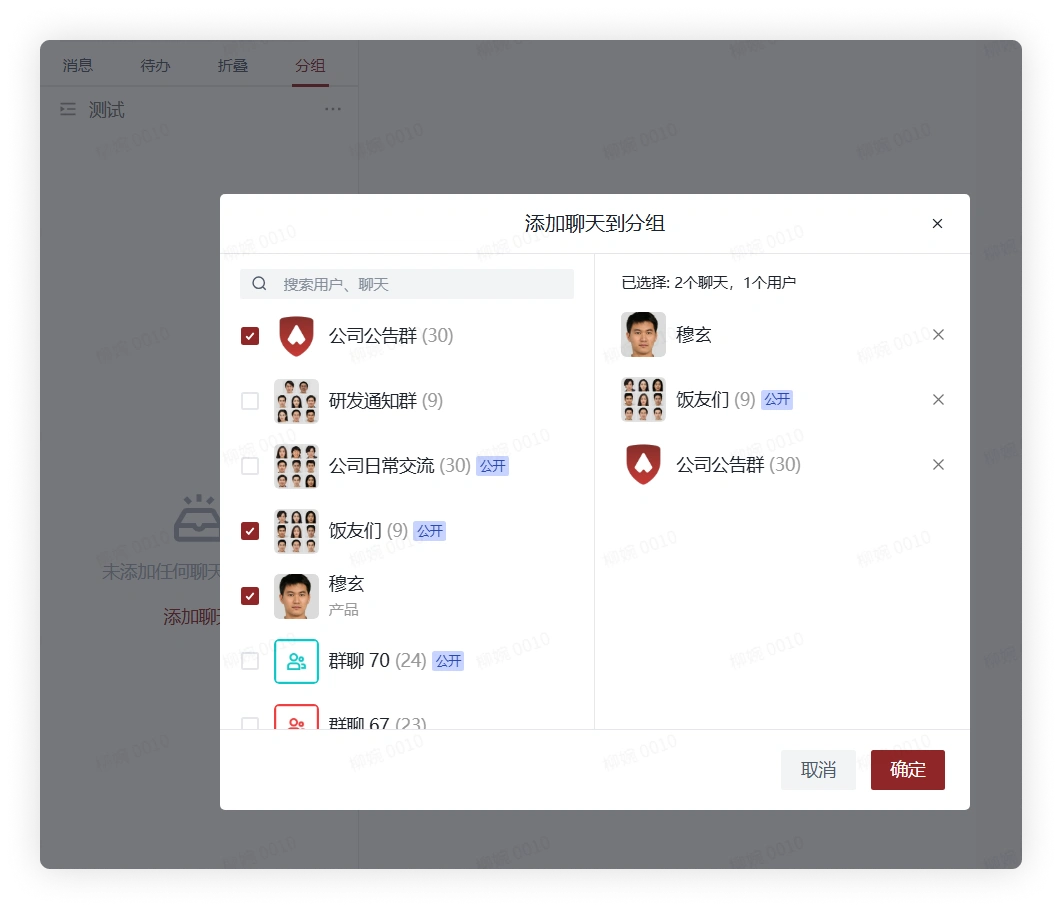
Click "Add Chat", and in the pop-up window select or search for chats, check them, and click Confirm to add the selected chats to the chat group.
-
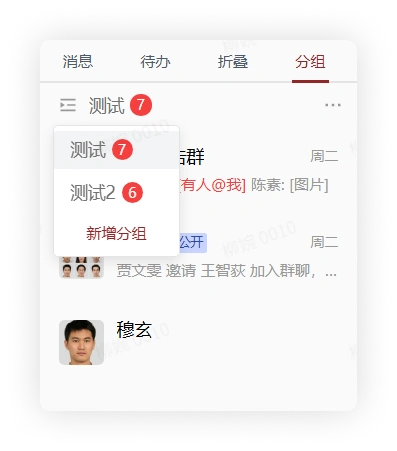
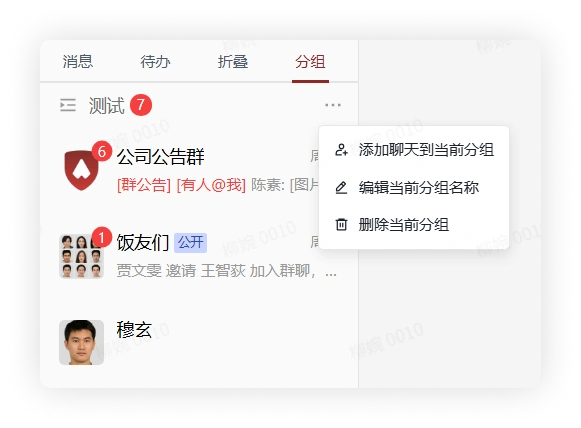
Click the button on the left side of the chat group name to display all chat groups. Clicking the corresponding group name switches to that group. If a message bubble with a number appears on the right side of the group name, it represents the sum of unread messages of all chats in the group. The "More" button on the far right of the group name can add chats to the current group, edit the current group name, or delete the current group.
-
If you want to remove a chat from the group, after switching to the group, right-click the chat and select Remove from Group in the pop-up menu to remove the chat from the group.
Mobile
-
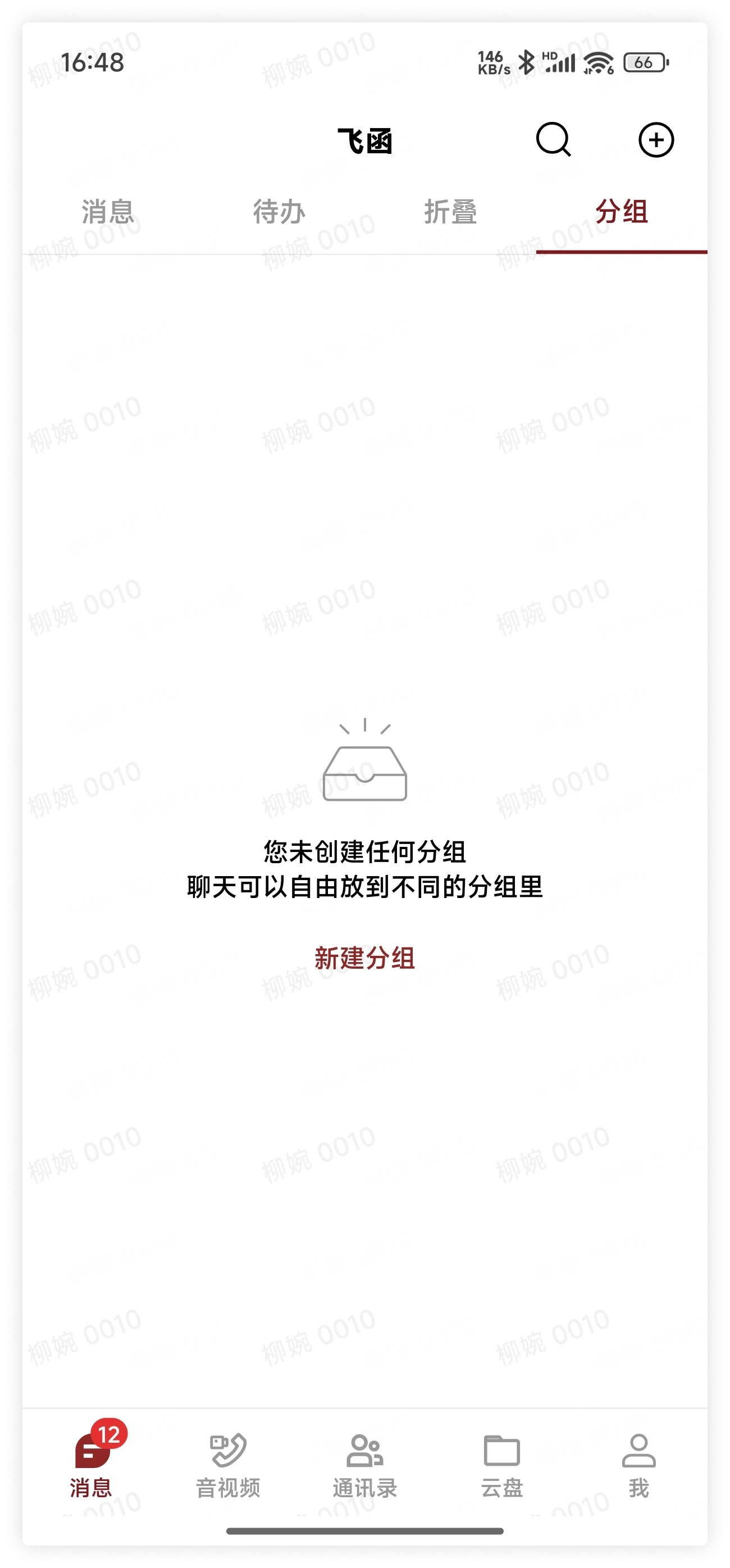
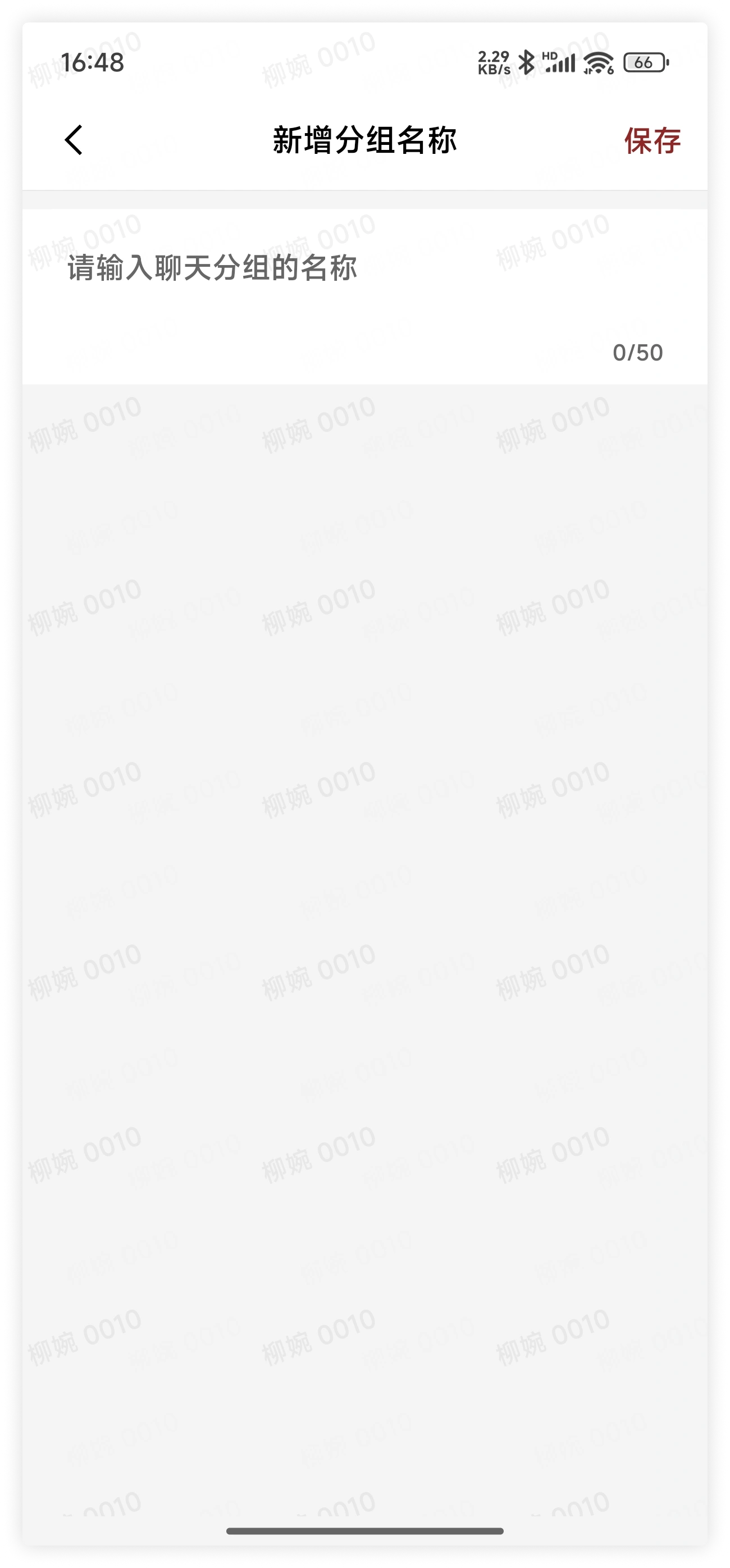
In the chat list, click the "Group" button in the top menu, click "New Group", enter the group name in the pop-up window, and click Confirm to successfully create a chat group.
-
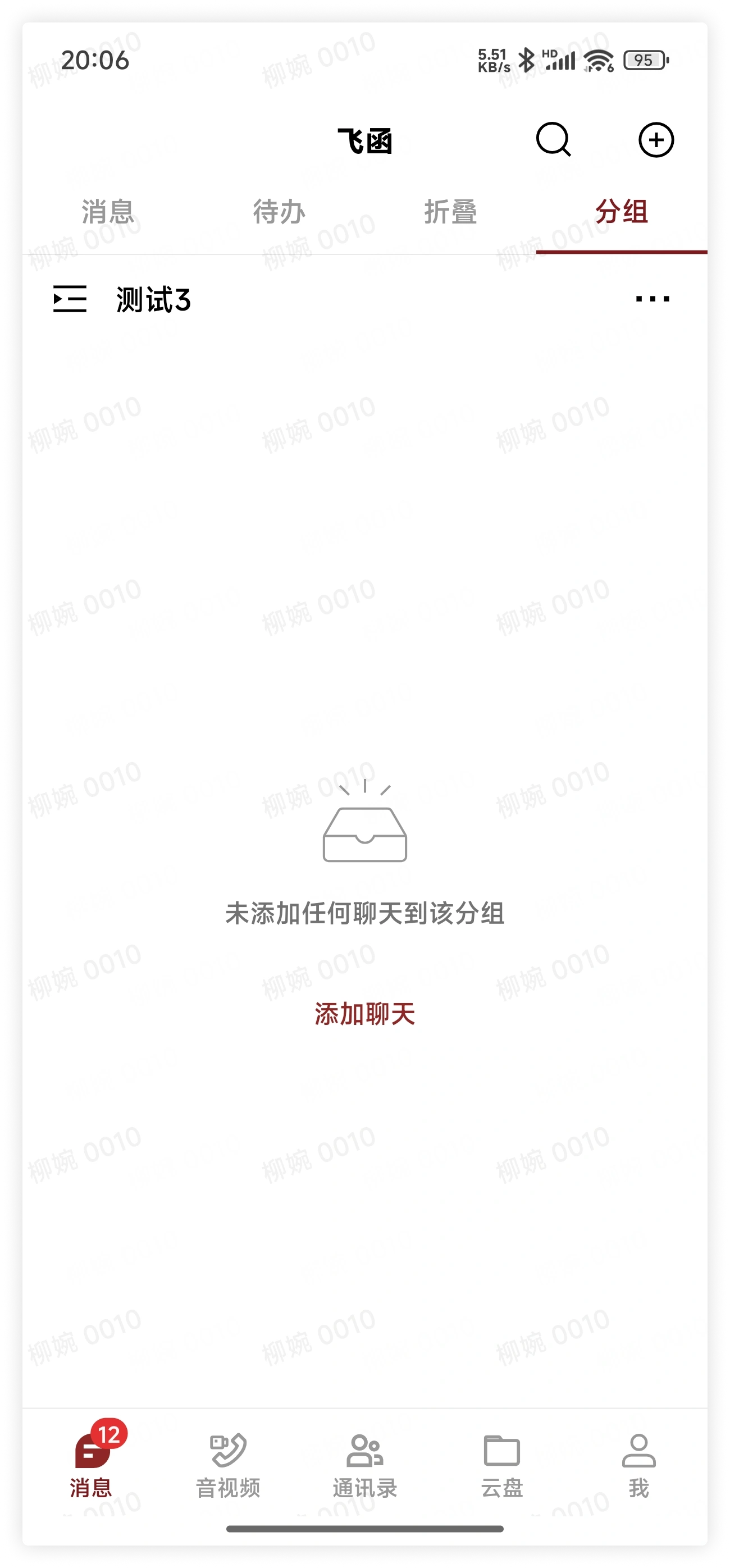
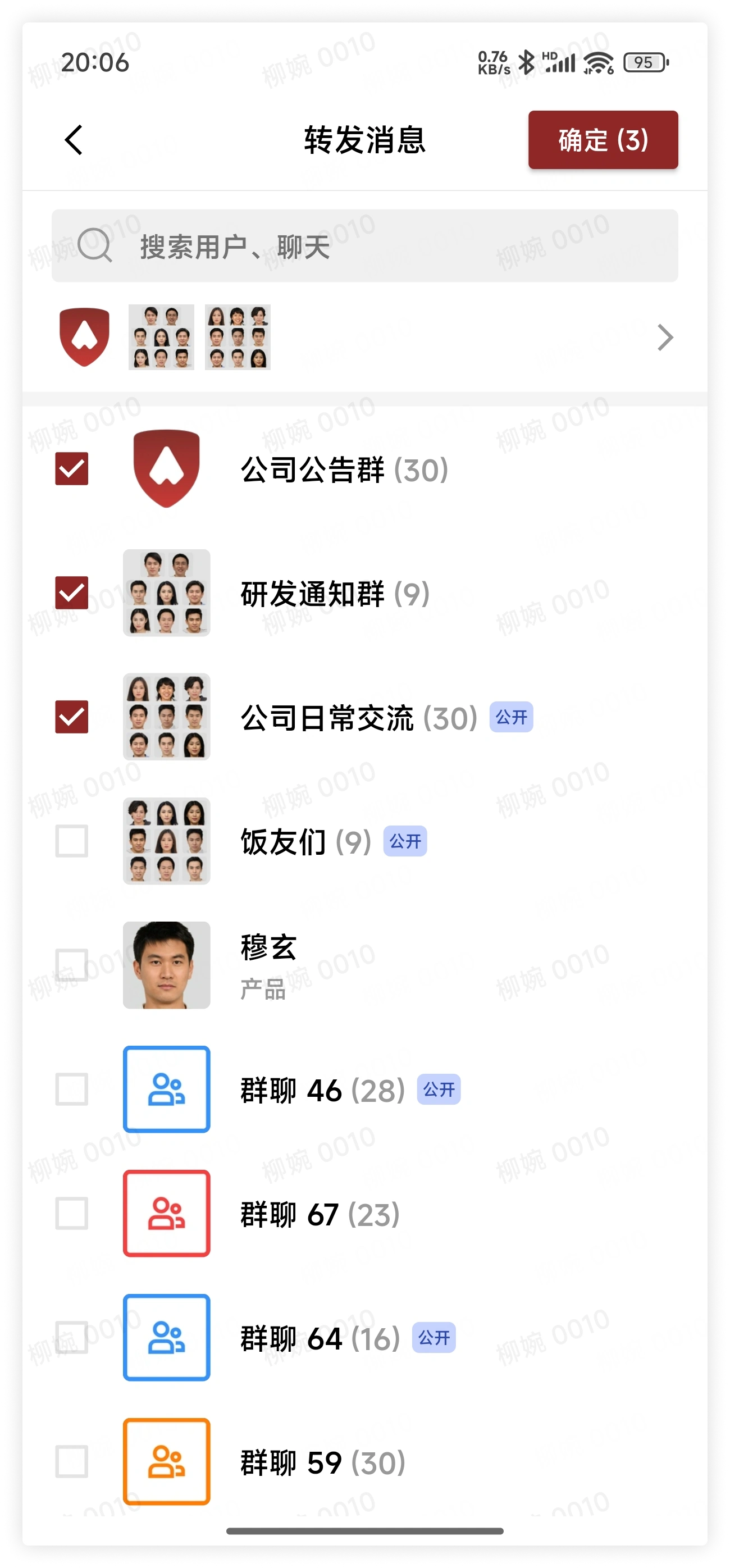
Click "Add Chat", and in the pop-up window you can tap to add chats to the group; after clicking "Multi-Select" in the upper right corner, check multiple chats to batch add them.
-
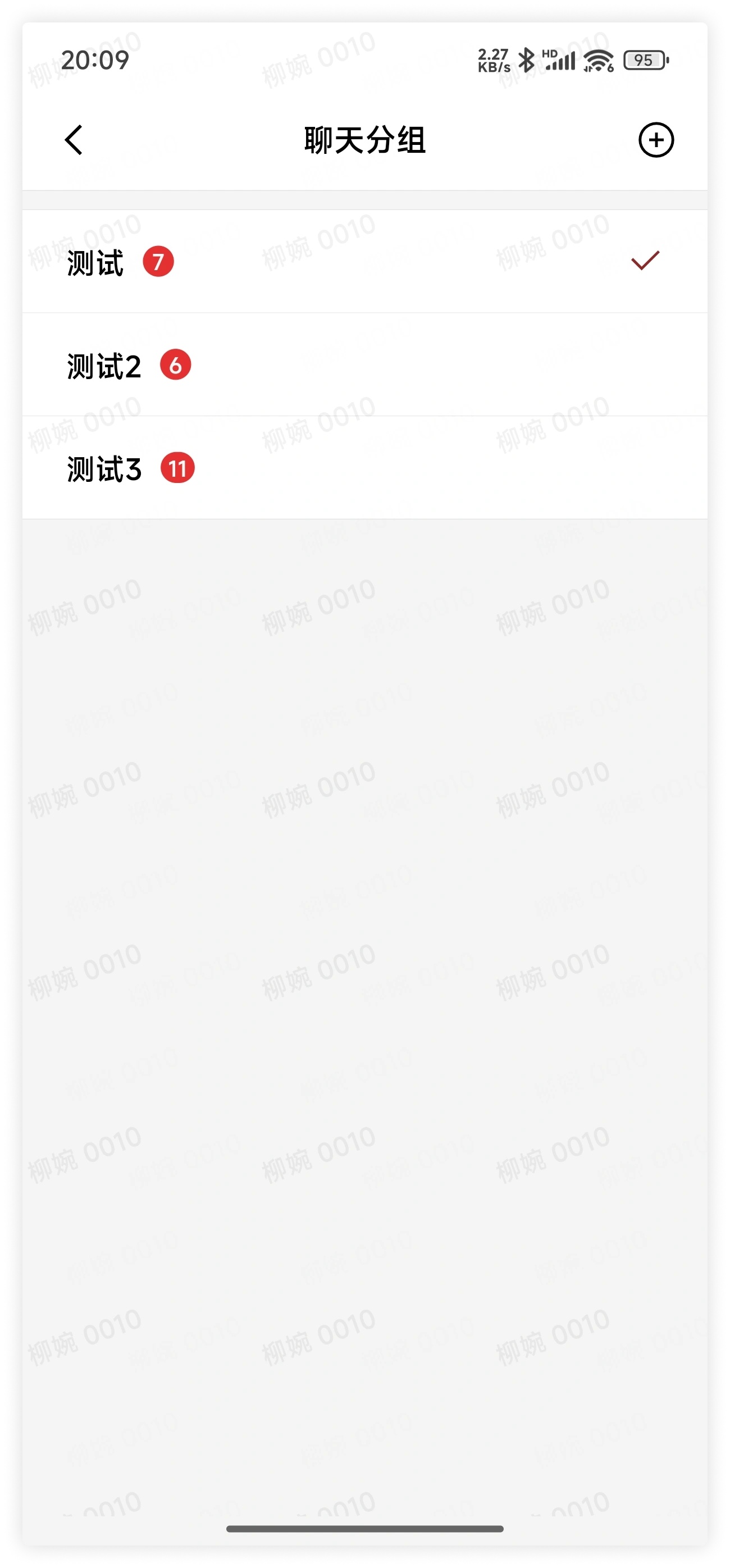
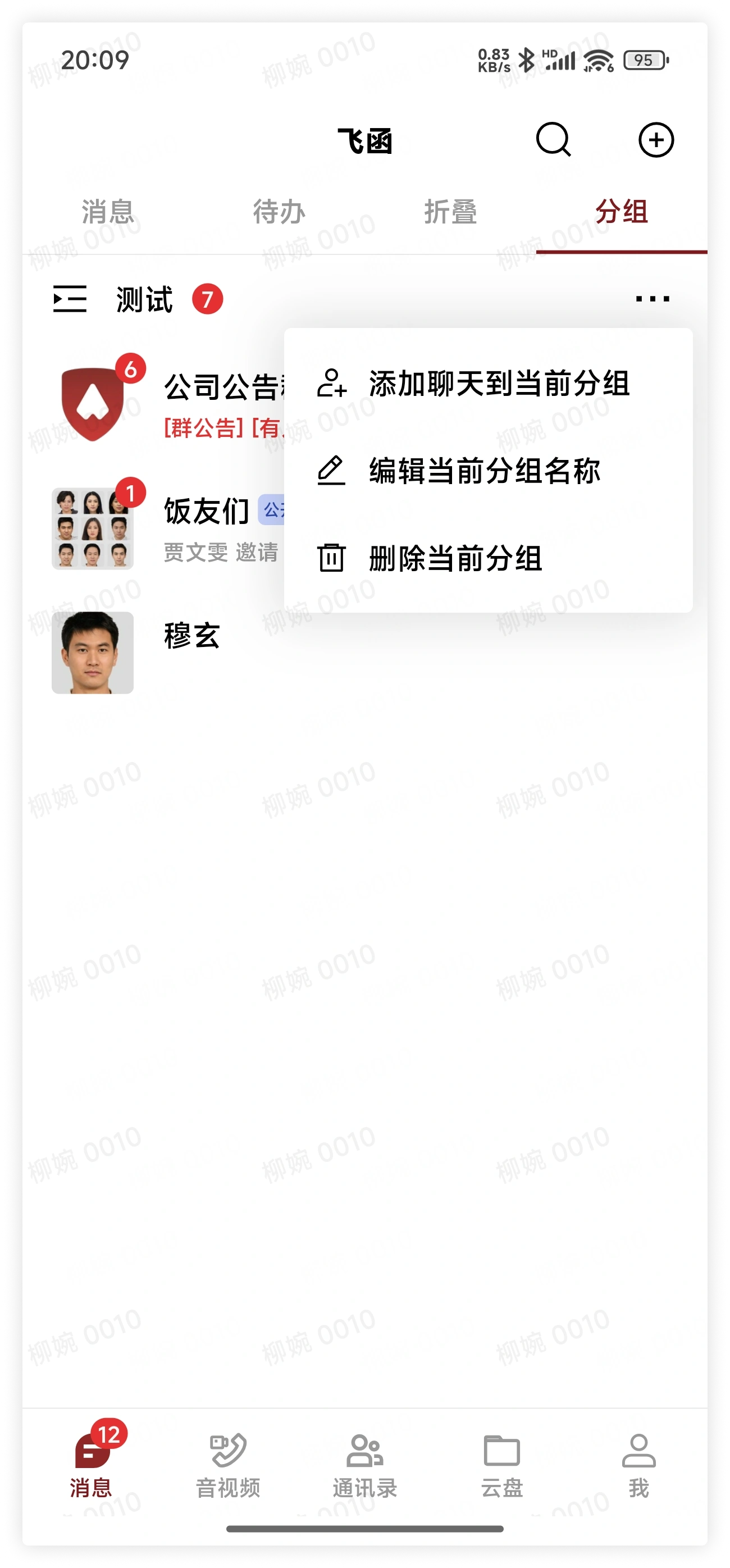
Click the button on the left side of the chat group name to display all chat groups. Clicking the corresponding group name switches to that group. If a message bubble with a number appears on the right side of the group name, it represents the sum of unread messages of all chats in the group. The "More" button on the far right of the group name can add chats to the current group, edit the current group name, or delete the current group.
-
If you want to remove a chat from the group, after switching to the group, long press the chat and select Remove from Group in the pop-up menu to remove the chat from the group.
3. FAQ
Q: If I delete a group, will it cause me to leave these chats?
A: No. The grouping feature only gathers these chats together. Deleting the chat group will not make any actual changes to these chats.
Q: What impact will removing a chat from the group have?
A: It will have no impact. It will only remove the chat from the group, and nothing else will change.