Desktop - Drive Guide
1. My Space
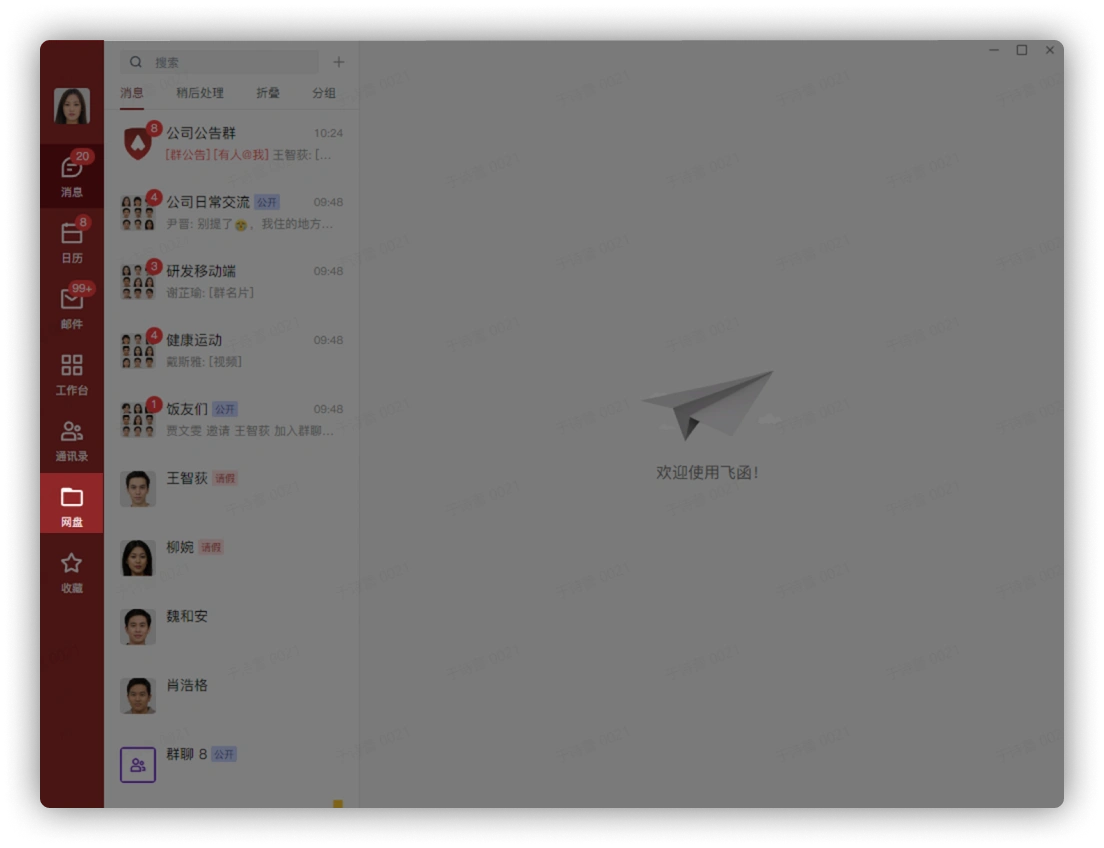
Click the Drive button in the function bar to enter My Space:
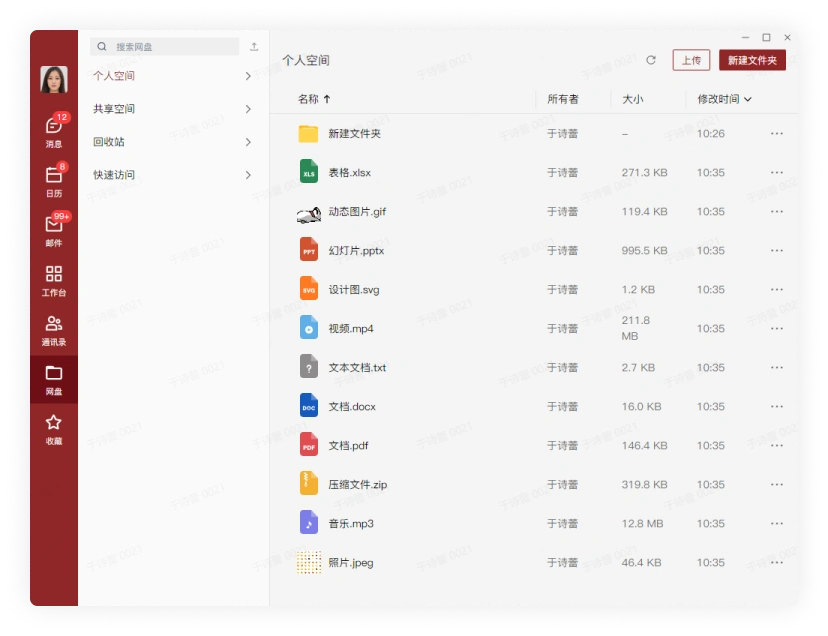
My Space can save and display all files uploaded by the user and related information:
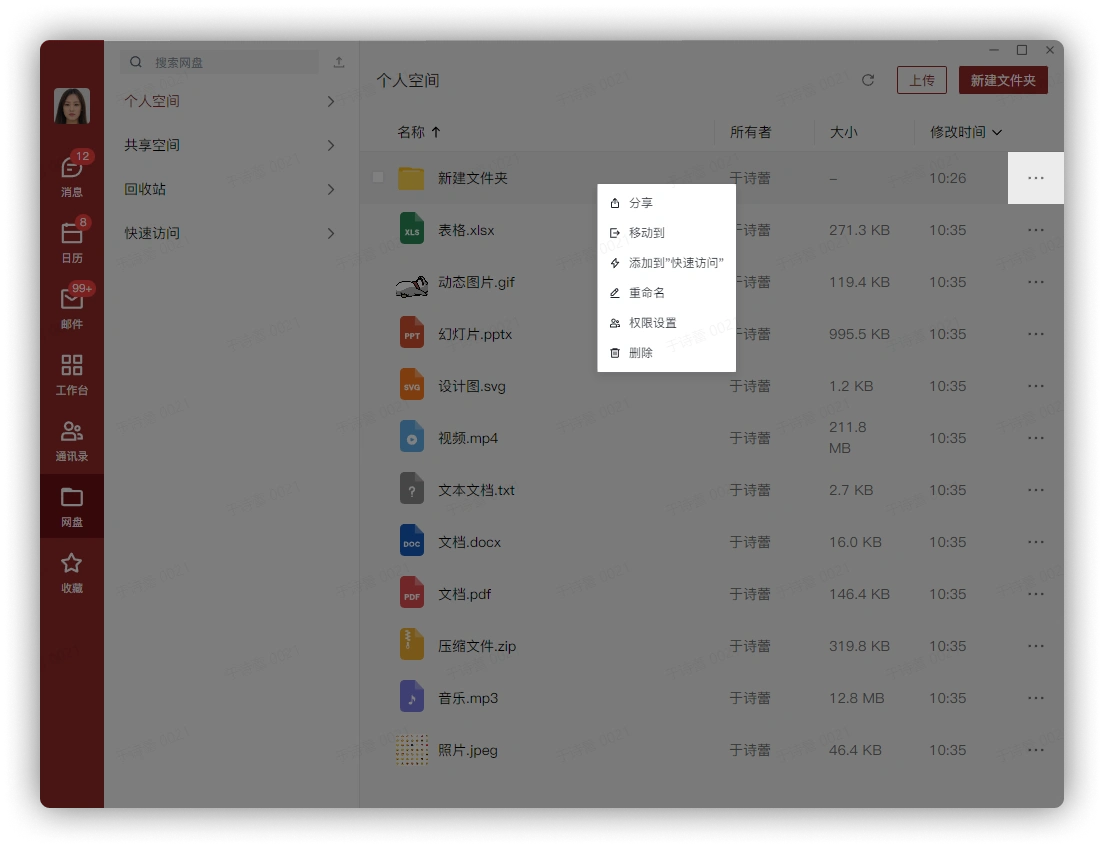
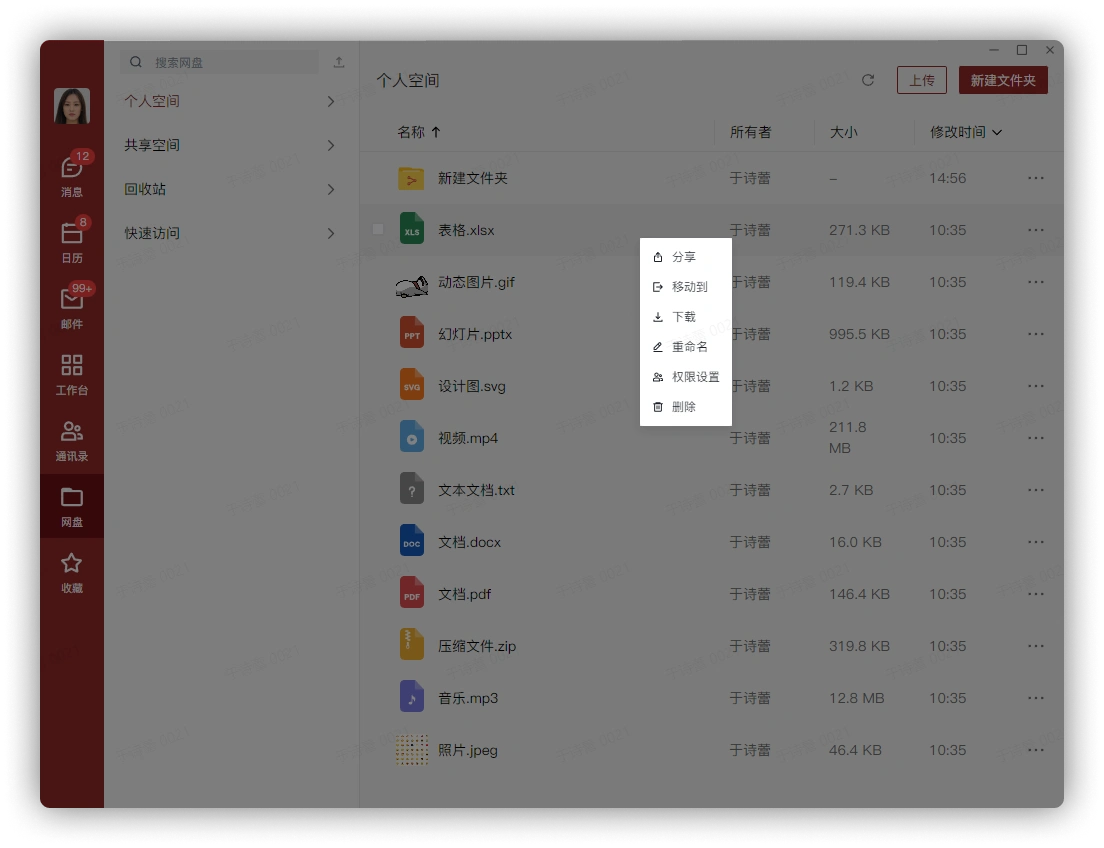
Right-click the file or click the button on the far right of the file to perform more operations on the file:
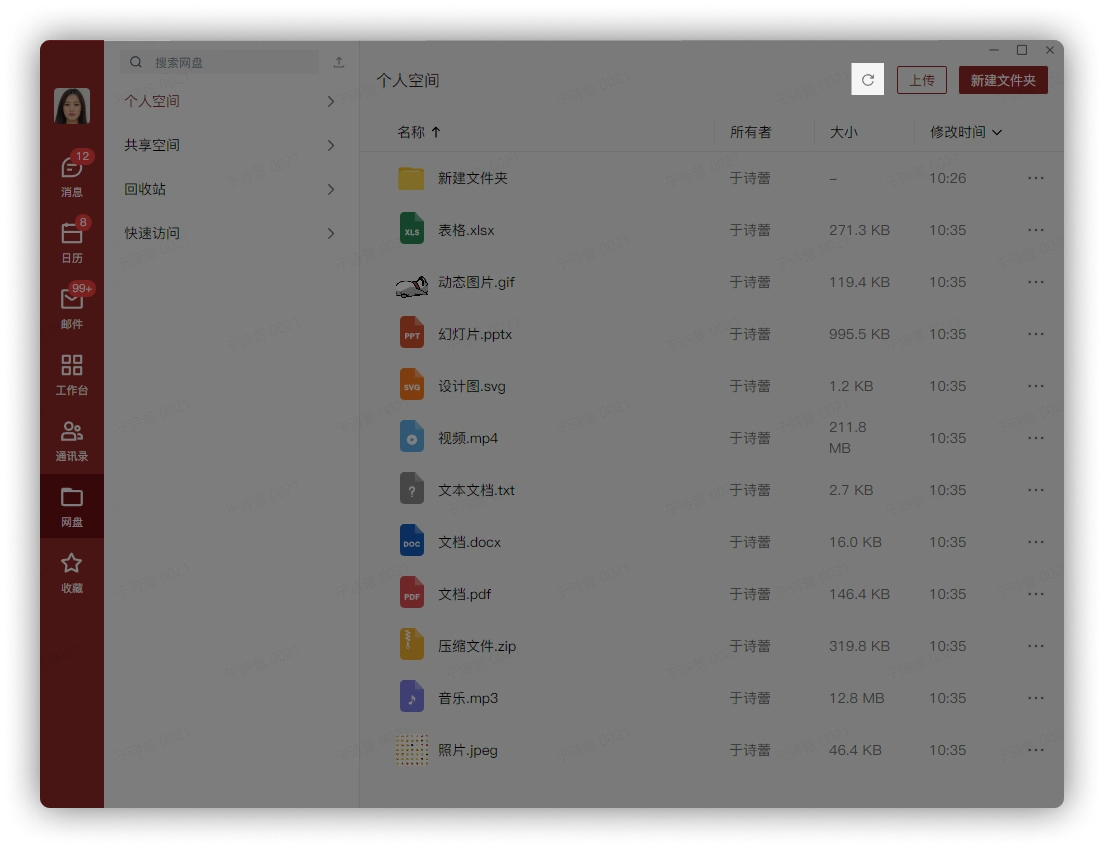
Click the Refresh button to refresh the My Space page:
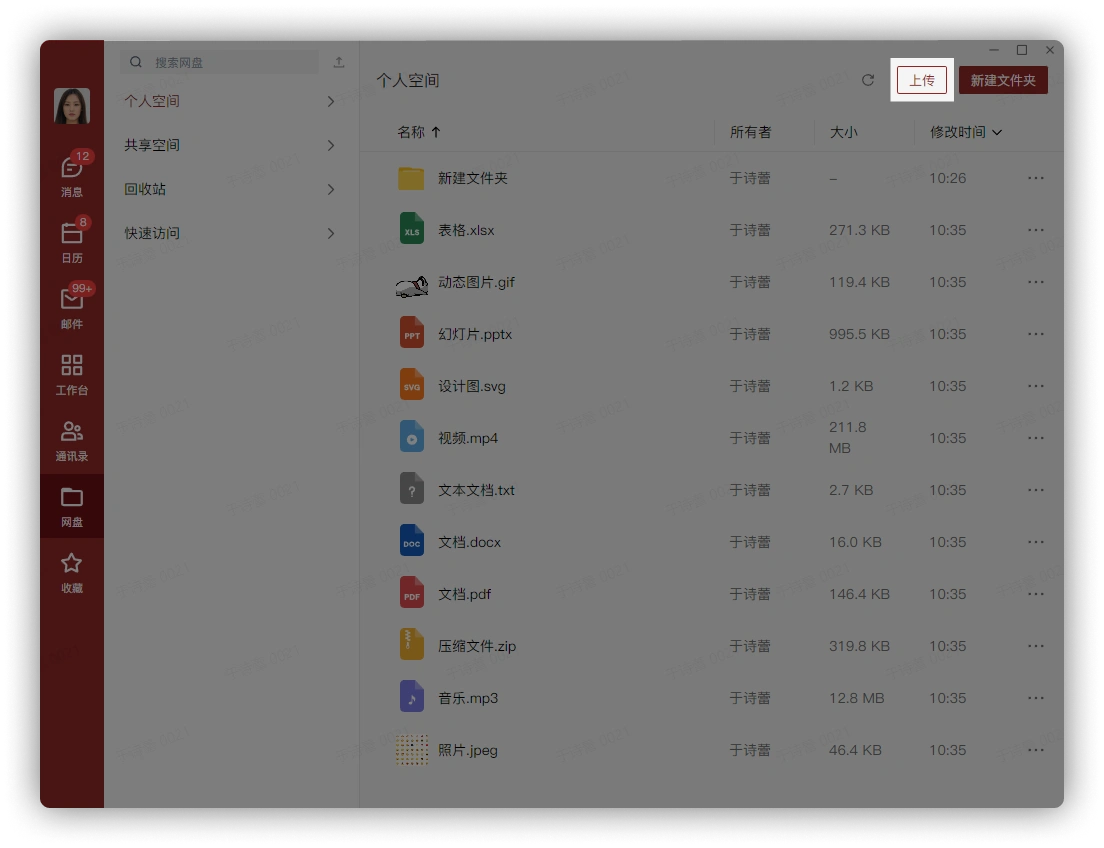
Click the Upload button to upload files from local storage to the drive:
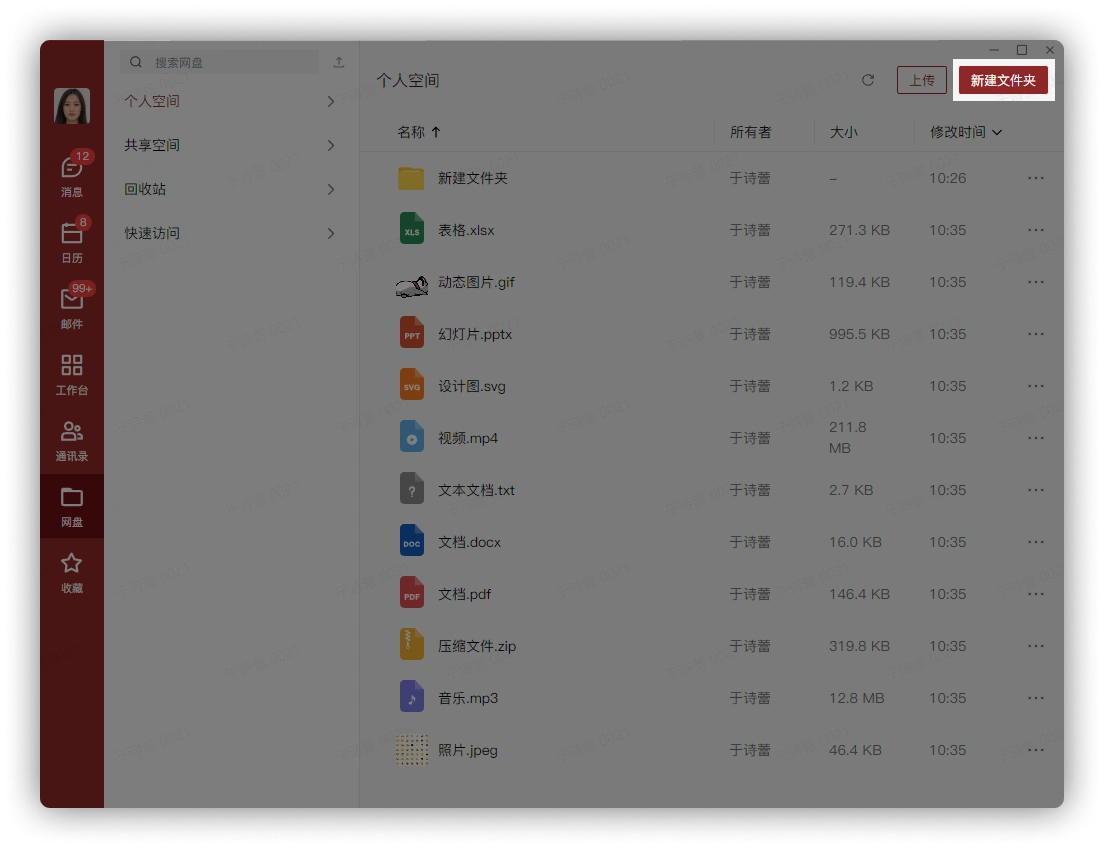
Click the New Folder button to create a folder in the current interface:
Select all files with one click:
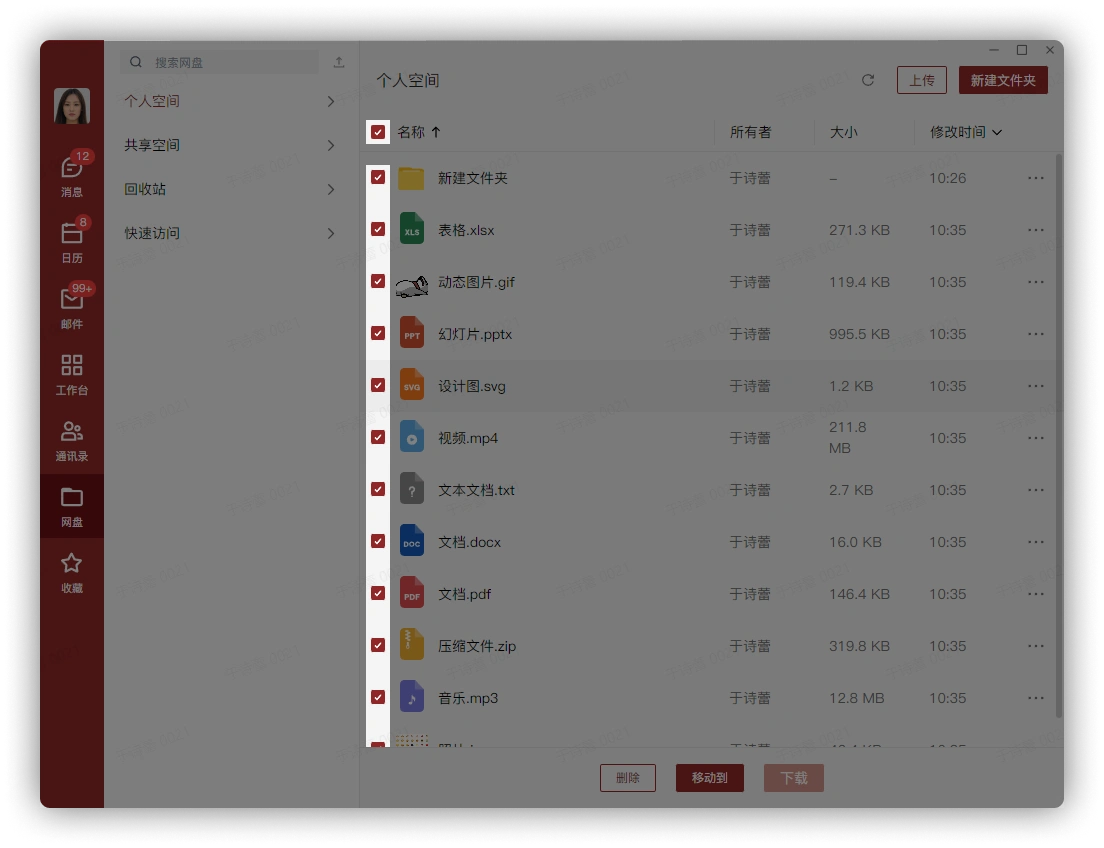
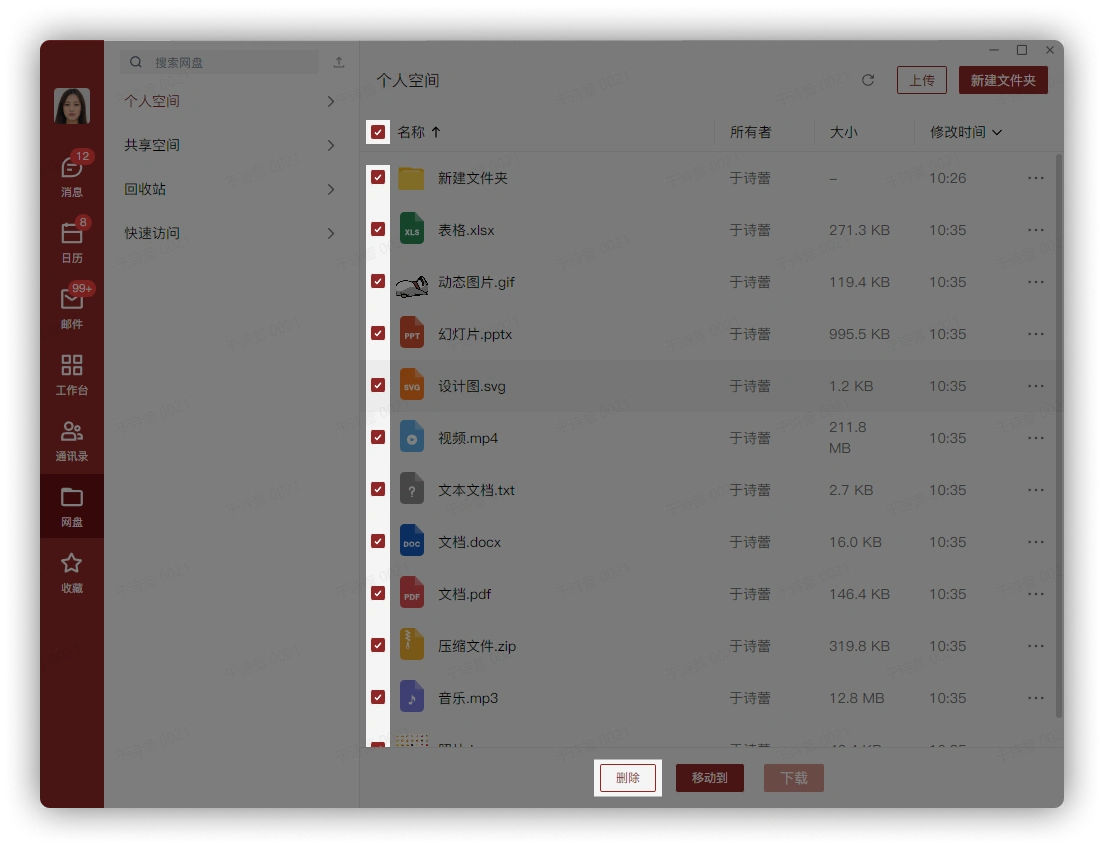
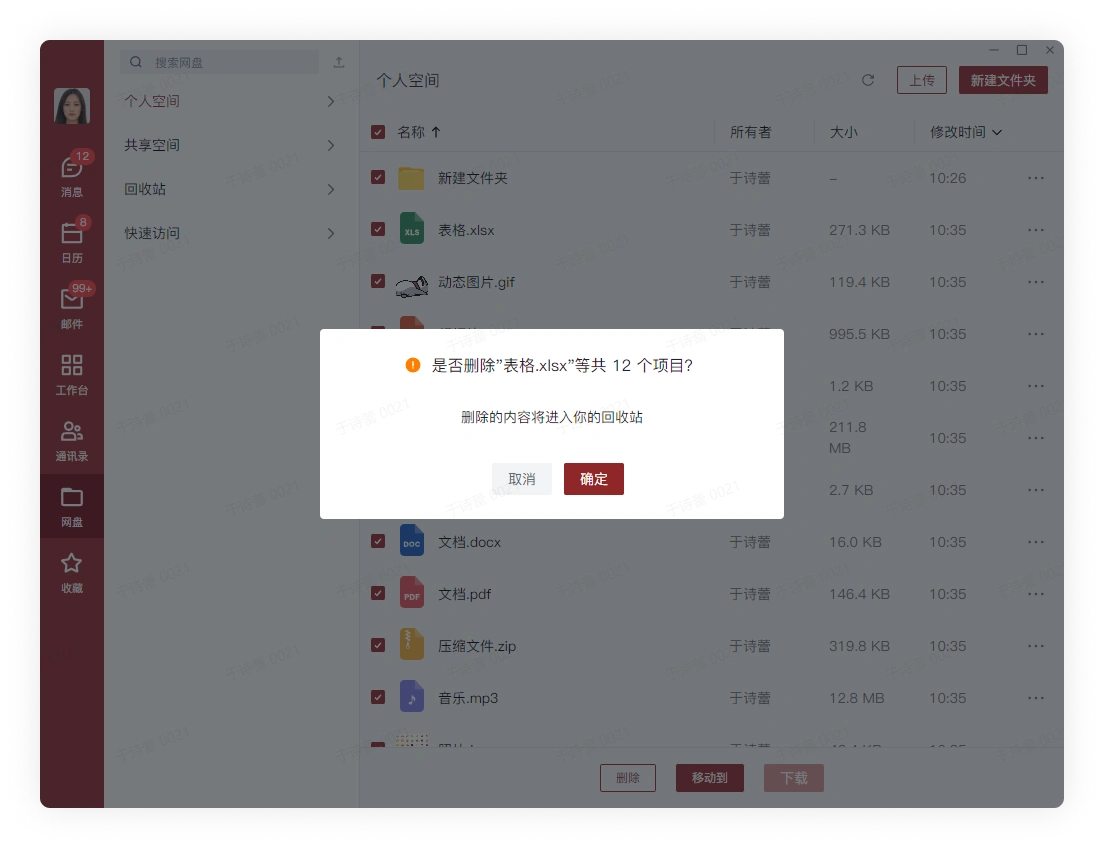
Delete files with multiple selection:
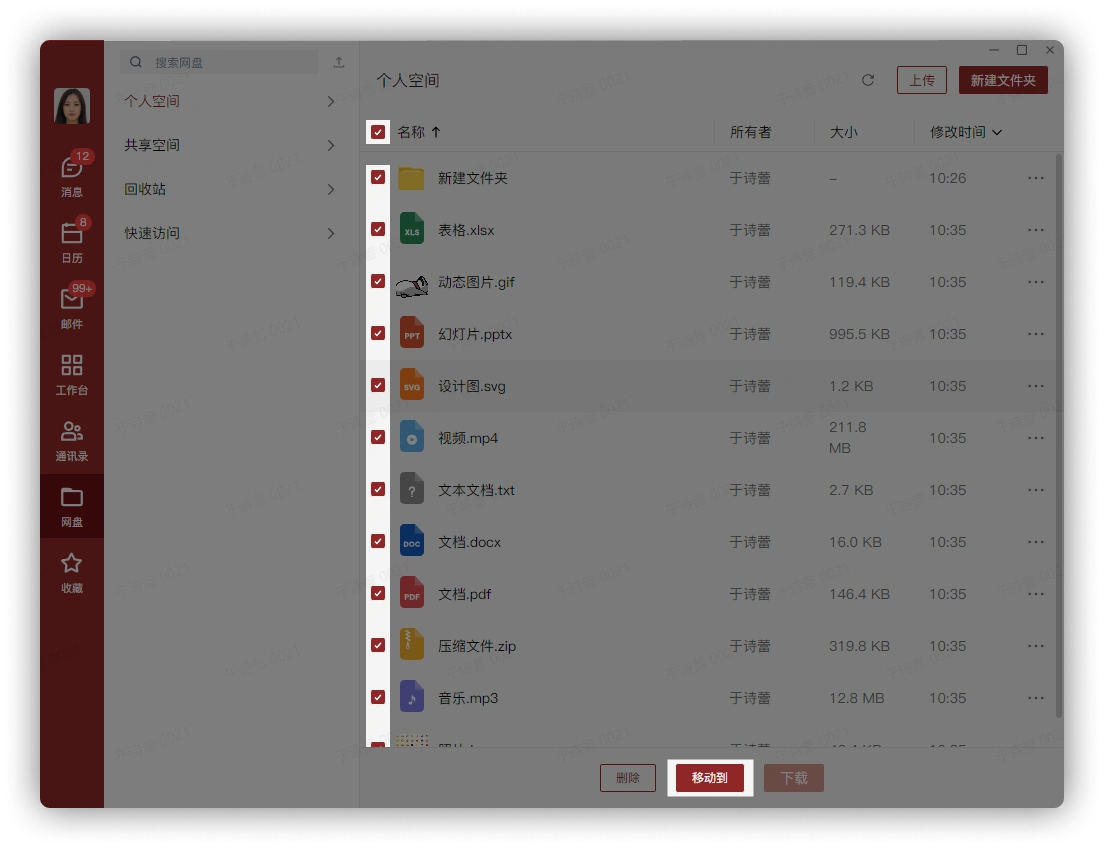
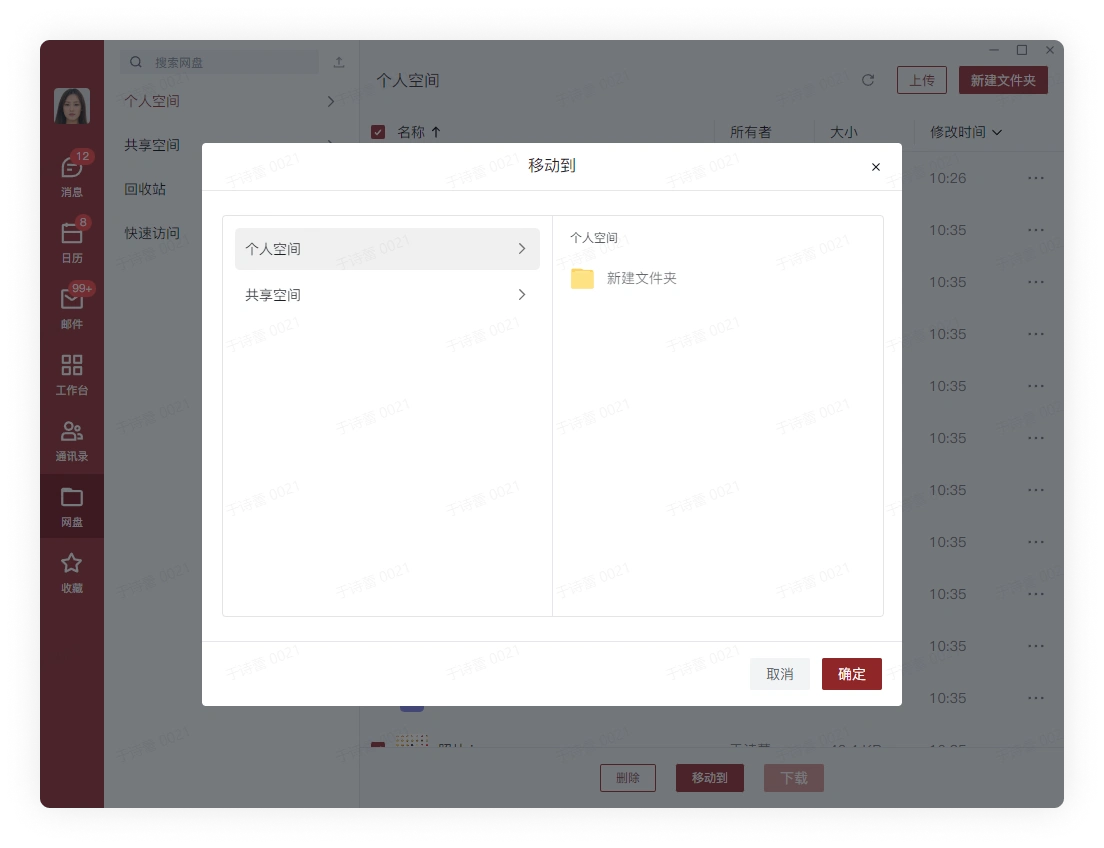
Move files with multiple selection:
Single file operation:
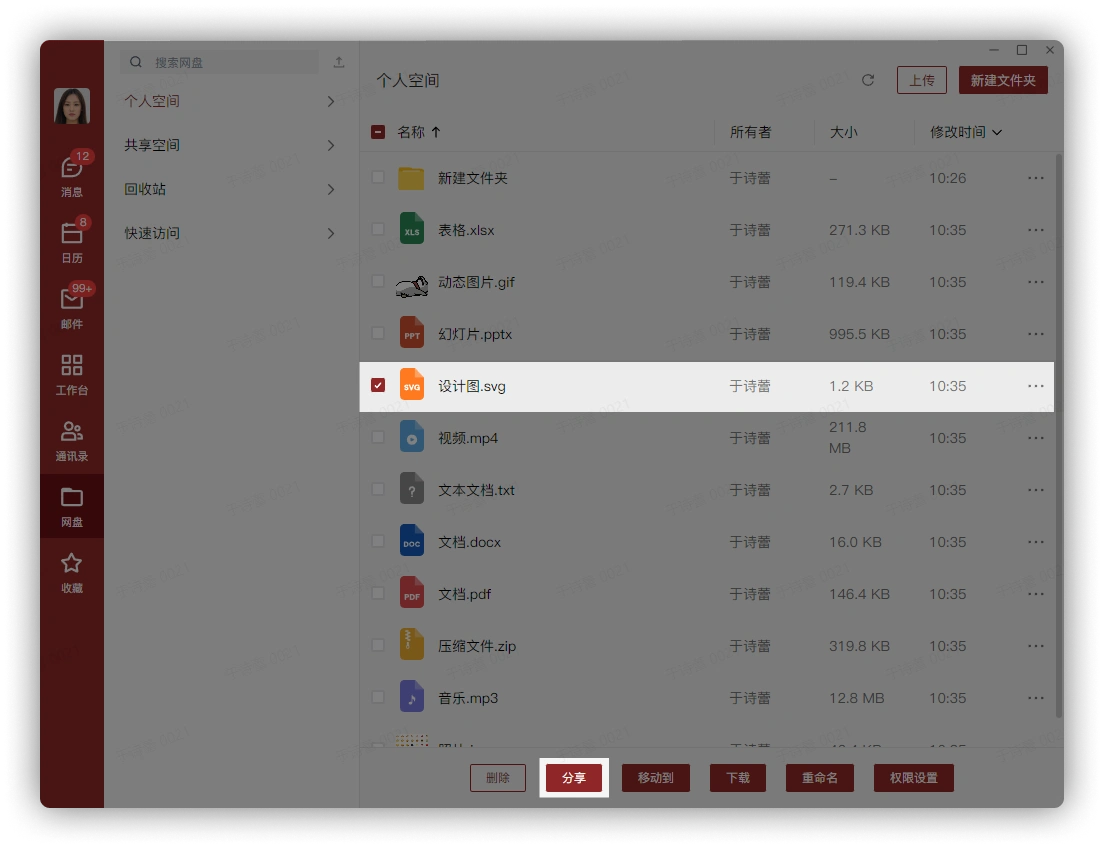
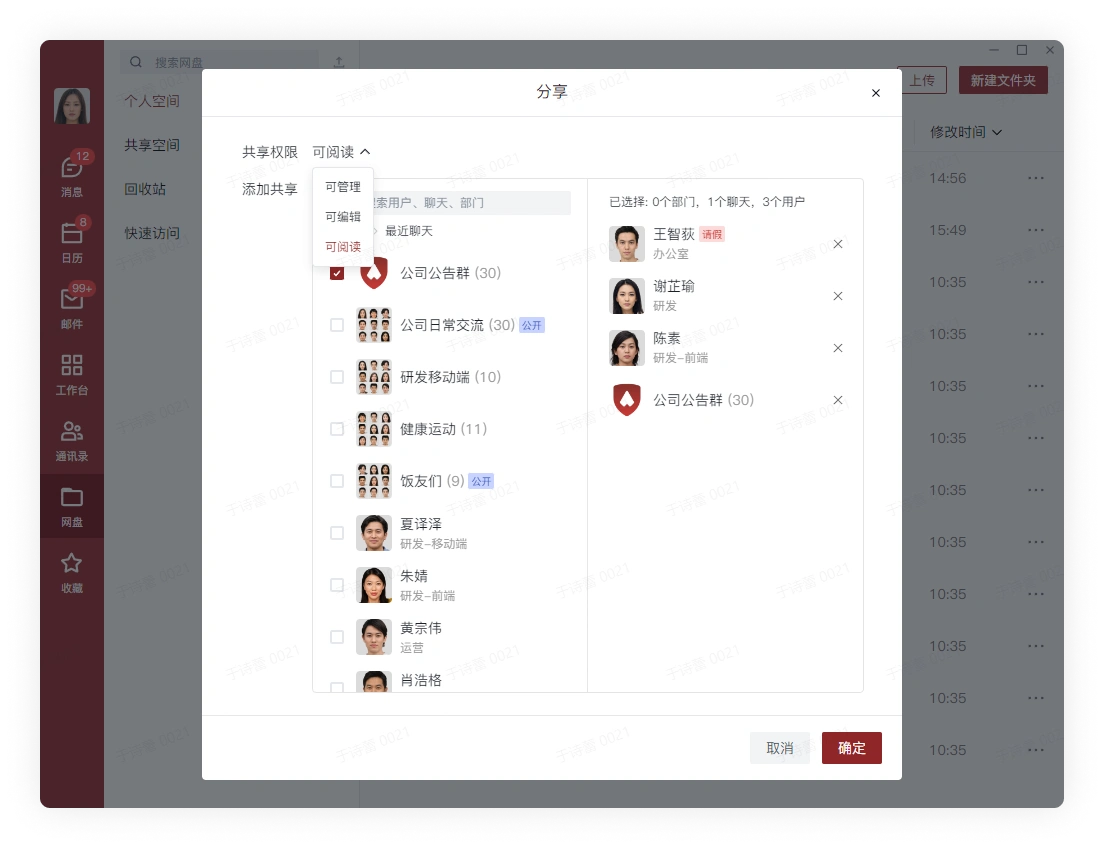
After selecting a single file, share it with other users. Select users and set permissions, then click Confirm to complete sharing:
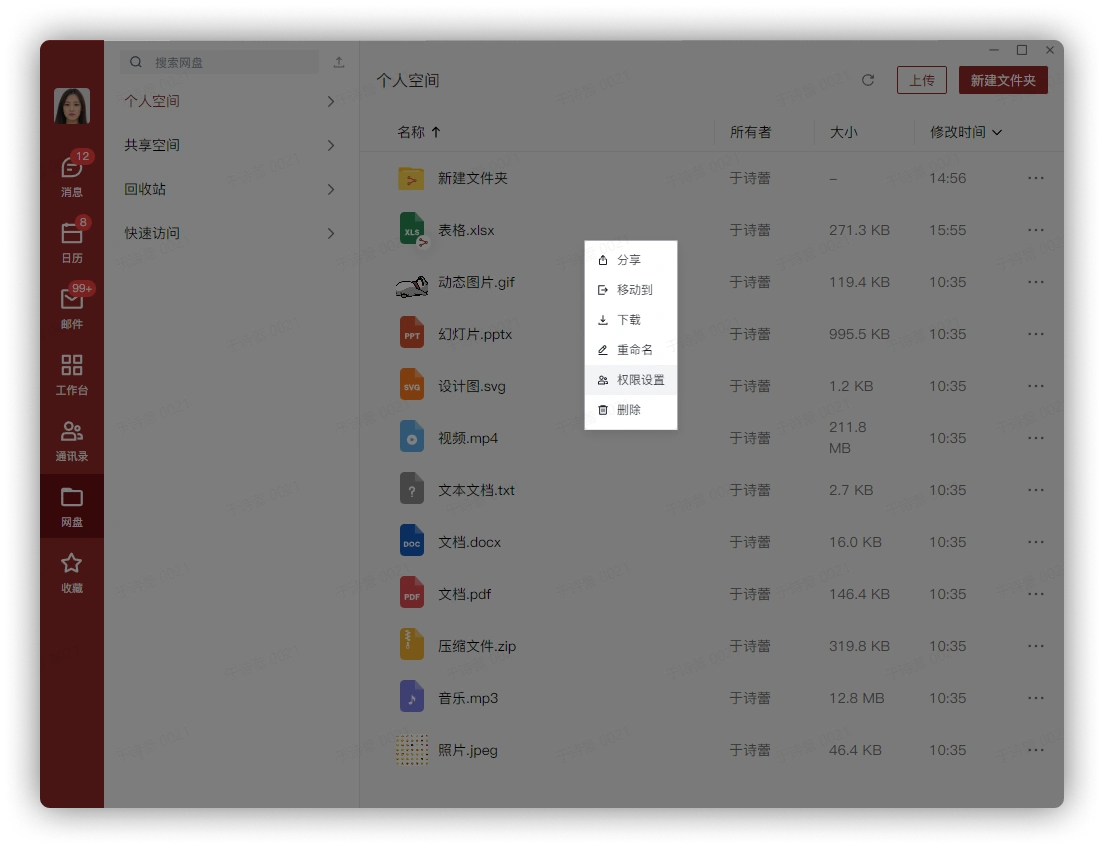
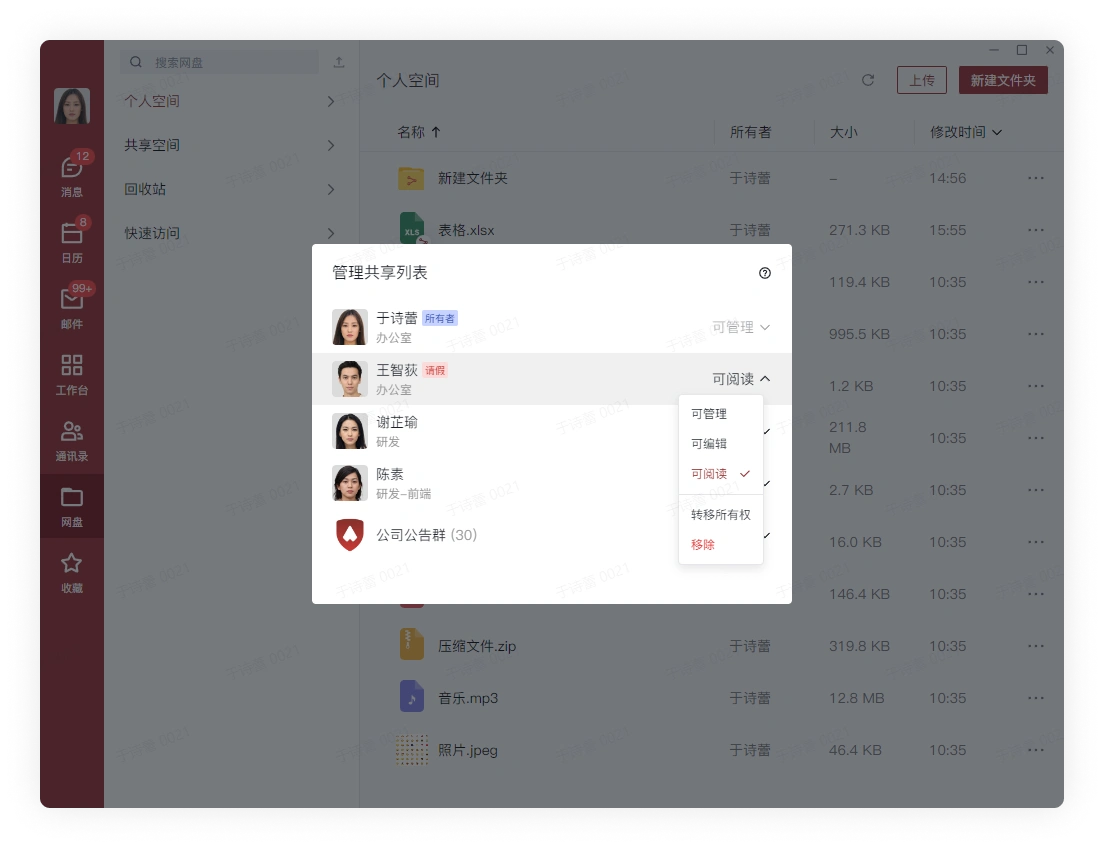
Shared files can be managed for already shared users through permission settings:
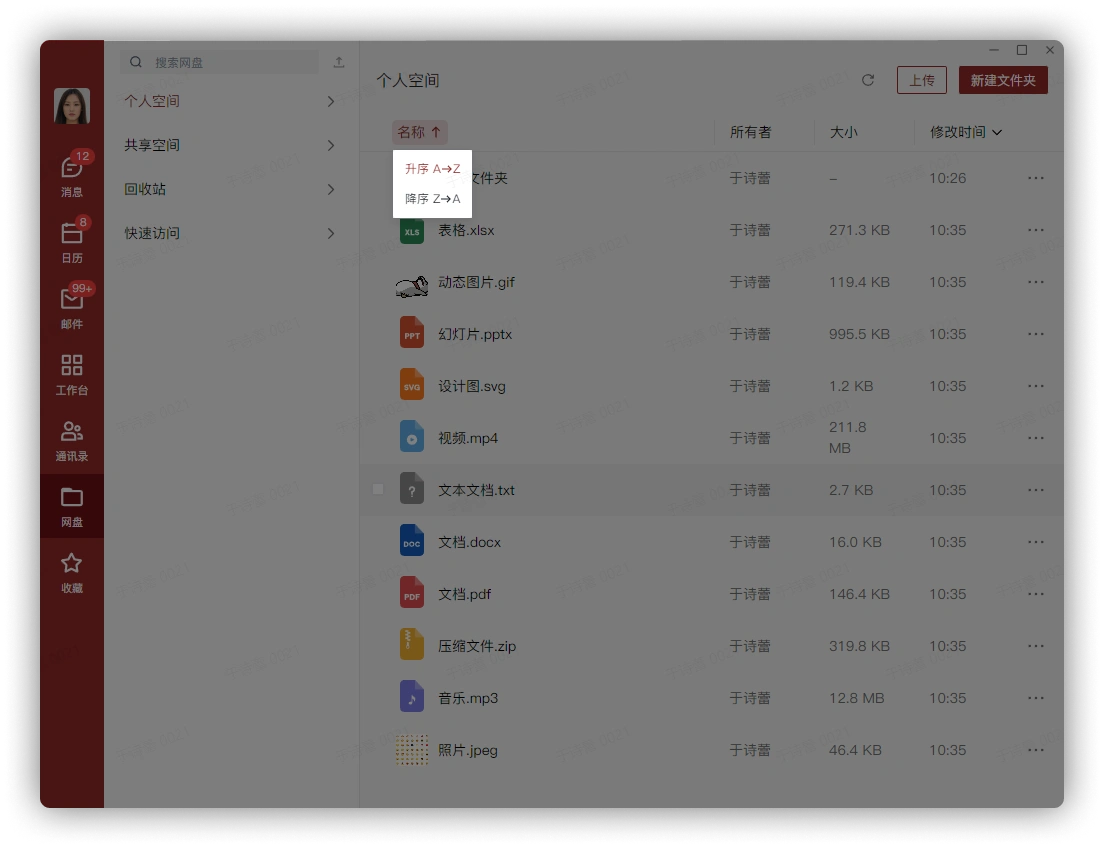
Sort files according to personal preference or needs:
2. Shared Space
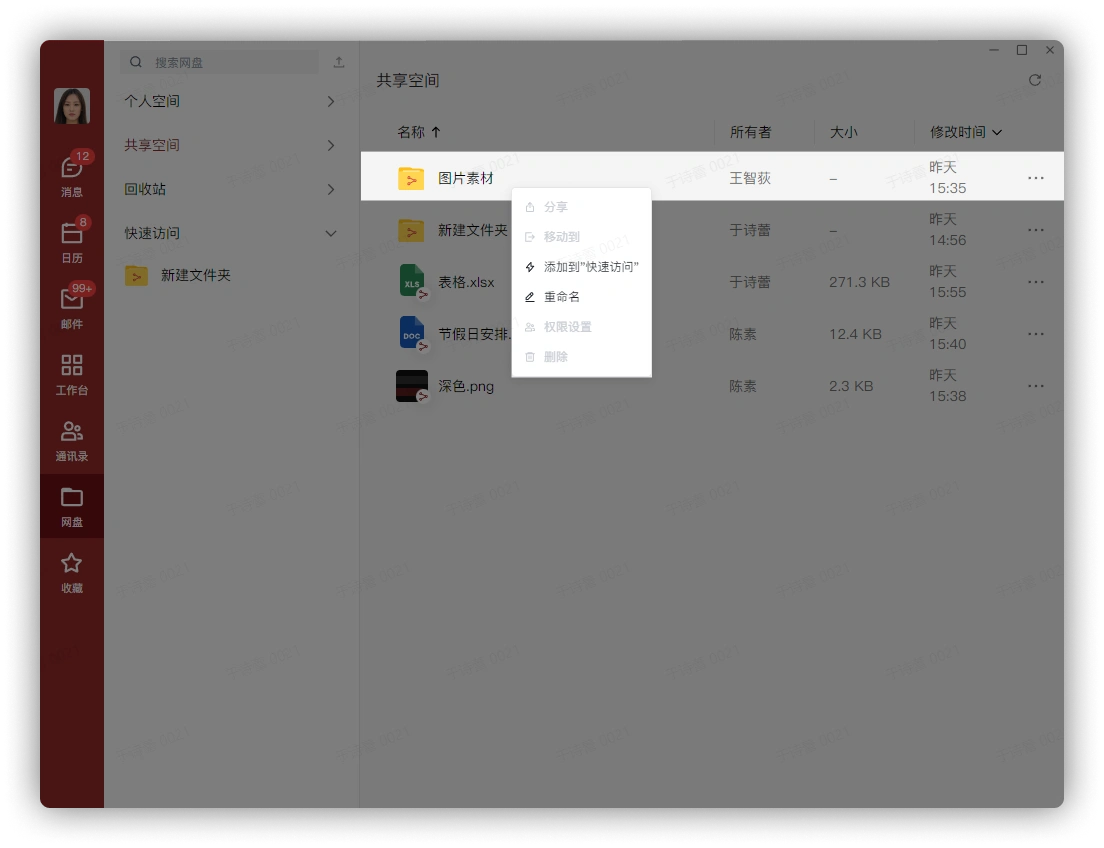
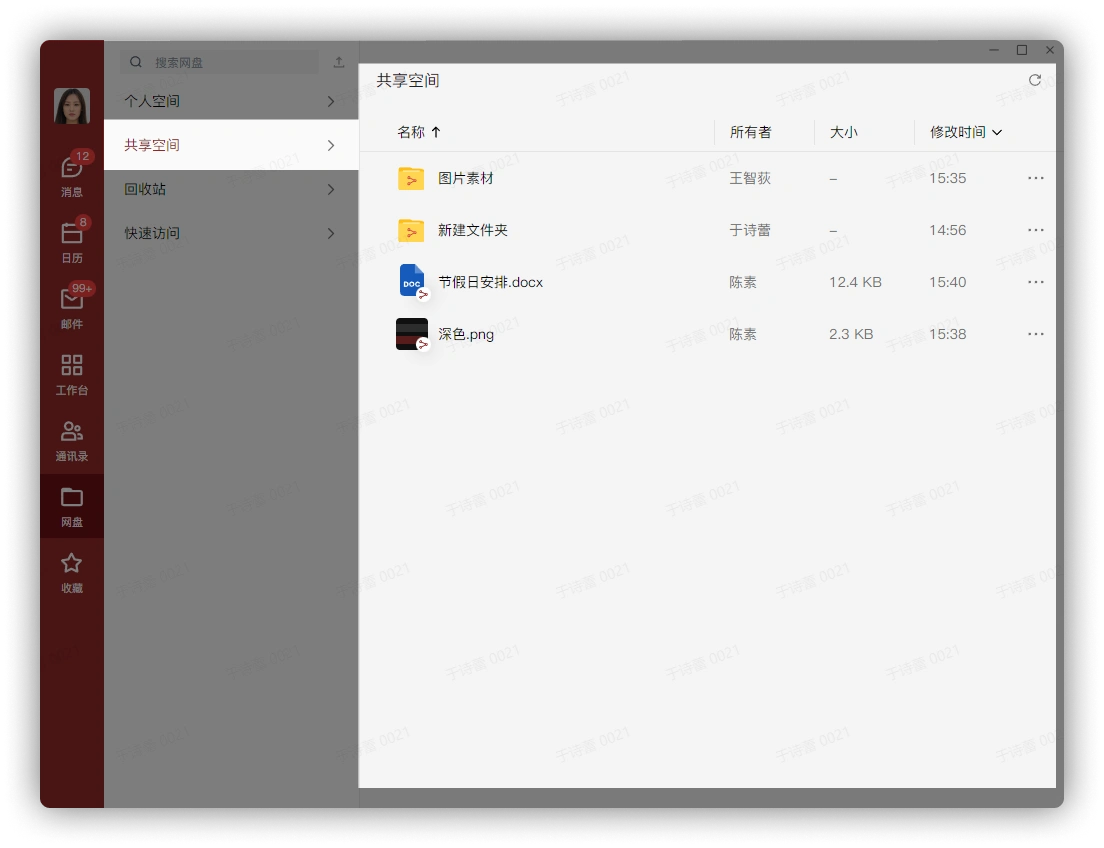
Click to enter Shared Space to display files shared by the user and files shared with the user:
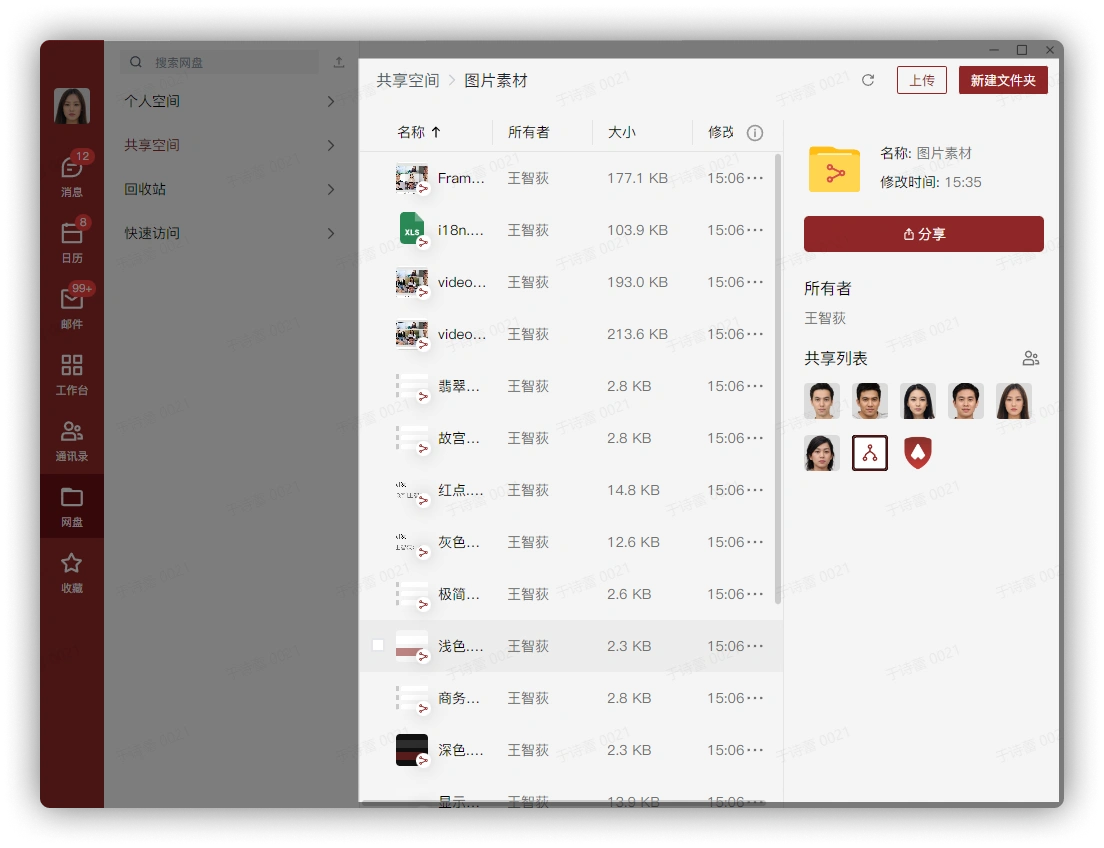
Click the shared folder to view shared files:
3. Recycle Bin
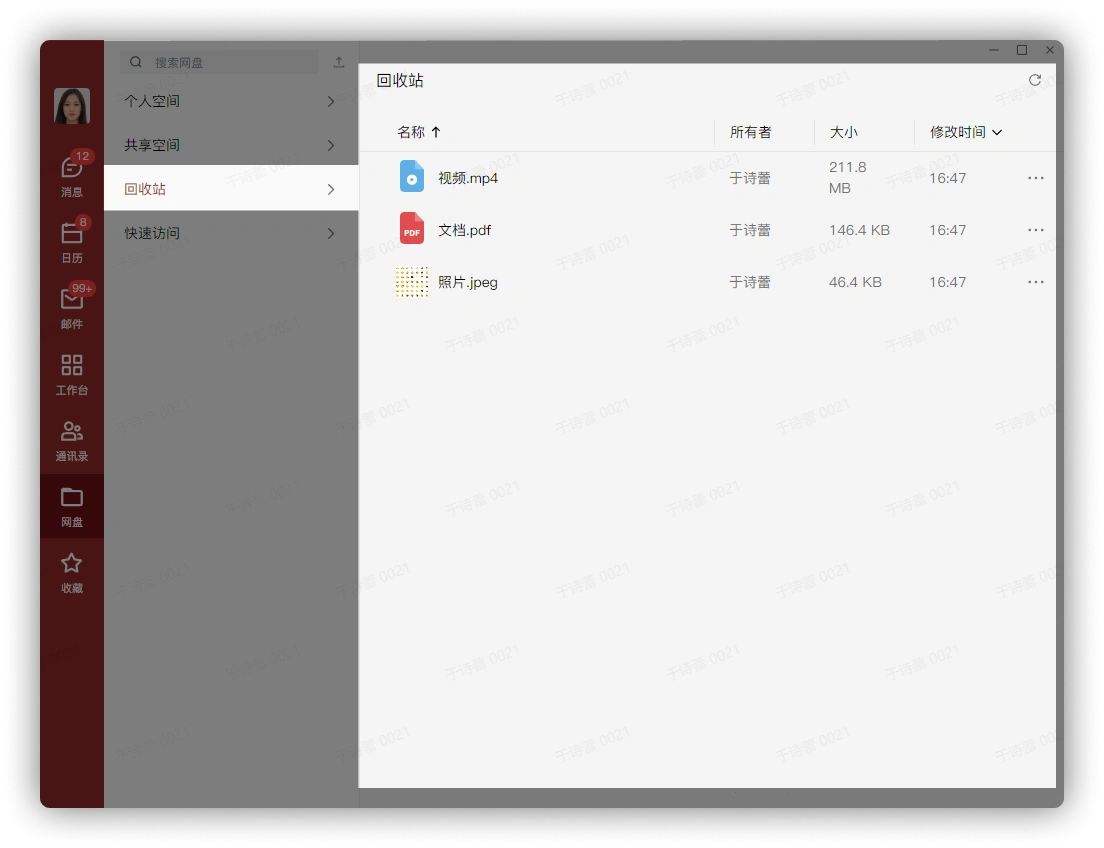
Click to enter the Recycle Bin to display files deleted by the user:
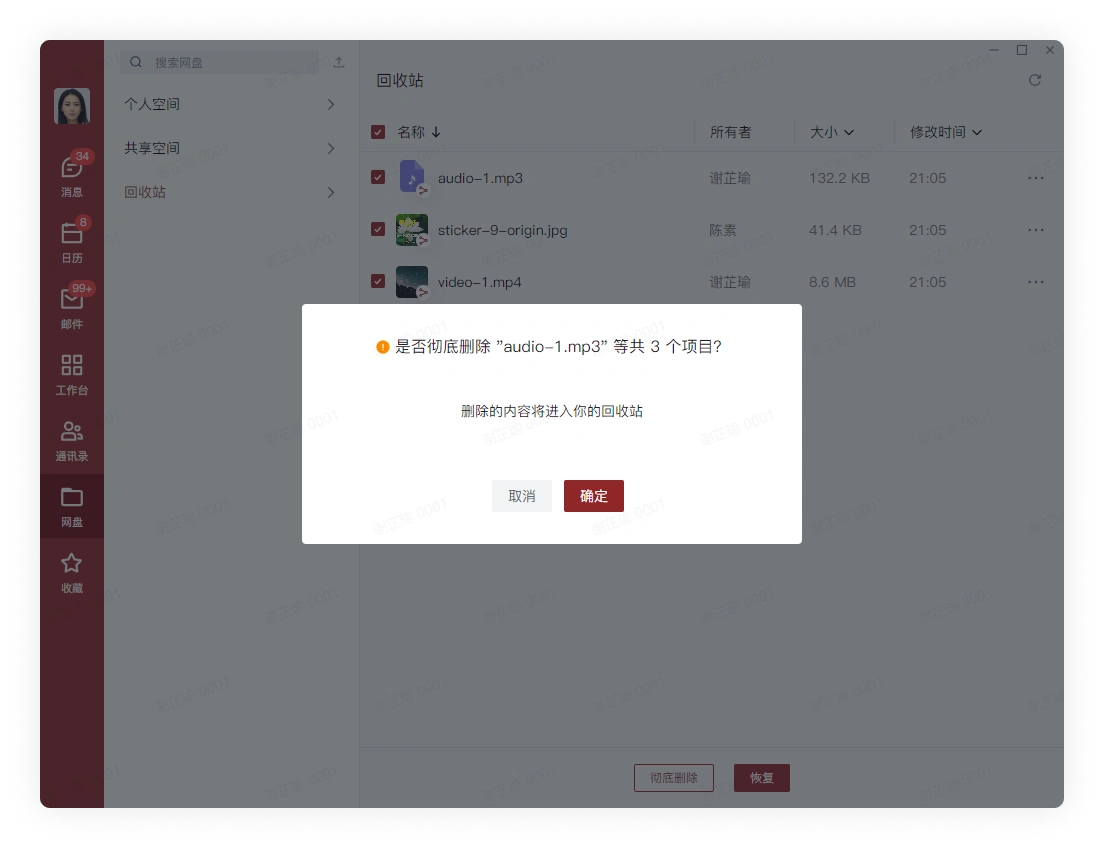
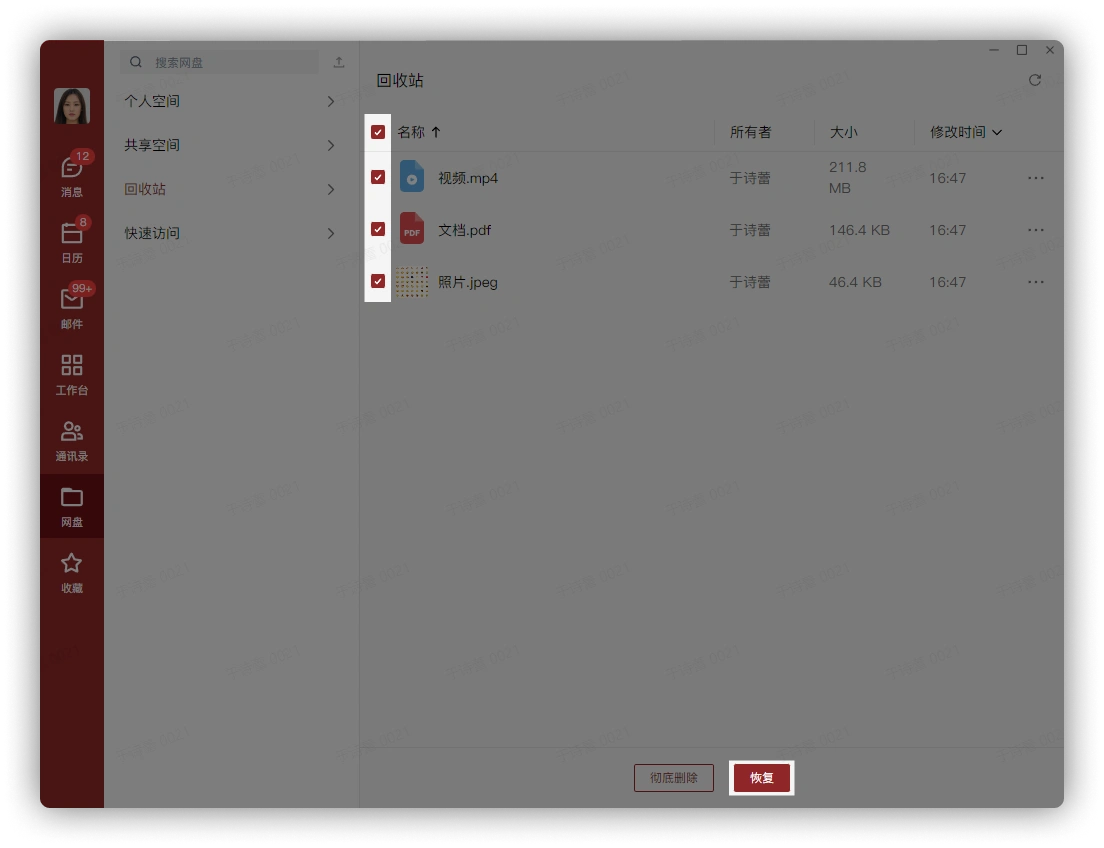
After selecting multiple files, you can choose to permanently delete or restore files:
4. Quick Access
Click the folder under Quick Access to go directly to the directory where the file is located
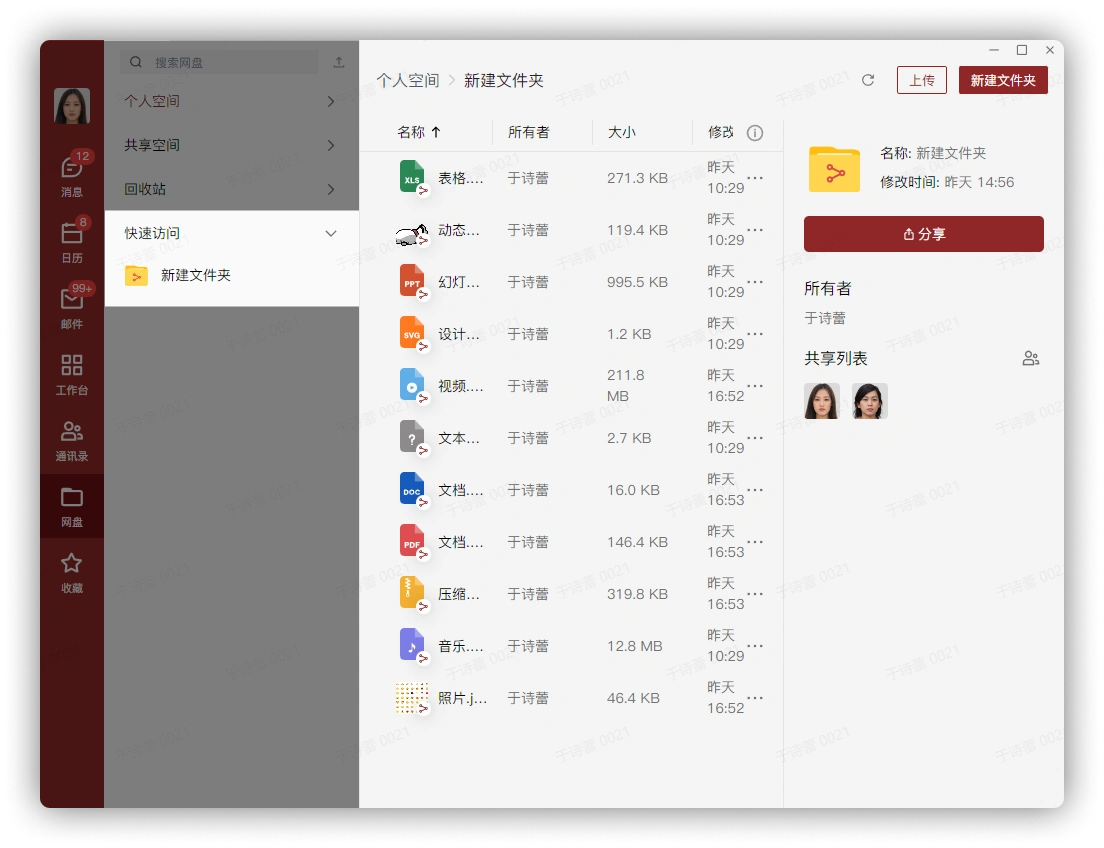
Right-click or click the button on the far right of the folder, then click the Add to "Quick Access" button: