Mobile - Chat Guide
1. Chat Interface
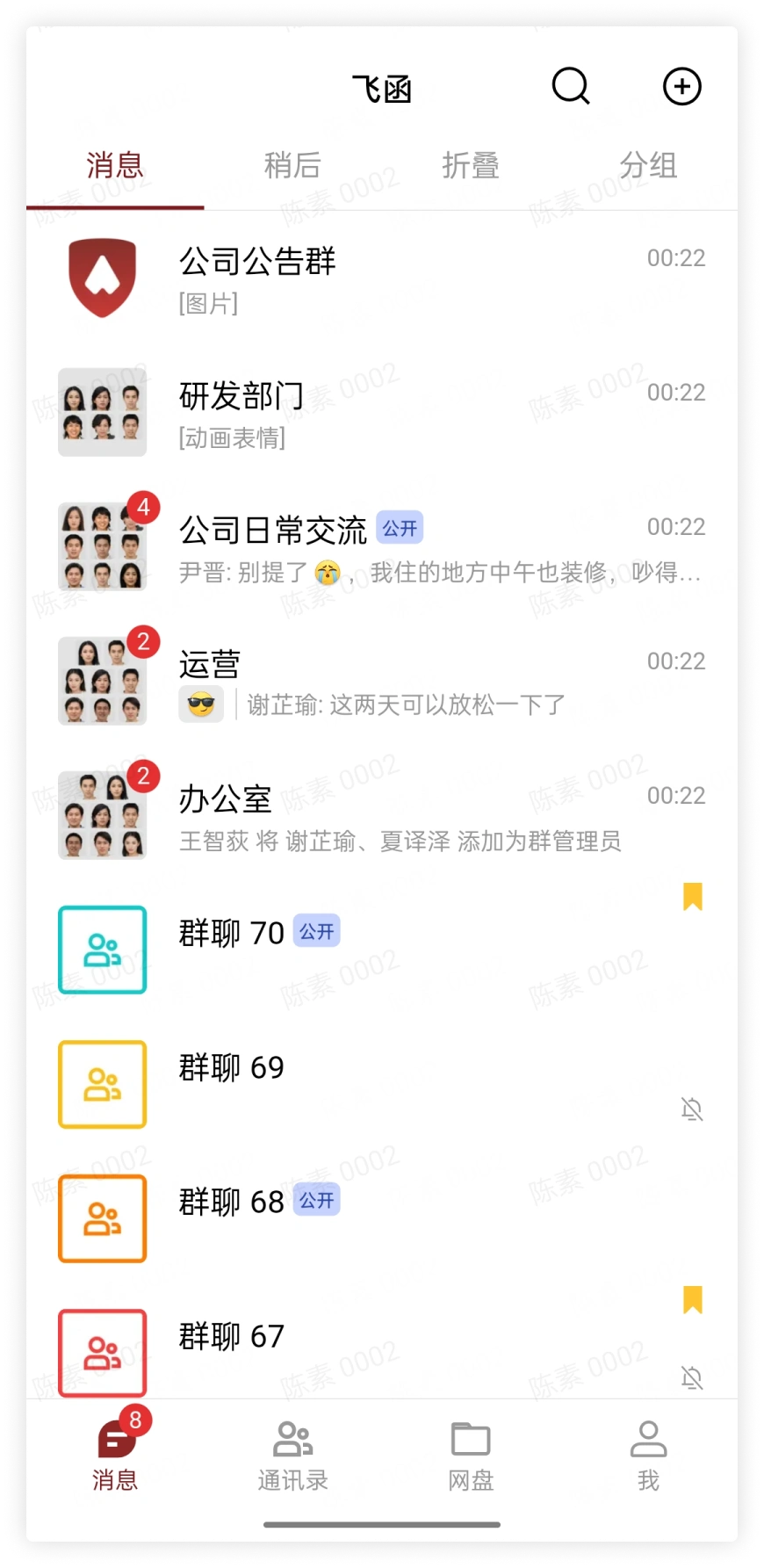
1.1 Chat List
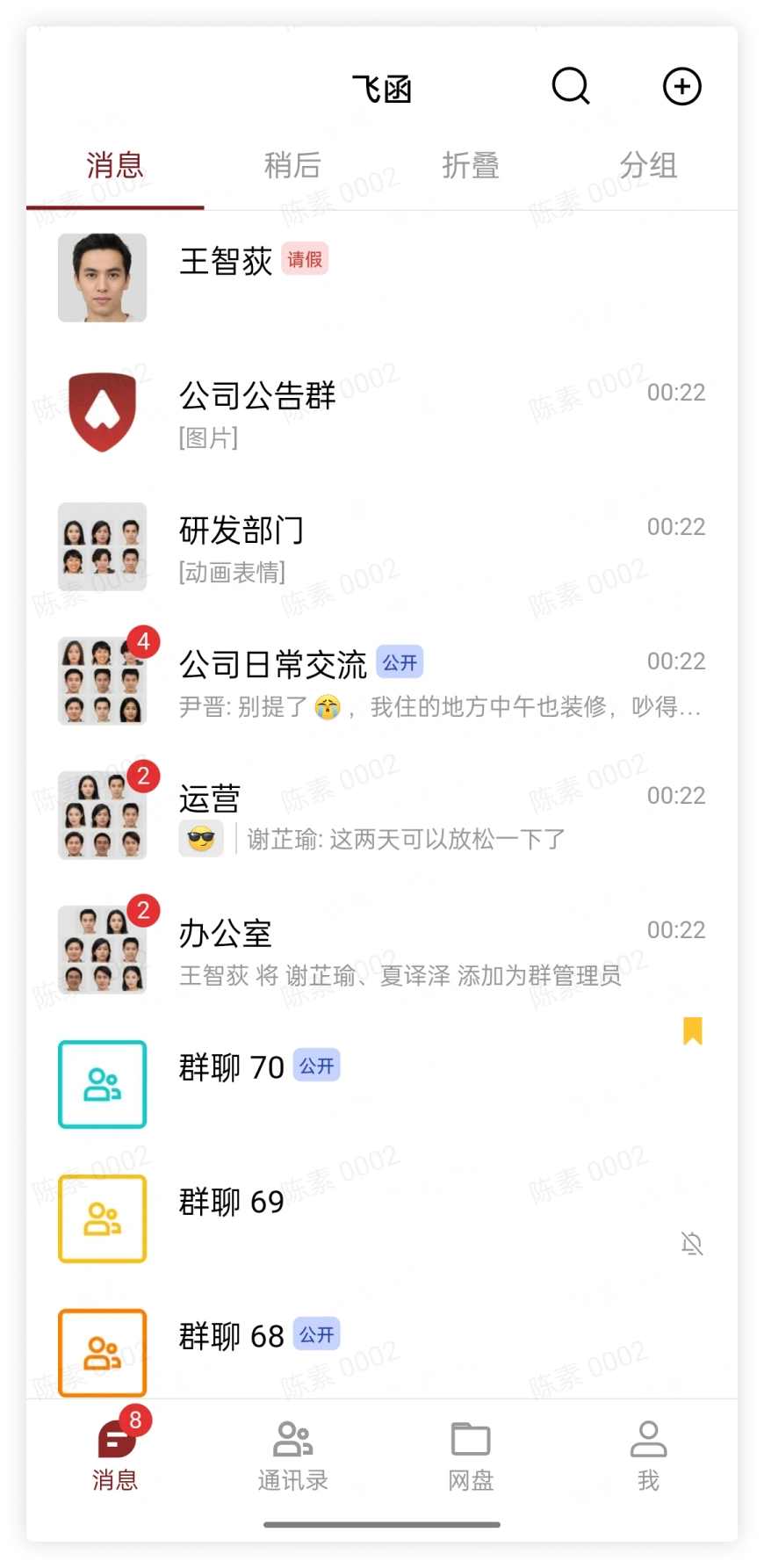
The chat list displays chat records from newest to oldest by time. You can scroll up and down to find recent chats, and tap a chat to quickly enter the chat window.
1.2 Chat Content Page
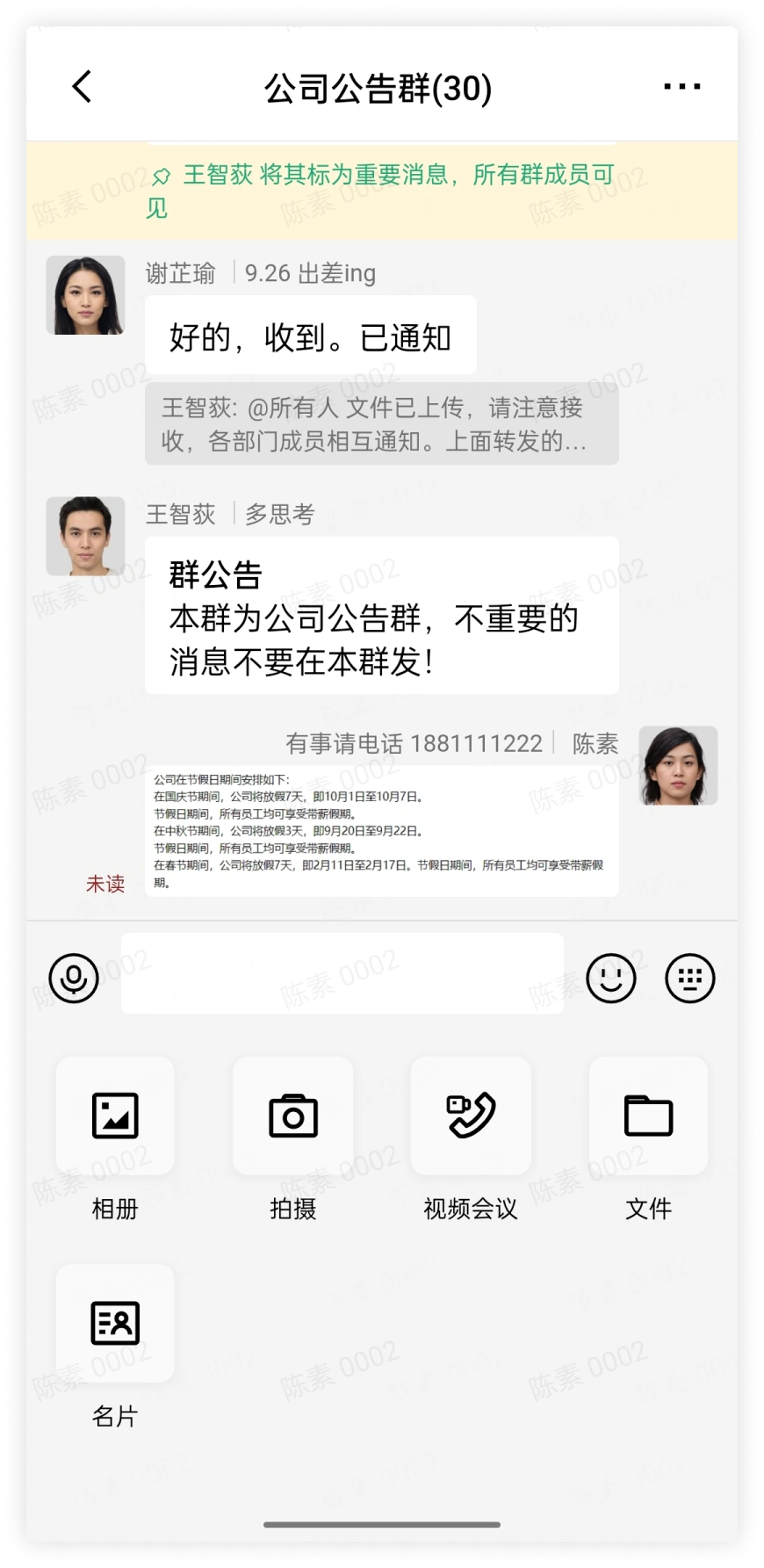
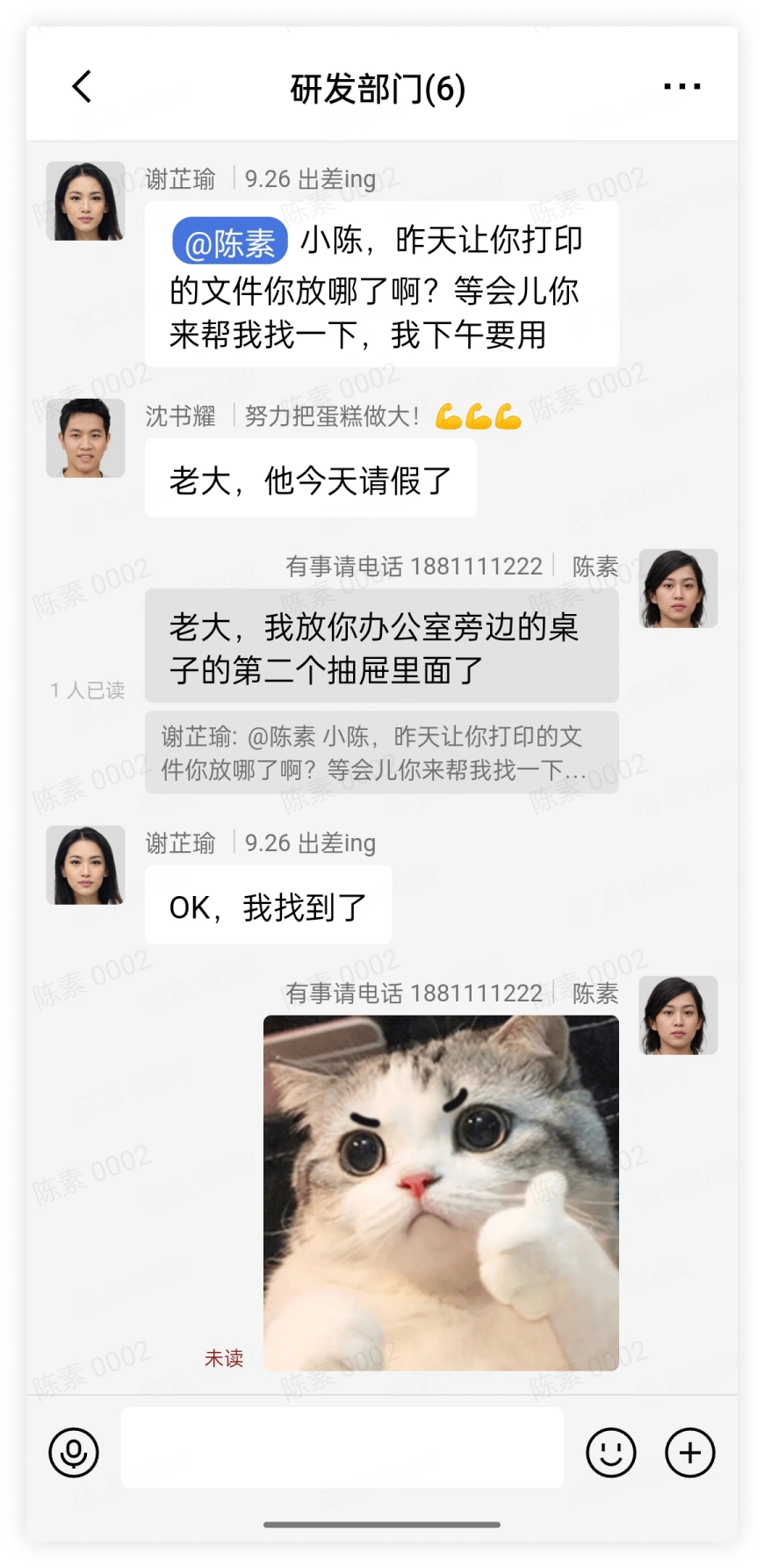
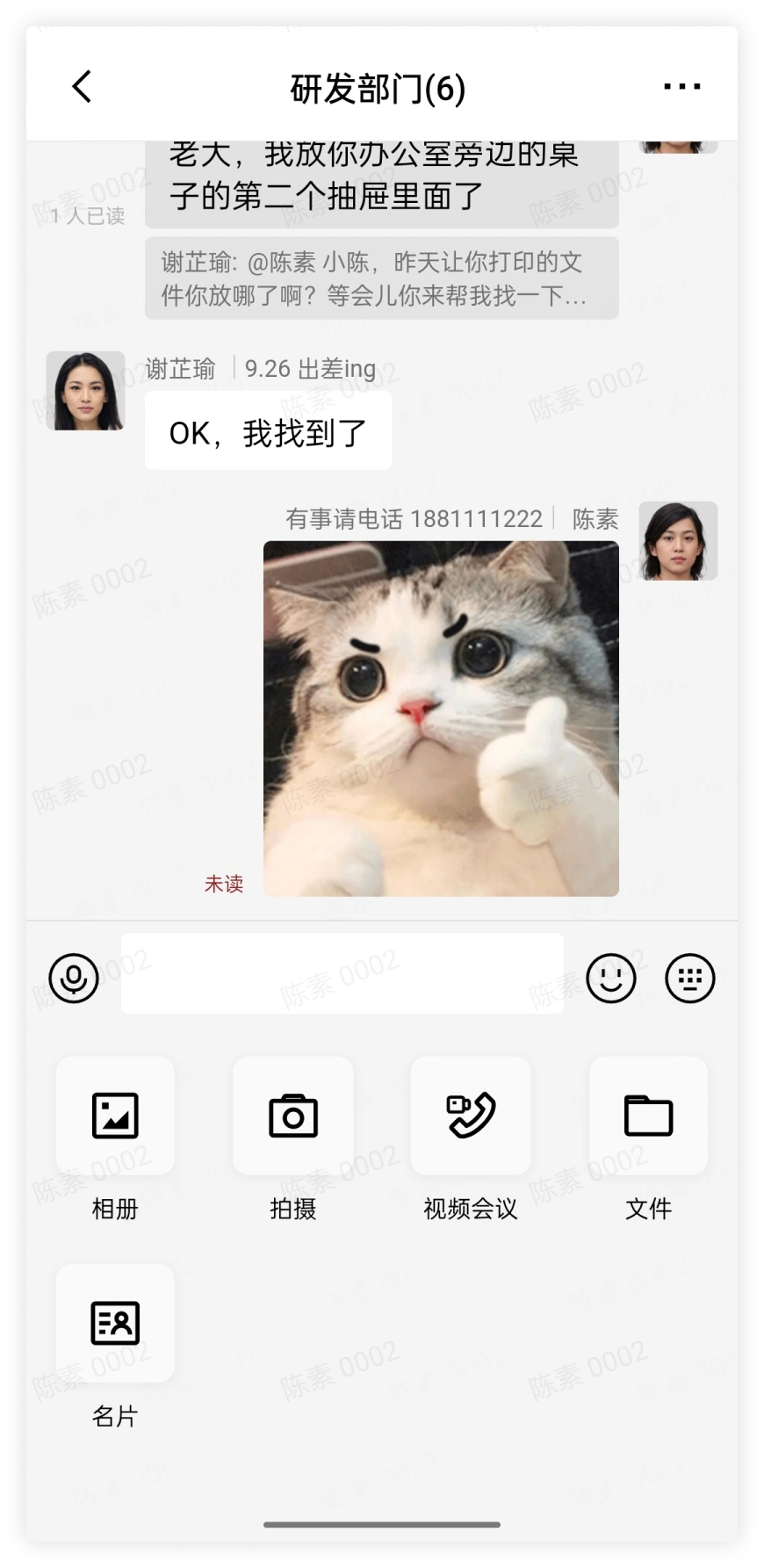
After entering the chat content page, it supports viewing/sending images, files, taking photos, recording videos, voice, video, and receipt messages.
1.3 Chat Details Page
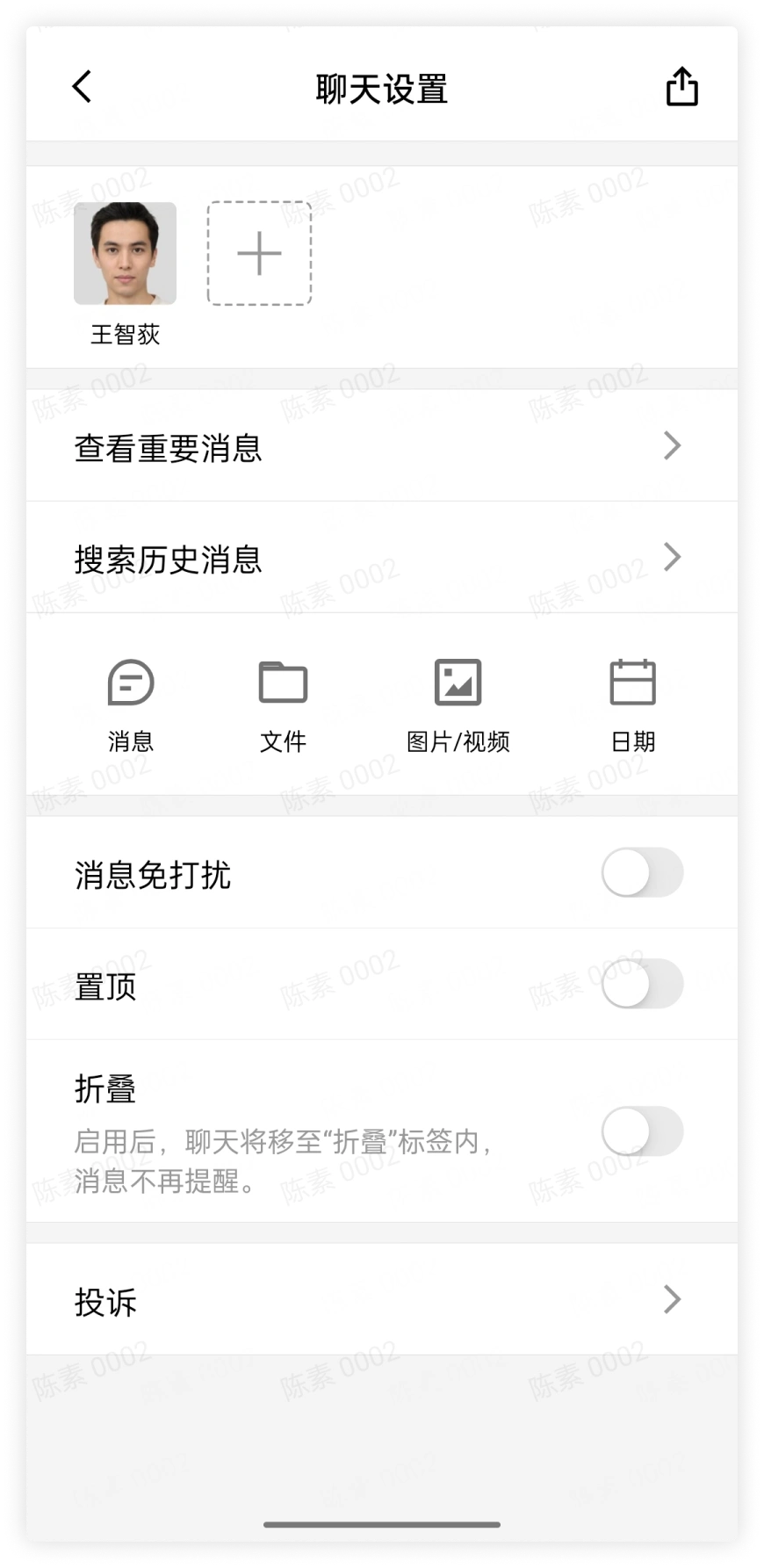
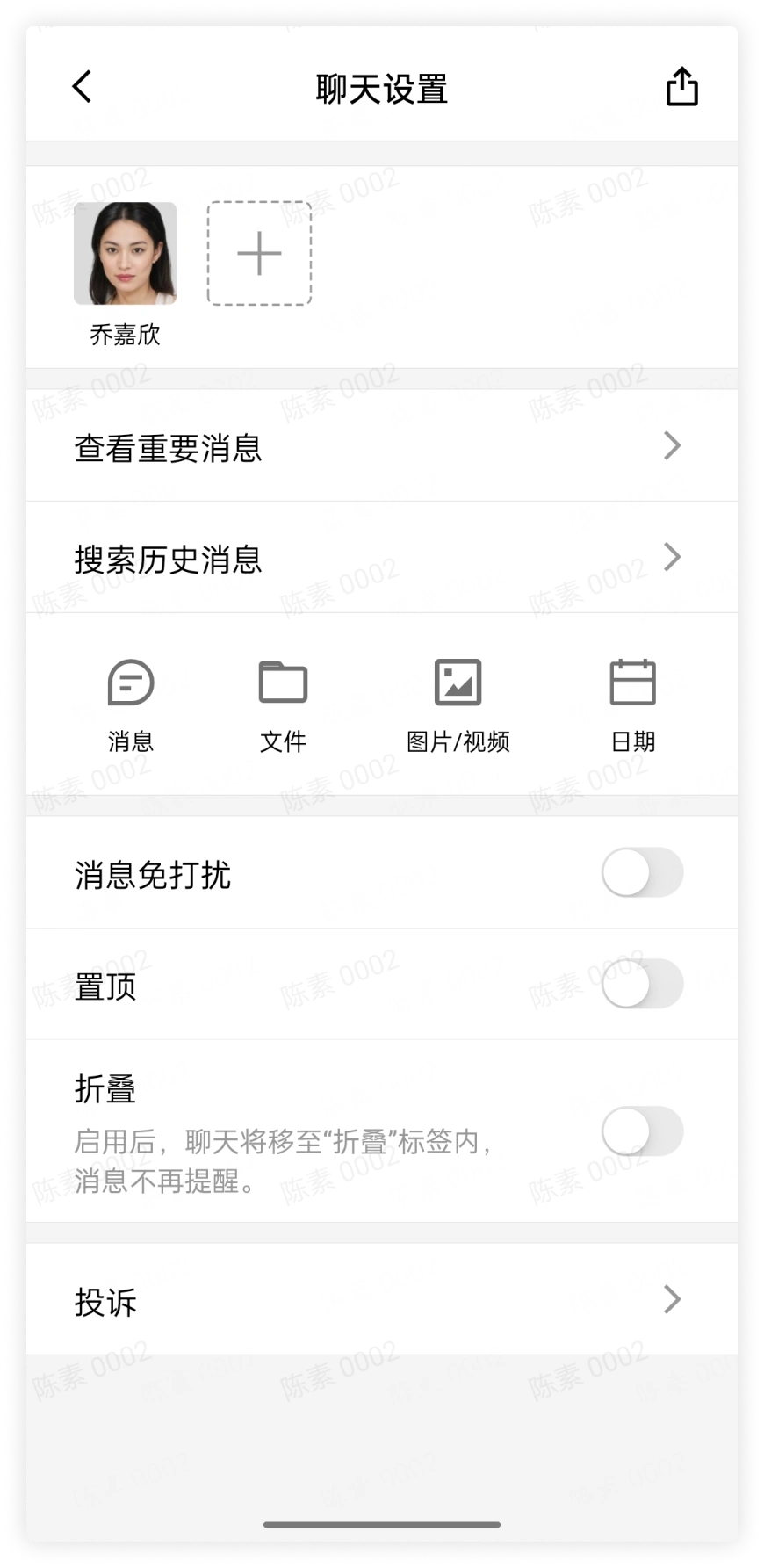
- On the private chat details page, you can view chat member information, important information, and history messages; filter messages by message type; use functions such as Do Not Disturb, pin, fold, and report for chat messages; and you can also share the user and create a group chat with that user;
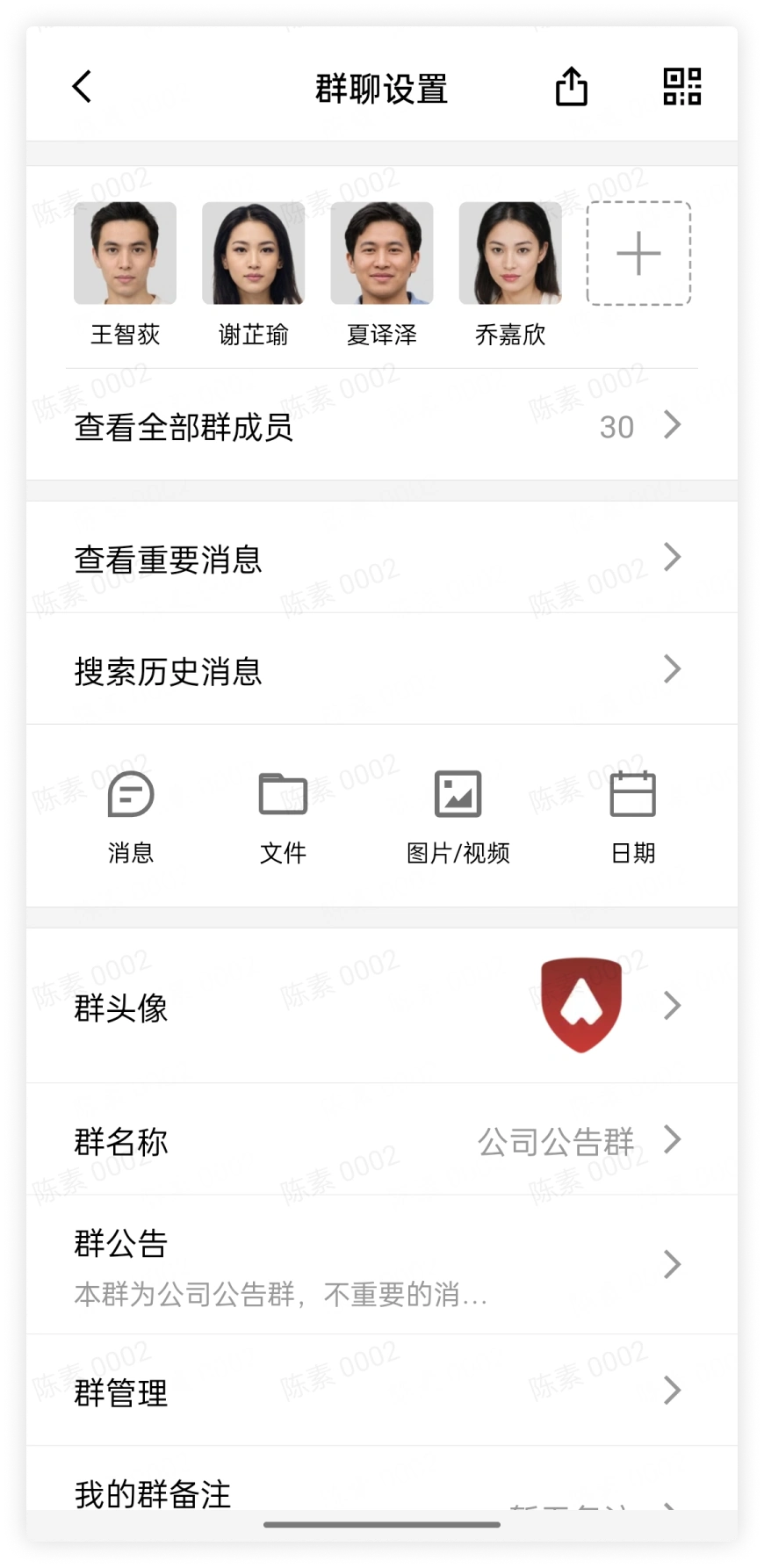
- On the group chat details page, in addition to the functions of the private chat details page, when sharing a group chat you can also choose to share it through the group QR code; view the group avatar, group name, and group announcement; view your own group remark and your nickname in the group (you can set whether to display group member nicknames);
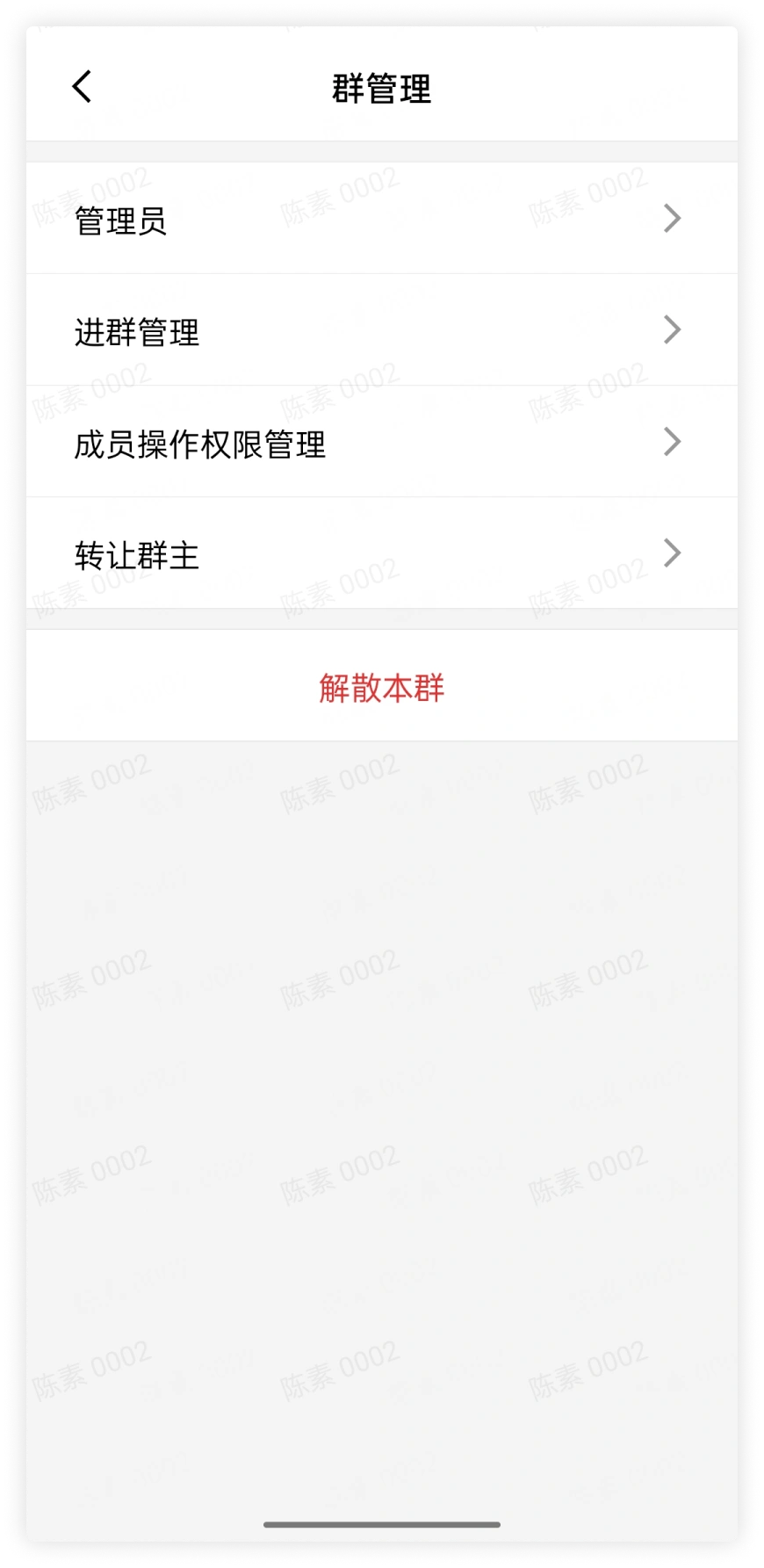
- Group administrators can use the
Group Managementfunction to manage administrators, join conditions, member operation permissions, and other settings of the group chat; the group owner can transfer group ownership or dismiss the group chat on this page.
2. Start a Private Chat
- From the chat list, select a private chat and tap the dialog box to enter and start a private chat;
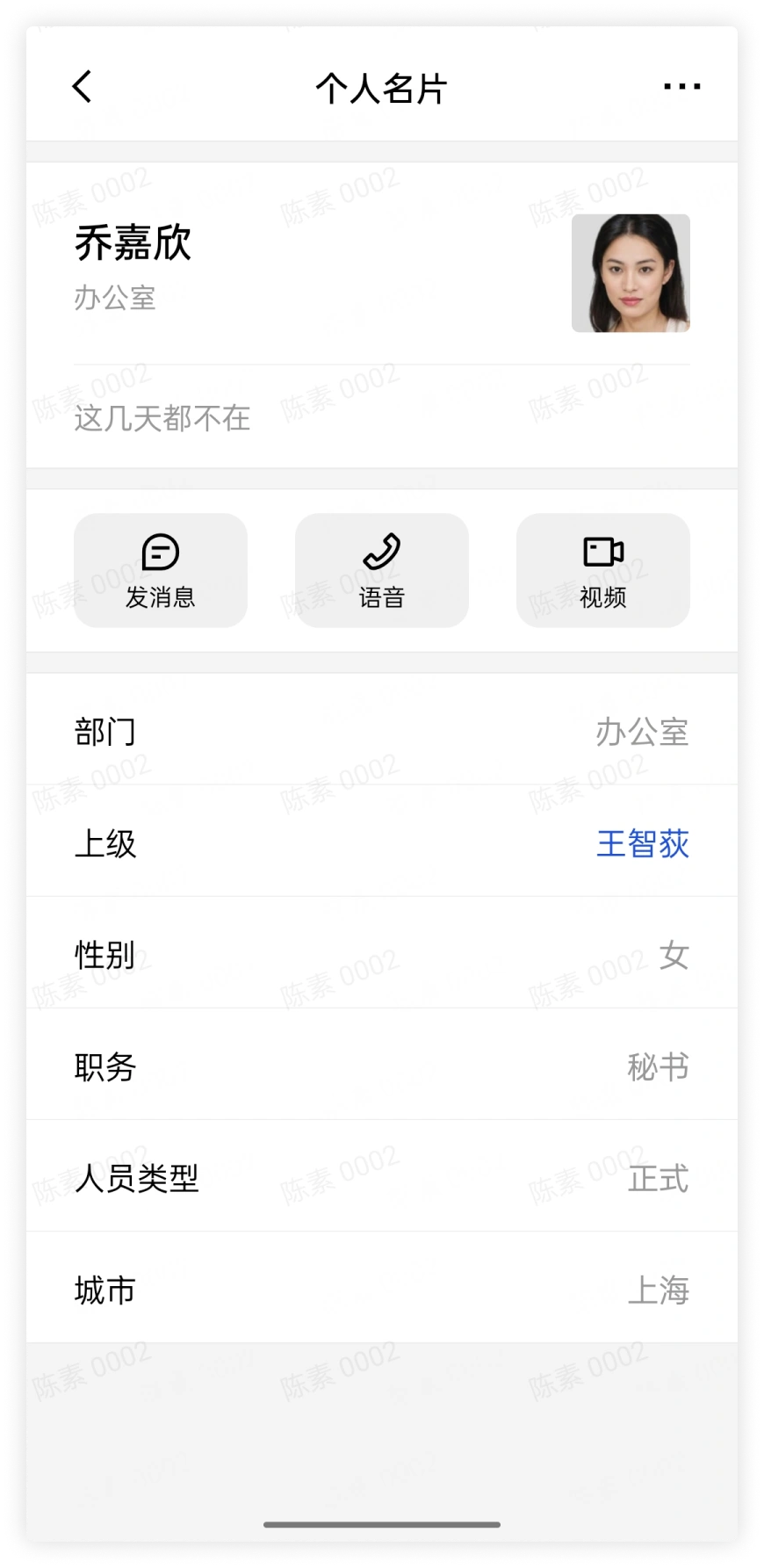
- Select a member from Contacts, tap the member's avatar to enter the member's personal profile page, and tap
Send Messageto start a private chat
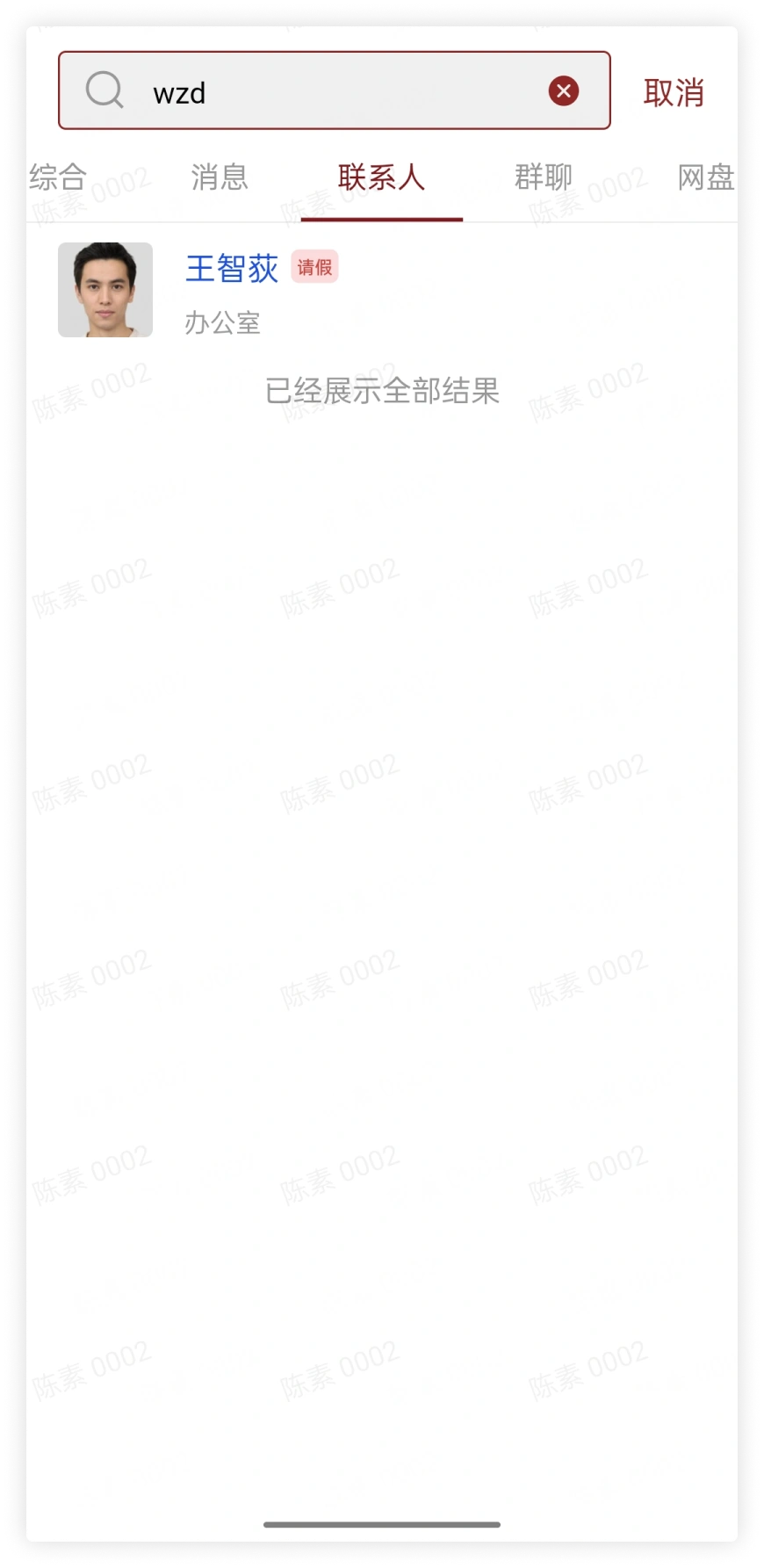
Click the search bar, enter the colleague you want to start a chat with, and tap to enter the chat window:
3. Start a Group Chat
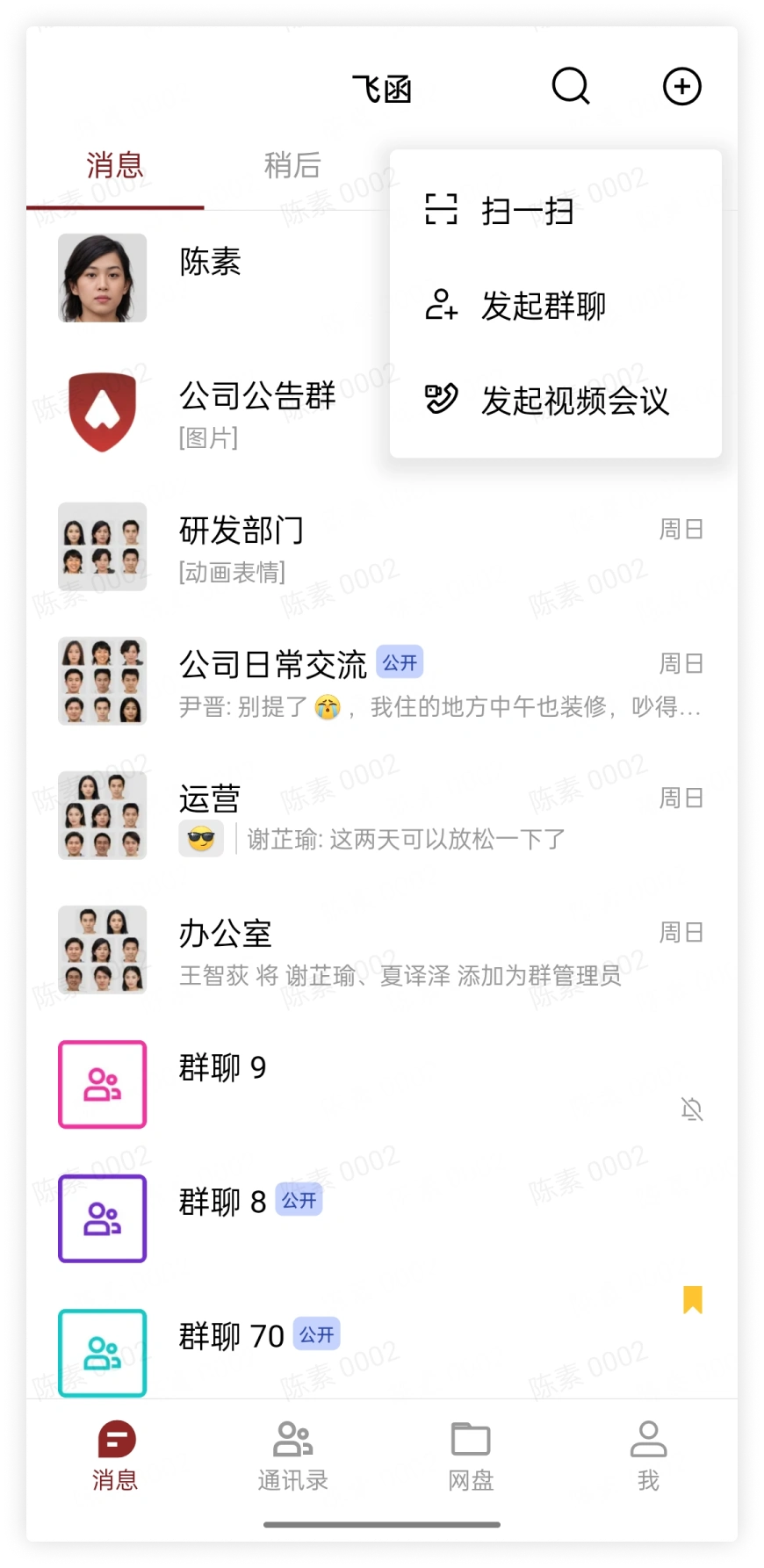
- On the message page, tap the
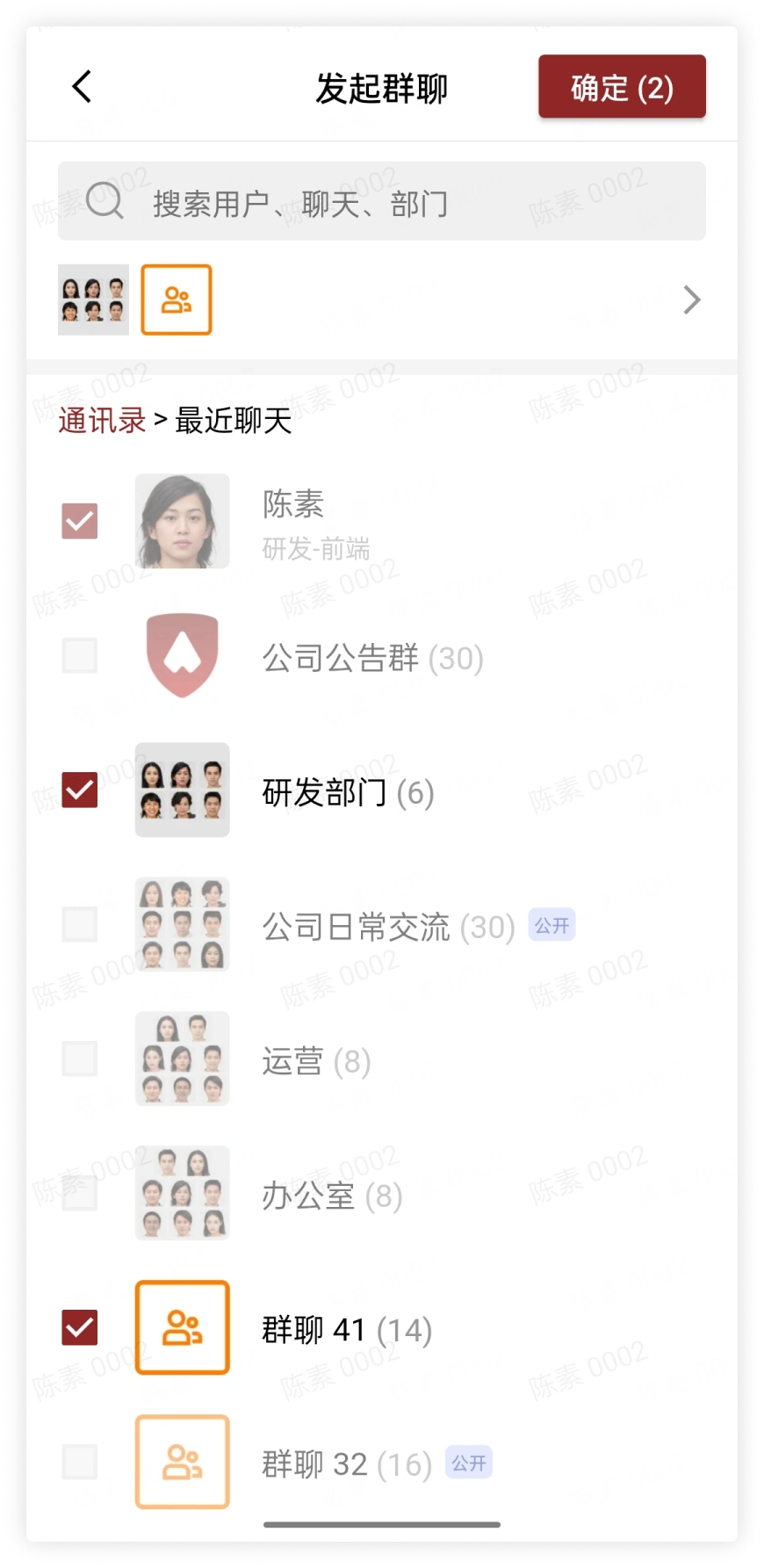
plus signin the upper right corner, tap Start Group Chat, and add members by checking them to successfully create a group chat
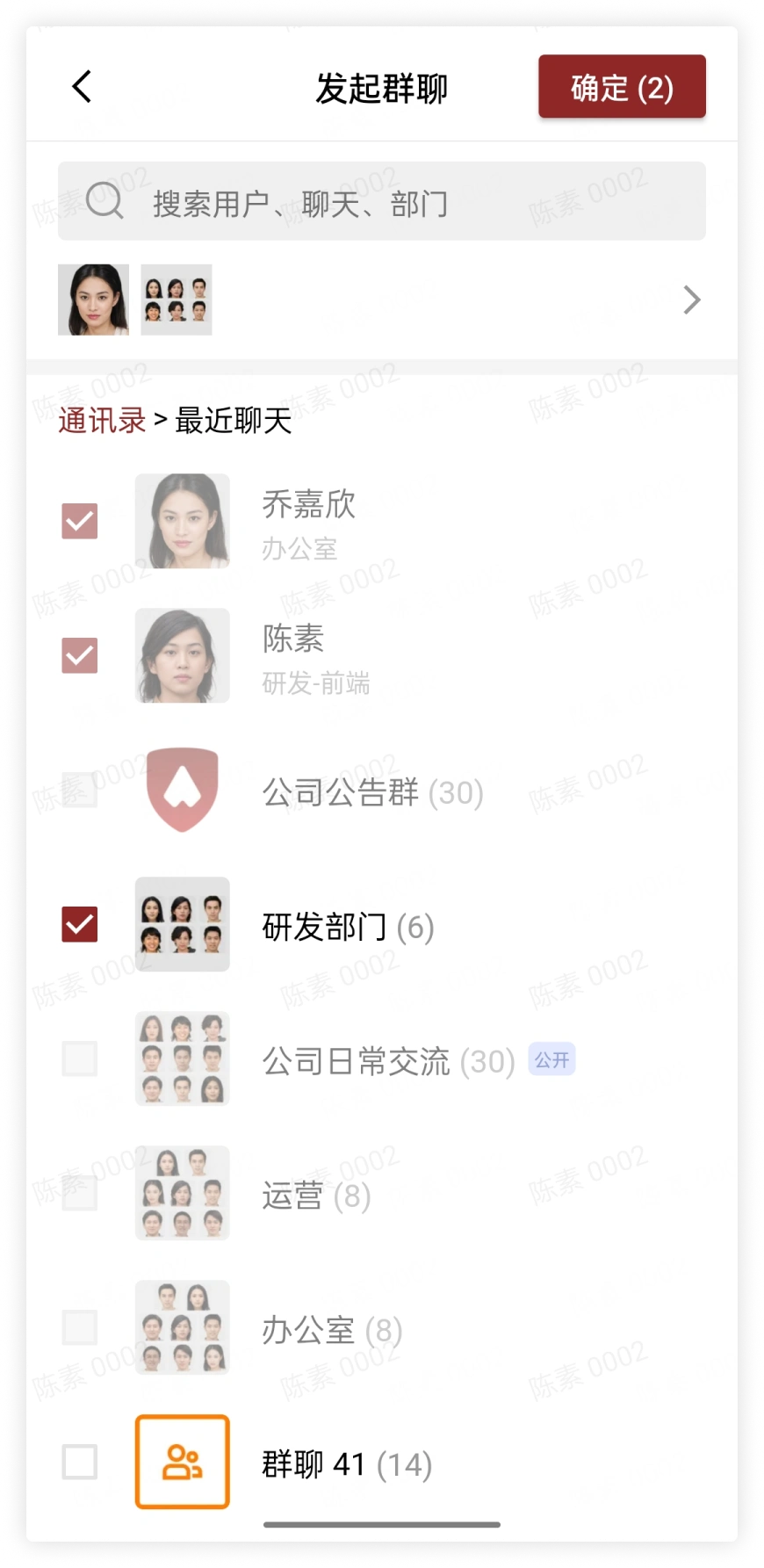
- In the private chat window, tap the More button in the upper right corner to enter chat settings, tap the
plus signnext to the user avatar, and add members by checking them to successfully create a group chat
4. Send Files
Tap the plus sign on the right side of the chat bar, and in the pop-up function bar select the File button to choose a file to send: