

Add Stickers
1. Feature Introduction
You can add local images as stickers, or save images in conversations as stickers.
2. Operation Process
Desktop
- Add stickers
-
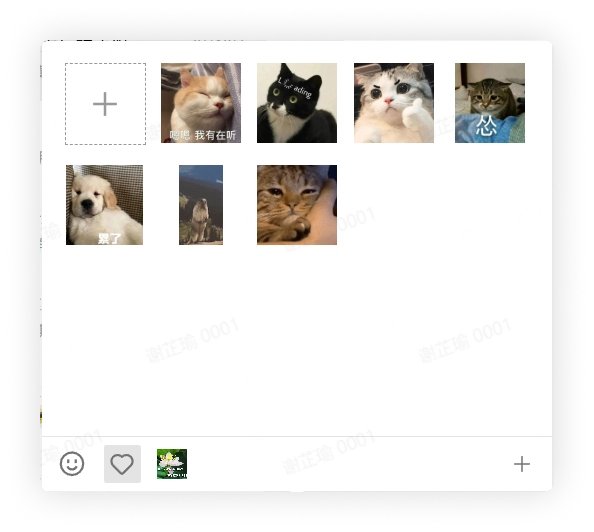
In the created sticker group, click the plus sign in the upper left corner to add stickers.
-
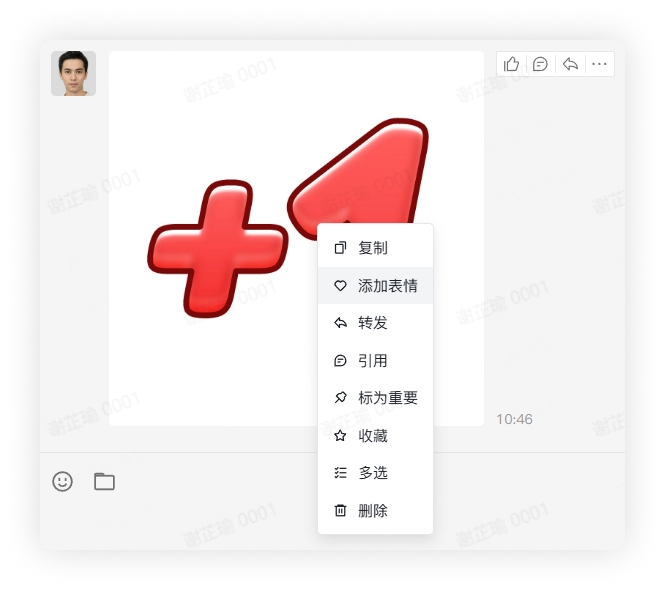
Right-click the image message, and in the pop-up menu select Add Sticker to add the image to the "Favorites" group.
- View and send stickers
Click the Sticker button, select the sticker you want to send, and click to send it.
Mobile
- Add stickers
-
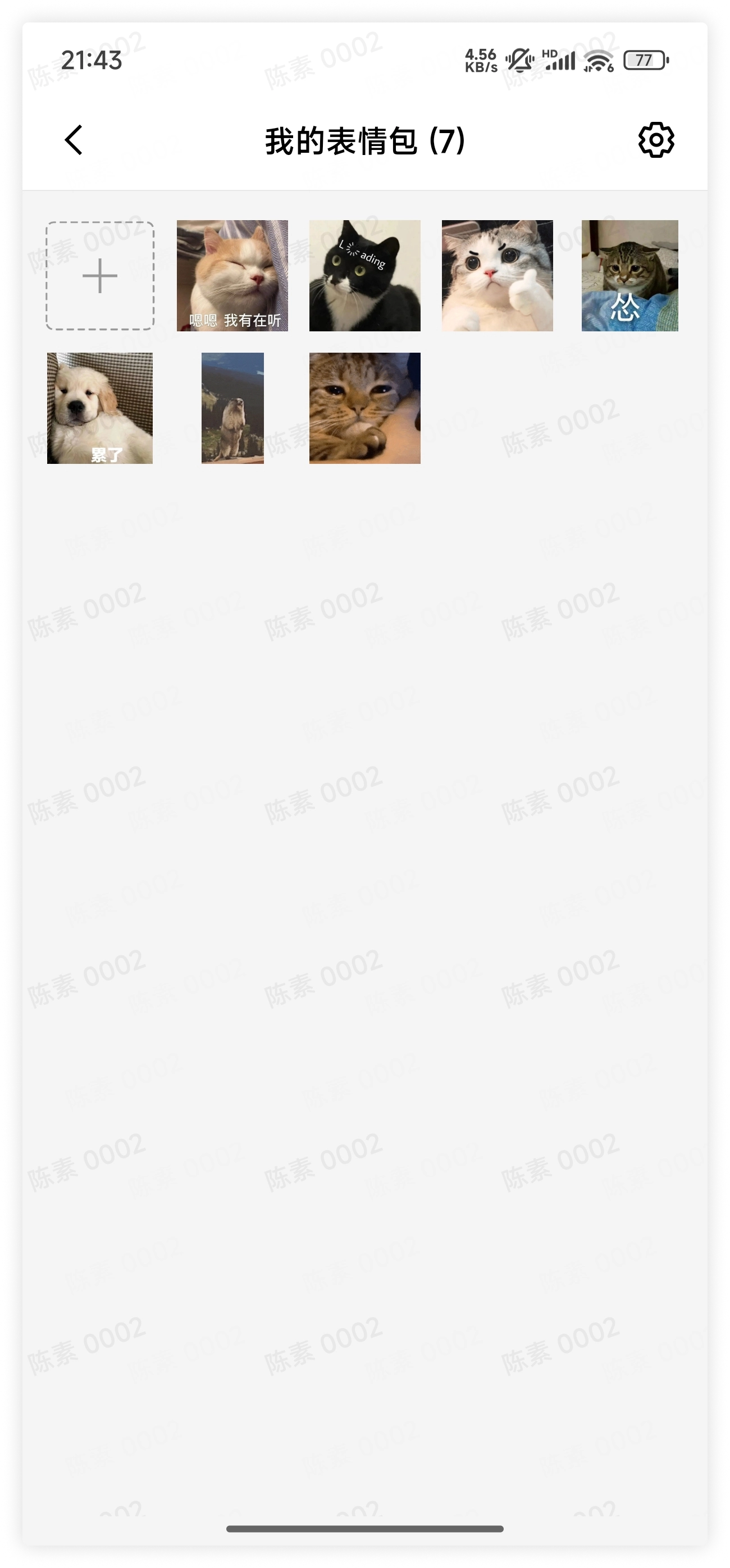
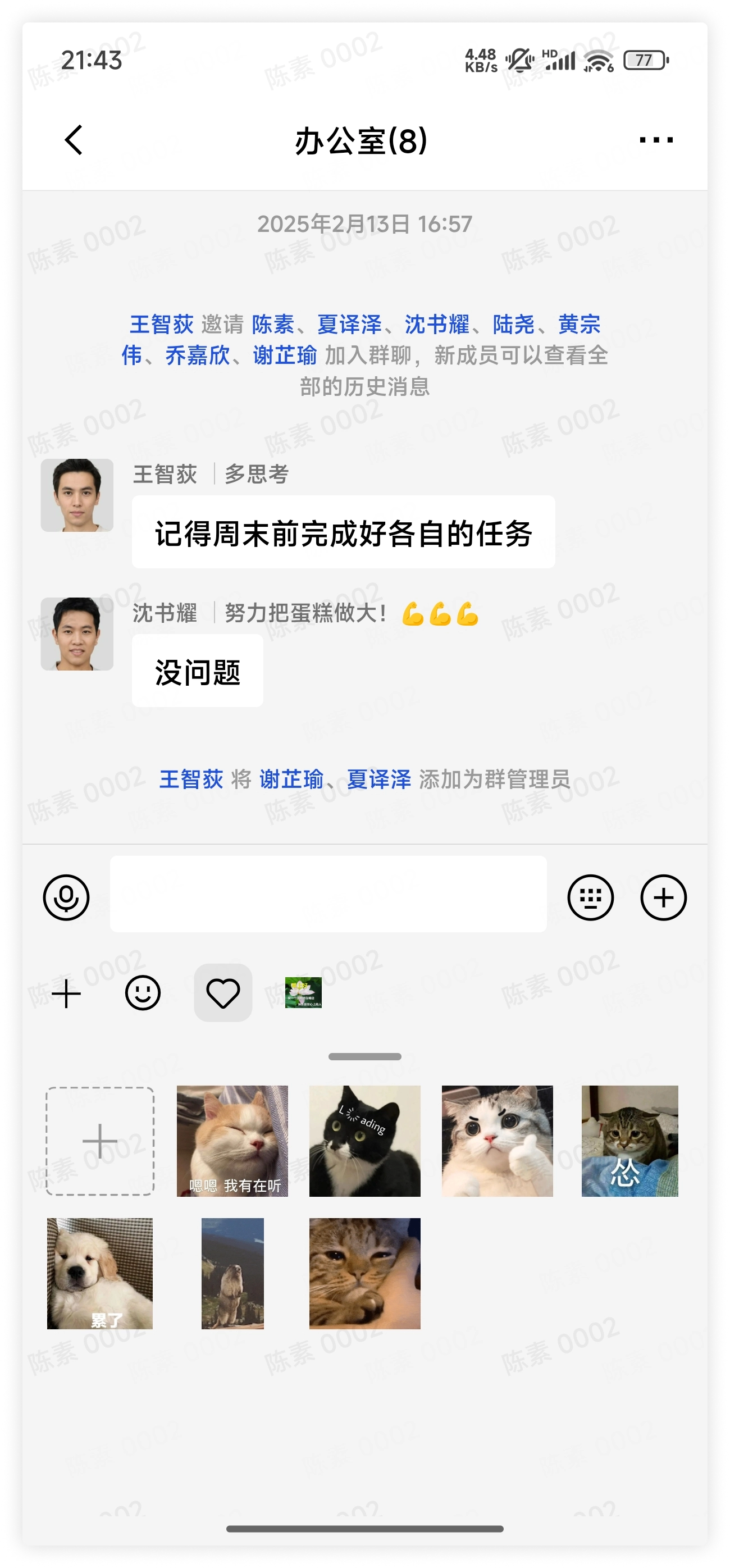
In the created sticker group, click the plus sign in the upper left corner to add stickers.
-
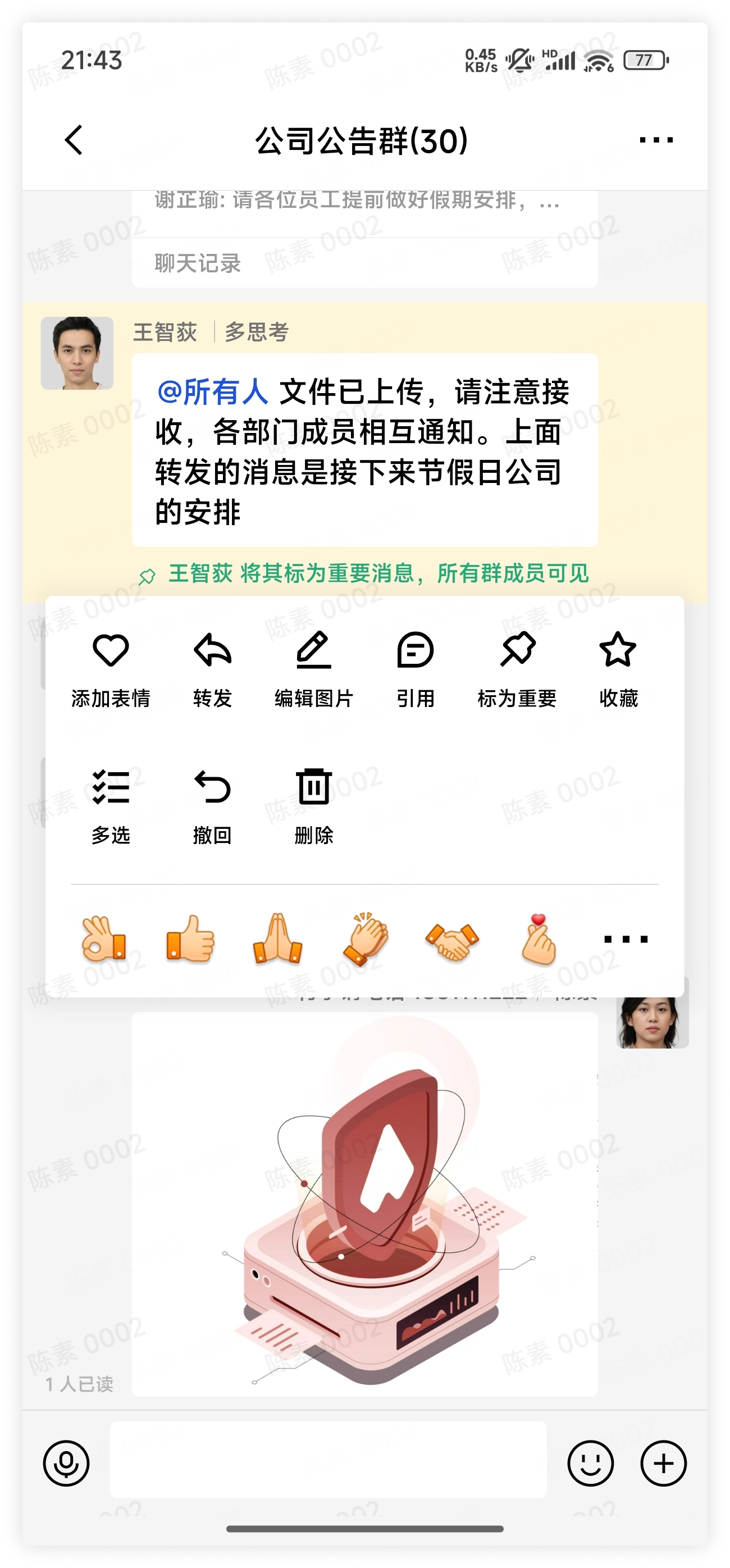
Long press the image message, and in the pop-up menu select Add Sticker to add the image to the "Favorites" group.
- View and send stickers
Click the Sticker button, select the sticker you want to send, and tap to send it.
FAQ
Q: Will newly added stickers be displayed with priority in the list?
A: Yes. Newly added stickers will be displayed with priority in the sticker list, and you can also adjust the sticker order or delete stickers in sticker settings.