Desktop - Chat Guide
1. Chat Interface
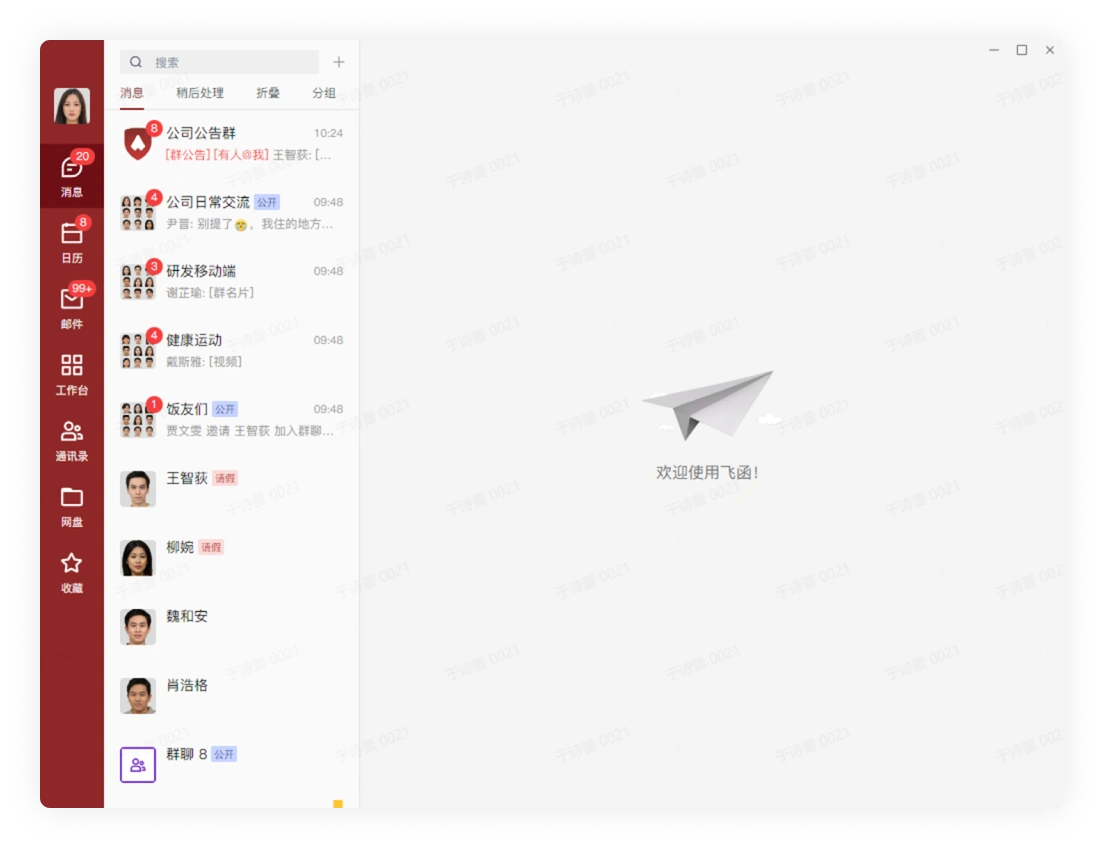
The chat list displays chats from newest to oldest by time. You can quickly find recent chats and left-click to open the chat window.
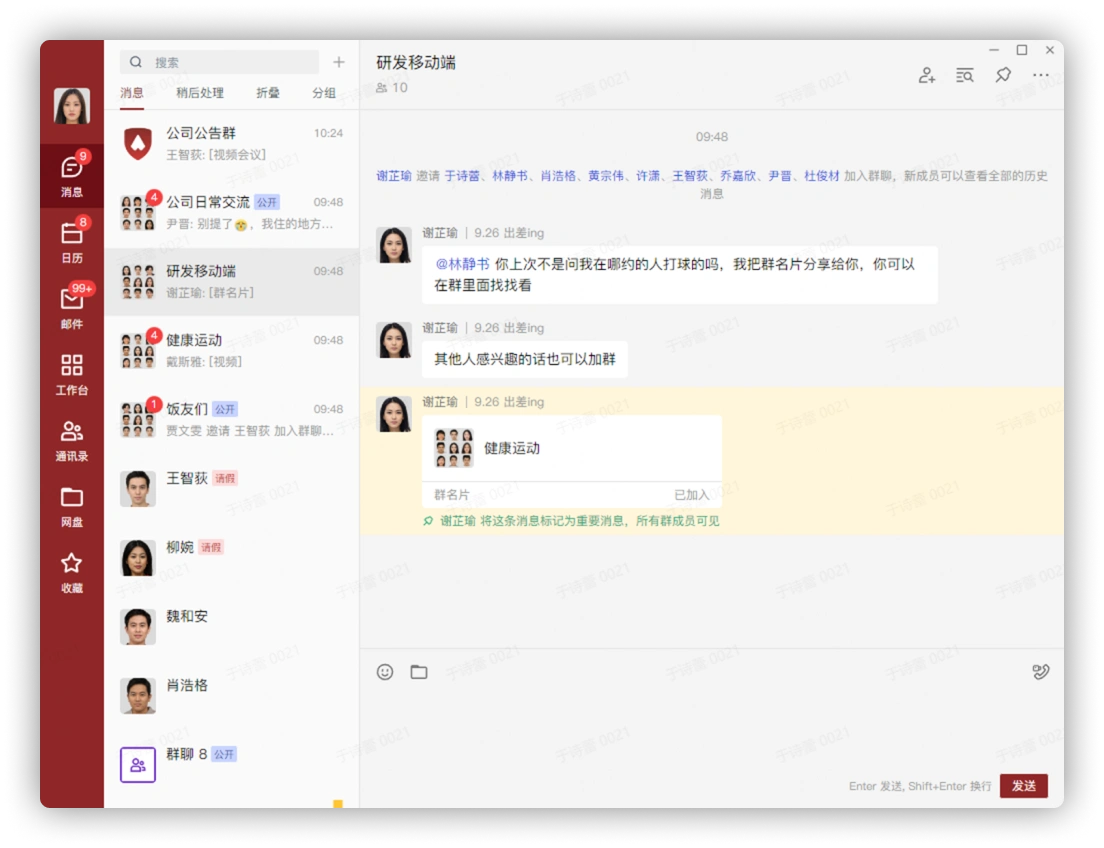
After entering the chat window, you can send text, stickers, emoji, files, and more for daily communication, and you can also view chat history.
2. Start a Private Chat
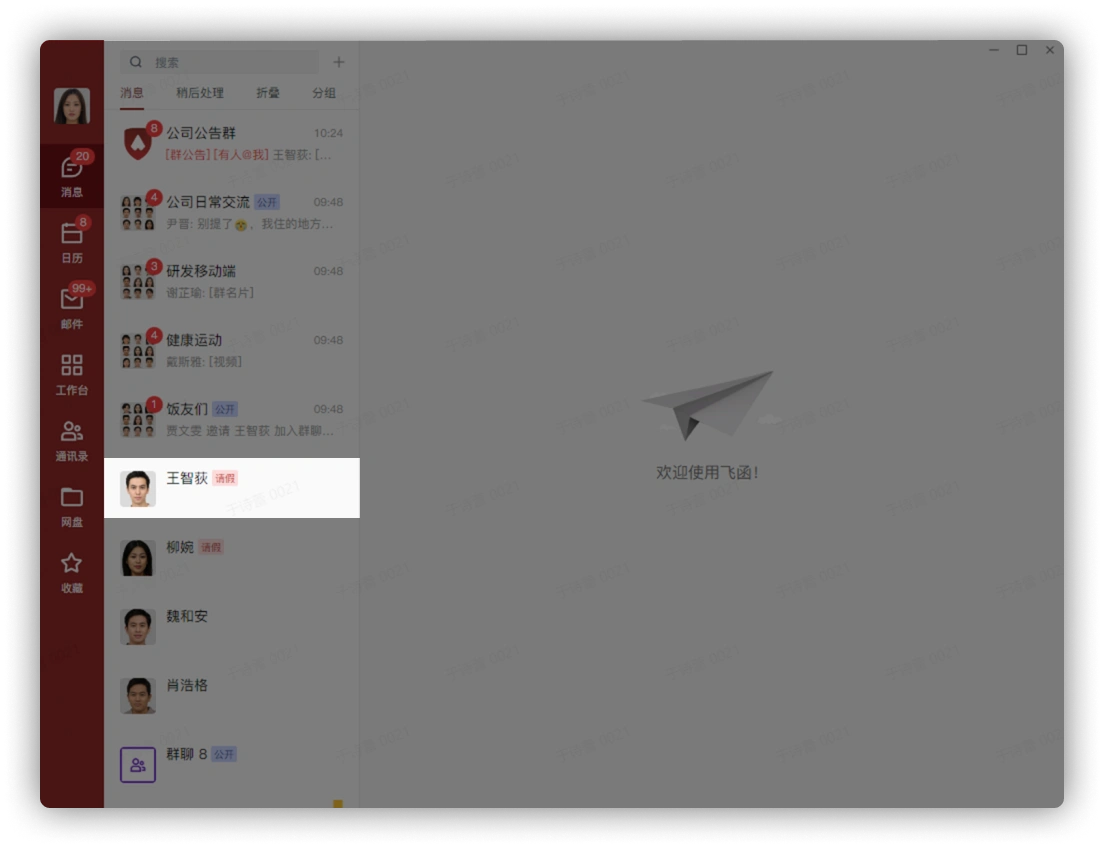
Left-click a colleague account to enter the chat window:
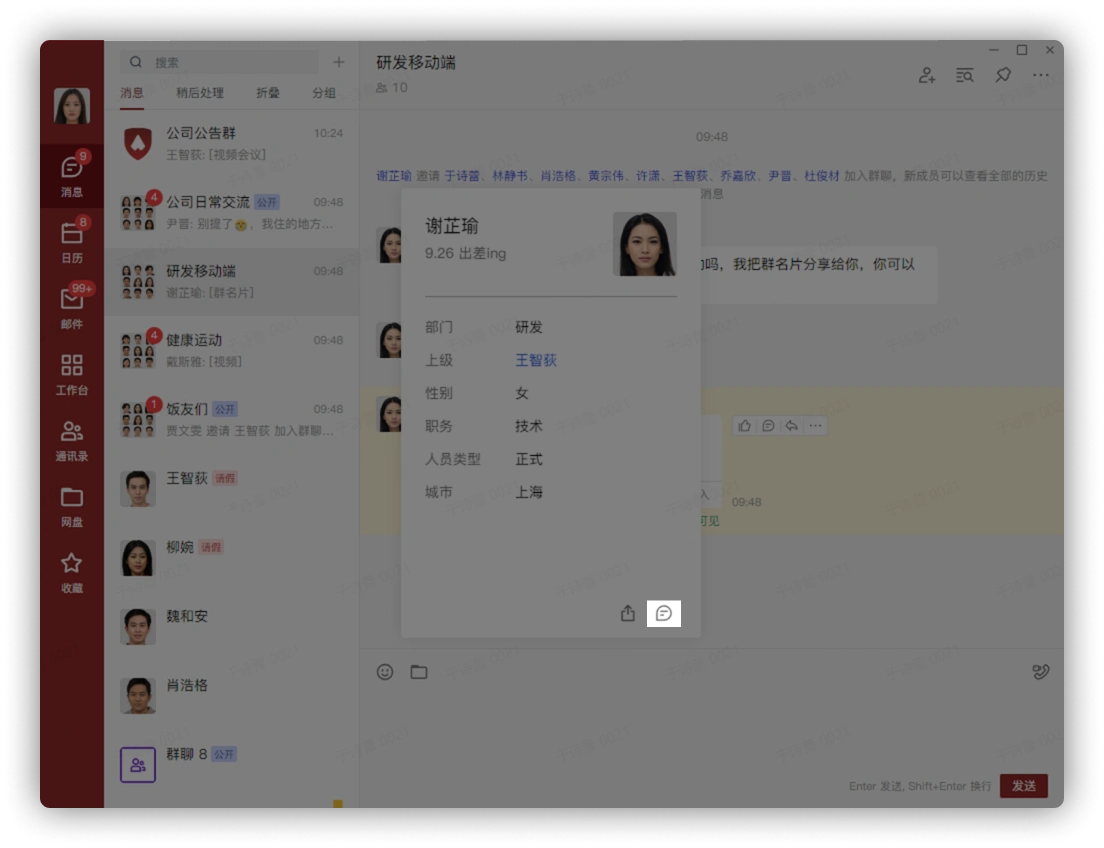
Click the Send Message button in the lower right corner of the colleague's profile card:
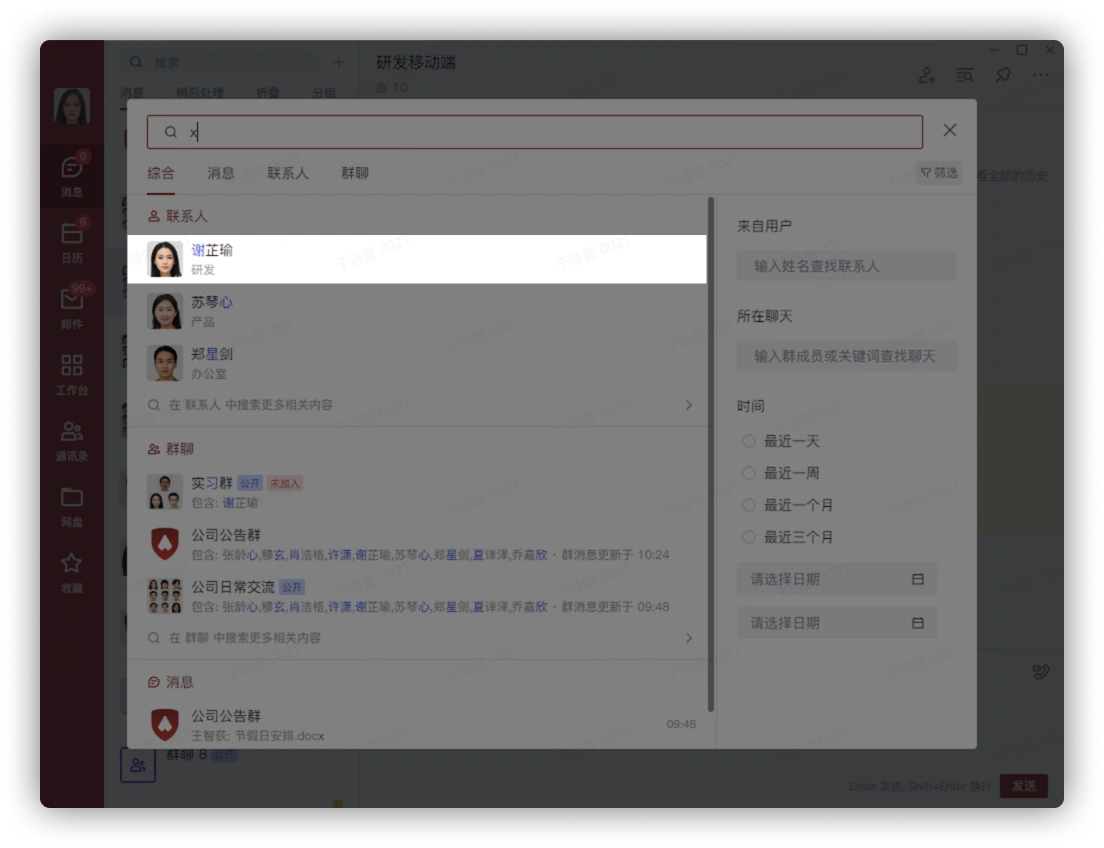
Click the search bar, enter the colleague you want to start a chat with, and left-click to enter the chat window:
3. Start/Enter a Group Chat
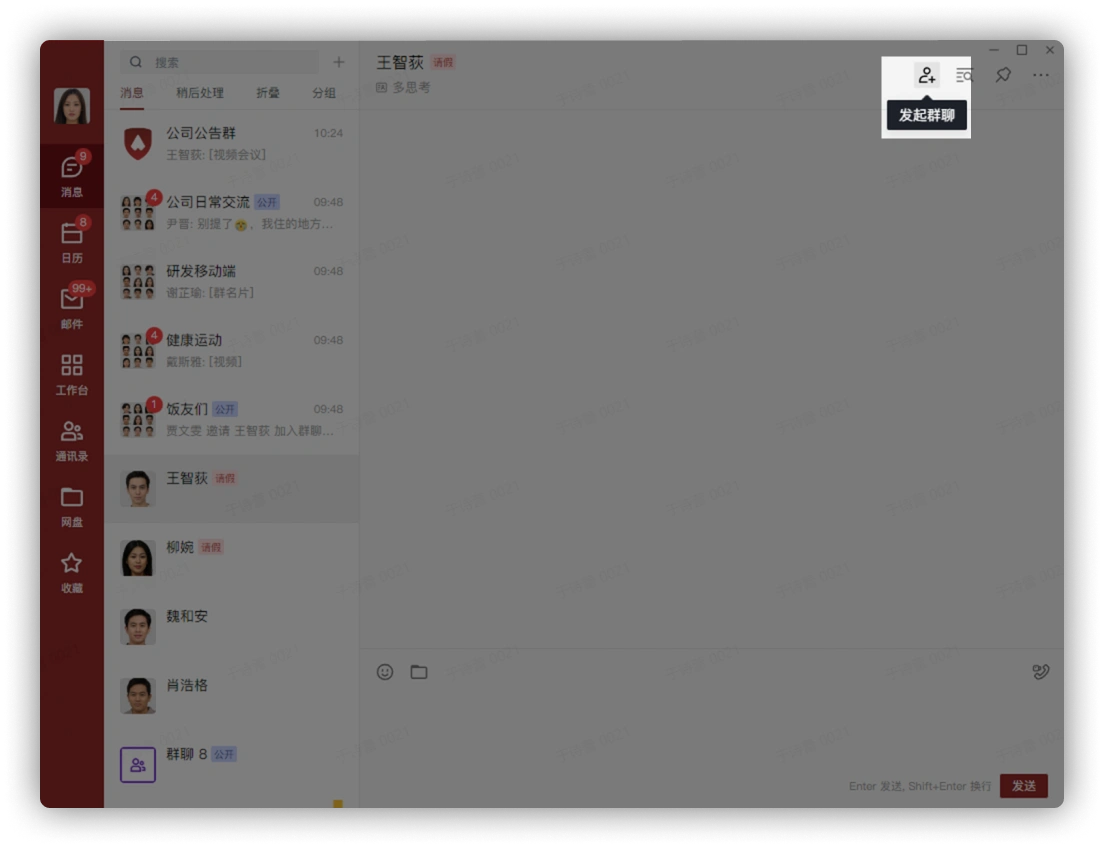
Open the chat window, click Start Invite in the upper right corner, select the group members to add, and click Confirm:
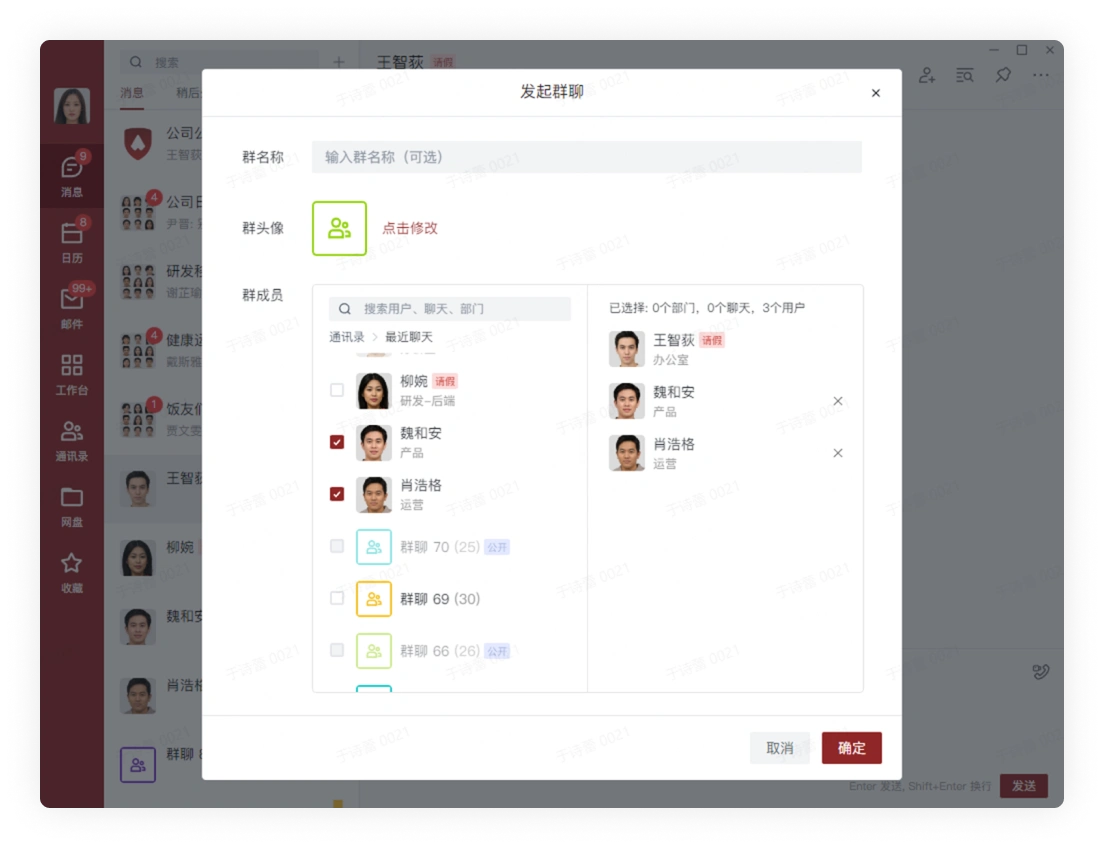
Click the plus sign on the right side of the search box, select Start Group Chat, select the group members to add, and click Confirm:
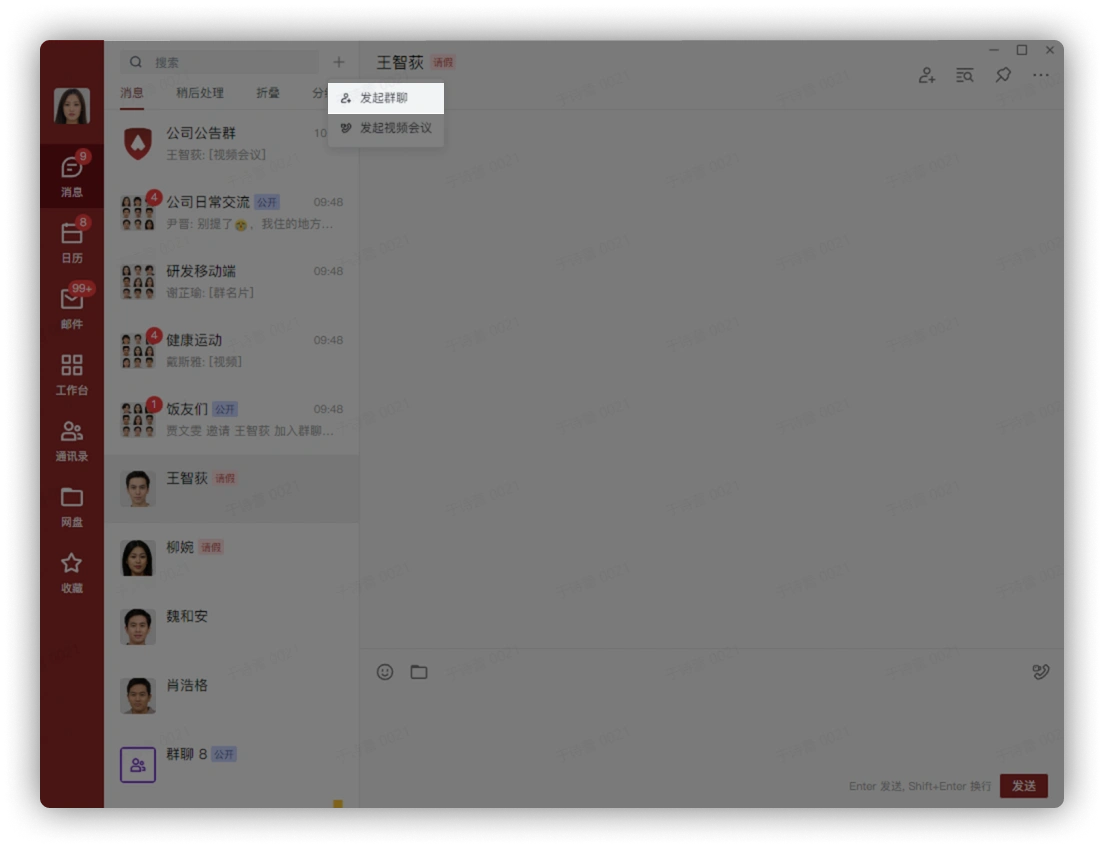
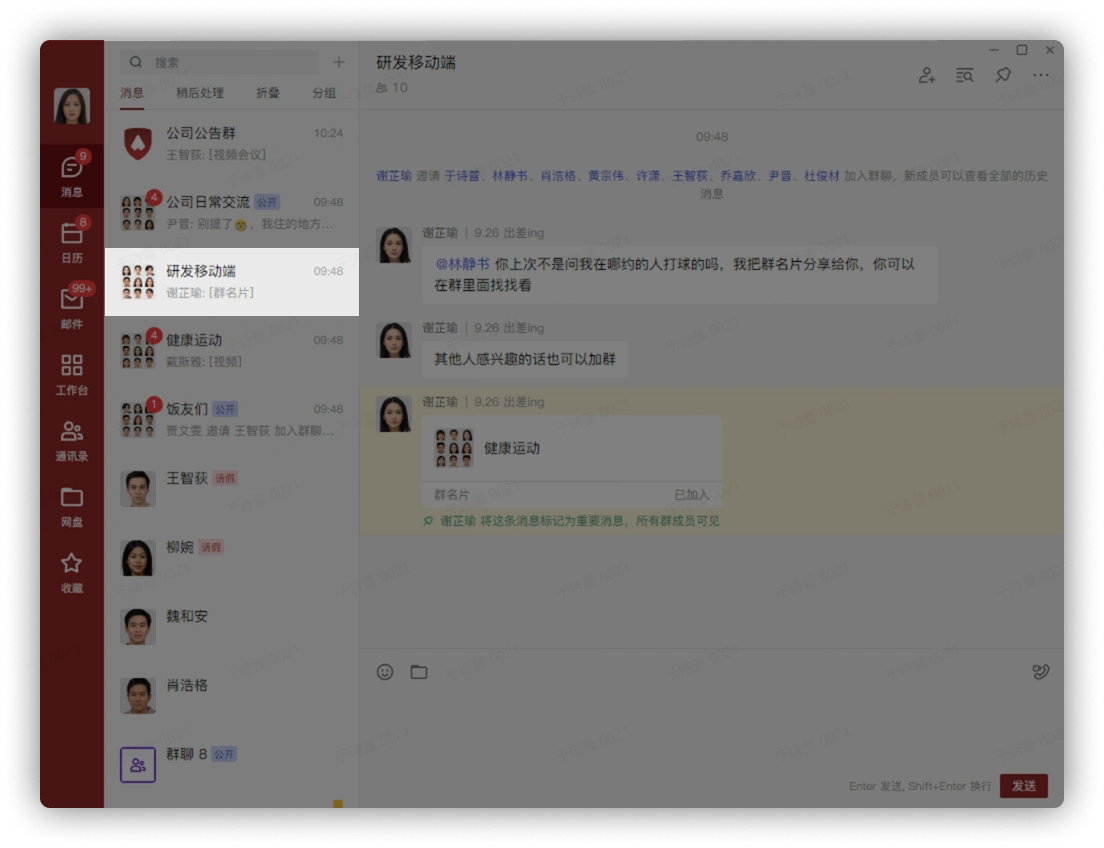
Left-click the group chat to enter the chat window:
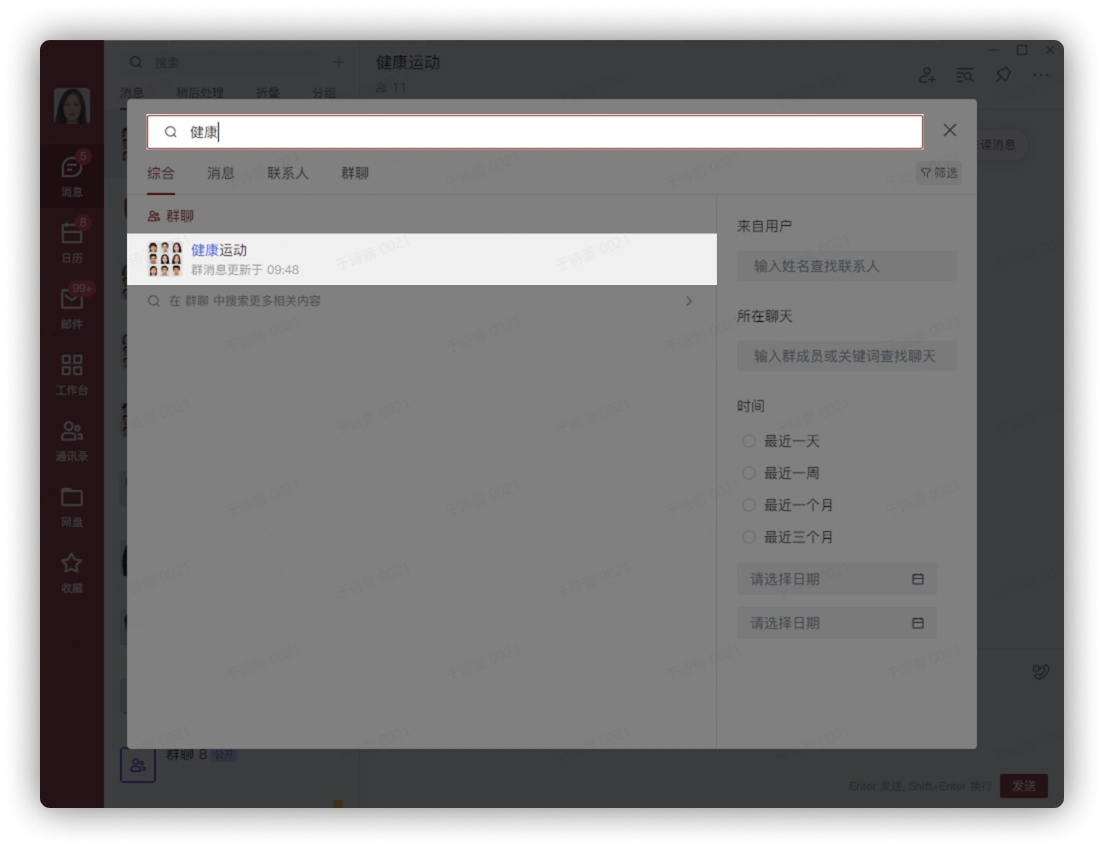
Click the search box, enter the name of the group chat conversation you want to enter, and left-click the corresponding result in the displayed list to enter the conversation
4. Send Files
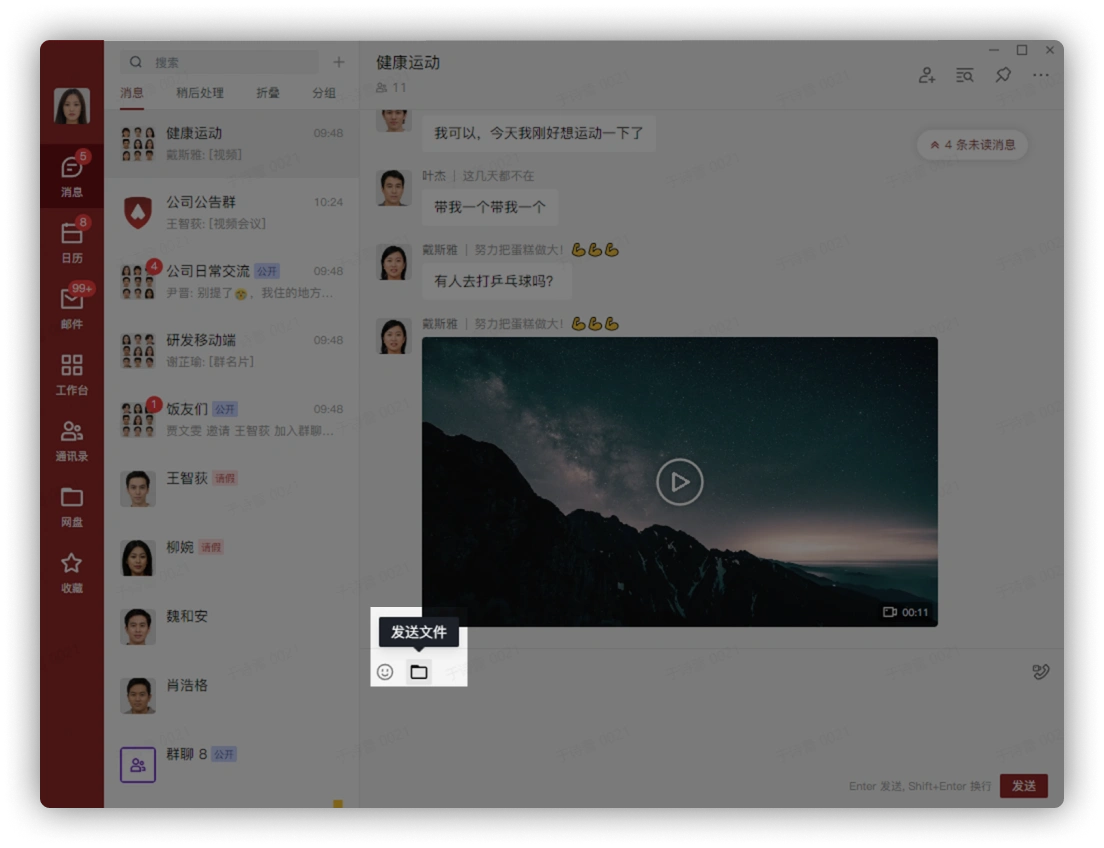
Click the Send File button in the chat window and select a file:
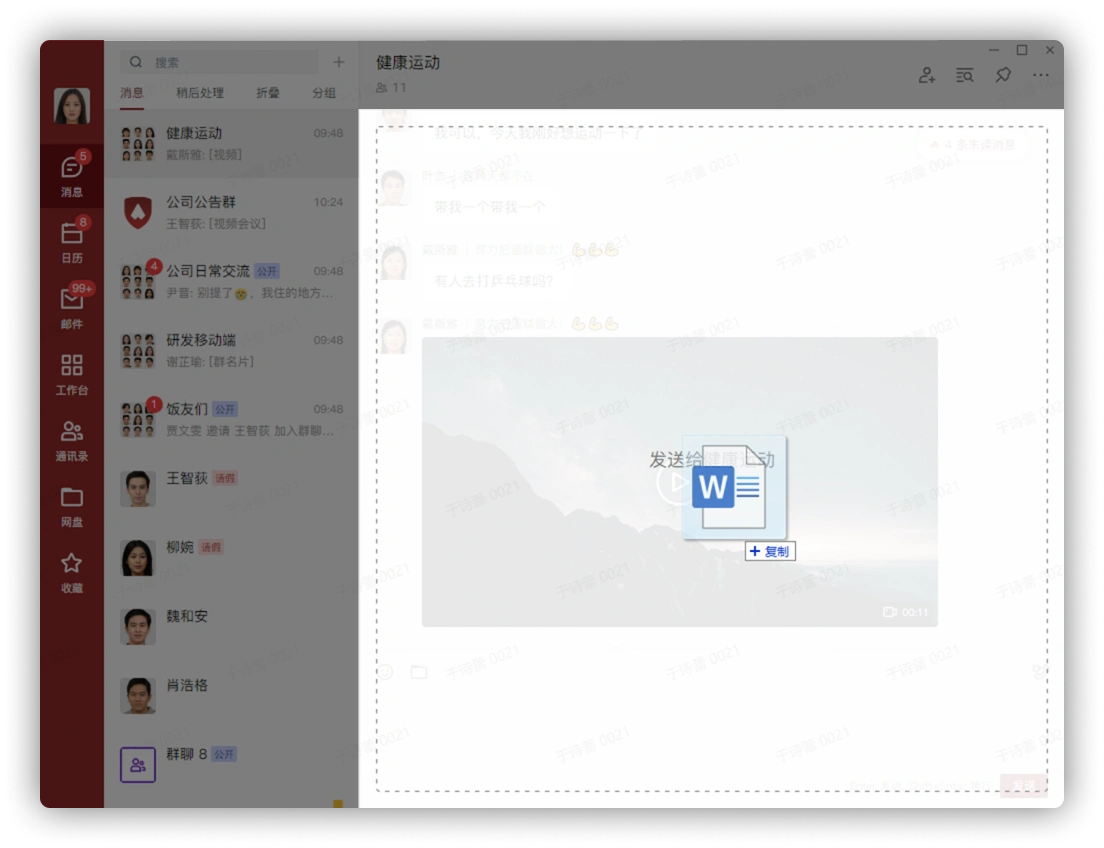
Drag and drop the file directly or paste it into the chat window: