

Send and Download Files in Chat
1. Feature Introduction
You can send and download files in chats.
2. Operation Process
Send Files in Chat
Desktop
-
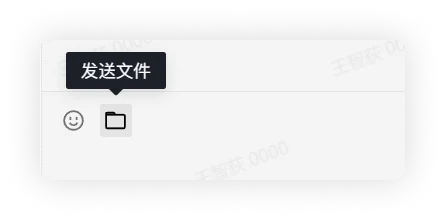
Click the File button in the upper left corner of the input box to select a file to send.
-
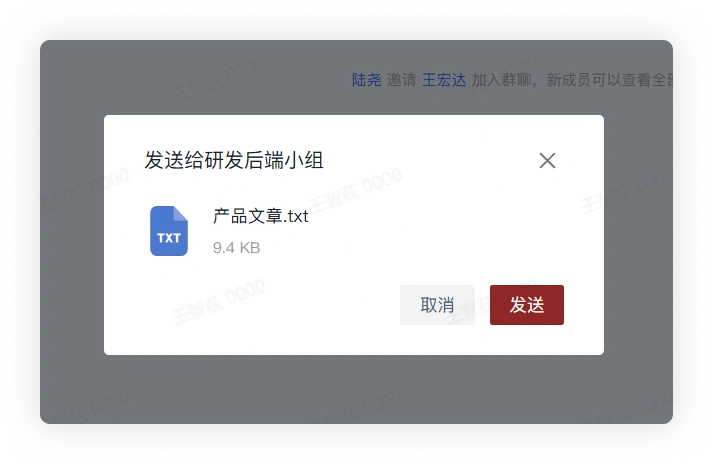
Drag the file into the message box to send it.
Mobile
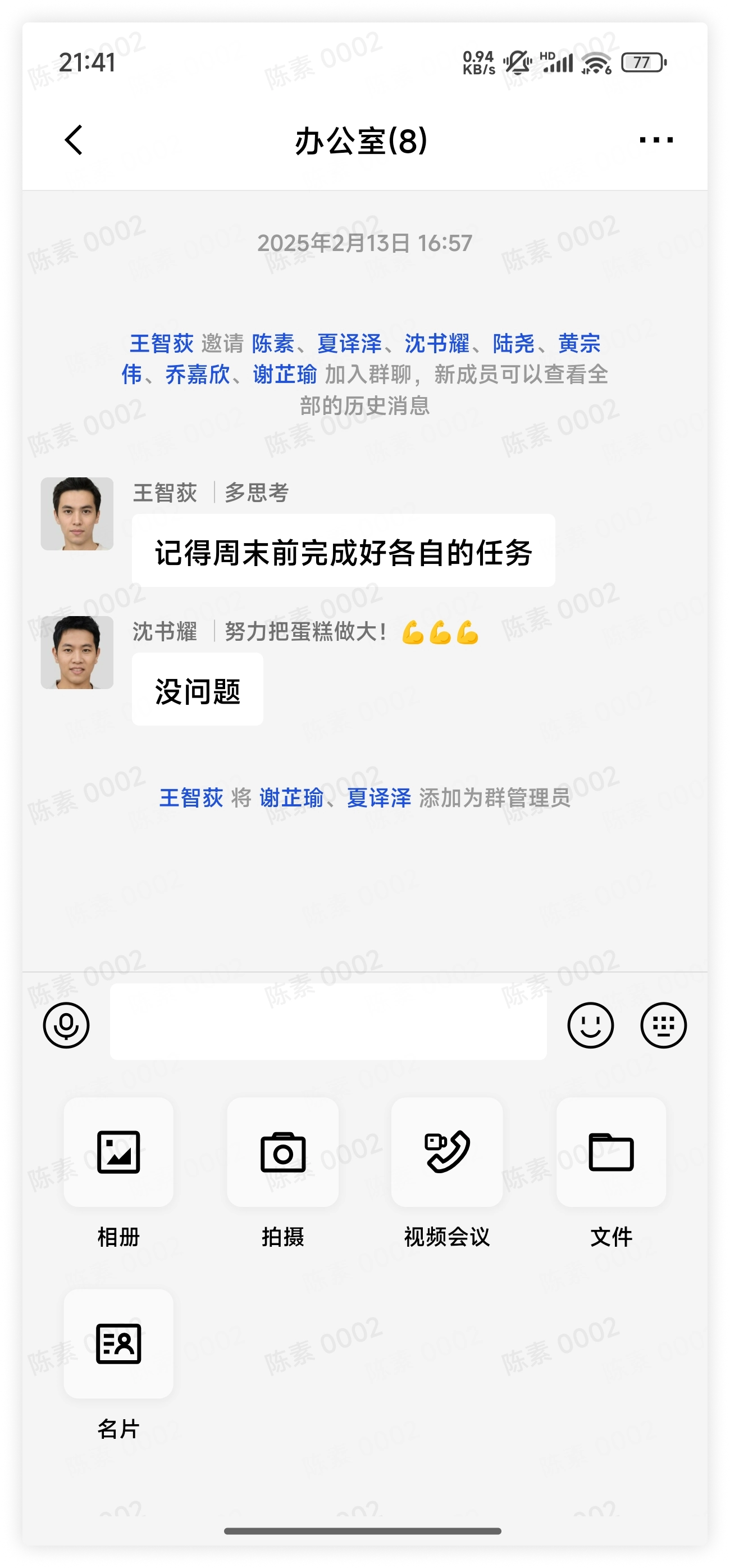
Tap the plus sign button on the right side of the input box in the chat, and in the pop-up function bar select the File button, choose the corresponding file, and send it.
Download Files in Chat
Desktop
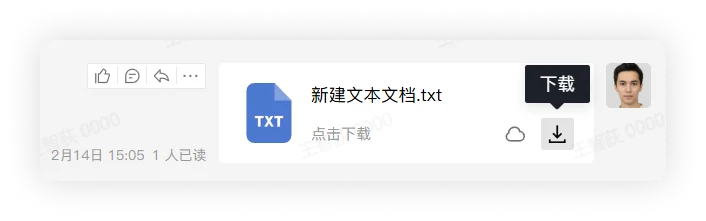
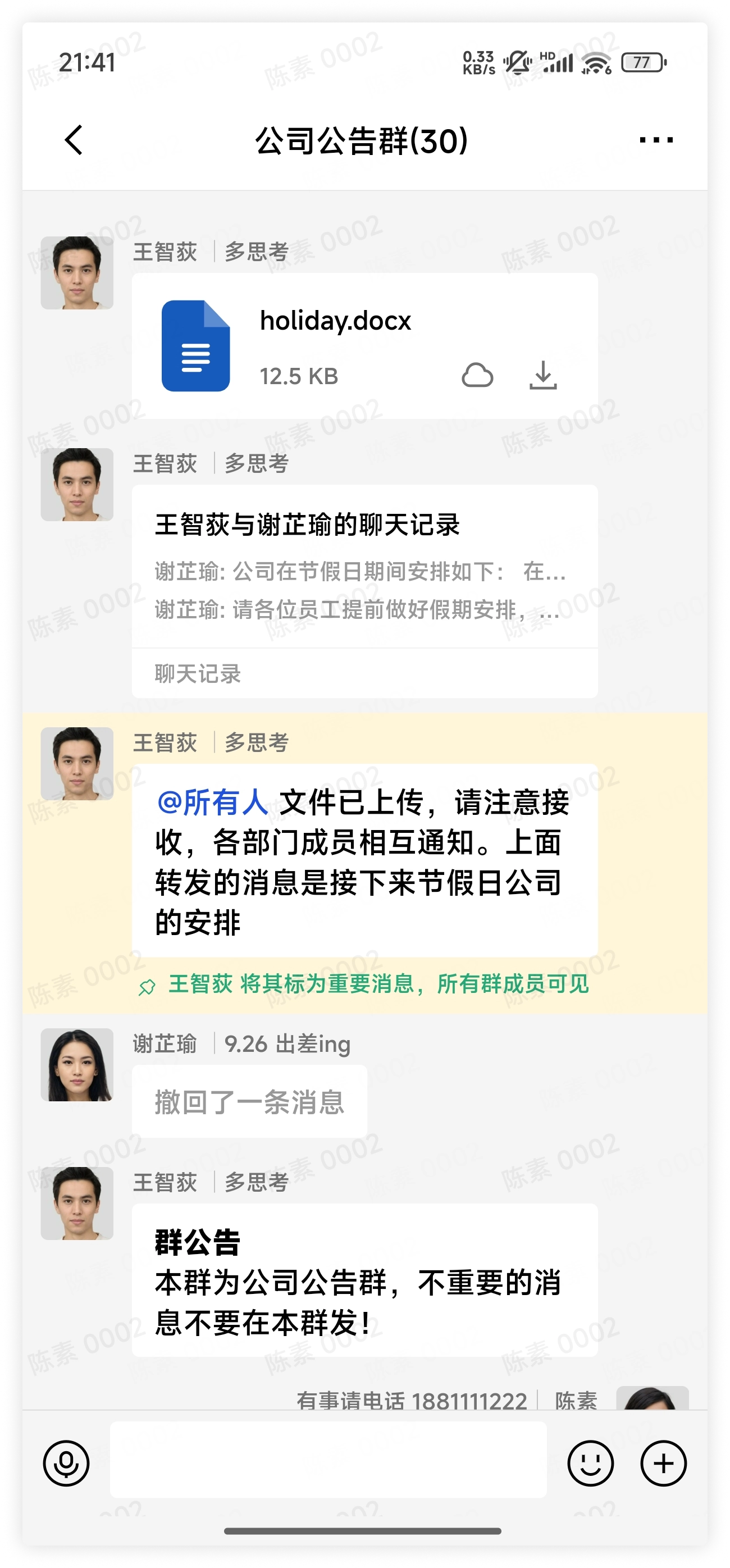
Click the Download button in the lower right corner of the file message to download the file.
Mobile
Click the Download button in the lower right corner of the file message to download the file.
3. FAQ
Q: Can I delete the files I sent in the chat?
A: You can delete file messages that you sent or received, but the deletion only takes effect for yourself. After deletion, other members in the chat can still see the file message.
- If you do not want the chat recipient to see the file message, you can recall the message within the message recall time limit set by the administrator.
Q: What should I do if I cannot view the files received in the chat?
A:
- Log in with another colleague's account to confirm whether operations such as sending files or opening chats are normal;
If other colleague accounts also behave abnormally, consider that the Feihan service may be abnormal. In this case, contact the administrator directly to report the problem.
-
If other colleagues can log in and use it normally, then consider that there may be a problem with the local cached chat data on the client. It is recommended to try resetting the local cached chat data.
-
If normal use still cannot be restored after the above operations, contact the unit administrator for further confirmation.