

Leave a Group Chat
1. Feature Introduction
If you no longer need a group chat, you can leave the group chat. After leaving, you will no longer receive messages from the group chat.
2. Operation Process
Desktop
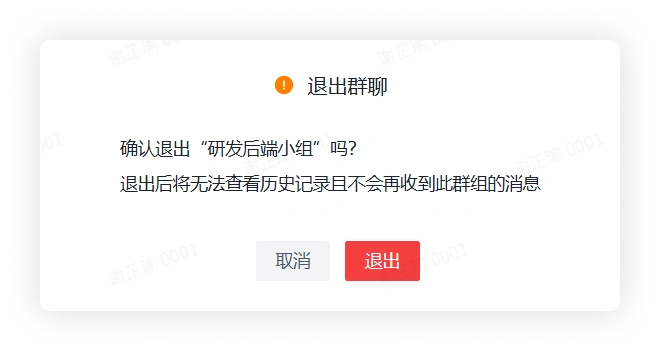
Click the "More Group Info" button in the upper right corner of the group chat > click Delete and Leave at the bottom, and after confirmation you can leave the group chat. After leaving, the group chat will no longer appear in your message list.
Mobile
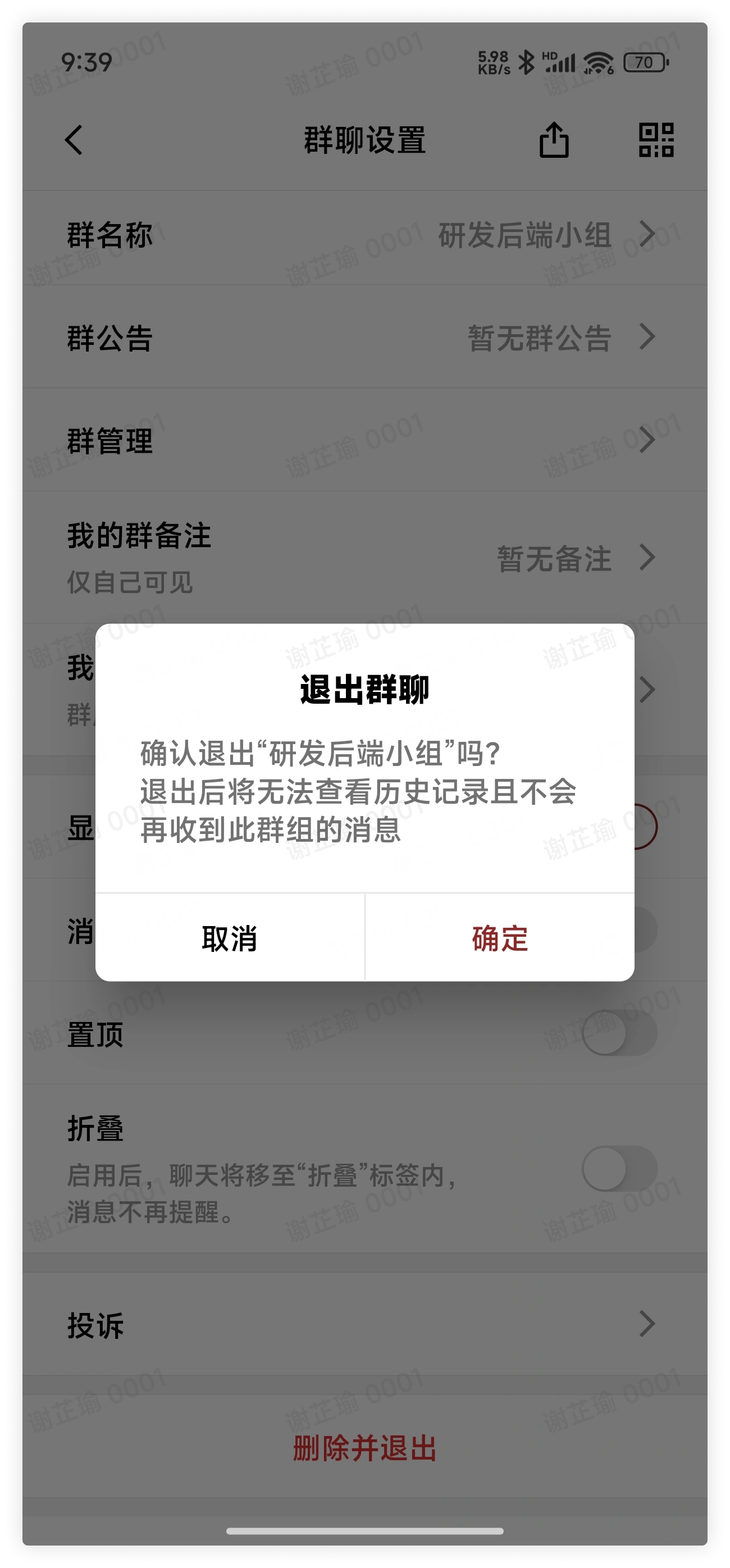
- Click the "More Group Info" button in the upper right corner of the group chat > click Delete and Leave at the bottom of the screen, and after confirmation you can leave the group chat. After leaving, the group chat will no longer appear in your message list.
3. FAQ
Q: If the group owner leaves the group, will the group chat be dismissed?
A: If there are still other group members in the group, when the group owner leaves the group, the group owner will be automatically transferred to a group member; if there are no other members in the group, when the group owner leaves the group, the group chat will be automatically dismissed.
Q: How do I remove members?
A: Only the group owner and group administrators can remove group members. Click the "More Group Info" button in the upper right corner of the group chat > Group Members, and on the group members interface click Remove, select the group members, and click Confirm to remove them from the group chat.