

Use the Mark as Important Feature
1. Feature Introduction
You can mark a message in a chat as an important message. Marked messages are visible to all members in the chat.
2. Operation Process
Desktop
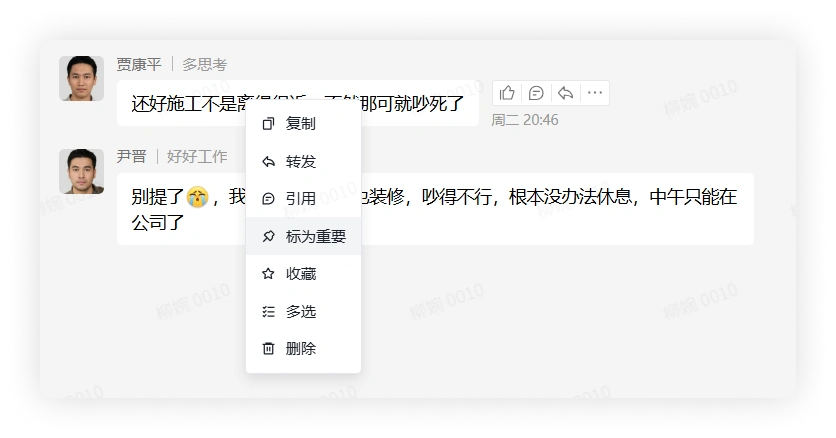
In the chat, select a chat message, right-click it, and click Mark as Important to mark it as an important message.
Mobile
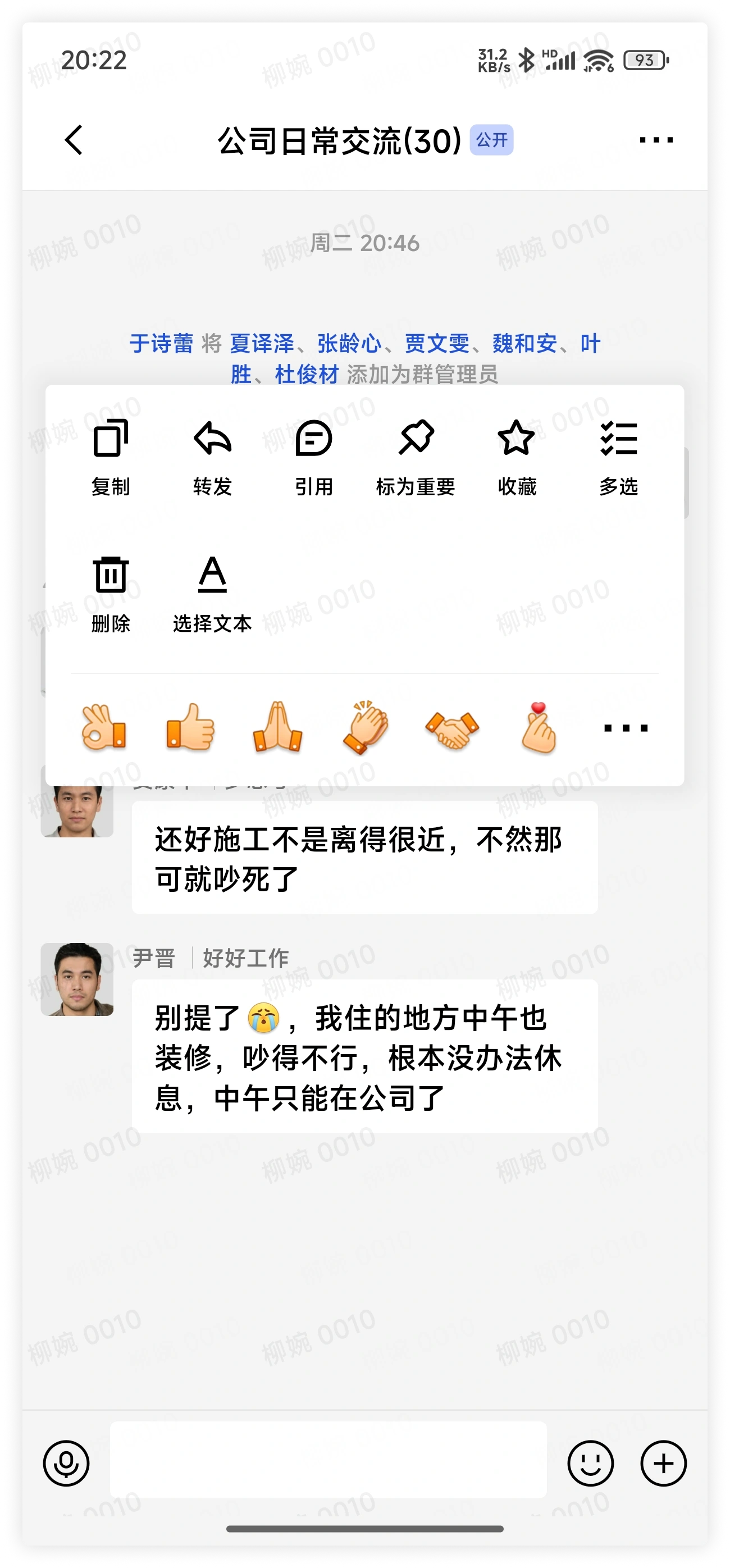
In the chat, select a chat message, long press it, and click Mark as Important to mark it as an important message.
View All Important Messages in the Chat
Desktop
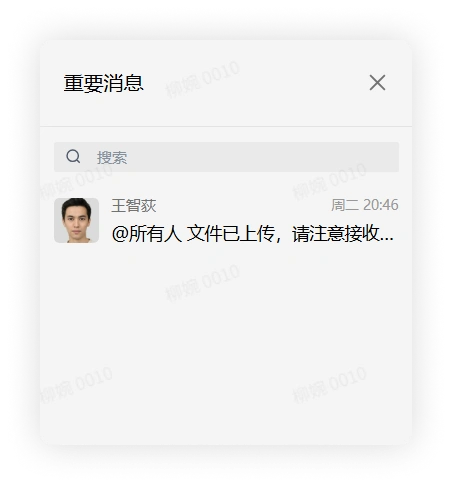
In the chat page, click "View Important Information" in the upper right corner to view all important messages in the chat.
Mobile
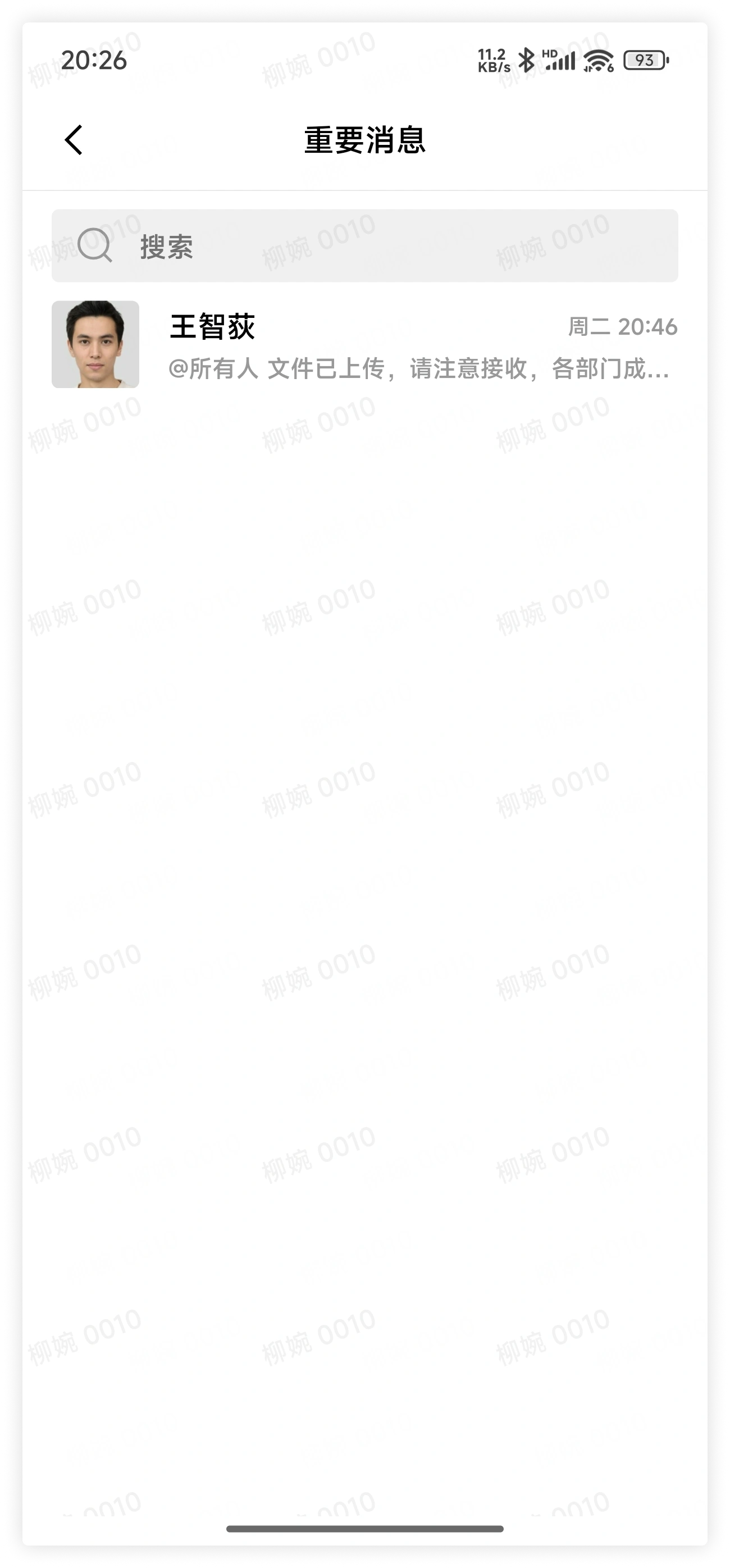
In the chat page, click "More Group Info" in the upper right corner, and click View Important Messages in group chat settings to view all important messages in the chat.
3. FAQ
Q: Why can't I mark important information in a group chat?
A: It may be because the group chat permissions are set so that only the group owner and group administrators can mark important messages.
Q: Why will the important messages I marked be unmarked?
A: Important messages can be unmarked by all members in the chat.