

Set a Group Chat as a Public Group
1. Feature Introduction
Public groups are group chats that can be searched by members within the enterprise. Group owners or group administrators can set the group chat to be searchable and turn it into a public group, making it easier for more enterprise members to join.
2. Operation Process
Desktop
-
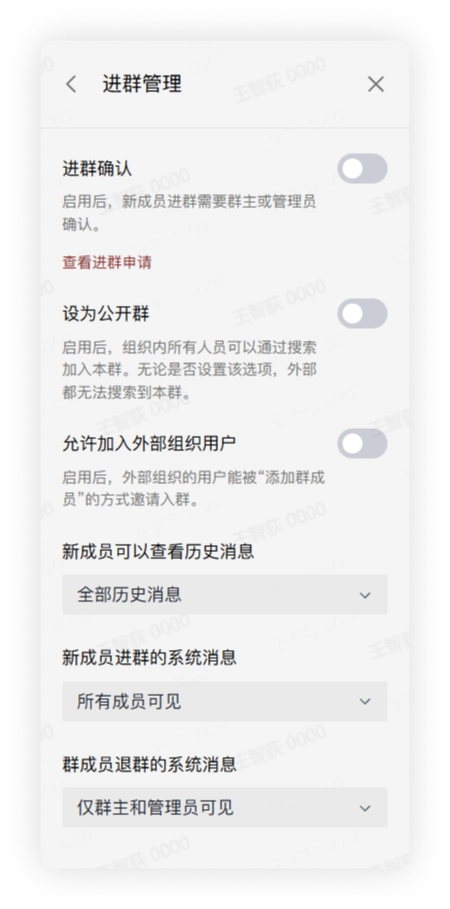
The group owner or group administrator enters the group chat, clicks the "More Group Info" icon in the upper right corner to enter the group settings interface, and clicks Group Management > Join Group Management to enter the corresponding interface.
-
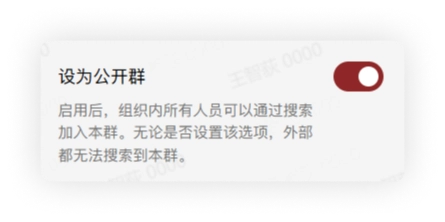
In the Join Group Management interface, find and click the Set as Public Group switch, and the group chat can then be found by other members through search.
-
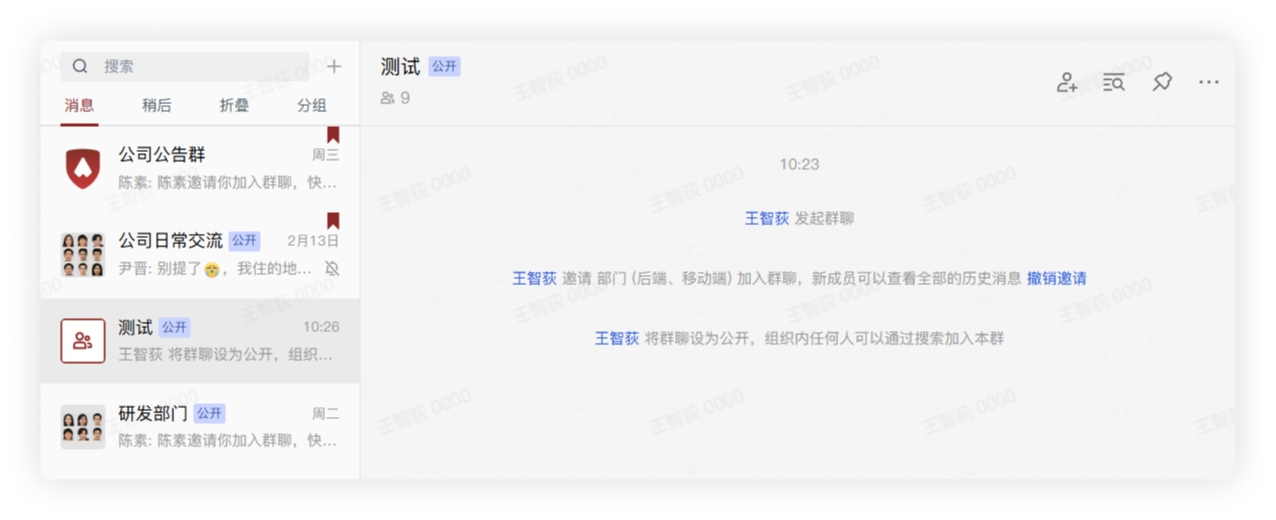
After checking it, there will be a corresponding prompt in the group chat, and a "Public" label will appear next to the group chat name. At this time, all group members can add group members or share the group.
-
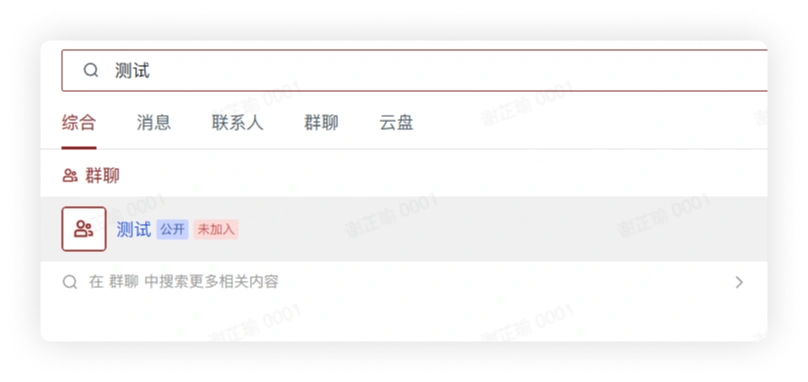
Enterprise members can enter the group chat name in the desktop search bar and click the corresponding result in the search results to join the group chat.
Mobile
-
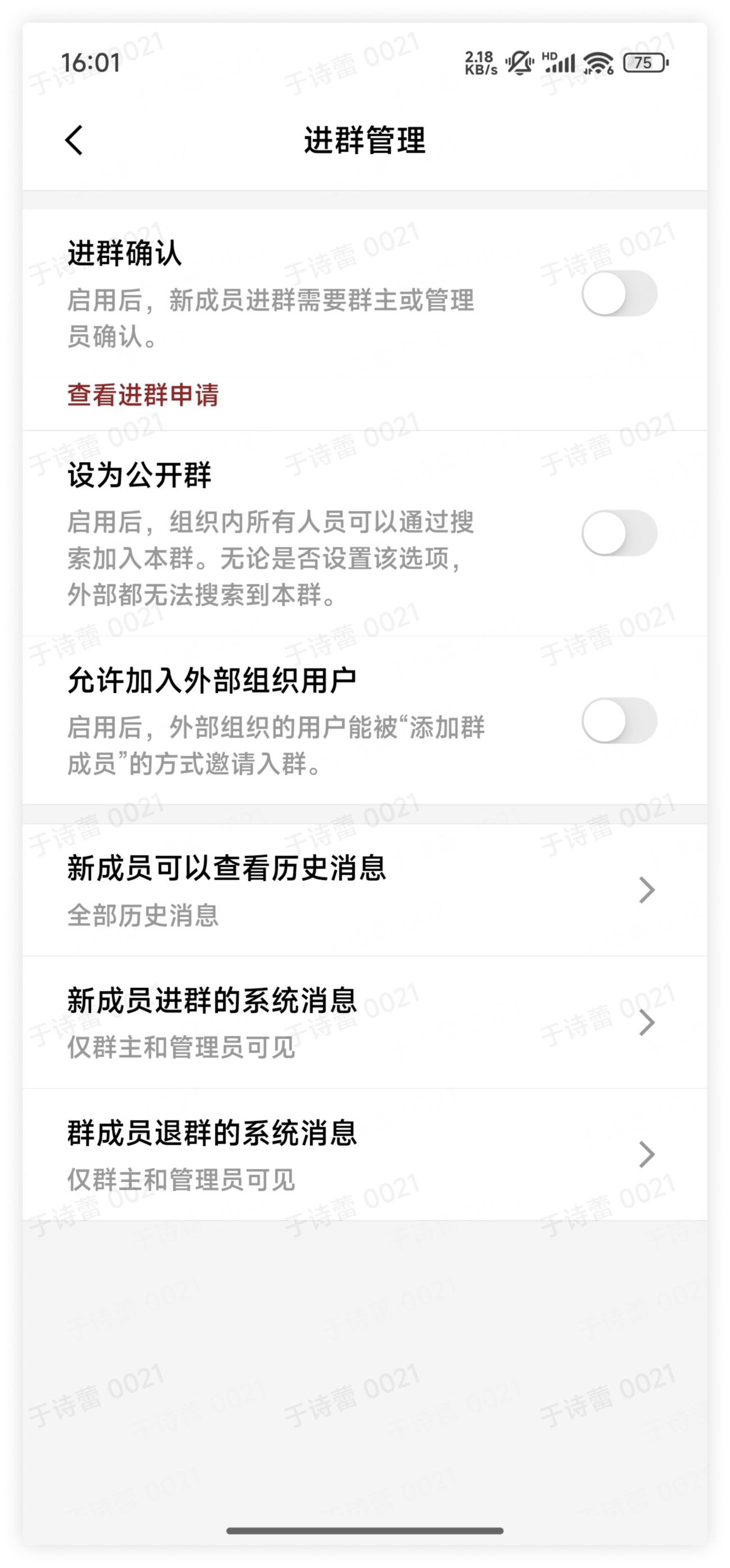
The group owner or group administrator enters the group chat, clicks the "More Group Info" icon in the upper right corner to enter the group settings interface, and clicks Group Management > Join Group Management to enter the corresponding interface.
-
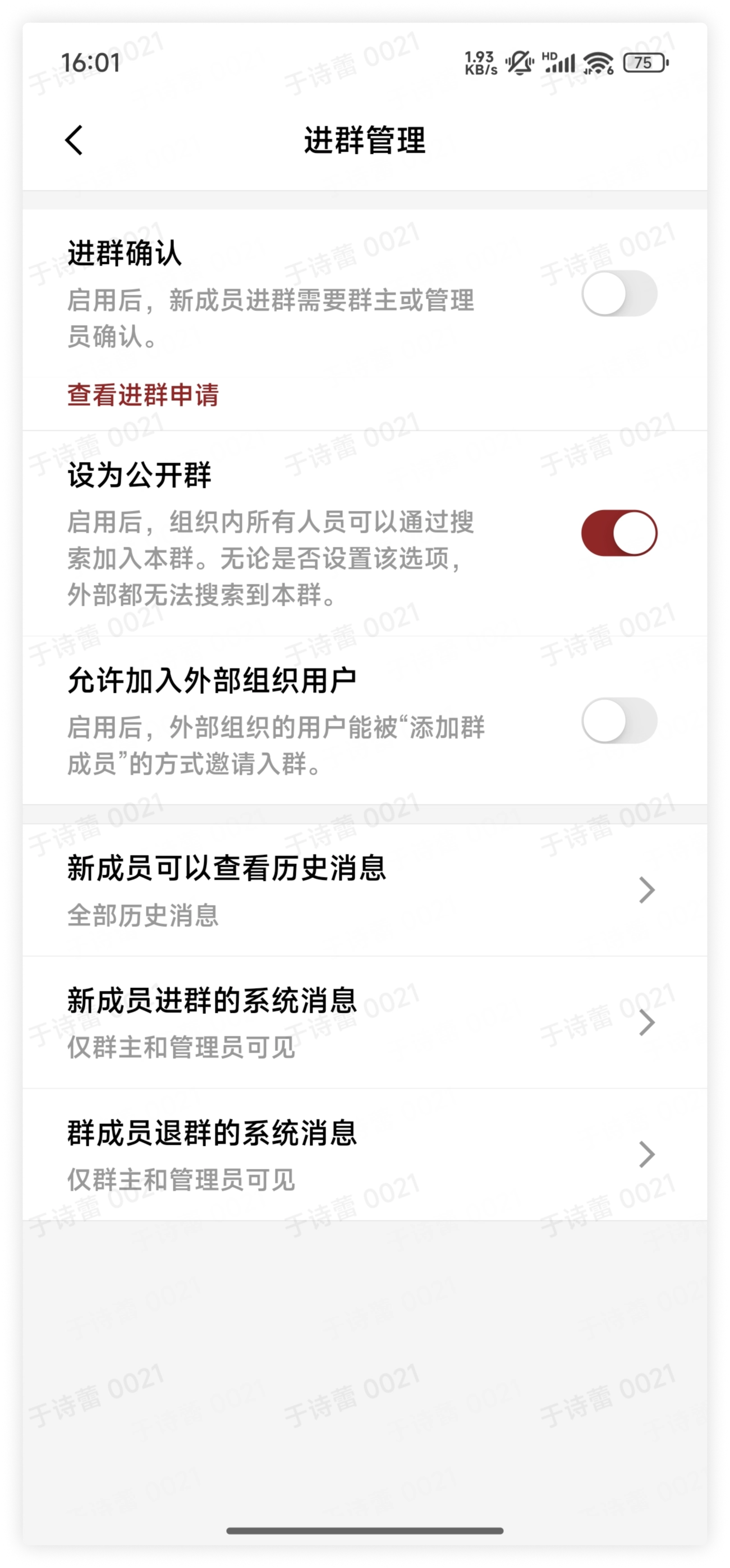
In the Join Group Management interface, find and click the Set as Public Group switch, and the group chat can then be found by other members through search.
-
After checking it, there will be a corresponding prompt in the group chat, and a "Public" label will appear next to the group chat name. At this time, all group members can add group members or share the group.
-
Enterprise members can enter the group chat name in the desktop search bar and click the corresponding result in the search results to join the group chat.
Enable Join Verification
If you want to set the group chat as a public group and also need to manage the permissions for enterprise members to join the group chat, you can enable join verification.
-
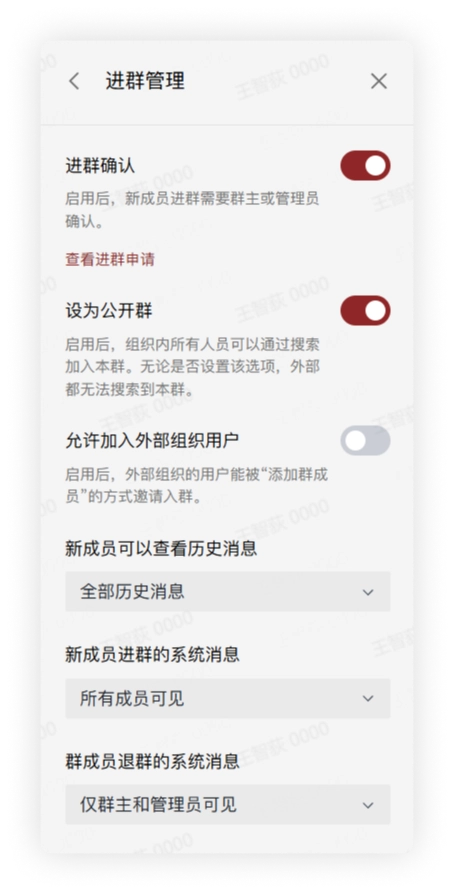
In the Join Group Management interface, find and click the Join Group Confirmation switch. After it is enabled, members entering the group chat need to fill in the reason for joining.
-
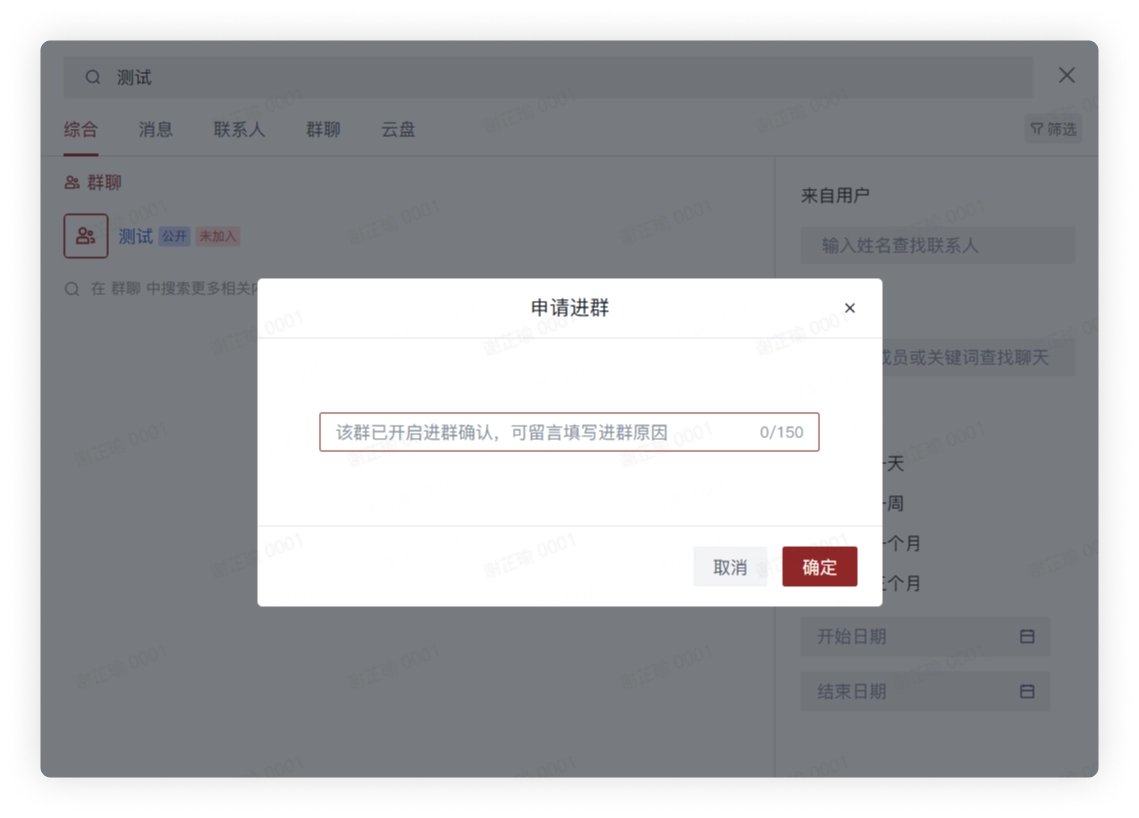
After it is enabled, enterprise members need to fill in the reason for joining when they join the group chat.
-
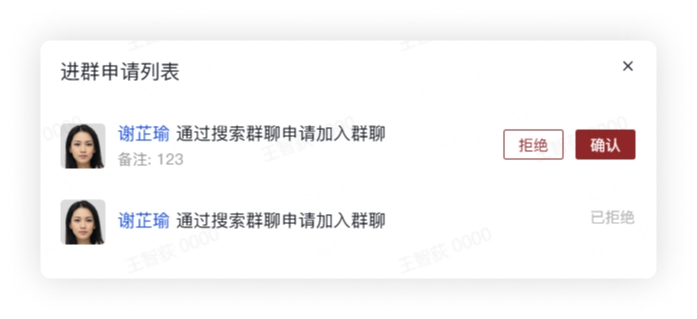
When the group owner or group administrators receive a join request, they need to click Click to Process on the group chat interface and choose Reject or Approve in the pop-up window. If Approve is selected, the member enters the group chat; if Reject is selected, the member will not join the group chat and will not receive relevant notifications.
3. FAQ
Q: How do I set a public group back to a non-public group?
A: The group owner or group administrators enter the group management page and turn off the switch to set the group chat back to a non-public group.
Q: Can a group chat still be searched after it is dismissed?
A: No.
Q: Can a non-public group enable "Join Group Confirmation"?
A: Yes.