

Mobile - Login Guide
Open the Software
Set the Server
After installation is complete, you will enter the login interface. Click the network settings button in the lower right corner;
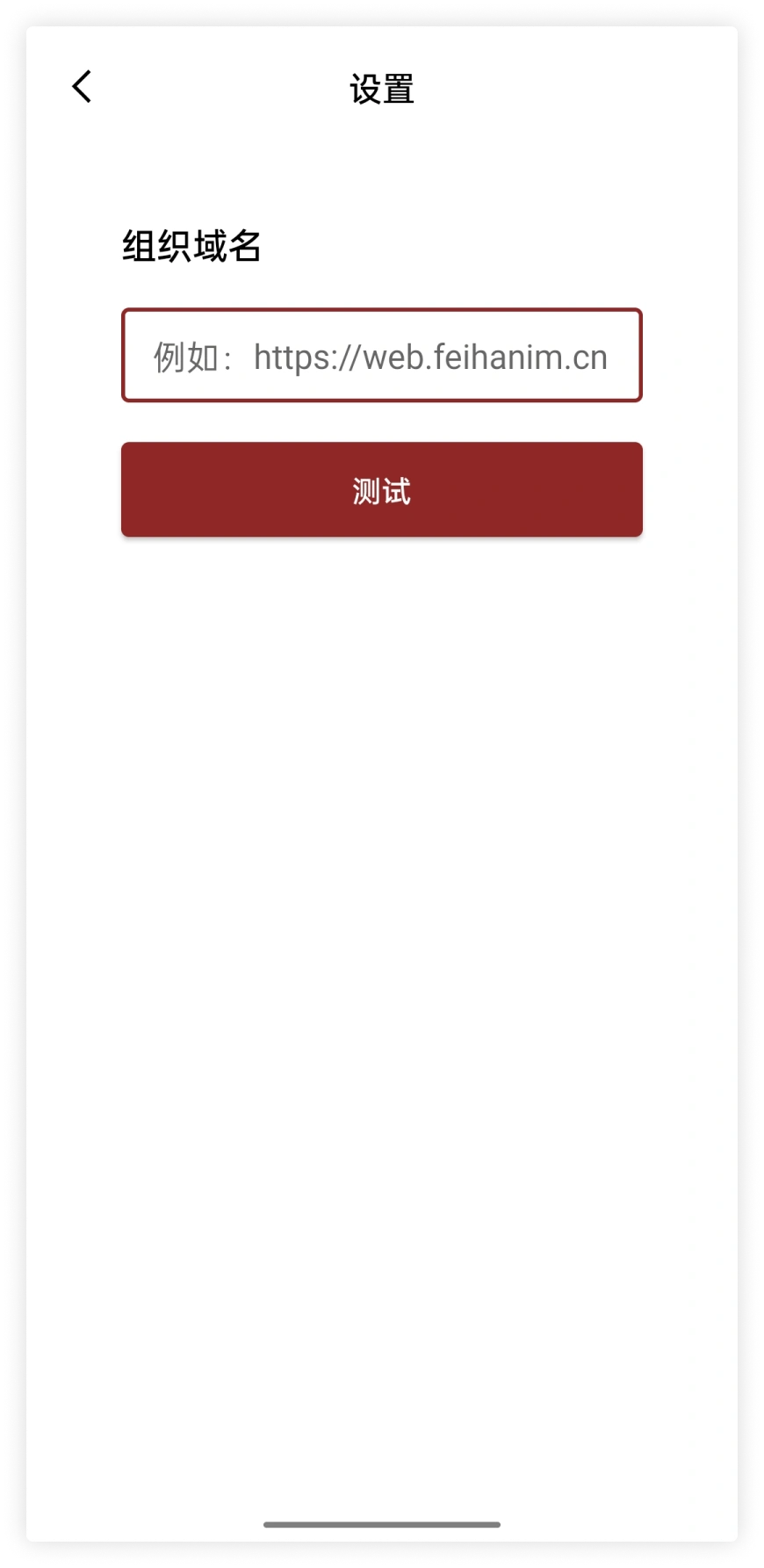
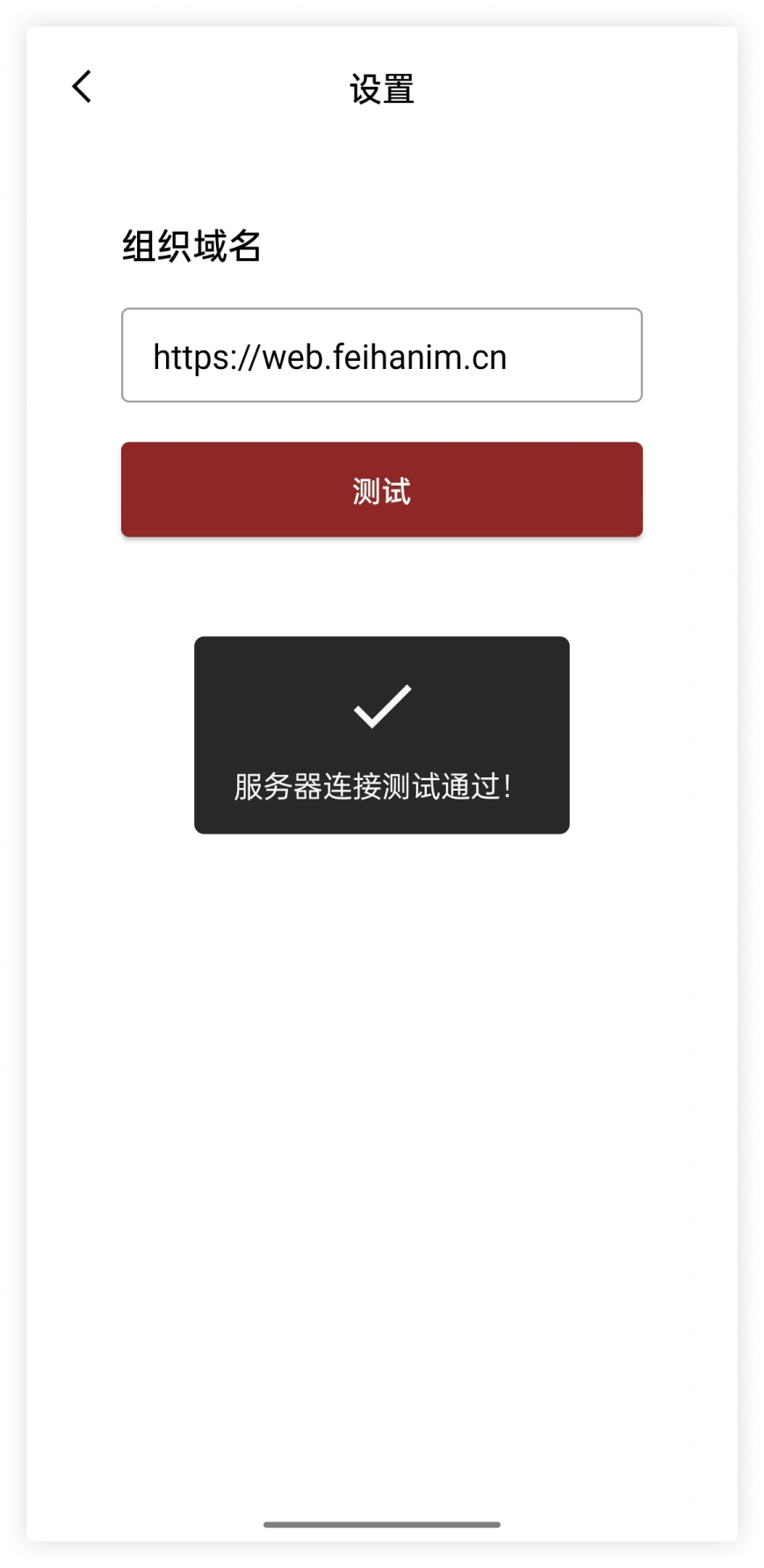
After filling in the organization domain name, click the Test button. When the test passed window pops up, it means the connection to the server is successful.
Choose a Login Method
Feihan supports two login modes. You can choose one of account password login and SMS verification code login.
-
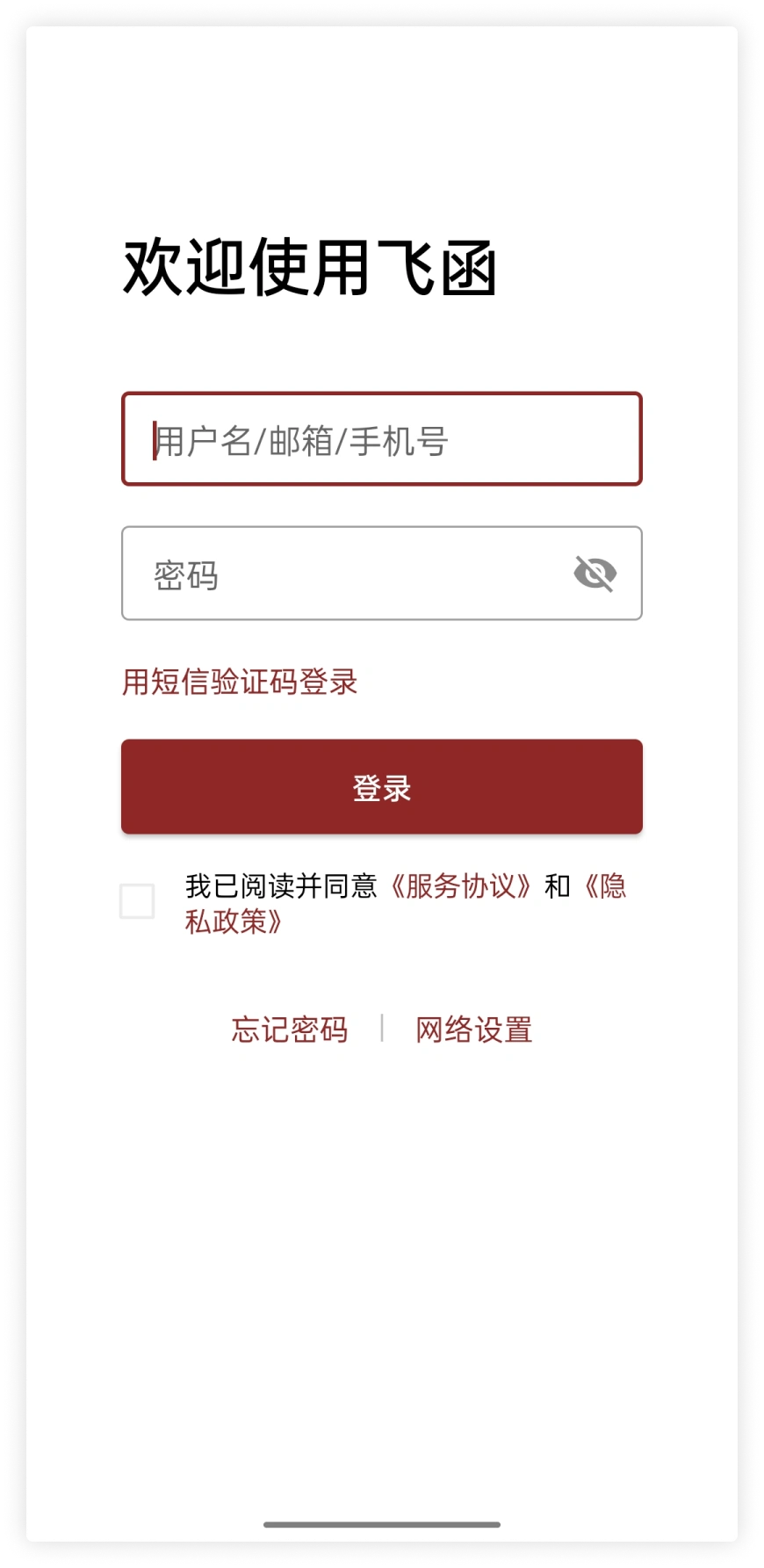
Account Password Login
After entering the correct account and password, check the Service Agreement and Privacy Policy, then click Login.
-
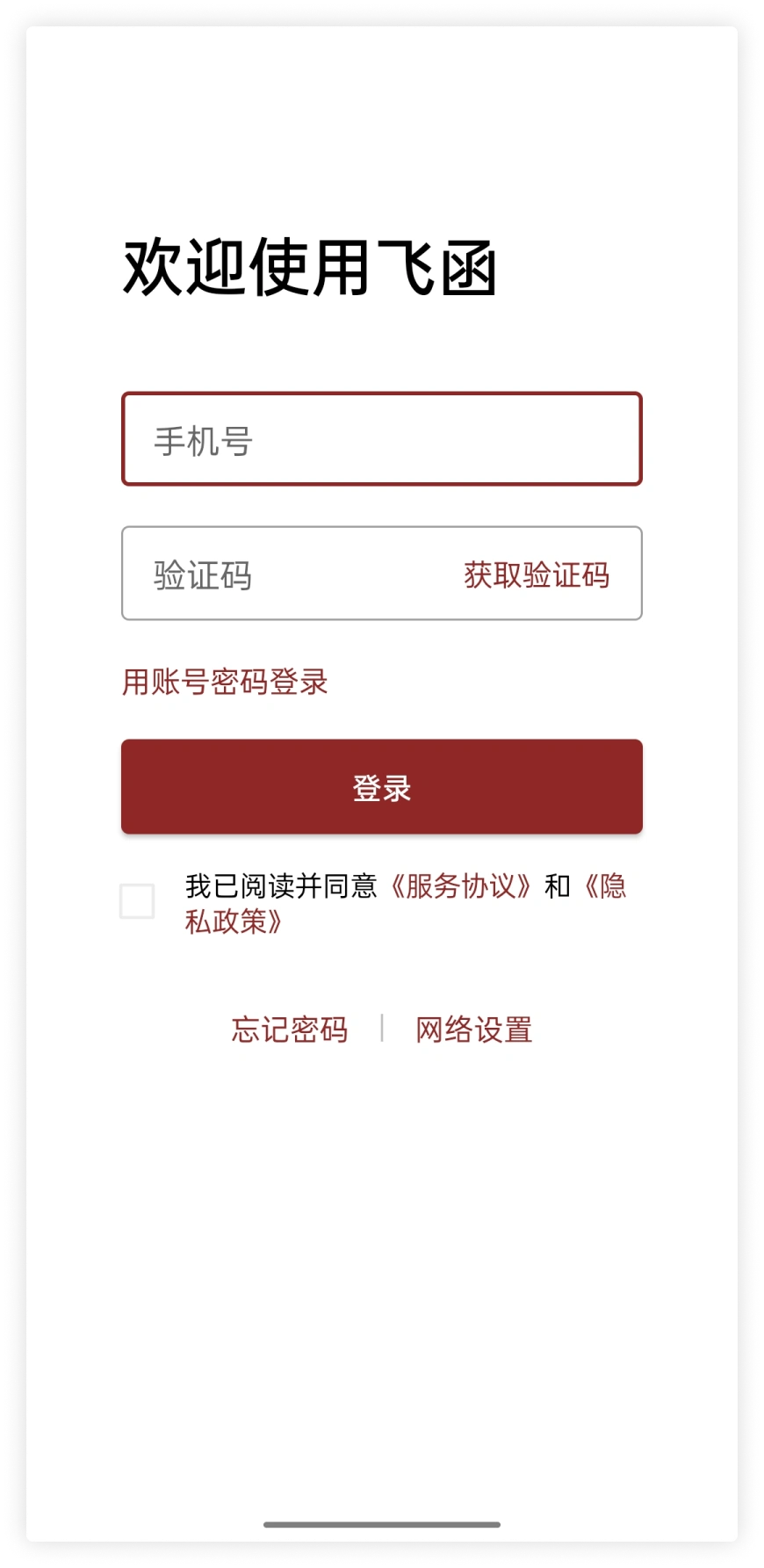
SMS Verification Code Login
After entering the mobile phone number, enter the received SMS verification code, check the Service Agreement and Privacy Policy, and click Login.
Please choose the login mode and complete the relevant information input according to the administrator's requirements.