

Use Emoji Reactions to Reply to Messages
1. Feature Introduction
You can use emoji reactions to reply and efficiently express information such as "OK", "Agree", "+1", "Thanks", "Keep it up", and more, reducing communication costs and solving the problem of cluttered messages in multi-person chats.
2. Operation Process
Desktop
- Use emoji reactions to reply to messages
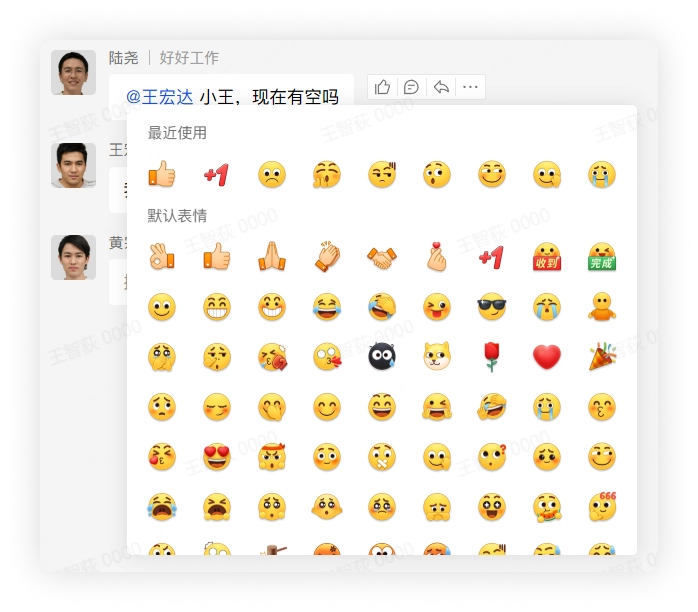
Hover the mouse over the message you want to reply to, and a Like button will appear on the right side of the message. Click it directly to send a "Like" reaction. If you hover over the Like button without clicking, all emojis will appear, and the 9 most frequently used emojis will be displayed in the top row; click the desired emoji to reply to the message.
- View reacted emojis
- Which emoji reactions were received
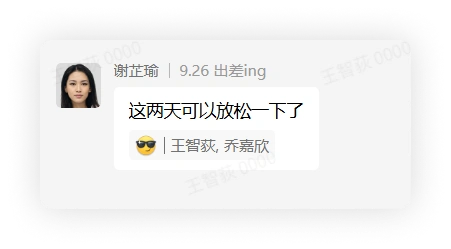
All emoji reactions received on a message will be displayed below the message and are visible to all members in the chat.
- Who sent the emoji reactions
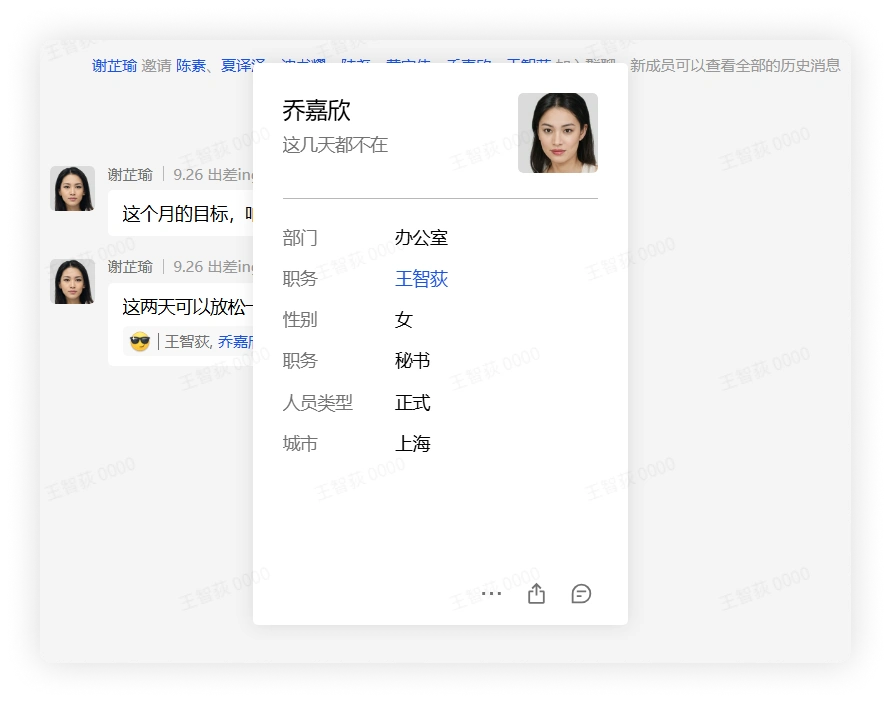
The nickname of the sender of the emoji will be displayed after the reaction. Click the nickname to view the sender's profile card.
- Recall reacted emojis
After an emoji reaction is recalled, it disappears directly, leaves no trace, and does not notify others. There are 2 ways to recall an already sent emoji reaction.
- Send the same emoji again to a message that you have reacted to.
- Tap the emoji reaction you sent below the message.
Mobile
- Use emoji reactions to reply to messages
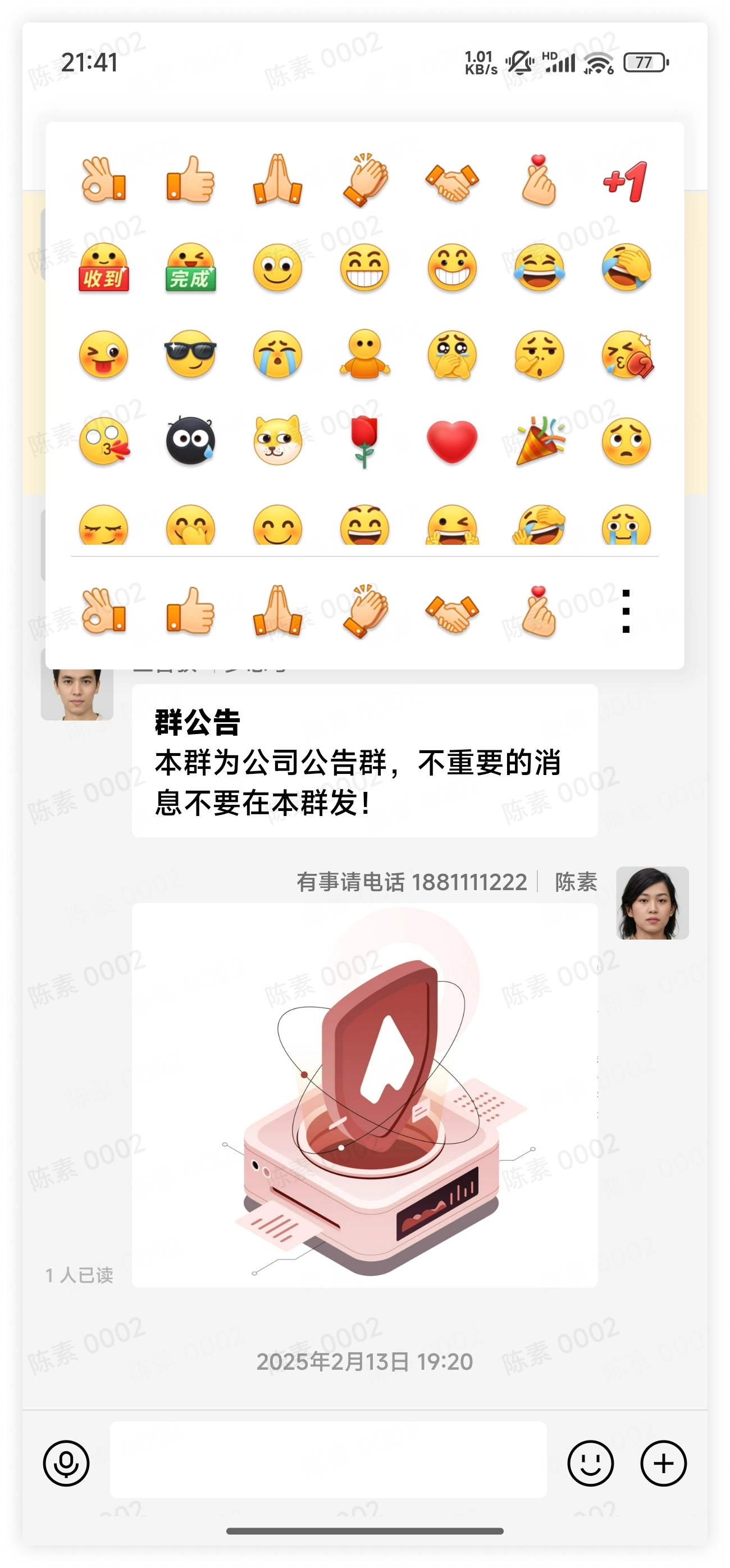
Long press the message you want to reply to, and a message menu will appear. The 6 most recently used emojis are displayed directly in the menu. Tap the emoji to send it.
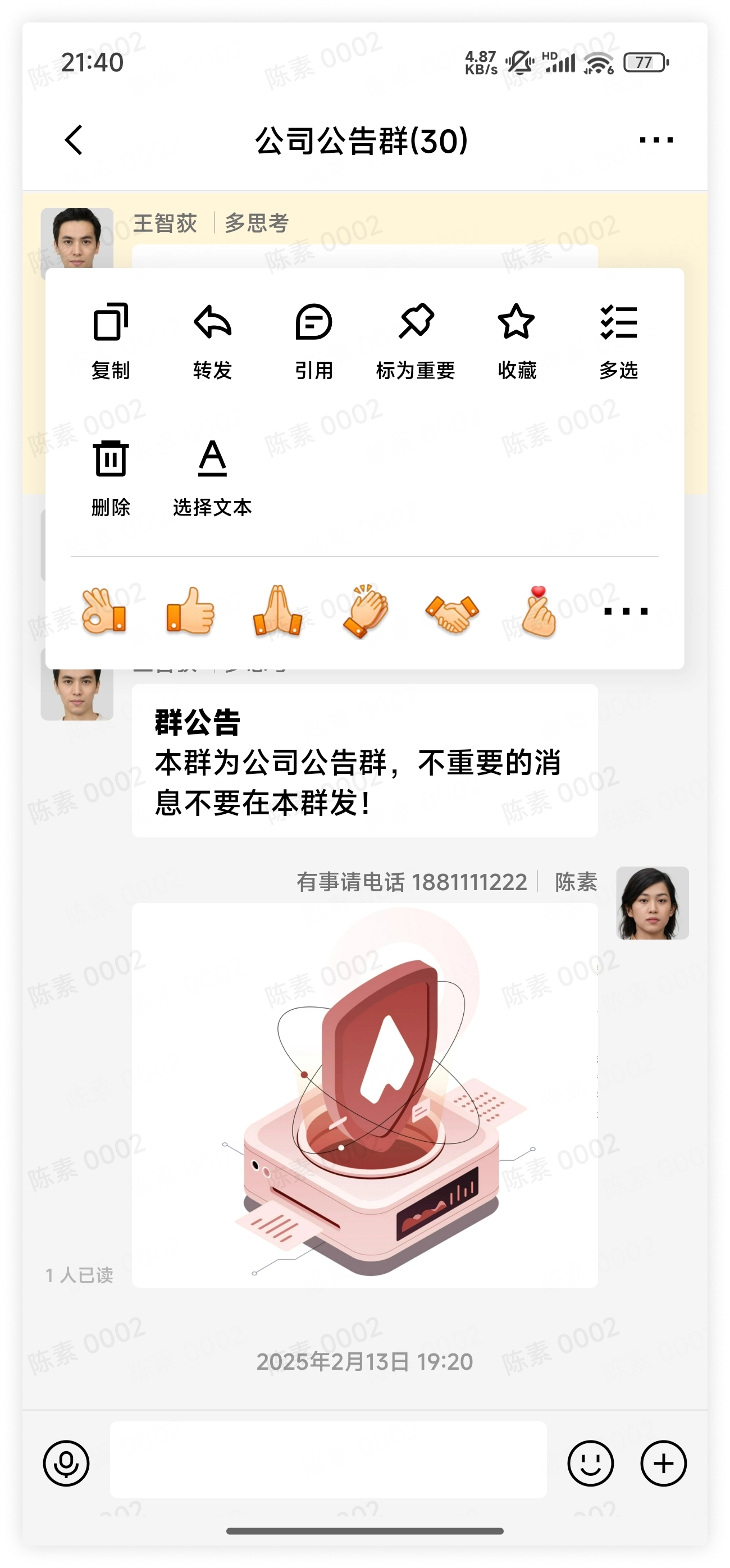
If you want to send other emojis, tap the More button in the lower right corner of the menu to see all emojis, then tap the emoji to reply.
- View reacted emojis
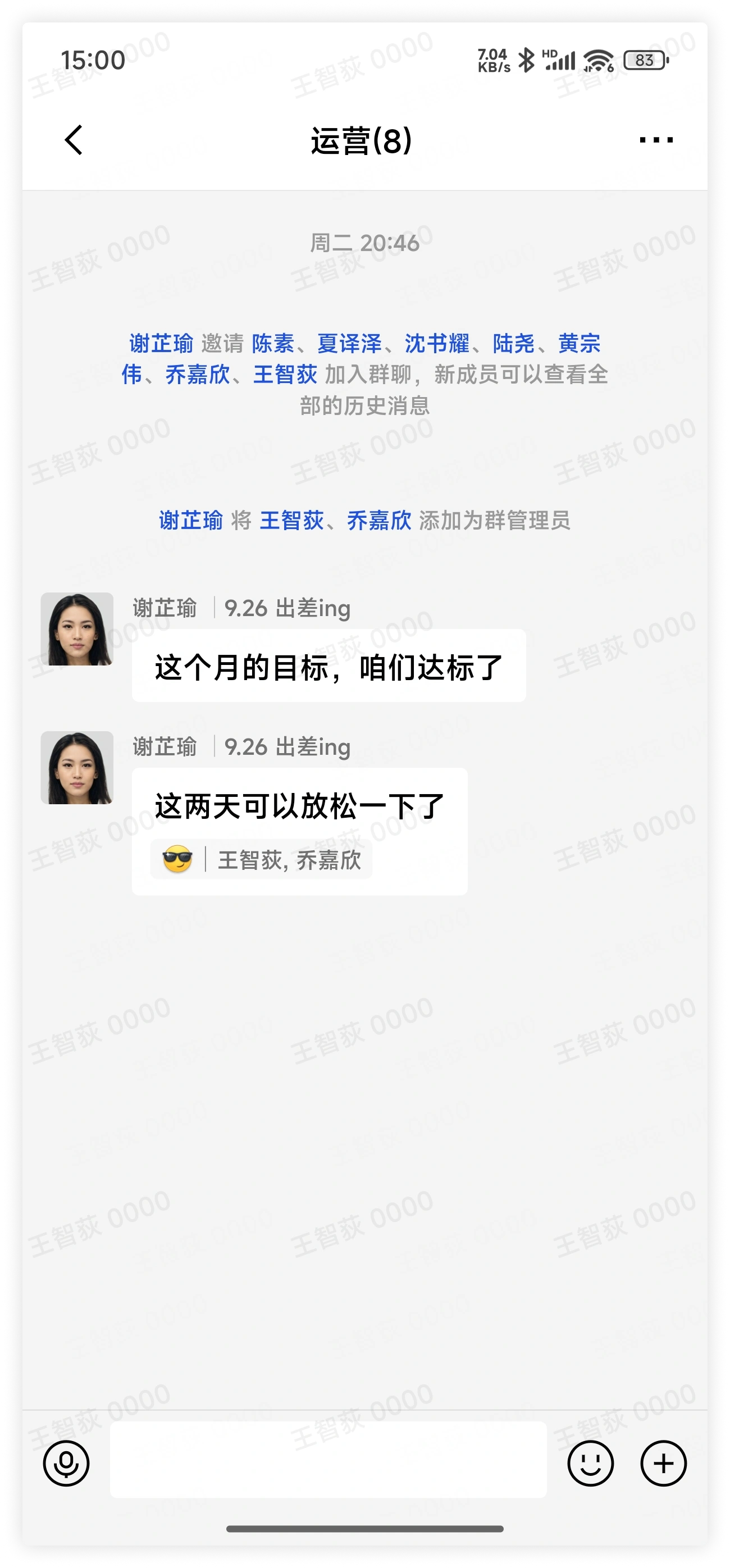
- Which emoji reactions were received
All emoji reactions received on a message will be displayed below the message and are visible to all members in the chat.
- Who sent the emoji reactions
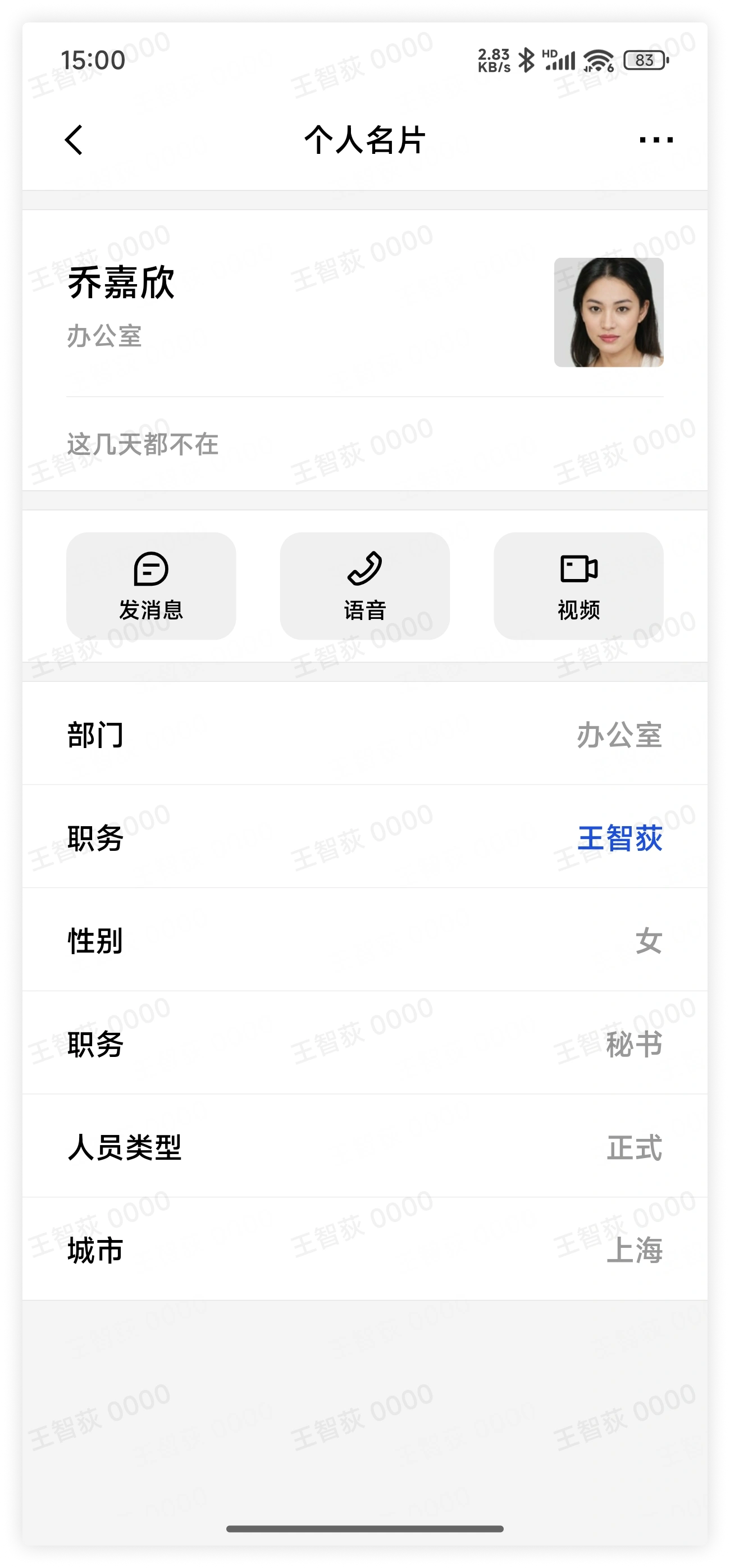
The nickname of the sender of the emoji will be displayed after the reaction. Click the nickname to view the sender's profile card.
- Recall reacted emojis
After an emoji reaction is recalled, it disappears directly, leaves no trace, and does not notify others. There are 2 ways to recall an already sent emoji reaction.
- Send the same emoji again to a message that you have reacted to.
- Tap the emoji reaction you sent below the message.