Mobile - Video Meeting Guide
1. Create/Join a Video Meeting
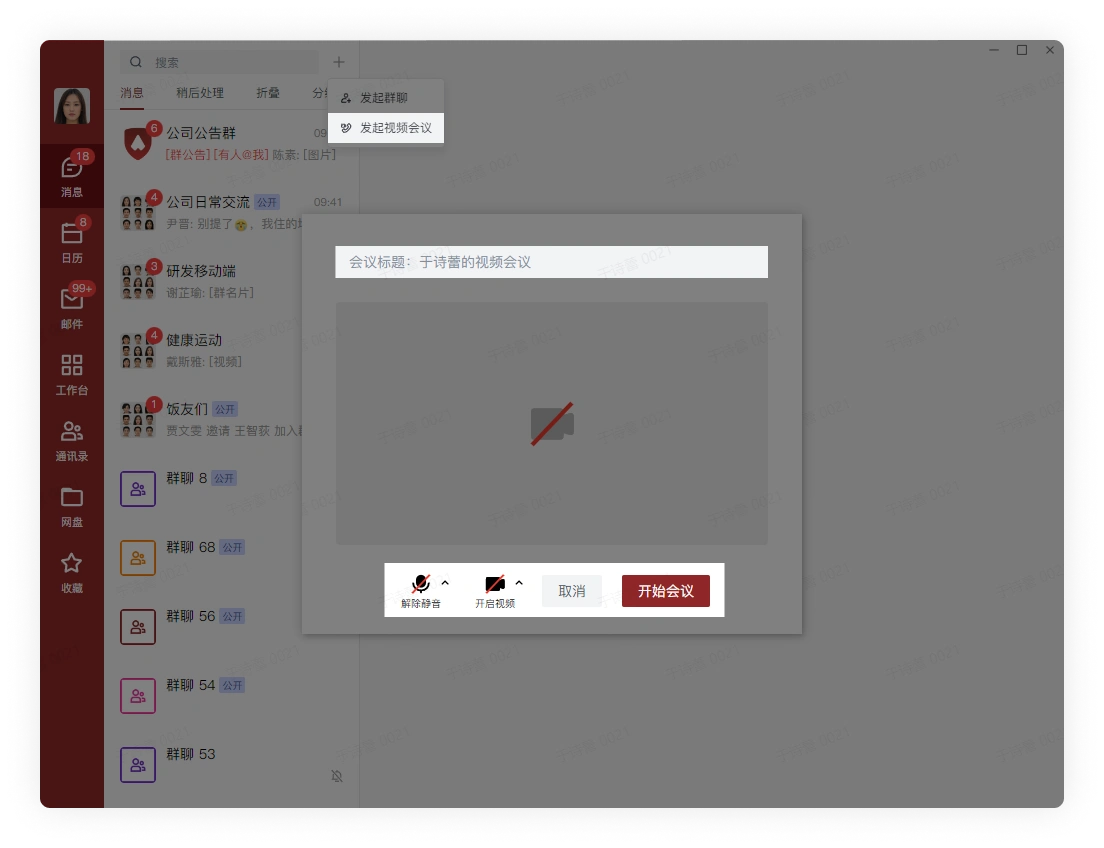
Click the plus sign in the upper right corner of the message page, select Start Video Meeting, choose whether to turn on the camera, microphone, and speaker, whether to edit the title of the video meeting, and click Start Meeting:
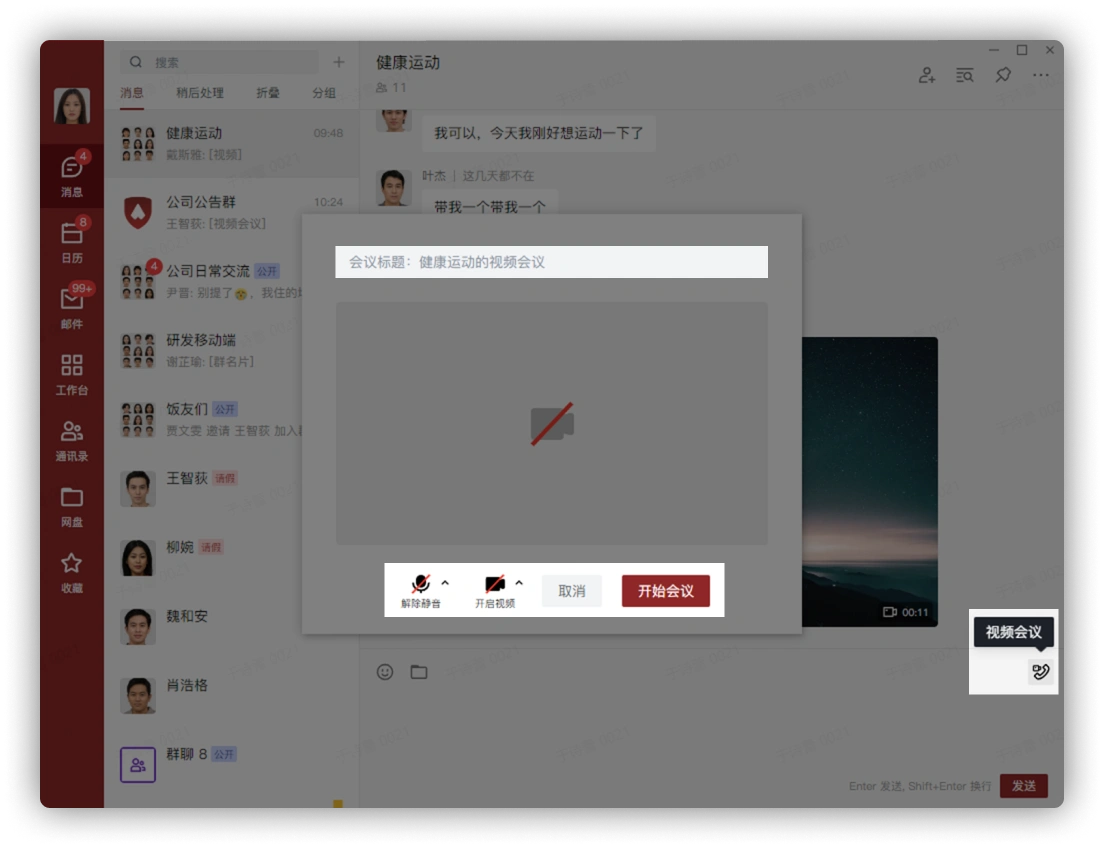
Click the plus button on the right side of the input box in the opened group chat, click the Video Meeting button, choose whether to turn on the camera, microphone, and speaker, whether to edit the title of the video meeting, and click Start Meeting:
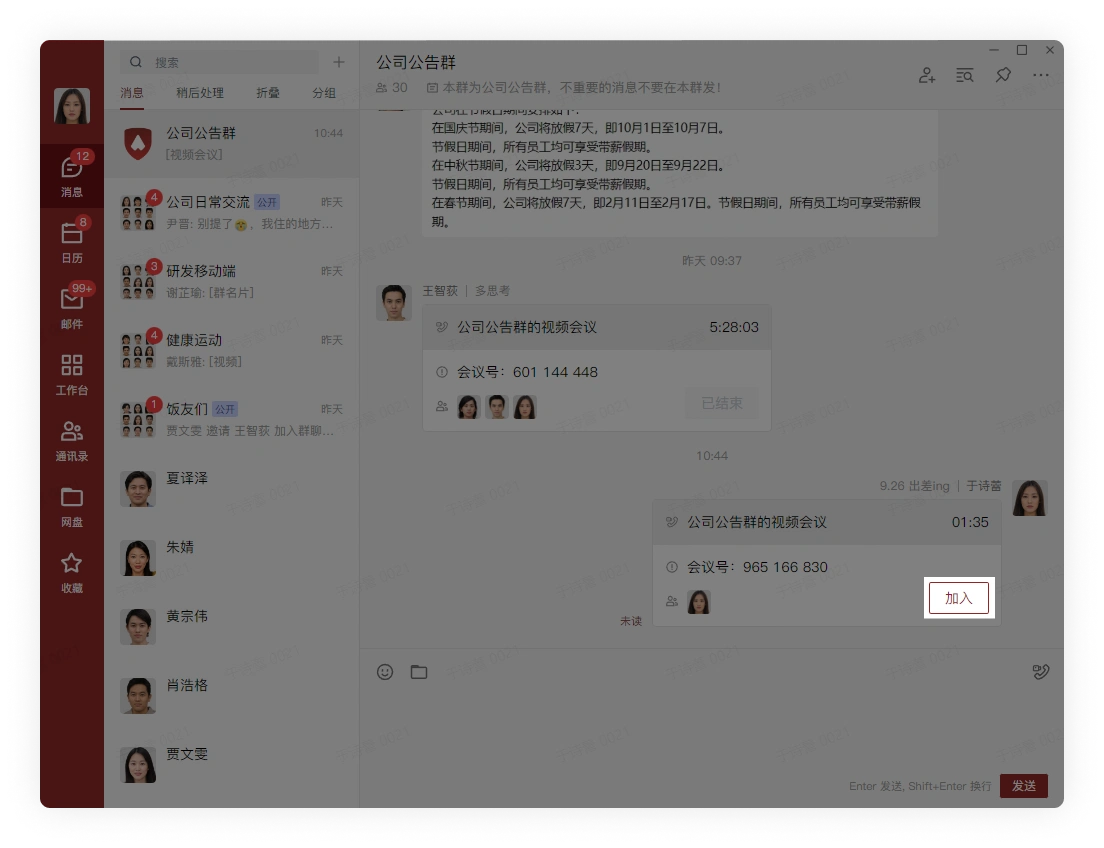
Click Join in the chat to enter the video meeting created by the user
2. Turn the Microphone and Camera On/Off
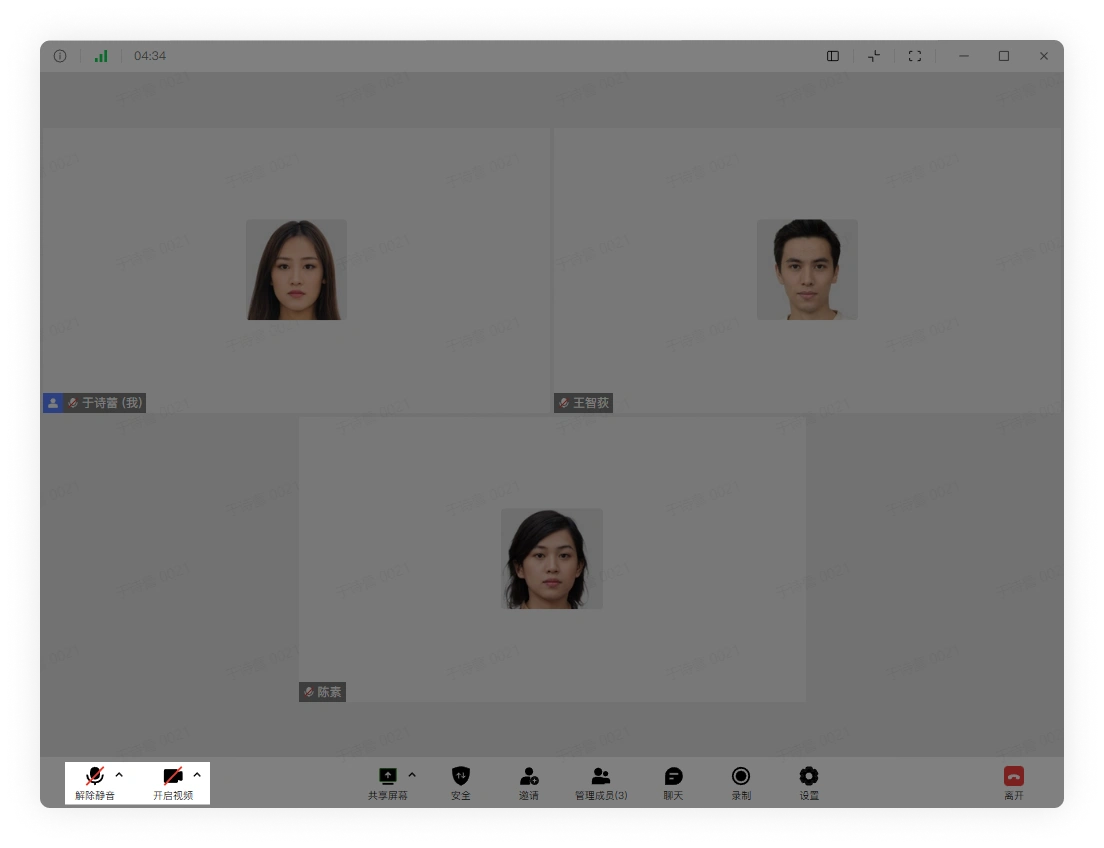
Click the button in the lower corner of the meeting interface to turn the microphone, camera, and speaker on/off:
3. Invite to the Meeting
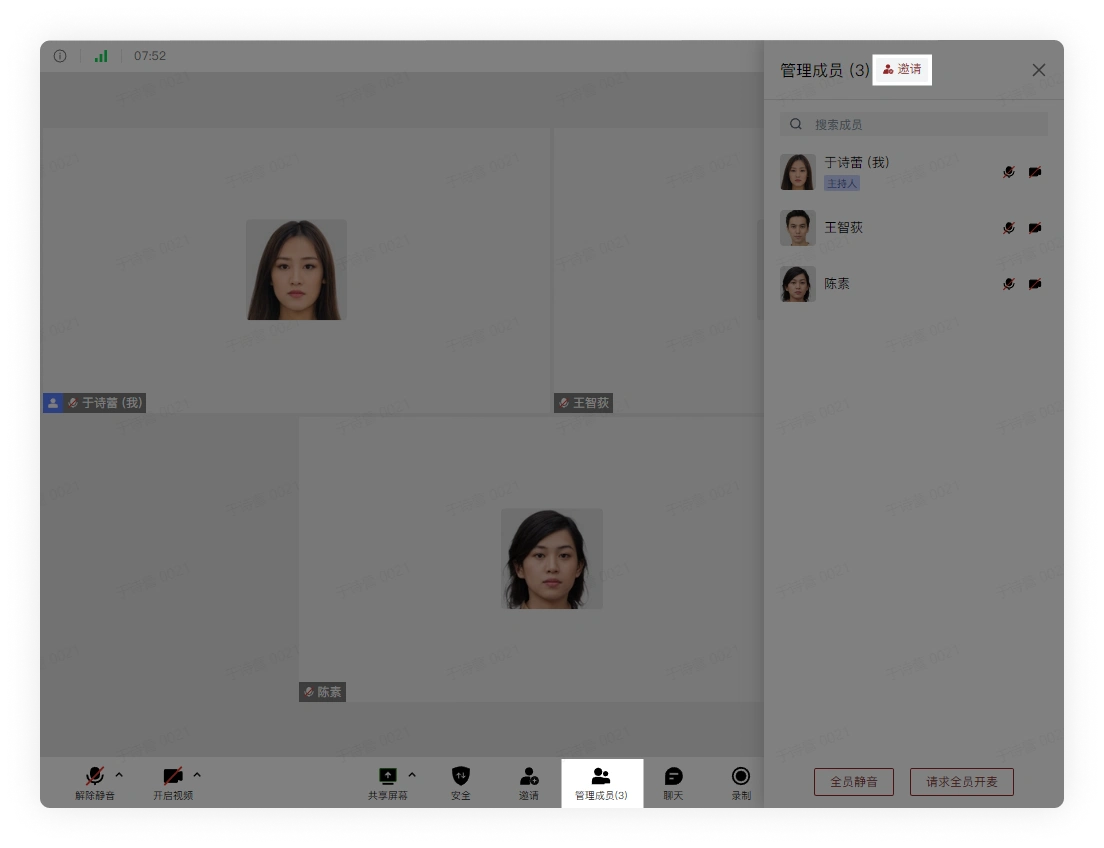
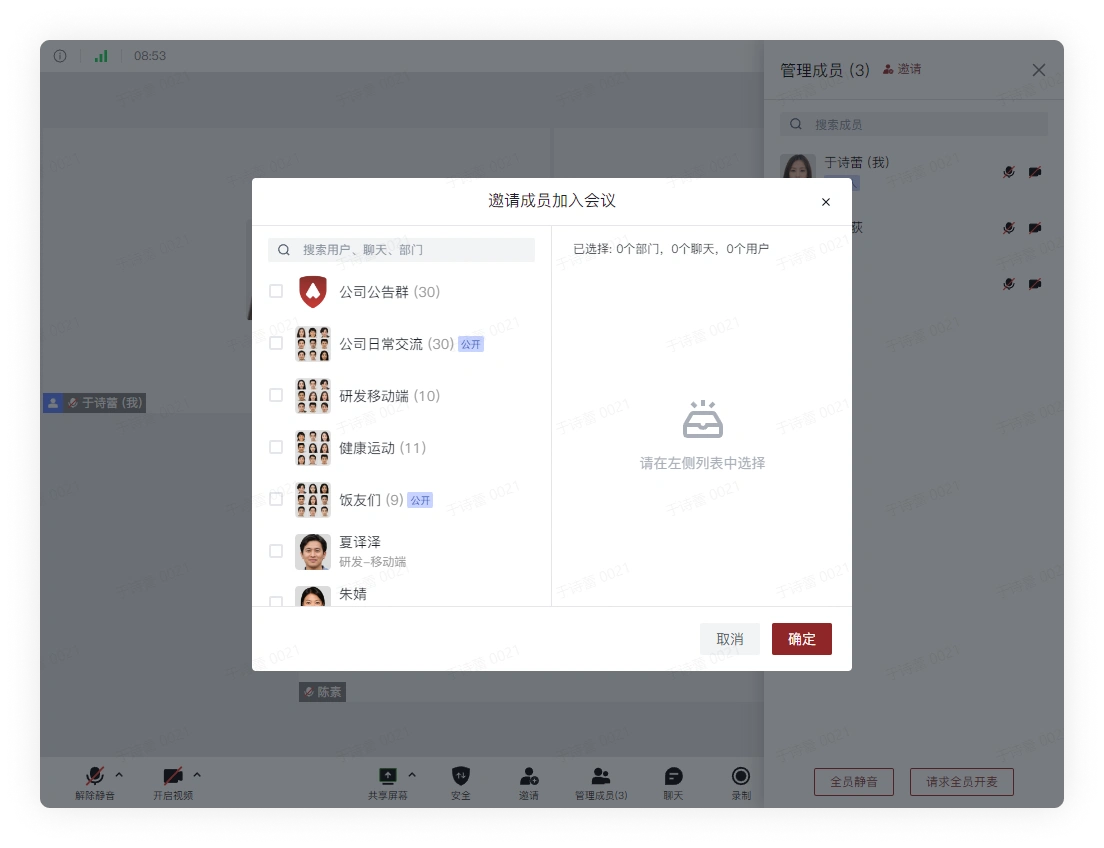
Click the Manage Members button, then click the Invite button at the top in the pop-up sidebar, select the invitee, and click Confirm:
4. Manage Members
On the main video meeting interface, click the button in the upper right corner of the user to modify their status:
Click the Manage Members button, and in the pop-up page, click the meeting participant to modify their status:
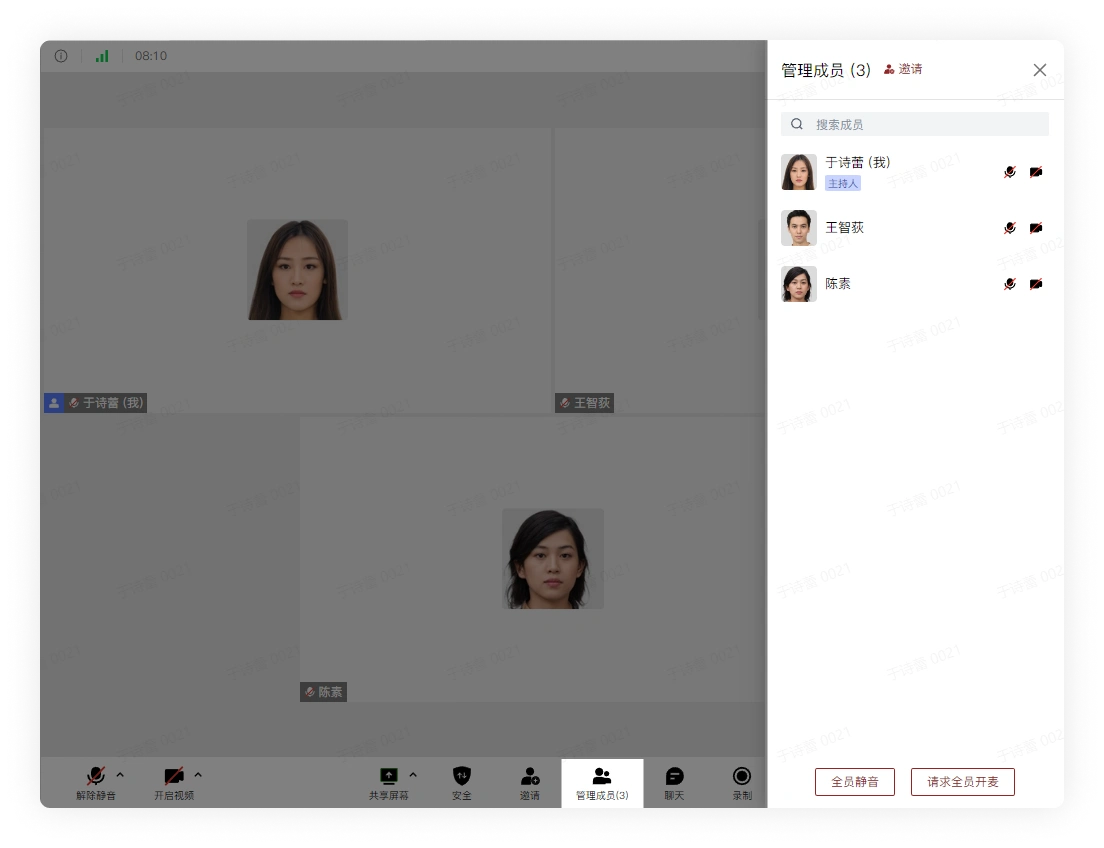
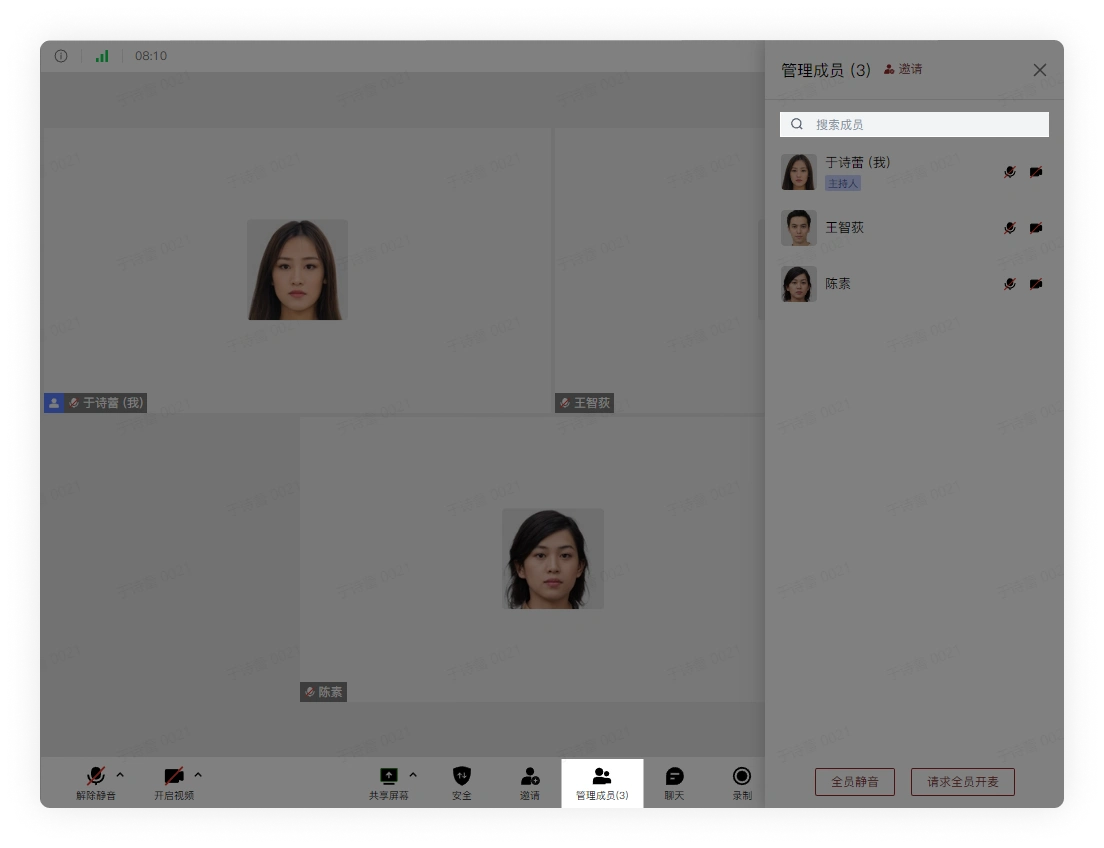
Click the search box at the top of the pop-up sidebar, enter the member's name or abbreviation, quickly find the member you want to find, and perform operations on them:
5. Leave and End the Meeting
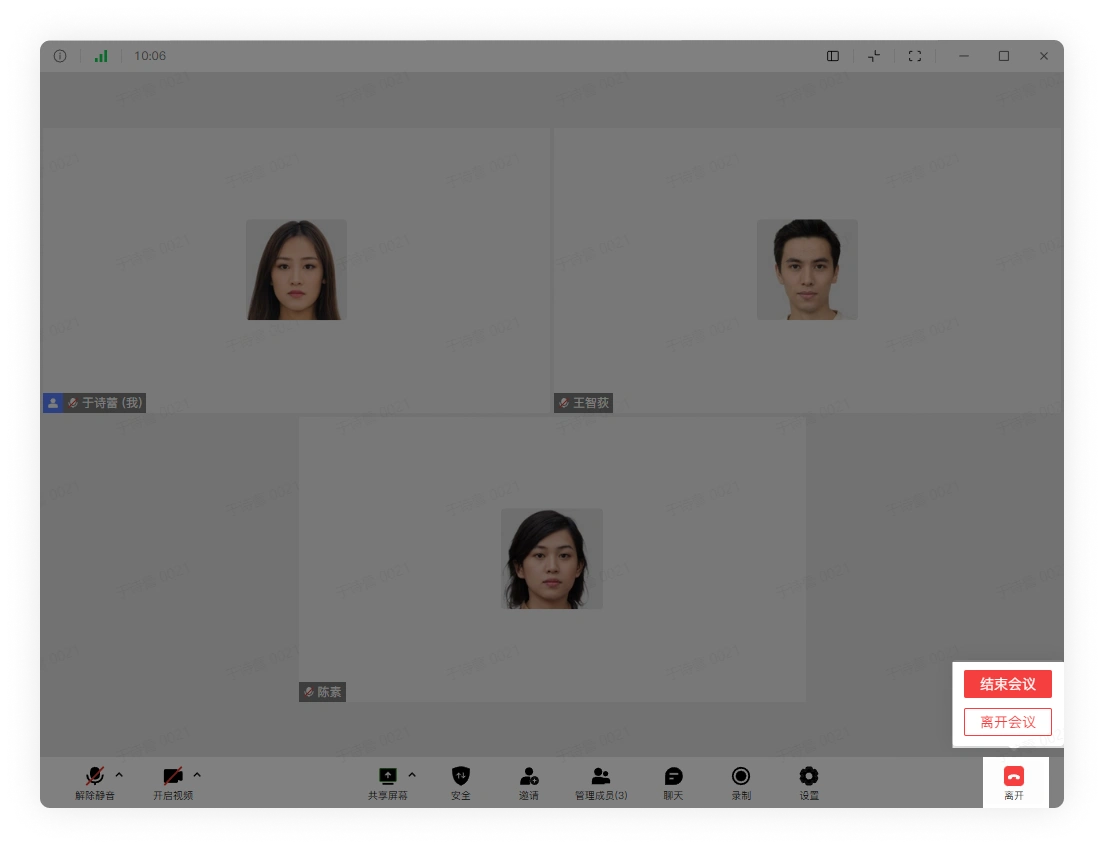
Click the Leave button in the upper right corner of the video meeting. If you click Leave Meeting, the user exits the video meeting by themselves; if you click End Meeting, all users in the meeting will exit the video meeting: