

Deploy OpenClaw Plugin
This guide walks you through deploying the OpenClaw plugin as a bot in your Feihan workspace. By the end, your team members will be able to chat with the OpenClaw bot directly from the Feihan client.
If you haven't installed Feihan Server yet, please follow the Quick Install guide first to set up your server environment.
Step 1 — Create a New App
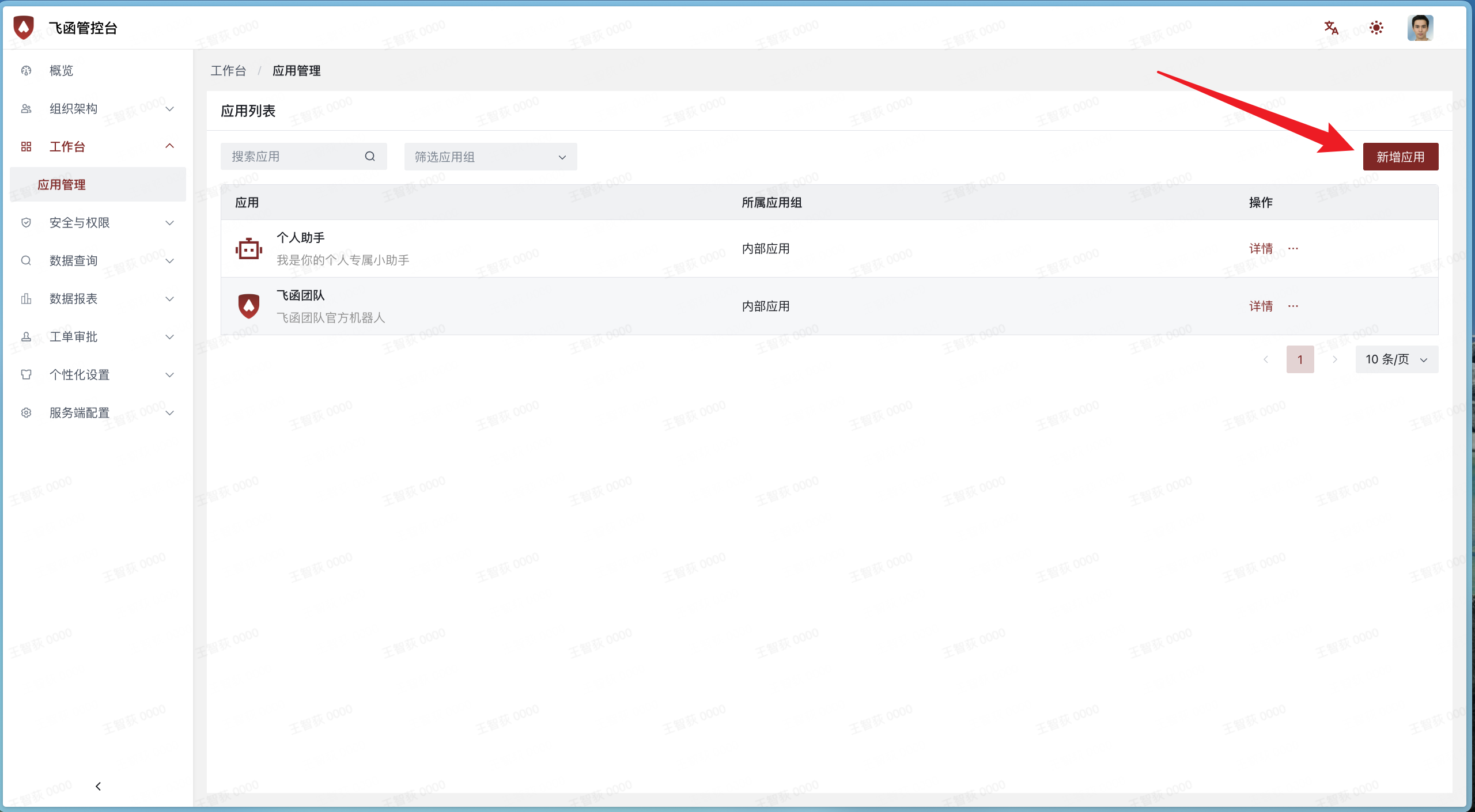
- Sign in to Feihan Admin Console and navigate to Workspace > App Management.
- Click the New App button in the upper-right corner.
Step 2 — Fill in App Information
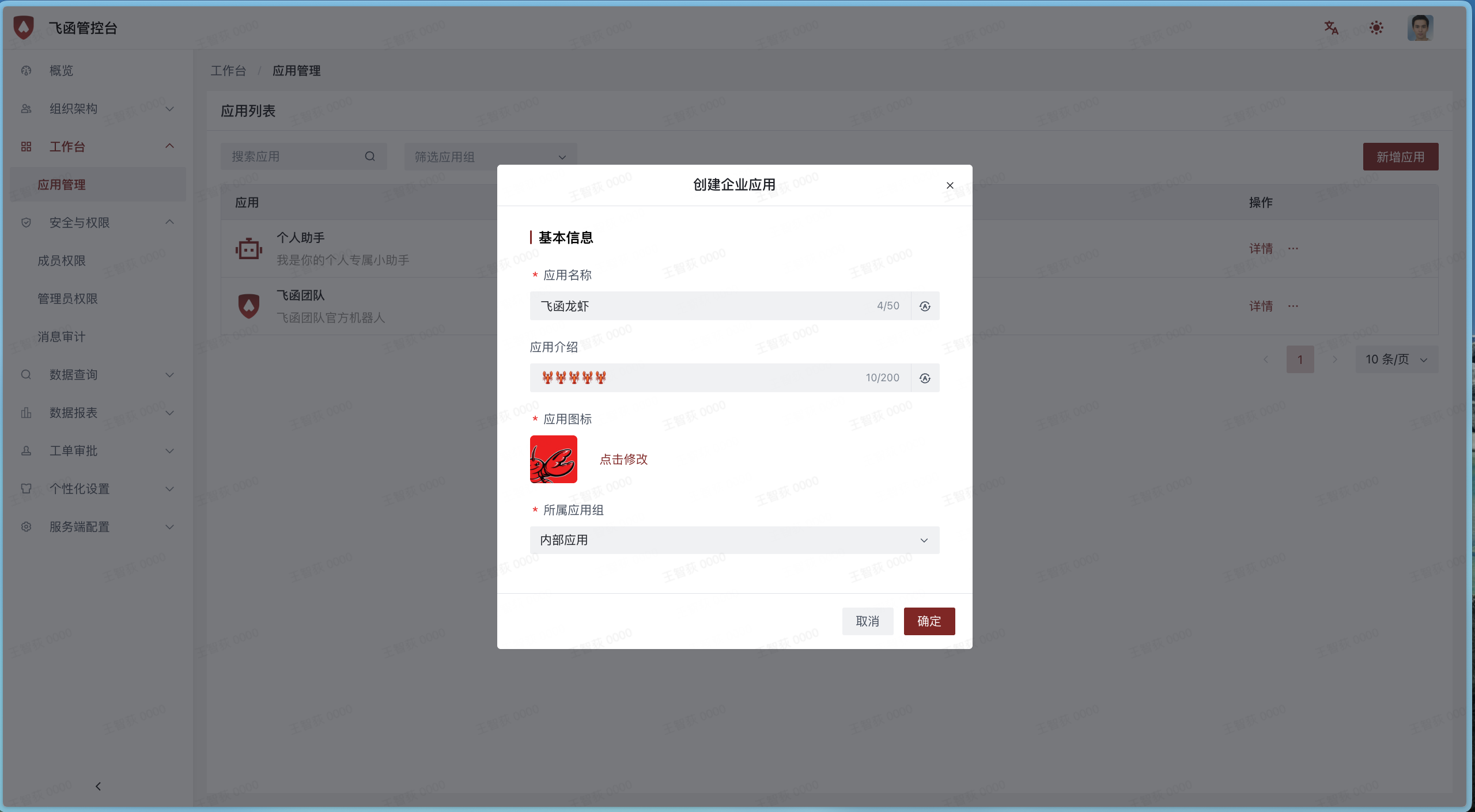
In the Create Enterprise App dialog, fill in the following fields:
Click OK to create the app.
Step 3 — Open App Details
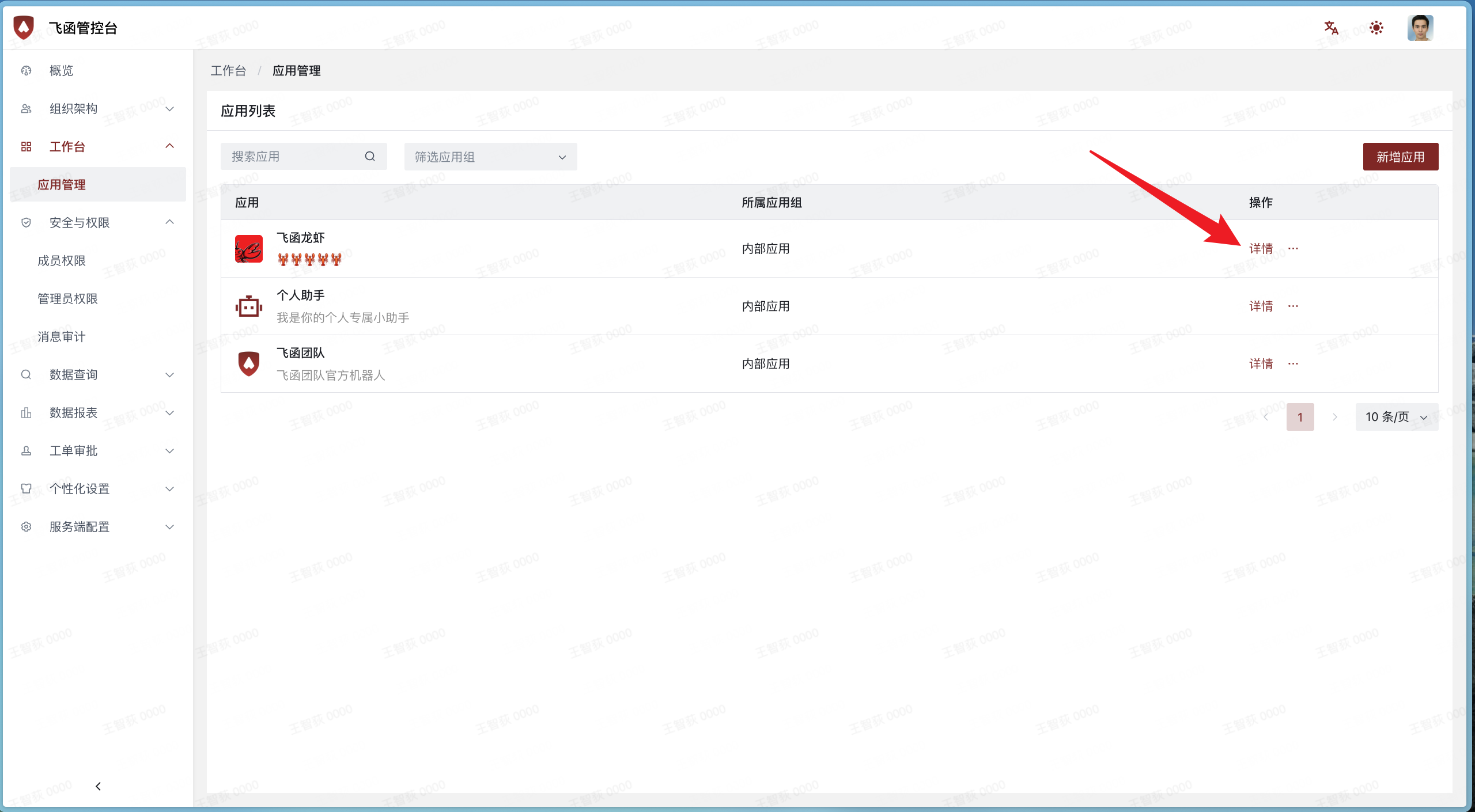
After the app is created, you will see OpenClaw in the App List. Click Details to enter the app configuration page.
Step 4 — Enable Bot Capability
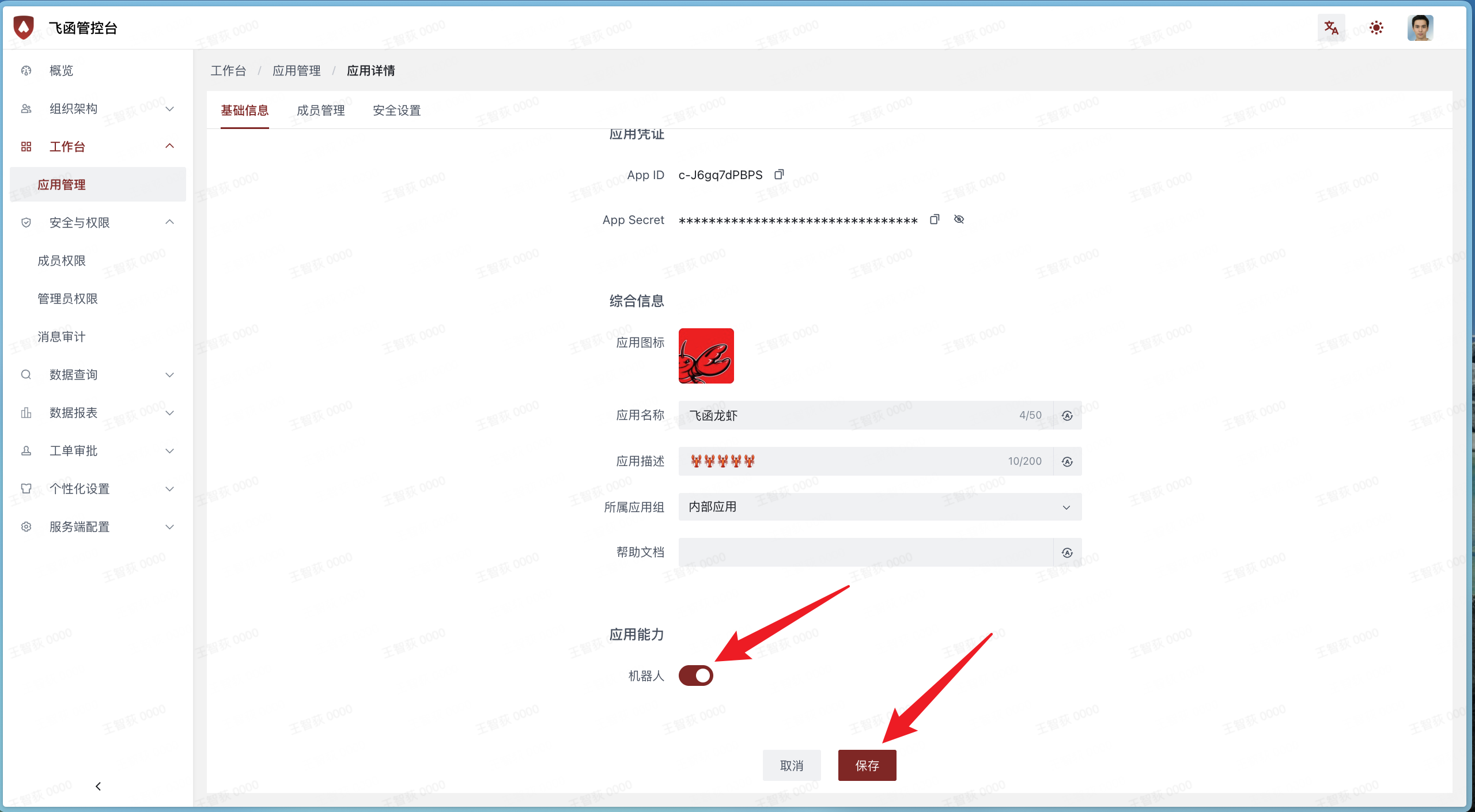
- On the App Details page, scroll down to the App Capabilities section. You will see a Bot toggle that is disabled by default.
- Click the Edit button at the bottom of the page.
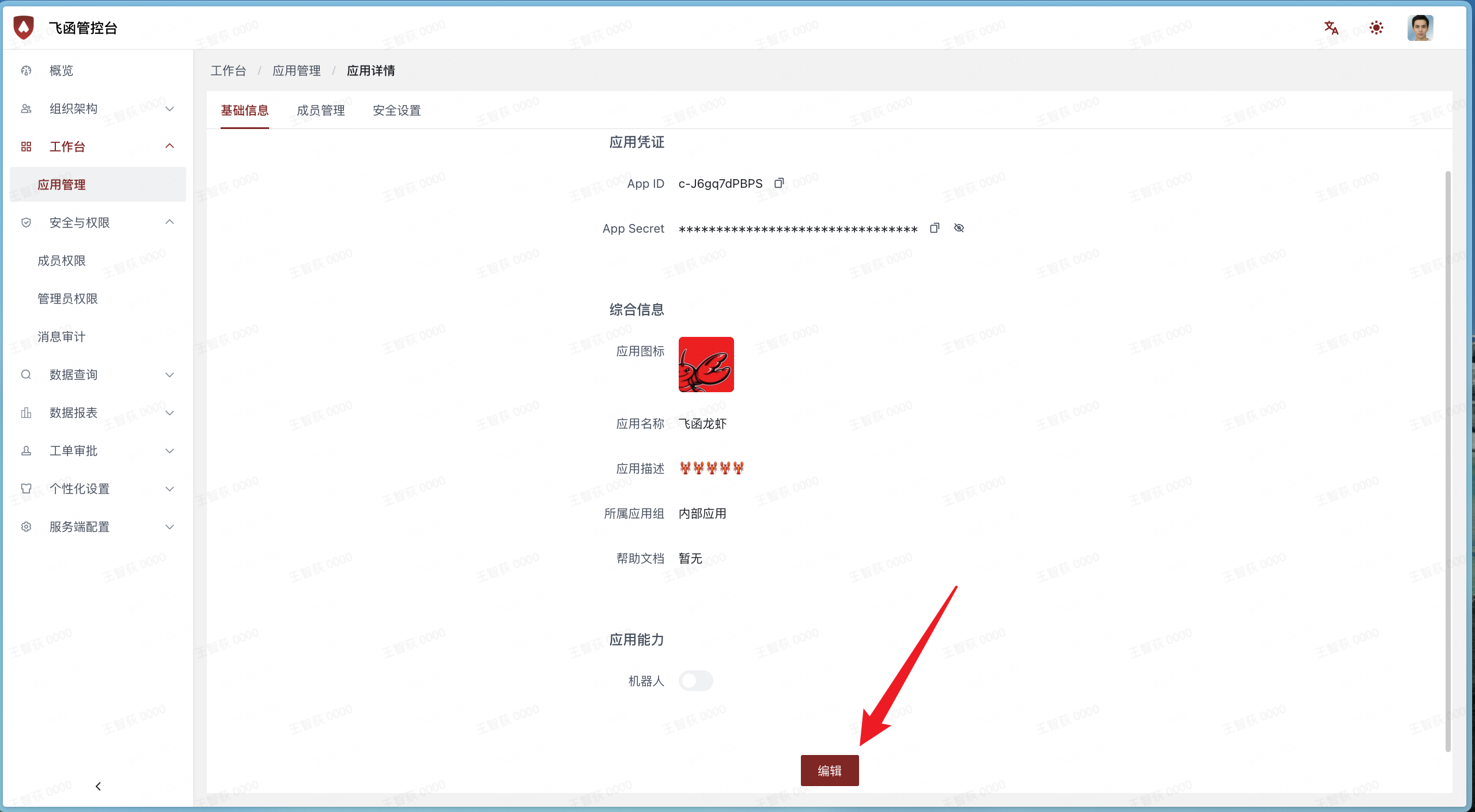
- Turn on the Bot toggle to enable bot capability for this app, then click Save.
Step 5 — Copy App Credentials
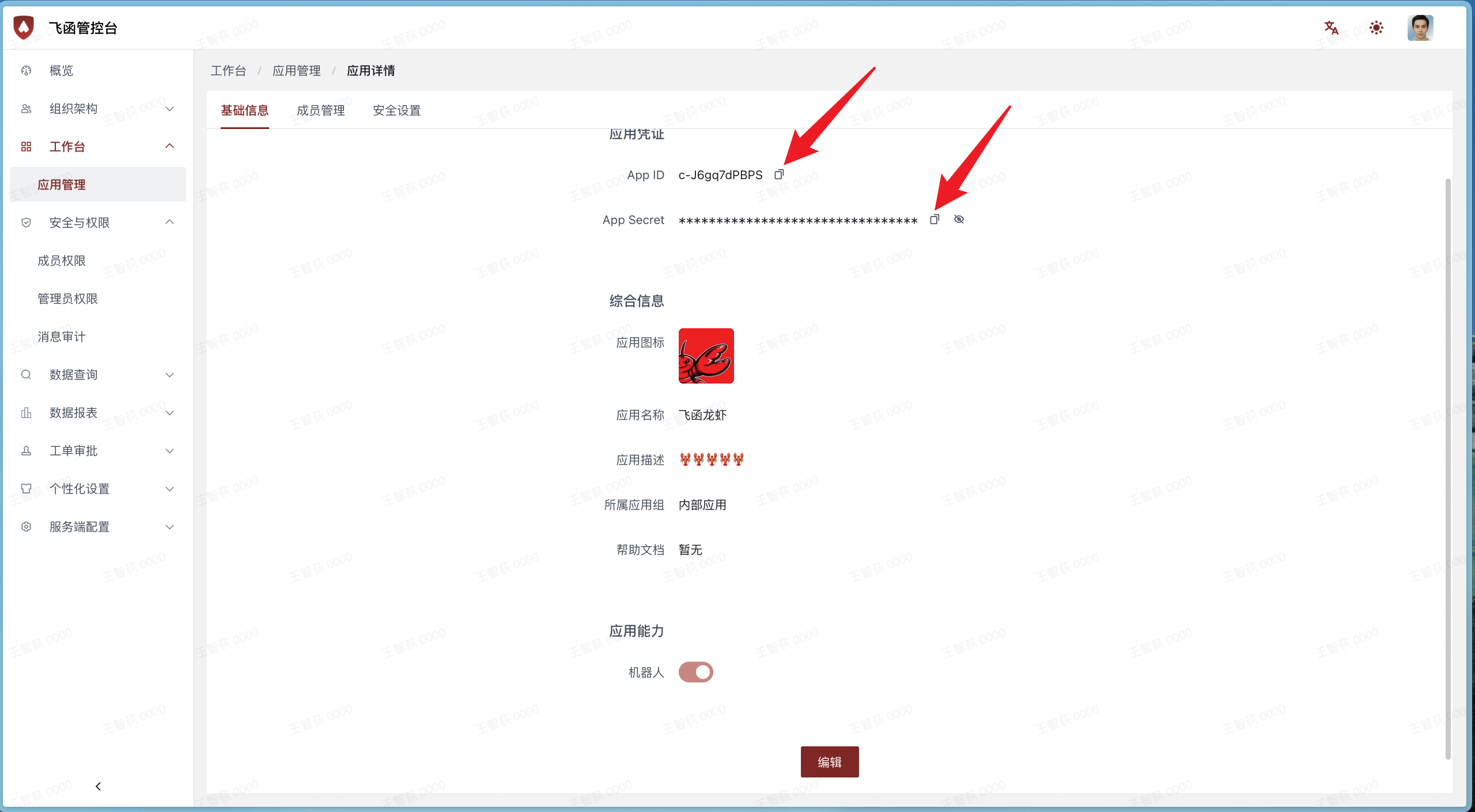
After saving, copy the App ID and App Secret from the App Credentials section at the top of the page. You will need these credentials when configuring the OpenClaw plugin.
Keep your App Secret safe. Do not share it publicly or commit it to version control.
Step 6 — Install and Configure the OpenClaw Plugin
Make sure you have OpenClaw installed on your machine before proceeding.
Install the Plugin
Open a terminal on the machine where OpenClaw is running and execute:
Configure the Channel
Run the following command, replacing the three placeholders with the values you copied in Step 5:
Managing Multiple Accounts (Optional)
Adding an Account
If you need to connect more than one Feihan bot, run the same command with an --account flag to give the new account a name:
The --account value is a custom name you choose (e.g. bot2, sales-bot) to identify this account. The first account you configured in Step 6 is automatically named default. All accounts start independently when the gateway starts.
Disabling an Account
To temporarily stop a bot account without removing its config:
To re-enable it, edit ~/.openclaw/openclaw.json and set "enabled": true on the account entry (or remove the "enabled" field — accounts are enabled by default).
Removing an Account
To permanently remove a bot account and delete its config:
After any account change (add, disable, enable, or remove), restart the gateway with openclaw gateway restart for the changes to take effect.
Restart the Gateway
After configuration, restart the gateway to apply the changes:
Advanced Configuration
To modify other settings (such as encryption or request timeout), edit ~/.openclaw/openclaw.json:
Step 7 — Verify the Bot
Once the plugin is installed, open the Feihan client, search for OpenClaw in the search bar, and you should see it appear under Contacts. Click to start a conversation and verify the bot is working correctly.
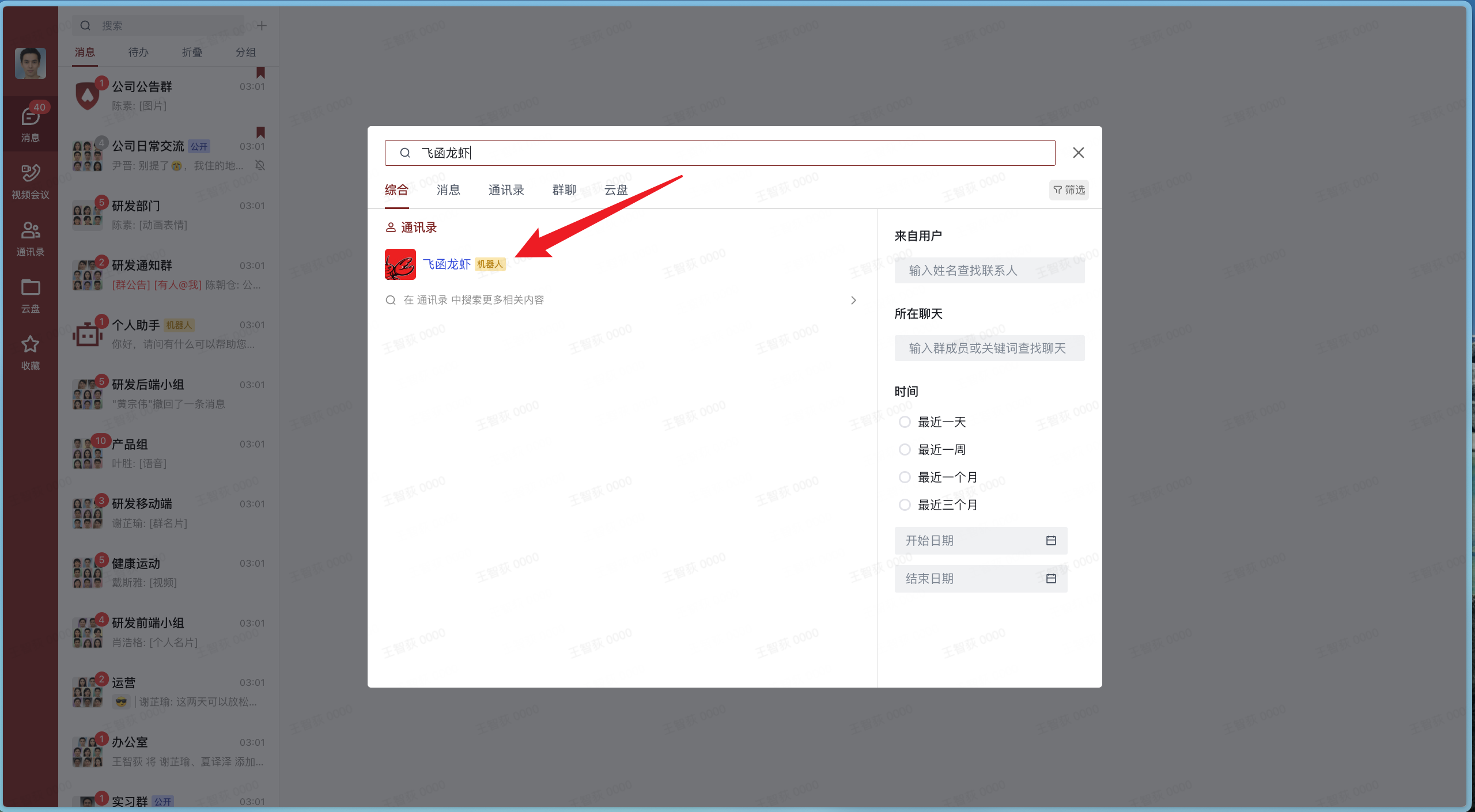
You have successfully deployed the OpenClaw plugin. Your team members can now interact with the OpenClaw bot in the Feihan client.