

Overview
This article will introduce how to use the features of the Feihan Admin Console.
Login Methods
- After configuring the server, the webpage automatically redirects, or you can manually enter http://localhost:11000/admin in the browser to go to the Admin Console interface
- After logging in to the client with the Super Admin account, click the user avatar, then click the Admin Console button to go to the Admin Console interface

Navigation Bar
- You can click the functions in the navigation bar to go to the corresponding interface
Overview Page
-
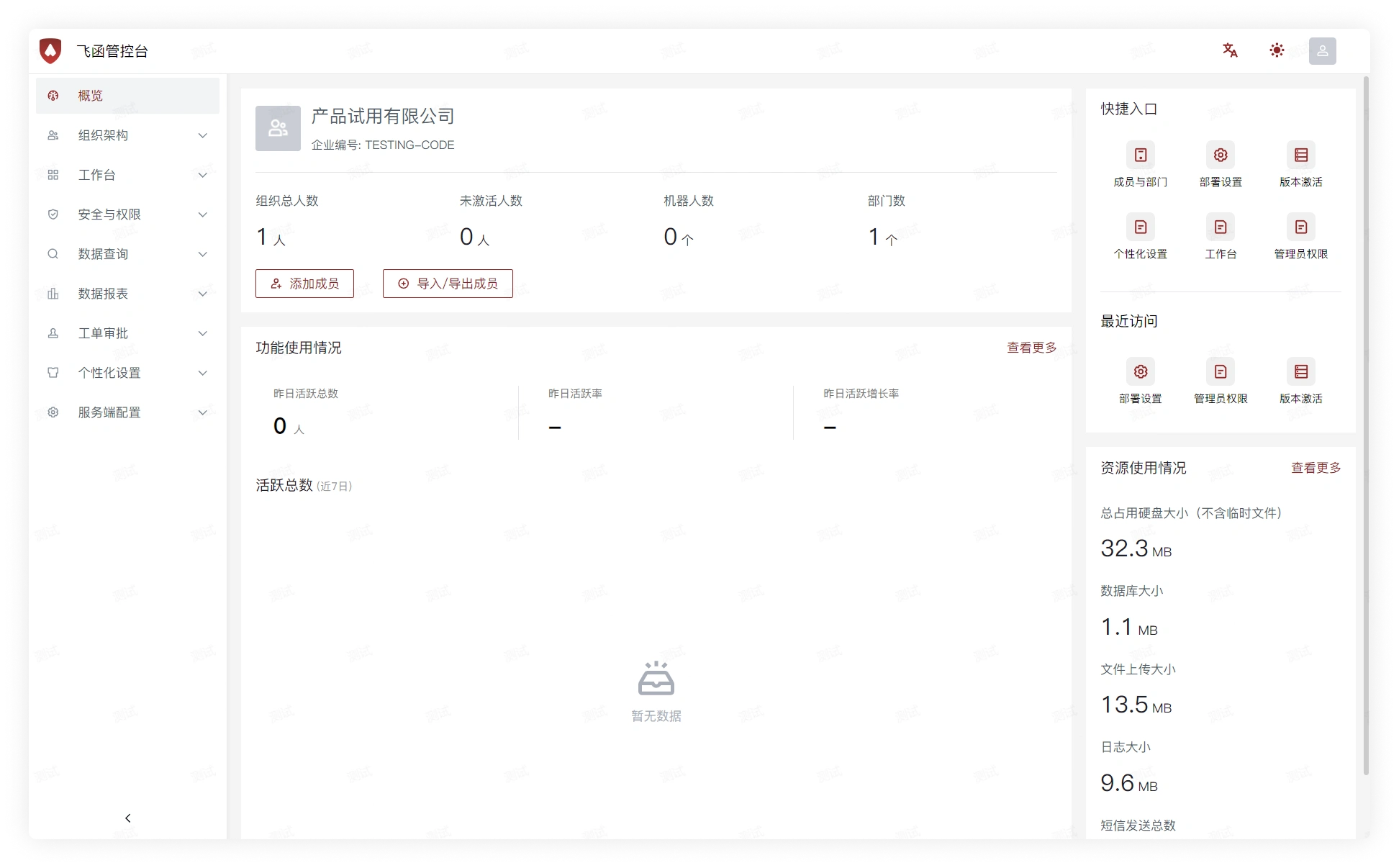
Overview: Quickly view data such as the total number of people in the organization, the number of departments, and the number of active users
You can also click the quick entry on the right to go to the corresponding functional interface
Organization
- Organization: View and manage member account status and identity information, and manage department and department group information

Workspace
- Workspace: Manage applications and set workspace-related content
Security and Permissions
- Security and Permissions: View and manage members' permissions for sending and receiving messages, administrator identities, the permission scope of admin groups, message audit, and other functions

Data Query
- Data Query: View messages in private chats and group chats, files uploaded by users, view image watermarks, and query system logs

Data Reports
- Data Reports: View statistics related to the usage data of software features

Work Order Approval
- Work Order Approval: View report approvals, modify report status, and perform specific operations on reported messages, such as changing audit status and viewing specific reported chat records

Personalization
- Personalization: View organization information, modify theme style, and other functions

Server Settings
- Server Settings: View deployment settings, version management, and version rights