

Windows - Download and Installation Guide
This article will introduce how to download and install the Feihan Windows Server.
Download and Installation
-
Visit the download page on the Feihan official website
-
In the server download options, select
Windows Server -
After the download is complete, extract the archive and open the folder
-
Open the terminal, enter the extracted folder, and run
feihan run -
After
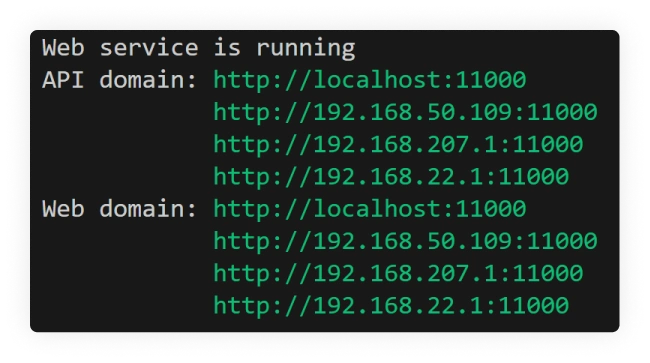
Web service is runningis displayed in the running terminal (as shown below)

Enter any one of the links shown in the terminal into the browser to perform the initial server setup
Initialize Feihan Server
- Enter the Feihan Server initialization page, select the corresponding server version, and click to upload the
License(a file with the.fhlsuffix)
Tip
License is required to run. To obtain it, please contact us
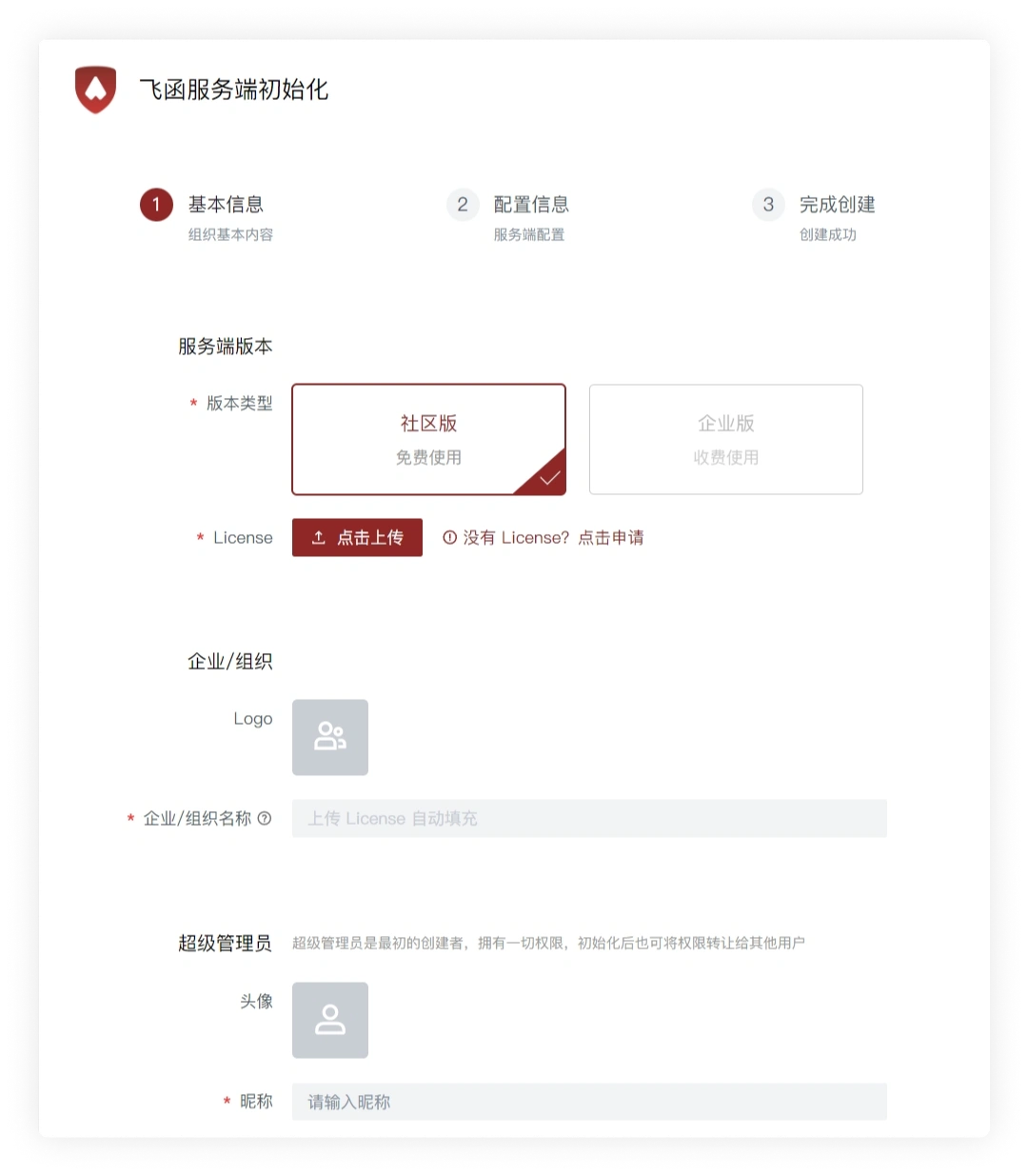
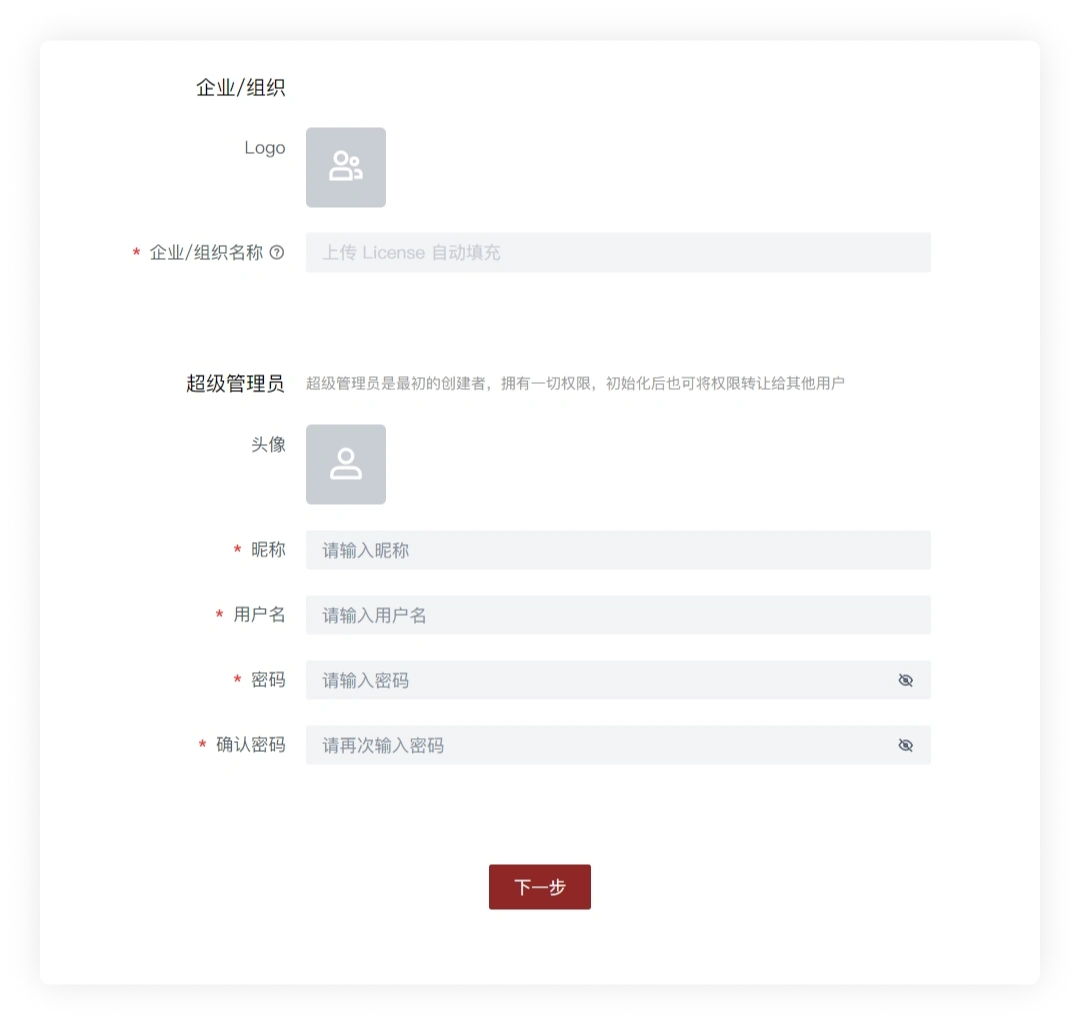
- Set the enterprise/organization avatar, Super Admin avatar, username, password, and other information, then click Next
Tip
Please remember the Super Admin username and password, which are also the username and password you use to log in to the Feihan client
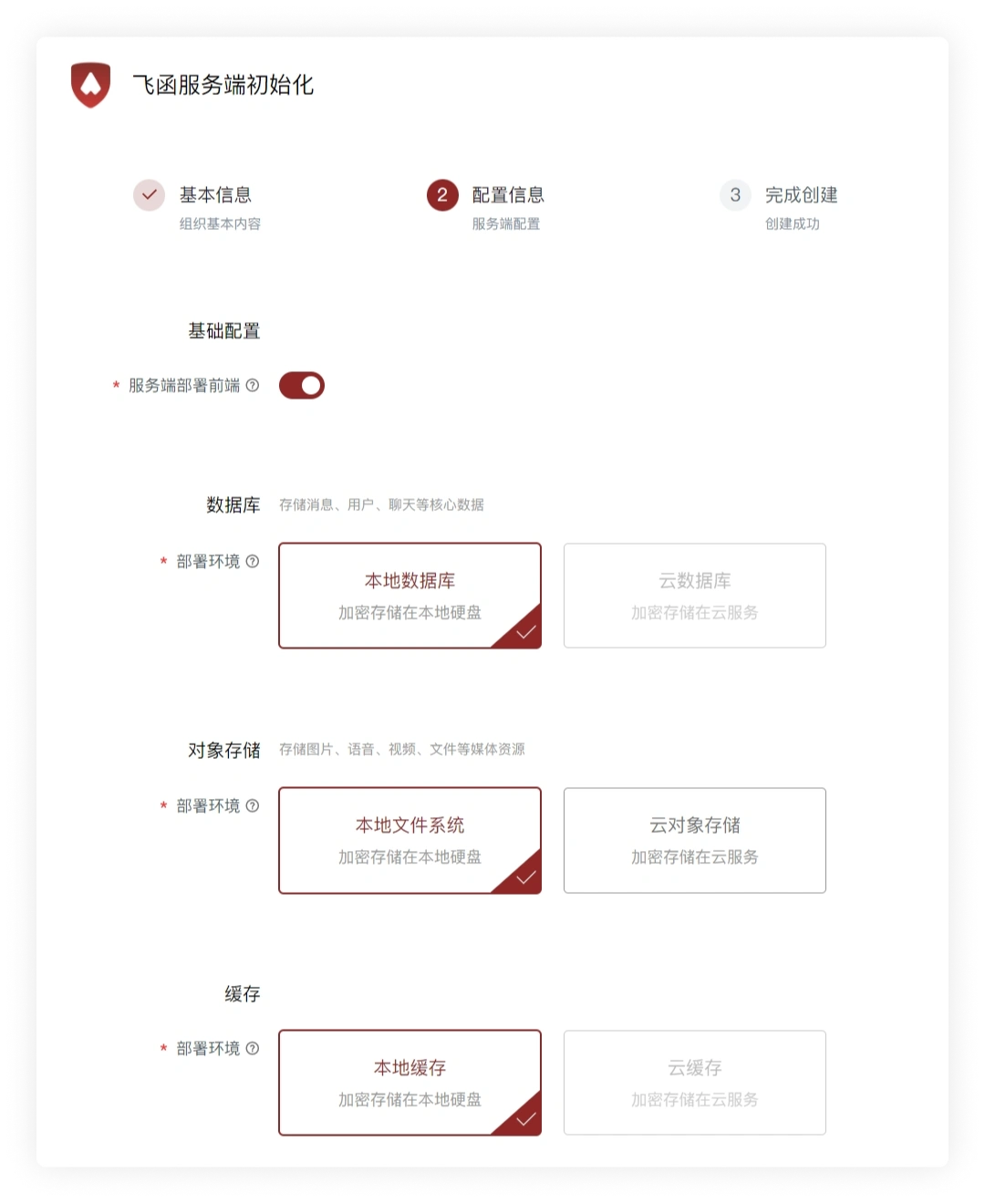
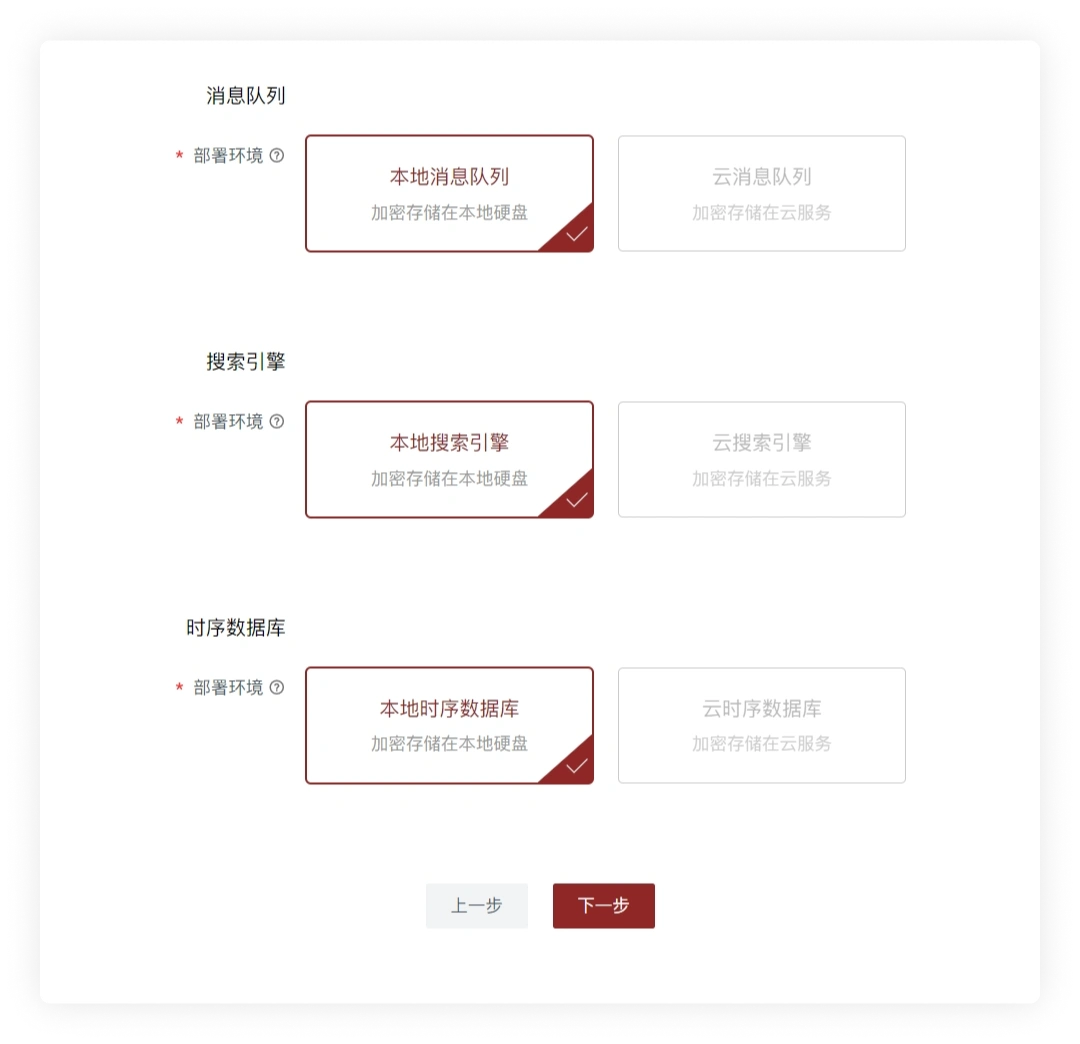
- Select the configuration information step by step and click Next (there are explanations of related terms in the question mark on the right side of the relevant professional terms)
- Wait for the server creation to complete
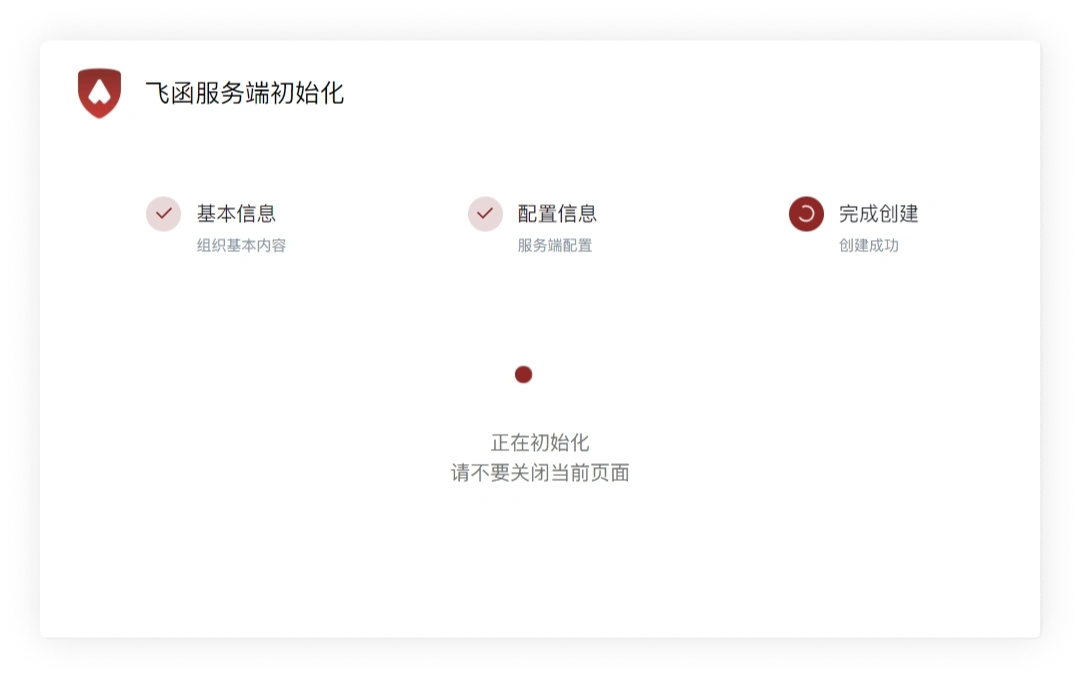
Initialization Successful
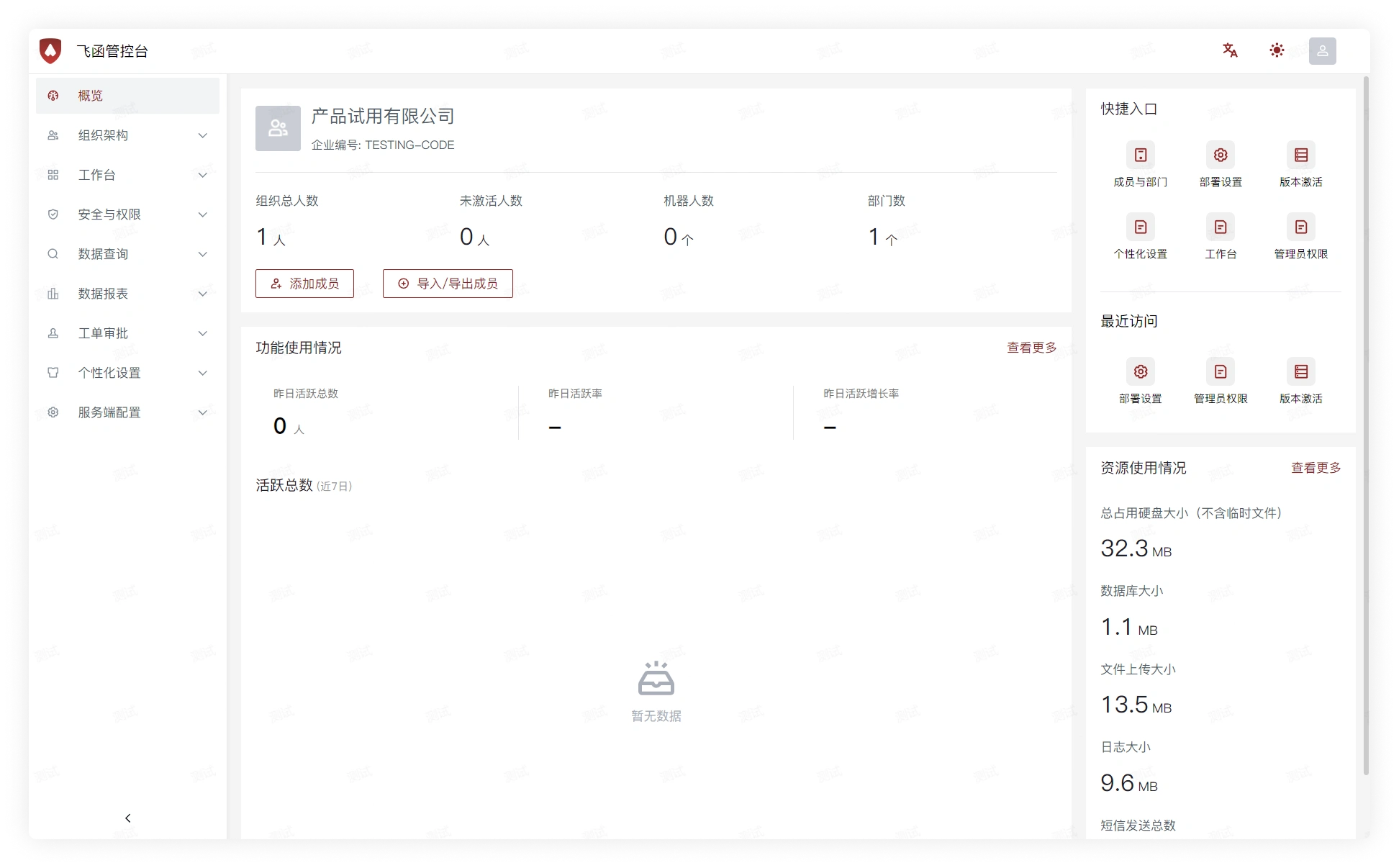
- The server is created successfully and redirects to the Feihan Admin Console
Log In to the Client
- After the Feihan Server installation is complete, click here to go to the client login guide