

Security and Permissions
Member Permissions
On this interface, permissions can be modified by checking options, including: allowing members to set contact scope, video meeting usage permissions, and drive usage permissions

Admin Permissions
Admin Groups
Admin groups assign permissions to administrator roles. Administrators can enter the Admin Console and perform operations within the permission scope
- On this interface, you can search to view and manage admin group information, transfer the Super Admin, and create admin groups

- Click Create Admin Group, enter the admin group name, and check the permissions of the admin group to successfully create a new admin group

- Click Details to view admin group members or add administrators, and view the permissions owned by the admin group

- Click Add Administrator, search for and select a member, and add them as an administrator

Account Security
Data Encryption
Message Audit
Sensitive Word Management
- On this interface, you can view sensitive word group information

- Click Create Sensitive Word Group, fill in the relevant information, upload the corresponding file, and the sensitive word group will be created successfully
Tip
File format: Each line or each cell in the file is treated as a sensitive word. (Supported file formats: xls, xlsx, csv, txt)

- Click Details to view the specific information of the sensitive word group, including the name, description, whether it is enabled, the creator, creation time, and the list of sensitive words

- On this page, you can also click to download the current sensitive word group. After clicking Edit, you can modify the sensitive word group name, description, whether it is enabled, and update the list of sensitive words through upload

Audit Logs
- On this interface, you can use filtering and search to view messages that triggered sensitive words

- After clicking Details, you can view the chat location where the sensitive word was triggered

Chat Blacklist
- On this interface, you can view and manage the chat blacklist
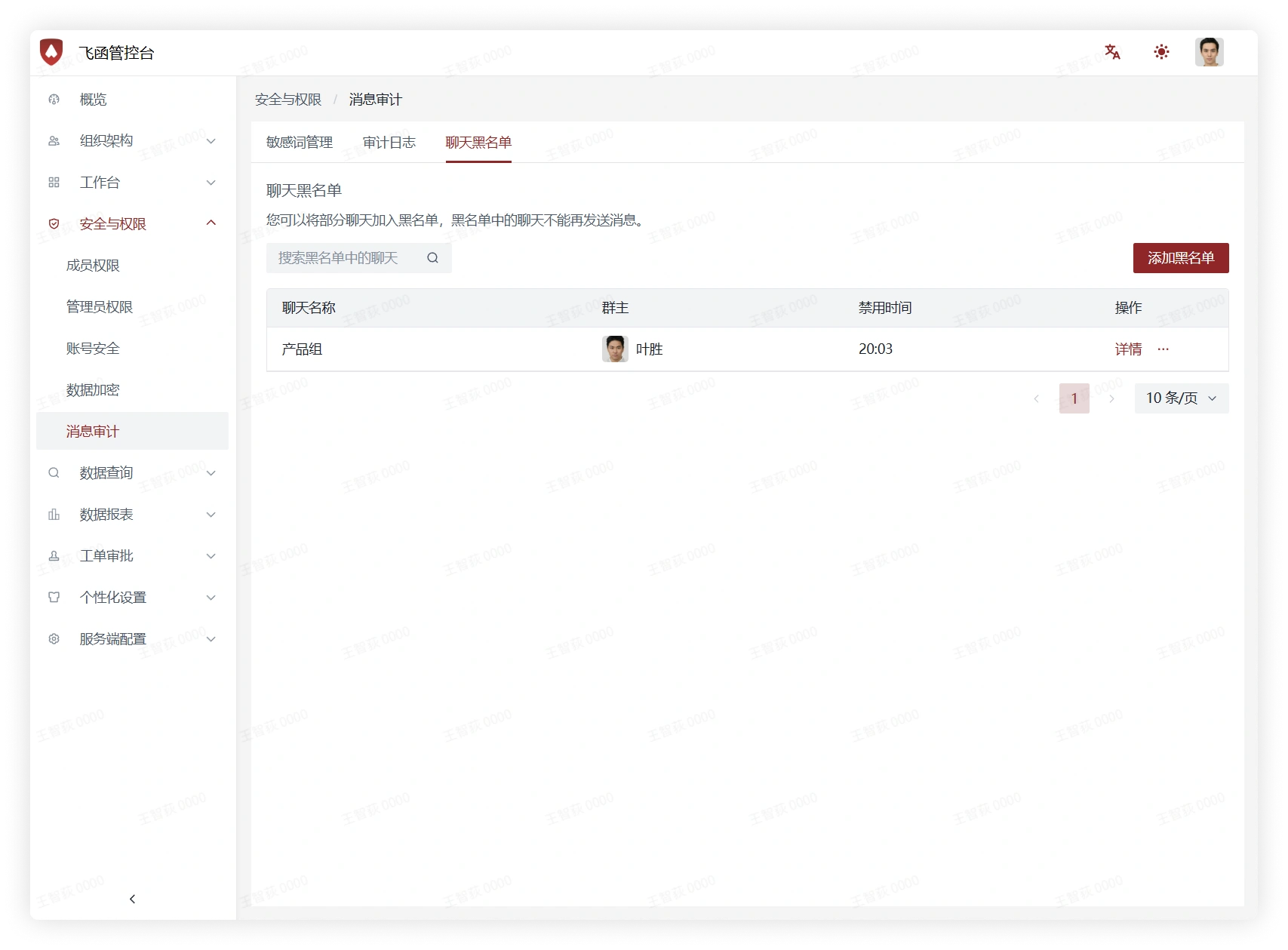
- Click Details to view the chat records of the chat; click the button on the right side of Details to choose to remove the chat from the blacklist